The Tool Desk
Outbyte PC Repair FREERepair Windows errors before they cause bigger problemsFix Now →Outbyte Driver Updater FREEFix the driver behind crashes, sound loss and screen glitchesFind Drivers →Face-based personalization is available only on certain smart displays: Google documents Face Match for Nest Hub Max, while Amazon offers Visual ID on a defined set of Echo Show models. Google requires Voice Match first; Amazon enrollment is optional and done in the display’s profile settings. These features can surface personal content, but neither should be used to authenticate someone or protect access.
Which smart displays support face recognition?
Support depends on the model, not just the presence of a camera. Google documents Face Match for Nest Hub Max. Amazon lists Visual ID for Echo Show 8 (2nd Generation or newer), Echo Show 10 (3rd Generation), Echo Show 11 (2025 release), Echo Show 15, and Echo Show 21. Other smart displays should not be assumed to support either feature.
As an Amazon Associate I earn from qualifying purchases.
Google Face Match can personalize what appears when a person approaches, such as calendar events. Amazon Visual ID can show profile-specific content including calendars, reminders, skills, and interests. Amazon describes Visual ID as opt-in: “Visual ID is an opt-in Alexa Profile feature. It isn’t on by default.”
Set up Google Face Match on Nest Hub Max
- Enable Voice Match first. Google requires Voice Match before Face Match. After completing the Voice Match flow, Google Home proceeds to Face Match.
- Use a linked phone or tablet. The device used to manage the settings must be linked to the same account as the Nest Hub Max.
- Open the Face Match settings. In the Google Home app, tap your profile menu, then Home settings. Under the Gemini for Home voice assistant experience, open Gemini for Home voice assistant and then Face Match. If your home uses the Google Assistant experience, open Google Assistant and then Face Match.
- Follow the in-app instructions. Pixel Tablet does not support Face Match setup or management. Google also notes setup issues may occur on Pixel 8 or later phones; its support guidance suggests trying an older Android device.
Google’s support page is specifically for Nest Hub Max. It does not provide a comparable lighting or face-angle calibration checklist, so do not assume that Amazon’s troubleshooting steps apply to Google displays.
#1 Best Overall
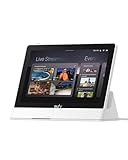
- 𝐈𝐧𝐬𝐭𝐚𝐧𝐭 𝐇𝐚𝐧𝐝𝐬-𝐅𝐫𝐞𝐞 𝐃𝐨𝐨𝐫 𝐀𝐥𝐞𝐫𝐭𝐬: When someone rings the doorbell, unlocks the door, or is detected by the camera, the display automatically lights up with a live feed and a voice alert. Know who's there instantly, hands-free.
- 𝐒𝐞𝐞 𝐄𝐯𝐞𝐫𝐲𝐭𝐡𝐢𝐧𝐠 𝐰𝐢𝐭𝐡 𝐅𝐨𝐮𝐫 𝐕𝐢𝐞𝐰𝐬 𝐨𝐧 𝐎𝐧𝐞 𝐒𝐜𝐫𝐞𝐞𝐧: View your entire property at a glance through four simultaneous live feeds while maintaining full control and near-instant access to live video streams. The moment something happens, you're instantly in the know.
- 𝐈𝐧𝐬𝐭𝐚𝐧𝐭 𝐏𝐥𝐚𝐲𝐛𝐚𝐜𝐤, 𝐍𝐨 𝐖𝐚𝐢𝐭𝐢𝐧𝐠, 𝐍𝐨 𝐁𝐮𝐟𝐟𝐞𝐫𝐢𝐧𝐠: Historical events are automatically downloaded to local storage so you can replay past moments instantly—no delays, no buffering.
- 𝐒𝐦𝐚𝐫𝐭 𝐃𝐚𝐢𝐥𝐲 𝐑𝐞𝐩𝐨𝐫𝐭𝐬 𝐰𝐢𝐭𝐡 𝐊𝐞𝐲 𝐒𝐞𝐜𝐮𝐫𝐢𝐭𝐲 𝐄𝐯𝐞𝐧𝐭𝐬: Using advanced facial and package recognition (powered by HomeBase 3), the display intelligently compiles daily summaries, including stats and video recordings for quick insights.
- 𝐌𝐨𝐧𝐢𝐭𝐨𝐫 𝐄𝐯𝐞𝐫𝐲𝐭𝐡𝐢𝐧𝐠, 𝐀𝐧𝐲𝐭𝐢𝐦𝐞, 𝐀𝐧𝐲𝐰𝐡𝐞𝐫𝐞: The user-friendly 8-inch touchscreen is simple enough for kids and seniors, ensuring ease of use for everyone. Designed for flexible monitoring wherever you need it.
Set up Amazon Visual ID on a compatible Echo Show
- Open device Settings. On original Alexa, swipe down from the top of the screen to reach settings; Amazon gives a different route for Alexa+.
- Go to the profile controls. Open Accounts & Profiles, then Your Profile & Family, and choose Visual ID.
- Enroll. Select Agree & Continue and follow the on-screen steps. Household members can enroll separately.
Menu labels can vary on Echo Hub and Echo Show 5 models, according to Amazon. Those devices are not among the compatible Visual ID models listed in Amazon’s compatibility information.
Visual ID needs an available camera. It will not work if the camera is disabled, the shutter is closed, or the camera/microphone disable button has been pressed.
Rank #2

- Alexa can show you more - Echo Show 5 includes a 5.5” display so you can see news and weather at a glance, make video calls, view compatible cameras, stream music and shows, and more.
- Small size, bigger sound – Stream your favorite music, shows, podcasts, and more from providers like Amazon Music, Spotify, and Prime Video—now with deeper bass and clearer vocals. Includes a 5.5" display so you can view shows, song titles, and more at a glance.
- Keep your home comfortable – Control compatible smart devices like lights and thermostats, even while you're away.
- See more with the built-in camera – Check in on your family, pets, and more using the built-in camera. Drop in on your home when you're out or view the front door from your Echo Show 5 with compatible video doorbells.
- See your photos on display – When not in use, set the background to a rotating slideshow of your favorite photos. Invite family and friends to share photos to your Echo Show. Prime members also get unlimited cloud photo storage.
Improve Echo Show recognition when Visual ID misses you
Amazon’s troubleshooting guidance focuses on setup and the camera’s view. Check these in order:
Free tools Windows power users keep installed
One-click scans. No signup required.
- Confirm that you enrolled. Make sure your Visual ID profile was created successfully.
- Check camera availability. Enable the camera, open the shutter, and verify that the camera/microphone disable control has not been pressed.
- Turn off Do Not Disturb. Amazon includes this as a condition to check when Visual ID is not recognizing you.
- Face the display clearly. Keep your face in view; avoid standing sideways or blocking your face.
- Improve the lighting. If the room is too dark, try again in brighter conditions.
- Re-enroll if your appearance has changed. Delete the existing Visual ID and create a new one. If the other checks do not help, Amazon’s guidance is to delete and enroll again.
These are Amazon’s support recommendations, not published accuracy measurements. Amazon and Google’s cited support pages do not establish a recognition-accuracy percentage.
Rank #3

- Alexa can show you more - Echo Show 5 includes a 5.5” display so you can see news and weather at a glance, make video calls, view compatible cameras, stream music and shows, and more.
- Small size, bigger sound – Stream your favorite music, shows, podcasts, and more from providers like Amazon Music, Spotify, and Prime Video—now with deeper bass and clearer vocals. Includes a 5.5" display so you can view shows, song titles, and more at a glance.
- Keep your home comfortable – Control compatible smart devices like lights and thermostats, even while you're away.
- See more with the built-in camera – Check in on your family, pets, and more using the built-in camera. Drop in on your home when you're out or view the front door from your Echo Show 5 with compatible video doorbells.
- See your photos on display – When not in use, set the background to a rotating slideshow of your favorite photos. Invite family and friends to share photos to your Echo Show. Prime members also get unlimited cloud photo storage.
What to check when Google Face Match stops working
- Check Voice Match. It is a prerequisite, and turning Voice Match off also disables Face Match.
- Check camera sensing. Face Match needs camera sensing enabled. If sensing is disabled, the feature pauses.
- Review setup in Google Home. Confirm Face Match remains enabled for the home and device, and follow the app’s setup flow if enrollment needs attention.
Google’s reviewed Face Match instructions do not specify lighting or angle adjustments, so there is no documented Google-specific calibration routine to add to these checks.
Independent reader supportYour contribution helps us test, update, and keep practical guides available for everyone.Understand the privacy and security controls
Google Face Match: model, enrollment images, and sensing
Google distinguishes the face model on the display from the images used to create it. Turning Face Match off for a device removes that device’s face model; removing Face Match from the home removes models across devices. Neither action by itself deletes the enrollment images, which have a separate removal path in Google’s controls. Disabling camera sensing turns Face Match off while leaving the model on Nest Hub Max, so it can resume if sensing is enabled again.
Rank #4

- Alexa can show you more - Echo Show 5 includes a 5.5” display so you can see news and weather at a glance, make video calls, view compatible cameras, stream music and shows, and more.
- Small size, bigger sound – Stream your favorite music, shows, podcasts, and more from providers like Amazon Music, Spotify, and Prime Video—now with deeper bass and clearer vocals. Includes a 5.5" display so you can view shows, song titles, and more at a glance.
- Keep your home comfortable – Control compatible smart devices like lights and thermostats, even while you're away.
- See more with the built-in camera – Check in on your family, pets, and more using the built-in camera. Drop in on your home when you're out or view the front door from your Echo Show 5 with compatible video doorbells.
- See your photos on display – When not in use, set the background to a rotating slideshow of your favorite photos. Invite family and friends to share photos to your Echo Show. Prime members also get unlimited cloud photo storage.
Google warns: “Your Google Nest Hub Max’s Face Match is not a security feature.” It says the display may fail to distinguish you from a photograph or may mistake a very similar-looking household member for you. Treat Face Match as a convenience for personalization, not as identity verification.
Amazon Visual ID: opt-in enrollment and temporary disablement
Amazon says Visual ID can be deleted on the Echo Show or in the Alexa app. Turning off the camera and microphones using the device control temporarily disables the feature; Visual ID needs the camera to be available to work.
Best Value

- MEET ECHO SHOW 15 - A stunning 15.6" Full-HD (1080p) smart display that's perfect for your kitchen and ready to show you more. Use customizable widgets to keep your day on track, watch your favorite shows with Fire TV and powerful vibrant sound, and enjoy natural video calling, with 3.3x zoom and wide field of view.
- FAMILY ORGANIZATION HUB - See your top widgets at a glance, like your family’s calendars and to-do lists, local weather, smart home, and more.
- ALL YOUR FAVORITES, ALL RIGHT HERE - Built-in Fire TV unlocks endless entertainment, so you can enjoy your favorite content from thousands of apps like Prime Video, Netflix, YouTube, Apple TV, and more (subscription may be required). Fire TV remote included. Plus, now you can quickly add a device to play music with Active Media - start playing a song in the kitchen, then add the living room and bedroom on the fly.
- SMART HOME CENTRAL - Control smart devices with your voice or a few taps using the smart home dashboard. Easily turn on all your living room lights at once or check live camera feeds to see what's happening around your home.
- YOUR FAVORITE MEMORIES ON DISPLAY - Brighten your space (and your day) by turning your home screen into a photo slideshow that displays your favorite memories. Auto curate your images and show off your favorite family memories.
Do not confuse display personalization with camera familiar-face detection
Google Nest camera and doorbell familiar-face detection is a separate feature, not a way to configure Face Match on a display. Google says familiar-face detection on compatible cameras and doorbells requires Google Home Premium, is unavailable for cameras based in Illinois, and may require consent depending on local law. Google advises checking applicable privacy laws and obtaining permission where required before saving face data. Those camera-specific requirements should not be transferred automatically to Nest Hub Max Face Match.
Quick Recap
Compare Google Face Match and Amazon Visual ID
| Feature | Google Face Match | Amazon Visual ID |
|---|---|---|
| Supported display | Nest Hub Max (Google Home and Nest Help, “Set up Face Match on Google Nest Hub Max”) | Echo Show 8 (2nd Generation or newer), Echo Show 10 (3rd Generation), Echo Show 11 (2025 release), Echo Show 15, and Echo Show 21 (Amazon Customer Service, “What Is Visual ID on Echo Show?”) |
| Enrollment | Voice Match first; then follow Face Match setup in Google Home | On device: Settings > Accounts & Profiles > Your Profile & Family > Visual ID |
| Camera controls | Camera sensing must be enabled for Face Match to run | Camera must be enabled and shutter open; the camera/microphone disable control turns it off |
| Published troubleshooting | Check Voice Match, camera sensing, and the app’s setup flow; no lighting or angle checklist is stated in the reviewed setup instructions | Check enrollment, camera and shutter, Do Not Disturb, clear face view, lighting, and re-enrollment if appearance changed |
| Deletion and privacy | Device or home Face Match controls remove face models; enrollment images have a separate removal control | Delete Visual ID on device or in Alexa app; camera and microphone controls temporarily disable it |
Official setup and troubleshooting guides
- Google Home and Nest Help: Set up Face Match on Google Nest Hub Max
- Amazon Customer Service: What Is Visual ID on Echo Show?
- Amazon Customer Service: Set Up Visual ID
- Amazon Customer Service: Visual ID troubleshooting
- Google Home and Nest Help: Familiar face detection
Product prices and availability are accurate as of the date/time indicated and are subject to change. Any price and availability information displayed on Amazon at the time of purchase will apply.




