What’s actually slowing this PC down?
Pick the symptom - the matching free tool is one click away.
To set up an Amazon Alexa Tablet, turn it on, choose a language, connect it to Wi‑Fi, and sign in to the accounts for the services you want. You can copy settings from an Android device with a QR code, transfer settings from an iPhone or iPad with a USB‑C cable, or skip the transfer and enter your Wi‑Fi details yourself.
These instructions apply to Amazon’s Alexa Tablet product. An Echo Show is a different device with a separate setup procedure, so confirm which device you are holding before you begin.
As an Amazon Associate I earn from qualifying purchases.
What to have ready
Gather the following before pressing the power button:
Quick wins for a faster PC:
Clear out junk files and repair common Windows errorsFree Scan →Fix the driver behind crashes, sound loss and screen glitchesFind Drivers →- Your Alexa Tablet and the USB‑C cable supplied in its box.
- An Amazon account email address and password.
- Your Wi‑Fi network name and password.
- A Google account, if you want Google Play or other Google services.
- An Android phone or tablet if you plan to transfer settings by QR code.
- An iPhone or iPad and a USB‑C cable if you plan to transfer settings from Apple hardware.
Amazon says the tablet package does not include a charger. Most USB power adapters with a USB Type‑C plug can power the tablet, so use a suitable adapter if the battery needs charging or you do not already have one. The included cable is useful for charging and, when supported by the setup prompt, connecting an Apple device for transfer. A charger is not a separate setup requirement if you already own a compatible USB Type‑C power adapter.
#1 Best Overall

- Powerful performance, all-day battery: Fast and fluid for split-screen multitasking, graphic-intensive gaming, and 4K streaming. 8-core chip with 8GB RAM/128GB storage or 16GB RAM/256GB storage. Up to 16 hours of video playback, quad speakers and Dolby Atmos, Wi-Fi 6E, 13MP rear camera, and 8MP front camera.
- Feels as good as it looks: Thin, light, and durable aluminum unibody design.
- New 2.8K Nanomatte display: Watch, read, and create with anti-glare brilliance. Smooth 120Hz scrolling. 3:2 aspect ratio for entertainment and multitasking.
- Over a million apps on Google Play: From social media and streaming to fitness, finance, and gaming, find the apps you already love and discover new ones. Subscriptions may be required.
- Seamless and personalized: Amazon apps—Prime Video, Kindle, Audible, Amazon Music, Amazon Luna—are built-in and sync across devices with single sign-on and personalized content.
Have the Wi‑Fi password available in its exact form. Network names and passwords can contain capital letters, punctuation, and numbers, and a single incorrect character can prevent the tablet from joining. If another device is available, keep it nearby so you can read the network details without leaving the setup screen.
You do not need a keyboard, pen, or book cover to complete setup. Amazon lists those as compatible accessories for the Alexa Tablet 12 Pro, not as prerequisites. Treat them as optional purchases, and verify compatibility with the exact model before ordering. The same applies to a replacement power adapter: choose a USB Type‑C adapter suitable for the tablet rather than assuming every charger has the same connector or output.
First, make sure it is an Alexa Tablet
The setup flow below is for Amazon’s tablet line. It is not the setup flow for an Echo Show, which is an Alexa-enabled screen device with its own instructions and menus. If the hardware has a tablet form factor and the Alexa Tablet software, continue here; if it is an Echo Show, use Amazon’s Echo Show setup guidance instead.
Do these 3 things before closing this tab:
1Scan for outdated or missing drivers - takes under a minute2Repair Windows errors before they cause bigger problems3Fix the driver behind crashes, sound loss and screen glitchesThis distinction matters because labels, account prompts, and the order of steps are not guaranteed to match between the two product families. Do not apply an Echo Show instruction simply because both products use Alexa. Identify the product shown on the packaging or on the device before troubleshooting a screen that does not match this guide.
Choose how to configure the tablet
After you tap Get Started, the tablet offers three practical routes. The choice affects how much information you type, not the basic result.
| Setup route | What you do | Best when |
|---|---|---|
| Android transfer | Choose Android device and scan the on-screen QR code with the Android device. | You want to transfer Wi‑Fi details, accounts, and settings with fewer manual entries. |
| iPhone or iPad transfer | Choose the iPhone or iPad option and connect the devices with a USB‑C cable. | You want to transfer Wi‑Fi and other available settings from Apple hardware. |
| Manual setup | Choose Skip, select your Wi‑Fi network, and type its password. | You do not have another device available or prefer to configure each item yourself. |
Transferring settings is optional. If you skip it, the tablet can still be configured by entering the network information and signing in to the accounts you choose. Manual setup is also a sensible choice when the old device contains settings you do not want to copy or when you want to decide individually which accounts to add.
The transfer routes are not interchangeable. Select Android device only when the source is an Android phone or tablet. Select the Apple option for an iPhone or iPad and use the cable requested on screen. If you choose the wrong route, back out to the device-selection screen instead of repeatedly trying to scan or connect a cable that the tablet is not expecting.
Crashes, No Sound, or Screen Glitches?
Random freezes, missing sound and display glitches usually trace back to one bad driver. Find and replace yours safely.Free scan · under a minutePC Slower Than It Used to Be?
A free scan shows the junk files, broken settings and background clutter dragging Windows down - then fixes them in one click.Free scan · Windows 10 & 11Set up the tablet step by step
1. Turn it on
Press and hold the Power button on the tablet’s top edge for about three seconds. Release it when the screen lights up. If nothing appears, connect the tablet to power and try again; charging is the first check when a new device will not start.
Use the supplied USB‑C cable with a compatible USB Type‑C power adapter. Leave a deeply discharged tablet connected for a while before deciding that the power button has failed. If the display remains blank after charging and another power-on attempt, use the restart guidance in the troubleshooting section rather than repeatedly pressing the button.
2. Select a language
Choose the language you want the tablet to use for menus and setup prompts. Read the selection carefully before continuing because every subsequent screen is presented in that language. If the wording later looks unfamiliar, check the language choice before assuming that a setup option is missing.
Rank #2
- Powerful performance, all-day battery: Fast and fluid for split-screen multitasking, graphic-intensive gaming, and 4K streaming. 8-core chip with 8GB RAM/128GB storage or 16GB RAM/256GB storage. Up to 16 hours of video playback, quad speakers and Dolby Atmos, Wi-Fi 6E, 13MP rear camera, and 8MP front camera.
- Feels as good as it looks: Thin, light, and durable aluminum unibody design.
- New 2.8K Nanomatte display: Watch, read, and create with anti-glare brilliance. Smooth 120Hz scrolling. 3:2 aspect ratio for entertainment and multitasking.
- Over a million apps on Google Play: From social media and streaming to fitness, finance, and gaming, find the apps you already love and discover new ones. Subscriptions may be required.
- Seamless and personalized: Amazon apps—Prime Video, Kindle, Audible, Amazon Music, Amazon Luna—are built-in and sync across devices with single sign-on and personalized content.
3. Configure accessibility if needed
Open Accessibility during onboarding if you need a screen reader or larger interface elements. Amazon exposes TalkBack, Magnification, and Display Size options at this point. Configure only what you need; these settings can be adjusted later through the tablet’s settings.
Free tools Windows power users keep installed
One-click scans. No signup required.
Accessibility is optional, so you can continue without changing these controls. If you are setting up the tablet for someone else, configure the options that make the screen usable for that person before continuing through account and Wi‑Fi prompts. Avoid changing several display options at once if you need to identify which one improved readability.
4. Start onboarding
Tap Get Started. The tablet then asks whether you want to use another device or continue without transferring settings. Read this screen before selecting an option: it determines whether the next step displays a QR code, requests a cable connection, or opens the manual network list.
5. Transfer settings or connect manually
Choose the path that matches the device you have:
- Android: select Android device. Follow the prompt to scan the QR code shown on the Alexa Tablet. The transfer can bring over Wi‑Fi details, accounts, and settings.
- iPhone or iPad: select the Apple-device option. Connect the devices with a USB‑C cable and follow the on-screen transfer prompts for Wi‑Fi and other settings.
- No transfer: choose Skip. Select your Wi‑Fi network from the list and enter its password exactly as provided by your router or internet provider.
Keep both devices nearby during a transfer and do not disconnect a cable or leave the QR-code screen until the tablet advances. For Android transfer, hold the source device so its camera can read the code clearly. For Apple transfer, use the USB‑C cable requested by the prompt and keep the connection in place until the tablet confirms progress.
If the network list is empty, wait briefly for nearby networks to appear and confirm that the router is operating. If you choose manual setup, check capitalization and punctuation in the Wi‑Fi password before submitting it. A password supplied by an internet provider may differ from the network name printed on the router, so use the password rather than the name when the tablet asks for credentials.
Manual setup does not prevent you from adding accounts later. Conversely, transferring settings does not eliminate every later prompt: the tablet may still ask you to confirm account choices or accept a software update before the home screen appears.
6. Allow time for the first update
Once Wi‑Fi is connected, leave the tablet on the setup screen for several minutes. Amazon notes that a software update may begin after the connection is made. The tablet may restart or show progress while it applies the update; interrupting power or repeatedly pressing buttons can prolong setup.
Keep the tablet connected to power if the battery is low and avoid disconnecting the network source while progress is shown. A pause does not necessarily mean that setup has failed. Give the update time to finish before using the 20-second restart procedure. Exact timing can vary with the update and the speed of the connection.
Some setup work can begin before internet access is available, but downloading updates, installing apps, and using online services require a connection. If your network is unavailable, finish the screens the tablet permits and return to Wi‑Fi setup when service is restored. The tablet cannot download account content or online updates without internet access, even if the initial power-on screens still respond.
7. Add a Google account if you want Google services
When prompted, sign in to a Google account if you want Google Play and Google apps. This is optional for the Amazon tablet setup itself. If you do not use Google services, continue without adding that account when the interface offers that choice.
Rank #3
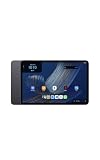
- Fast performance, all-day battery: Up to 15 hours of video playback. Quick performance with 8-core chip and 8GB RAM for smooth streaming, reading, and more. Wi-Fi 6, 8MP rear and front cameras.
- Stunning 2.5K resolution display: Watch, read, and create in sharp detail and vivid color. Smooth scrolling with 90Hz. Dual speakers powered by Dolby Atmos.
- Feels as good as it looks: Thin, light, and durable aluminum unibody design.
- Over a million apps on Google Play: From social media and streaming to fitness, finance, and gaming, find the apps you already love and discover new ones.
- Seamless and personalized: Amazon apps—Prime Video, Kindle, Audible, Amazon Music, Amazon Luna—are built-in and sync across devices with single sign-on and personalized content.
Choose deliberately rather than treating the Google prompt as a requirement. Adding the account is useful when Google Play or Google apps are part of the intended setup; skipping it keeps the onboarding focused on Amazon services. You can decide based on the person who will use the tablet and the apps they need, not on the presence of the prompt alone.
8. Sign in to Amazon
Enter your Amazon account credentials when prompted. Amazon says signing in provides the best experience with its apps and services, including Alexa, Prime Video, Kindle, Audible, Amazon Music, and Amazon Photos. Your Amazon account and Google account are separate: one does not replace the other, and adding a Google account does not sign you in to Amazon services.
Use the Amazon account that should remain associated with the tablet. A shared or family device can otherwise end up connected to the wrong library, subscriptions, or content. Check the email address on the sign-in screen before submitting it, especially if more than one household member uses Amazon accounts.
If you cannot authenticate, stop guessing passwords. Use Amazon’s account-recovery process to reset the Amazon account password, then return to the sign-in screen with the new credentials. A successful Google sign-in will not correct an Amazon password problem, because the services use separate accounts.
9. Set up a fingerprint when the model offers it
On an Alexa Tablet 11 or Alexa Tablet 12 Pro, setup may prompt you to register a fingerprint for device unlocking. Follow the enrollment instructions if you want biometric unlocking. Amazon says you can skip this screen and add a fingerprint later in Settings, so declining it does not prevent completion of onboarding.
Fingerprint setup is model-dependent. If the prompt does not appear on another Alexa Tablet model, do not assume that onboarding is incomplete or that a sensor is missing. Finish the setup screens and check Settings only if the model supports the feature. If you are not ready to enroll a fingerprint, skip it and complete the tablet setup normally.
Understand what each account enables
Account prompts can look similar, but they serve different parts of the tablet:
- Amazon account: connects the tablet to Amazon’s ecosystem and supports Alexa, Prime Video, Kindle, Audible, Amazon Music, Amazon Photos, and related Amazon apps.
- Google account: enables Google Play and Google services when you choose to use them.
- No Google account: you can proceed without Google services if they are not part of your intended setup; this does not remove the need for an Amazon account for the Amazon experience.
Use the account you actually intend to keep on the tablet. Adding an account later is possible, but deciding during onboarding avoids having to revisit the setup screens immediately afterward. The two ecosystems can coexist, but they remain separate sign-ins with separate credentials.
Do not interpret the Google prompt as a replacement for Amazon sign-in, or the Amazon prompt as access to Google Play. If a particular app or service is important, identify which account supplies it before choosing Skip. This prevents a common post-setup surprise in which the tablet is working but the desired app store or Amazon library is unavailable because its account was omitted.
What to do when setup finishes
Wait until the tablet reaches its normal home screen rather than assuming the process is complete when a transfer ends. Amazon’s setup flow can include an update, account confirmation, or restart after the transfer. The home screen is the practical indication that onboarding has moved beyond the initial wizard.
Rank #4
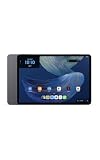
- Powerful performance, all-day battery: Fast and fluid for split-screen multitasking, graphic-intensive gaming, and 4K streaming. 8-core chip with 8GB RAM and up to 16 hours of video playback, quad speakers and Dolby Atmos, Wi-Fi 6E, 13MP rear camera, and 8MP front camera.
- Feels as good as it looks: Thin, light, and durable aluminum unibody design.
- Stunning 2.8K display: Watch, read, and create in brilliant detail. Smooth 120Hz scrolling. 3:2 aspect ratio for entertainment and multitasking.
- Over a million apps on Google Play: From social media and streaming to fitness, finance, and gaming, find the apps you already love and discover new ones. Subscriptions may be required.
- Seamless and personalized: Amazon apps—Prime Video, Kindle, Audible, Amazon Music, Amazon Luna—are built-in and sync across devices with single sign-on and personalized content.
Open the network controls to confirm that the intended Wi‑Fi network is connected, then check for any remaining update or restart prompt. Launch only the services you plan to use and allow their first-run sign-in screens to finish. Testing one Amazon service and, if applicable, Google Play is a quick way to confirm that the corresponding account was added successfully.
If you postponed fingerprint enrollment on a supported model, open Settings when you are ready and complete it there. If you skipped Google sign-in, you can continue using the Amazon-focused setup without adding Google services. Optional accessories can be connected after onboarding; they are not needed to verify that the tablet itself is ready.
Before handing the tablet to another user, confirm the language, accessibility options, Wi‑Fi connection, and account shown on the device. These checks are especially useful when another phone or tablet supplied the transferred settings, because the new tablet may inherit choices that are appropriate for the source device but not for its new owner.
Independent reader supportYour contribution helps us test, update, and keep practical guides available for everyone.Troubleshoot a setup that stalls
The tablet will not turn on
Connect it to a working USB power adapter and allow it to charge, then press and hold the Power button again for three seconds. A completely depleted battery may need time on the charger before the display responds. Check the cable connection at both ends and try a known-working compatible adapter if the first one does not provide power.
An error appears during onboarding
Hold the Power button for 20 seconds to restart the tablet, then repeat the interrupted step. A restart can clear a temporary setup fault, but it does not identify the underlying cause of every error. After restarting, note which step fails: transfer, Wi‑Fi, account sign-in, or update. That detail determines whether you should retry the same route or choose manual setup instead.
The Tool Desk
Outbyte PC Repair FREERepair Windows errors before they cause bigger problemsFix Now →Outbyte Driver Updater FREEFix the driver behind crashes, sound loss and screen glitchesFind Drivers →Amazon sign-in fails
Verify that the email address is the one associated with your Amazon account. If the password is rejected, use Amazon’s password-recovery flow rather than repeatedly retrying an uncertain password. After resetting it, return to the tablet and sign in with the new password. If the tablet has no working internet connection, resolve Wi‑Fi first because account authentication requires the network to reach Amazon’s service.
Your Wi‑Fi network is missing or will not connect
Confirm that the router is operating and that the network name is visible to another device. Re-enter the password carefully, including capitalization and symbols. For a missing network or persistent connection failure, follow Amazon’s tablet Wi‑Fi troubleshooting guidance. If the password itself is unknown or the router account is locked, contact your internet provider; the tablet cannot recover a provider-controlled password.
If you were transferring settings and the connection fails, choose manual setup and enter the network details yourself. This separates a Wi‑Fi problem from a transfer problem and lets you confirm the password directly. If manual entry also fails, the issue is more likely to involve the router, password, or tablet Wi‑Fi connection than the QR-code or cable transfer.
The screen is frozen
Use Amazon’s frozen-screen instructions and the device-reset procedure it recommends. A reset can remove local setup progress, so treat it as a recovery step after the simpler power restart rather than as the first response to a slow screen. If the device is applying an update, allow the update time to finish before deciding that the screen is frozen.
Recommended Free Tools
The transfer does not advance
For Android, return to the QR-code screen only after confirming that the source device is the Android device selected in the tablet’s menu. For an iPhone or iPad, keep the USB‑C cable connected and follow the prompts on both screens. If either transfer route repeatedly stalls, select Skip and use manual Wi‑Fi setup; the transfer is a convenience, not a requirement for completing onboarding.
Best Value
- Fast performance, all-day battery: Up to 15 hours of video playback. Quick performance with 8-core chip and 8GB RAM for smooth streaming, reading, and more. Wi-Fi 6, 8MP rear and front cameras.
- Stunning 2.5K resolution display: Watch, read, and create in sharp detail and vivid color. Smooth scrolling with 90Hz. Dual speakers powered by Dolby Atmos.
- Feels as good as it looks: Thin, light, and durable aluminum unibody design.
- Over a million apps on Google Play: From social media and streaming to fitness, finance, and gaming, find the apps you already love and discover new ones.
- Seamless and personalized: Amazon apps—Prime Video, Kindle, Audible, Amazon Music, Amazon Luna—are built-in and sync across devices with single sign-on and personalized content.
Model, software, and region caveats
Amazon’s documented flow is shared across the Alexa Tablet range, but exact wording and screen order can vary by model and software version. The fingerprint prompt is specifically documented for Alexa Tablet 11 and Alexa Tablet 12 Pro; do not assume another model has the same biometric hardware or menu.
The instructions are based on Amazon Help documentation in the US English locale. Account requirements, feature availability, accessories, and screen labels can differ by country, region, or software release. When a prompt on the tablet differs from a label in this guide, follow the on-screen model-specific instruction and avoid forcing a transfer or account choice that the device does not offer.
Amazon’s setup guidance does not make a keyboard, pen, book cover, or other accessory a condition of first-time setup. For the Alexa Tablet 12 Pro, those items are optional compatible accessories. Confirm the exact model and regional listing before purchasing one, because compatibility should not be inferred from the generic Alexa Tablet name.
Quick completion checklist
- The tablet powers on from the top-edge Power button.
- A language is selected and any needed accessibility options are configured.
- Wi‑Fi is connected manually or through a device transfer.
- The tablet has been given time to complete any first connection update.
- A Google account is added only if Google Play or Google services are wanted.
- An Amazon account is added for Amazon apps and services.
- Fingerprint enrollment is completed or intentionally postponed on supported models.
- The tablet reaches its regular home screen and responds to touch.
- The intended Wi‑Fi network appears in the tablet’s network controls.
- The account choices match the person and services that will use the tablet.
Frequently asked questions
Frequently Asked Questions
Can I set up the Alexa Tablet without another phone or tablet?
Yes. Tap Skip when the transfer choice appears, select your Wi‑Fi network, and enter its password manually. A transfer from Android or iPhone/iPad is optional.
Do I need a Google account to use the tablet?
No. A Google account is needed for Google Play and Google services, but you can continue without Google services. You should still sign in to an Amazon account for the best experience with Amazon apps and services.
Does the Alexa Tablet come with a charger?
Amazon says the package does not include a charger. Most USB power adapters with a USB Type‑C plug can power the tablet, so use a suitable adapter with the supplied cable.
Why is my tablet updating during setup?
Amazon notes that a software update may begin after Wi‑Fi is connected. Leave the tablet powered and allow several minutes for the update and any restart to finish.
Free tools Windows power users keep installed
One-click scans. No signup required.
Which Alexa Tablet models support fingerprint setup during onboarding?
Amazon specifically documents the fingerprint prompt for Alexa Tablet 11 and Alexa Tablet 12 Pro. On those models, you can skip enrollment and add it later in Settings.
Can I transfer settings from an iPhone or iPad?
Yes. Choose the iPhone or iPad option and connect the devices with a USB‑C cable, then follow the on-screen prompts to transfer Wi‑Fi and other available settings.
What should I do if I forget my Amazon password during setup?
Use Amazon’s account-recovery process to reset the password, then return to the tablet and sign in with the new credentials. Repeatedly guessing an uncertain password is unlikely to help.
Is this the same setup process as an Echo Show?
No. Amazon documents a separate setup flow for Echo Show devices. Confirm that you have an Alexa Tablet before following these steps.
The Bottom Line
Power on the Alexa Tablet, select a language, choose Android transfer, iPhone/iPad transfer, or manual Wi‑Fi setup, and allow time for any first update. Add a Google account only for Google services, sign in to Amazon for Alexa and other Amazon apps, and set up fingerprint unlocking only when your model supports it. If setup stalls, charge the tablet, restart it with the 20-second power hold, verify Wi‑Fi credentials, or use Amazon’s account, Wi‑Fi, and frozen-screen troubleshooting guidance.
Quick Recap
Product prices and availability are accurate as of the date/time indicated and are subject to change. Any price and availability information displayed on Amazon at the time of purchase will apply.




