Windows Errors? Fix Them Before They Spread
Repair common Windows errors and clear accumulated junk for a smoother, more stable PC - no reinstall needed.Free scan · no reinstallCrashes, No Sound, or Screen Glitches?
Random freezes, missing sound and display glitches usually trace back to one bad driver. Find and replace yours safely.Free scan · under a minuteFor most small and midsize teams, the practical starting point is a ChatGPT Business workspace: assign an owner and an administrator, review roles and seat types, then invite colleagues from Workspace settings > Members. Treat invitations, seats, identity, and personal-workspace migration as separate decisions. For a larger organization that needs centralized identity provisioning or broader security controls, follow the Enterprise administrator setup path instead.
Choose the right workspace and name its owners
ChatGPT Business gives a team a workspace with its own organization content, settings, and member access, distinct from each person’s personal workspace. Start by deciding whether you are creating a standalone Business workspace or working in an organization-managed environment.
As an Amazon Associate I earn from qualifying purchases.
In a standalone Business workspace, the owner manages workspace-wide settings. If identity settings are read-only or direct you to the Admin Console or Cloud Console, the workspace may be connected to a centrally managed tenant. In that case, ask the organization’s global administrator to manage the shared identity connection rather than creating another one. See OpenAI’s Business SSO guidance and identity configuration guidance.
Assign responsibility before onboarding: keep an owner accountable for billing, identity, and workspace configuration, and designate an administrator for routine member management. A team should know who to contact when an invitation, sign-in, or access request fails.
#1 Best Overall

- 【Up to 1312Ft LOS & 1.9 GHz for Stable Performance】The Solidcom SE PRO Full-Duplex Wireless Intercom Headset supports adding remote headsets to create a 9-user system without a hub. Utilizing advanced 1.9 GHz technology, it delivers up to 1312 feet of line-of-sight (LOS) range. Designed to reduce interference from 2.4 GHz devices, the SE PRO also features Auto Frequency Hopping technology, which intelligently avoids disruptions for stable and reliable communication.
- 【Up to 11 Users & 3.5mm Headphone Compatibility】The Solidcom SE PRO adapts as your team grows, supporting up to 11 users—ideal for small to medium-sized teams on a budget. Its USB-C port connects seamlessly with a Hollyland USB-C to 3.5mm adapter, enabling you to use 3.5mm headphones. Simply wear the SE PRO around your neck and enjoy clear, reliable communication.
- 【ENC Noise Cancellation & Dust and Water Resistance】The Solidcom SE PRO features dual-mic noise cancellation to effectively minimize ambient sounds. Its 150Hz–7kHz wideband frequency response delivers rich, immersive audio quality. Built with dust and water resistance, it withstands rain and splashes, ensuring reliable performance and consistent connectivity in various environments.
- 【Flexible Charging Options & Lightweight Design】Each Solidcom SE PRO package includes an extra battery, with each providing 10 hours of runtime, perfect for extended activities. When the battery runs low, swap it instantly to restore full power. The headset also supports USB-C charging via a power bank while in use. Crafted from lightweight, durable materials, the SE PRO weighs under 186g, offering a secure and comfortable fit for long hours of filming.
- 【Ready Out of Box & Dependable Mute Control】The Solidcom SE PRO is pre-paired and ready to use—just unbox and start filming. Simply pull down the boom mic to begin communicating. Designed for immediate use, it features a green headband for a subtle, professional look. A dedicated MUTE button and boom mic mute provide easy switching between TALK and MUTE, while the industry-standard PTT mode ensures seamless communication tailored to your needs.
Set roles and seat types before inviting people
Business has four roles: Owner, Admin, Analytics Viewer, and Member. Roles determine administrative permissions; seat type determines usage limits. Owners have broad control over billing, identity, and workspace configuration. Admins handle routine administration, while Members use ChatGPT without admin privileges. Assign the least administrative access a person needs.
Business offers Standard and Premium ChatGPT seats, which can be assigned across roles. Owners can set the workspace’s default seat type. Review who needs which type and confirm current availability in the workspace before sending invitations. OpenAI’s member, seat, and role guide explains the current controls.
Rank #2

- The World's First Decentralized Full Duplex Wireless Intercom Headset System: SYNCO XTALK X5 is available to set any remote as the master or build two independent groups without the HUB. Say goodbye to concerns about losing or running out of battery, ensure uninterrupted communication, one system can meet the needs of two teams to chat. X5 allows up to five people to talk at the same time
- Exclusive 3.5 mm Port Supports Real-time Monitoring: Through SYNCO XTALK X5, you can seamlessly communicate with your team while monitoring audio from devices like cameras and recorders. Perfect for field control personnel overcontroling the shooting process, catering to the needs of on-set commanders, directors, supervisors, and more
- The First 2.4GHz Frequency for Stable Communication up to 350 M/1148 FT (LOS): You can experience the unparalleled stability and security of the 2.4GHz XTALK wireless intercom system. Fast connection response, no need to walk long distances to re-connect. XTALK X5 is perfectly suited for prestigious occasions such as church services, TV shows, filmmaking, live performances, and more
- Low-power Design Lasts up to 24 Hours for All-day Team Communication: The unique low-power design and replaceable battery (Included) provide the SYNCO Xtalk wireless headset with a working time of up to 24h and each battery takes 2.5h to recharge. In addition, the Type-C power supply function effectively improves the operating time, and doesn't need to charge for a long time or battery replacement, which will affect the shooting progress
- Provide Crystal Clear Audio Quality for Group Calls: SYNCO Xtalk wireless communication headset intercom employs advanced AEC 150Hz-7kHz ultra-wideband noise reduction technology, which eliminates echoes, reverberation, and unnecessary ambient noise. It can accurately capture and highlight human voices even in noisy environments, ensuring clear and precise conversations
An invitation does not purchase or reserve a seat. Seat availability is checked when the invitee accepts; if no seat of the requested type is available, the owner must make one available. Do not treat removing a member as proof that a billed seat has also been removed: workspace access and seat billing are distinct.
OpenAI’s Help Center FAQ states that a Business subscription can include up to 200 paid Standard and Premium seats combined and requires at least two paid seats, with an eligibility exception for workspaces created before August 24, 2026, which retain their previous seat limit. These are date-sensitive terms; confirm the current Business FAQ and billing interface before relying on them.
Rank #3

- 【Full Duplex Wireless Intercom Headset System】SYNCO XTALK X4 is available to set any remote as the master or build 2 independent groups without the HUB. Say goodbye to concerns about losing or running out of battery, ensure uninterrupted communication, one system can meet the needs of two teams to chat. X4 Wireless Intercom Headset allows up to 5 people to talk at the same time.
- 【The First 2.4GHz Frequency for Stable Communication up to 350M/1148FT(LOS)】Compared with the unstable 1.9GHz, you can experience the unparalleled stability and security of the 2.4GHz XTALK wireless intercom system. Fast connection response, no need to walk long distances to re-connect. XTALK X4 intercom headsets is perfectly suited for prestigious occasions such as wedding, church services, production, TV shows, filmmaking, live performances, and more.
- 【Low-power Design Lasts up to 24H for All-day Team Communication】The unique low-power design and replaceable battery(Included) provide the SYNCO Xtalk wireless headsets intercom with a working time of up to 24H and each battery takes 2.5h to recharge. In addition, the Type-C power supply function effectively improves the operating time, and doesn't need to charge for a long time or battery replacement, which will affect the shooting progress.
- 【Provide Crystal Clear Audio Quality for Group Calls】SYNCO Xtalk wireless communication headset intercom employs advanced AEC 150Hz-7KHz ultra-wideband noise reduction technology, which eliminates echoes, reverberation, and unnecessary ambient noise. It can accurately capture and highlight human voices even in noisy environments, ensuring clear and precise conversations.
- 【Exclusive 3.5mm Port Supports Real-time Monitoring】Through SYNCO XTALK X4, you can seamlessly communicate with your team while monitoring audio from devices like cameras and recorders. Perfect for field control personnel overcontroling the shooting process, catering to the needs of on-set commanders, directors, supervisors, and more.
Invite colleagues to the Business workspace
- Open the Business workspace. Switch into the workspace you administer.
- Open Workspace settings > Members. Select Invite member.
- Enter invitees. Type email addresses manually or import a CSV. Use the address people use for their existing OpenAI accounts when that is the identity they should use.
- Choose role and seat type. Owners can choose both for invitations. Admins and Members invite people as Members using the workspace’s default seat type.
- Send the invitations and track acceptance. The invitee must accept; seat availability is checked at acceptance, not when the invitation is sent.
Keep membership management separate from account authentication. An invitation grants an opportunity to join the workspace; it does not configure company sign-in.
Explain the personal-workspace choice before anyone accepts
An invitee can keep a personal workspace separate or choose to merge it into Business. Make the choice explicit before someone accepts a merge: OpenAI says there is no undo option that moves Business content back into the personal workspace. A person who is unsure should keep the personal workspace separate until they understand the consequences.
Rank #4
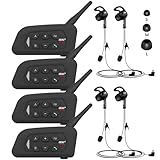
- 【Upgraded 4 Person Group Intercom】V4 Plus Bluetooth Intercom allows you to connect 4 referees meanwhile for conference intercom, total range up to 1500 meters.
- 【Clear and Stable Sound】With improved CVC noise reduction technology and Bluetooth 5.1version, even in a noisy environment of 120km/h or in noisy stadium, the high-fidelity speakers also can make the sound you hear clear and stable.
- 【Wide Applications】V4 Plus is an excellent partner for most competition referees like football referees, volleyball official, basketball referees, golf referees, etc. In addition to referees, V4 Plus is suitable for daily training, construction sites, venue scheduling and other outdoor activities.
- 【Low Power Consumption】After circuit optimization, the power consumption is reduced by 20%. Just 2 hours of charging, talking time is up to 18 Hours and music playing time is up to 24 Hours.
- 【Waterproof】With IP65 waterproof, the headset can handle almost all weather conditions. The Bluetooth headset can withstand 14℉ to 122℉ and can be used in most countries and regions.
Joining the team workspace does not, by itself, share a member’s personal chats or app connections with coworkers. Do not assume personal material becomes team material simply because the person joins.
Decide whether to enable workspace discovery
Workspace discovery can allow people with a verified company email address to find the Business workspace and request to join. Owners control whether discovery is enabled, the name people see, and whether requests are accepted automatically. Automatic acceptance does not buy or reserve a seat; the workspace still needs an available seat when a person joins. Use discovery only if its visibility and joining behavior fit your organization’s access policy.
Best Value

- TWO-WAY CONVERSATION, HANDS-FREE — The Eartec UL4S is a wireless intercom system for 4-person teams that need to talk and listen simultaneously. Full-duplex audio means no buttons to press — all 4 users hear each other in real time.
- DECT 6.0 ON 1.9 GHz, NO INTERFERENCE — Secure, license-free wireless on the DECT band stays clear of Wi-Fi, Bluetooth, and two-way radio traffic. Up to 1,000 ft line-of-sight wireless range with no base station and no FCC license required.
- SINGLE-EAR HEADSET WITH PIVOTING MIC — Wear it on whichever side feels right; the noise-cancelling microphone pivots to either ear and auto-mutes when pivoted up. Single-ear design keeps you connected to your team and your surroundings at once.
- READY TO USE OUT OF THE BOX — Pairs in seconds with zero programming and no base station setup. Electronics and rechargeable lithium battery live inside the earcup. Up to 6 hours talk time per charge. Field-programmable, expandable up to 5 users.
- PROFESSIONAL USE CASE BREADTH — At work on video and stage productions, broadcast and live event crews, coaching staff communication, boat and marine operations, drone teams, construction sites, RV crews, and event production teams.
Configure SSO only when the team needs it
For a standalone Business workspace, SSO setup requires a verified domain used by members and an identity provider configured for SAML or OIDC. Follow OpenAI’s current Business SSO instructions for the values to enter in the identity-provider application; then assign a test user and verify sign-in before broad rollout.
- Confirm you control the domain used by the people who will sign in, and identify who owns the identity-provider settings.
- Choose SAML or OIDC and configure the identity-provider application with the workspace values shown in the Business SSO setup.
- Assign one test user, verify that the user can sign in successfully, and resolve configuration problems before wider onboarding.
- Invite members separately, using email addresses that match their identity-provider accounts.
SSO authenticates a user; it does not invite that person or grant workspace membership. It also does not provide access to an API organization or other OpenAI products. If the identity controls are read-only or lead to Admin Console, stop and have the global administrator handle the tenant connection rather than adding a duplicate identity-provider connection. The Business SSO guidance also says standalone Business does not include SCIM.
Use the Enterprise path for larger, centrally managed rollouts
If your rollout depends on directory provisioning, groups, or centralized security and compliance controls, plan it as an Enterprise deployment rather than treating it as a larger Business invitation list. OpenAI’s Enterprise administrator quickstart recommends this sequence:
- Set workspace ownership, administrator roles, and the initial launch scope.
- Verify company domains, then set up SSO and SCIM before broad onboarding.
- Create groups and access roles for the organization’s structure.
- Configure workspace, security, and compliance controls.
- Prepare monitoring and support so administrators can handle issues after launch.
Compare the paths against expected user count and workspace capacity, whether directory provisioning such as SCIM is required, the level of centralized control needed, and the ongoing administrative workload. Confirm current plan eligibility and terms with OpenAI before committing; the setup sources do not establish current pricing.
Quick Recap
Before launch: a short administrator checklist
- Name an owner for billing, identity, and workspace-wide decisions, plus an administrator for routine work.
- Choose roles and review Standard or Premium seat needs and availability.
- Invite people through Workspace settings > Members and explain the personal-workspace merge choice before acceptance.
- Decide whether discovery is appropriate for the company’s access policy.
- If using SSO, verify a test account first and keep sign-in configuration separate from workspace membership.
- For an Enterprise deployment, prepare provisioning, groups, security controls, monitoring, and support before onboarding at scale.
Product prices and availability are accurate as of the date/time indicated and are subject to change. Any price and availability information displayed on Amazon at the time of purchase will apply.




