Recommended Free Tools
A BIOS/UEFI password is a simple control that blocks unauthorized access to firmware settings and, depending on your configuration, can also restrict boot attempts.
This guide walks through the quick, reliable workflow to set a BIOS password, plus vendor-specific menu names, common gotchas, and recovery options if you lock yourself out.
As an Amazon Associate I earn from qualifying purchases.
What a BIOS Password Does (and What It Doesn’t)
When you set a BIOS password, the system firmware enforces rules before the operating system starts. On most laptops and desktops, you can usually choose whether you want to protect BIOS setup, booting, or both.
The Tool Desk
Outbyte Driver Updater FREEFix the driver behind crashes, sound loss and screen glitchesFind Drivers →Outbyte PC Repair FREERepair Windows errors before they cause bigger problemsFix Now →It does not replace full-disk encryption. A BIOS password may stop casual tampering, but it’s not a substitute for BitLocker, FileVault, or a strong OS-level security setup.
#1 Best Overall

- T2 Chip Repair / Programming
- Work on SR# Repair
- Figure if T2 Data is Valid and fix Bootup Post Error
- All Software on USB
- Soldering Skills Required
Prerequisites Before You Start
- AC power connected (or a healthy battery). Firmware changes can fail if power drops.
- Know the model/vendor (HP, Lenovo, Dell, ASUS, Acer, MSI, etc.). Menu names vary.
- Pick a password you can remember or store it in a password manager. If you lose it, recovery can be painful.
- Have time for a reboot or two. Many systems need a Save & Exit cycle to apply changes.
- Disable any “fast boot” feature temporarily if you can’t reach BIOS. On some models, fast boot hides the setup key prompt.
Choose the Right Password Type
BIOS menus commonly offer one or more of these options (wording differs by brand):
| Option name you’ll see | What it blocks | Typical behavior |
|---|---|---|
| Admin Password / Setup Password | Access to BIOS/UEFI configuration | Enter password to open Security, Boot, and other settings pages |
| User Password | Boot attempts and/or limited setup access | May prompt at startup or allow BIOS viewing but not changing |
| HDD/Drive Password (optional) | Some storage access scenarios | Can add another login barrier at boot depending on hardware support |
If you’re unsure, start with an Admin/Setup password. It’s the most predictable way to protect firmware settings.
How to Set a BIOS/UEFI Password (Standard PC/Laptop Flow)
Step 1: Enter BIOS/UEFI Setup
Restart the computer and immediately press the firmware setup key repeatedly. Common keys include F2, F10, Delete, or Esc.
Quick wins for a faster PC:
Clear out junk files and repair common Windows errorsFree Scan →Fix the driver behind crashes, sound loss and screen glitchesFind Drivers →If you see the vendor logo and then boot quickly, you may need to disable Fast Boot or try a different key. For many systems, holding the key during power-on works better than tapping it after the logo appears.
Step 2: Open Security Settings
Once inside BIOS/UEFI Setup, look for a tab or menu labeled Security, Authentication, or Password.
Common navigation patterns:
- Top tabs: Security → Password
- Left menu: Security → Set Supervisor/User Password
- Search (newer UIs): type “password” in the setup search if available
Step 3: Set the Admin/User Password
Find and select one of these items (names vary):
- Set Administrator Password / Set Supervisor Password / Admin Password
- Set User Password
Then enter the password twice when prompted. Use the same exact characters both times—most BIOS screens are case-sensitive.
If your BIOS offers a password policy (minimum length, allowed characters), follow it. For example, some systems require 8+ characters and restrict special symbols.
Step 4: Save and Exit
After setting the password, you must save changes. Look for:
Rank #2
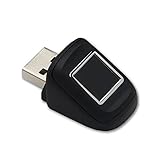
- SideTouch compact fingerprint reader; native support for Windows Hello
- Complimentary download of OmniPass Consumer Online Password Vault with Purchase
- Windows Hello allows secure authentication to supported apps and websites
- Compact and durable which makes it ideal for tablets and laptops
- Works with BIO-key Enterprise Software
- Save Changes and Exit (often F10)
- Exit Saving Changes
Pick the save option when prompted. If you just exit without saving, the password often won’t apply.
Vendor-Specific Quick Steps
Below are the most common menu labels and setup key patterns by major manufacturer. If your screen looks different, match the closest equivalent label (Security → Password → Set Admin/User).
HP
HP setups often use “Supervisor” and “User” password terminology under Security.
Do these 3 things before closing this tab:
1Clear out junk files and repair common Windows errors2Fix the driver behind crashes, sound loss and screen glitches3Repair Windows errors before they cause bigger problems- Power on and press Esc for Startup Menu, then choose BIOS Setup (or press F10 directly on some models).
- Go to Security.
- Select System Security or Password.
- Choose Change Supervisor Password and/or Change User Password.
- Enter the password twice, then save via Save and Exit.
Lenovo
Lenovo commonly uses “Supervisor Password” and “Power-On Password”.
- Restart and press F1 (ThinkPad/ThinkCentre) or F2 (varies by model) to enter BIOS.
- Open the Security tab.
- Set Supervisor Password (admin) and optionally User Password.
- Look for a setting related to Power-On or Boot prompt behavior and enable it if available.
- Save changes (often F10) and reboot.
Dell
Dell firmware usually has a clear Security section with “Admin Password” and “System Password”.
- Restart and press F2 to enter BIOS (or F12 then choose BIOS Setup on some systems).
- Go to Security.
- Select Password Management.
- Set Admin Password (recommended) and optionally System Password.
- Save (often Apply then Exit) and confirm.
ASUS
ASUS uses “Administrator Password” and “User Password” in many UEFI screens.
- Reboot and press Del or F2 to enter BIOS.
- Open the Security or Boot area depending on your model.
- Find Administrator Password and User Password.
- Enter the password twice.
- Save changes (often F10) and reboot.
Acer
Acer BIOS often places password settings under Security with “Supervisor” or “Administrator”.
Free tools Windows power users keep installed
One-click scans. No signup required.
- Restart and press F2 to enter BIOS.
- Open Security.
- Select Set Administrator Password (or similar wording).
- Optionally set a user/power-on password if offered.
- Save and exit.
MSI
MSI setups often show Security pages with password options and a save confirmation.
Rank #3
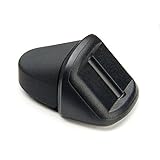
- SideSwipe compact fingerprint reader; native support for Windows Hello
- Complimentary download of OmniPass Consumer Online Password Vault with Purchase
- Windows Hello allows secure authentication to supported apps and websites
- Compact and durable which makes it ideal for tablets and laptops
- Works with BIO-key Enterprise Software
- Restart and press Del to enter BIOS.
- Go to Security.
- Choose Supervisor Password (admin) and/or User Password.
- Enter the password twice.
- Save changes and reboot.
If You Only Want to Lock Boot (Not the BIOS Setup)
Some systems let you control whether the password is required for setup, boot, or both. If your BIOS offers separate settings (for example, “Power-On Password” vs “Setup Password”), use that.
- Choose an Admin/Setup password to protect configuration changes.
- If available, enable Power-On or Boot password prompts to restrict starting the machine without the password.
If the BIOS only offers one password field, assume it will affect setup and/or boot depending on how the firmware is configured. Verify by rebooting after saving.
Confirm the Password Prompt Behavior
After you set the password and save, do two quick checks:
What’s actually slowing this PC down?
Pick the symptom - the matching free tool is one click away.
- Reboot: confirm whether it prompts during POST/startup (expected if you enabled boot/power-on protection).
- Enter BIOS again: confirm you’re required to enter the password to change settings (expected for Admin/Setup protection).
If the password prompt never appears, you may have saved incorrectly or chosen the wrong password type.
Common Gotchas (Where People Get Stuck)
- Fast Boot / Quick Boot prevents you from entering BIOS. Disable it inside Windows firmware settings if available, or keep pressing the BIOS key during power-on.
- Password mismatch happens when characters differ between the two entries. This includes case, spaces, and special symbols.
- Greyed-out fields mean another security policy is already active or the system is in a restricted state.
- Secure Boot / TPM settings confusion: these are different features. A BIOS password is separate from Secure Boot and measured boot.
- Battery/AC issues can cause changes to fail. Always connect power during firmware updates and configuration changes.
If You Forget the Password: Recovery Options
Firmware passwords are designed to be resistant to casual bypass. Your recovery path depends on the vendor, password type, and whether the system has support tooling.
Start With the Manufacturer Recovery Process
Many vendors provide a recovery flow when you can prove ownership. It may involve a service tag, system serial number, and a vendor-specific procedure.
Common triggers:
- Admin password locked out after changes saved
- Power-on or setup password prompt won’t accept the provided password
Use Service-Tag or Proof-of-Ownership Procedures
Have ready: purchase proof, serial/service tag, and the exact model. Dell, HP, Lenovo, and others may require authorization to generate or validate recovery information.
If the device is managed by an organization (company/school), contact your IT administrator first—many enterprises use centralized device management that can reset or override BIOS access under policy.
Rank #4

- Stylish and Secure: Our password book features a premium blue leatherette hardcover, adding a touch of elegance while keeping your passwords safe from prying eyes.
- Effortless Organization: With its outstanding and thoughtful layout, our password keeper book provides alphabetical tabs, making it easy to find specific passwords quickly. No more fumbling through scattered notes or forgetting important login information!
- Comprehensive Record-Keeping: Designed to cater to all your digital needs, our password notebook allows you to store up to 576 passwords, along with 48 records of licenses, and essential network, email, and wireless settings. It comes with extra lined pages for taking notes, using them for keeping track of security questions, hints, or any other relevant details. Stay organized and never miss an important detail again!
- Peace of Mind: Your online security is our top priority. The lock included with our password book provides an extra layer of protection, ensuring that only you have access to your confidential information. Store your passwords with confidence and take control of your digital life!
- Durable and Portable: Sized at 7.5in x 5.5in, our small password book is compact yet spacious enough to hold all your vital information, making it convenient to carry with you wherever you go.
Last Resort: Clear CMOS (and What It Breaks)
Clearing CMOS sometimes resets firmware settings, including certain passwords, but not always. Many modern systems use non-volatile protection that prevents a simple reset from removing passwords.
Also, clearing CMOS can:
- Reset boot order
- Revert date/time settings
- Disable custom UEFI configurations
- Require reconfiguration of RAID/NVMe settings
If you still choose this route, follow the device-specific service manual. A generic “remove the battery” approach may not apply to every laptop/desktop.
Authorized Service Is Often the Fastest Route
If you can’t recover using vendor tools or you don’t have proof-of-ownership, authorized service may be the only reliable option.
For enterprise-managed devices, IT recovery can be faster than DIY attempts that risk data loss or additional lockouts.
Independent reader supportYour contribution helps us test, update, and keep practical guides available for everyone.Troubleshooting: Password Won’t Save or Doesn’t Prompt
Password Field Is Greyed Out
Try these checks:
- Look for a related setting like Set Supervisor Password vs Change—some screens only allow “change” after an initial enable.
- Exit without changes and re-enter BIOS to see if the state updates.
- Confirm you’re in the correct BIOS mode (some systems have separate setup modes).
Save/Exit Doesn’t Apply Changes
If you set the password but it resets after reboot, you likely didn’t save correctly.
- Re-enter BIOS.
- Verify the password status shows as enabled.
- Use Save Changes and Exit (often F10) or the explicit “Apply” button if present.
Password Prompt Never Appears
This usually means you set a password type that only protects BIOS configuration (not boot), or the boot/power-on prompt setting is disabled.
Re-check Security/Authentication pages for options like Power-On Password, Prompt on Boot, or similar wording.
BIOS Resets Every Reboot
If BIOS settings revert repeatedly, the CMOS battery or power delivery may be unstable (more common on desktops, but can happen on laptops with worn batteries).
Best Value

- 360° Detection & Multi-User Support: Read fingerprints from any angle with 360° touch capability. Set up to 10 fingerprints per user account, create separate accounts for each family member, and automatically log in to their own profiles.
- Self-Learning Algorithm: Equipped with intelligent self-learning technology that automatically improves fingerprint recognition after each successful scan. Adapts to subtle changes in your fingerprint over time, making the reader more accurate with continued use.
- 0.5-Second Fast Login: Verify and log in within just 0.5 seconds. Combined with the self-learning algorithm, it provides -fast yet secure authentication—faster than typing passwords.
- Advanced Security Protection: Utilizes a capacitive fingerprint sensor with a false acceptance rate (FAR) of less than 0.0002% and a false rejection rate (FRR) of under 2%. Safeguard your logins and sensitive data with state-of-the-art security.
- Small & Portable Design: Compact at only 0.5 x 0.7 x 0.8 inches (12x17x20.6mm) and made from durable zinc alloy. Simply plug into any USB port on your 10/11 PC or laptop for instant fingerprint login. Supports popular third-party password managers like 1Password, Keeper, Dashlane, and more.
- Ensure AC power is stable during setup.
- For desktops, a failing CMOS battery can cause resets.
- For laptops, service may be required if the firmware is failing to retain settings.
Comparison: BIOS Password vs Windows/BitLocker
A BIOS password mainly protects firmware access and, optionally, boot permission. Windows BitLocker protects data on disk after the OS starts, including against offline attacks.
If you’re securing a device for real-world risk (lost/stolen laptop, unauthorized access to files), pair both:
- BIOS/UEFI password to restrict who can alter boot order and firmware settings.
- BitLocker (Windows) to protect data at rest.
This layered approach is what many organizations use because it reduces both “pre-boot tampering” and “post-boot data exposure.”
FAQs
Is a BIOS password the same as a Windows password?
No. A BIOS/UEFI password is checked by firmware before the OS loads. A Windows password is checked after the operating system starts.
Can I use special characters in a BIOS password?
Often yes, but some BIOS implementations restrict characters or don’t accept certain symbols reliably. If your setup screen shows a policy or examples, follow them. If in doubt, use a simple mix of letters and numbers.
Will setting a BIOS password affect Secure Boot?
Usually, no. Secure Boot is a separate firmware feature related to trusted bootloaders. Still, you should check any related firmware security menus after changes to ensure your preferred configuration is intact.
Can I set a BIOS password from Windows?
Some manufacturers allow firmware settings access via Windows recovery/UEFI settings, but the actual password is set inside BIOS/UEFI Setup. Your click path may start from Windows, then you’ll still edit the BIOS menu.
PC Slower Than It Used to Be?
A free scan shows the junk files, broken settings and background clutter dragging Windows down - then fixes them in one click.Free scan · Windows 10 & 11Outdated Drivers Are Slowing You Down
One free scan finds every outdated or missing driver and matches the right update for your exact hardware.Free scan · exact hardware matchWhat should I do if the setup key doesn’t work (F2/F10/Del)?
Try disabling Fast Boot, use the vendor startup menu (commonly Esc), and press the key repeatedly immediately after powering on. If the device supports it, boot into firmware settings from Windows recovery.
How do I remove or change a BIOS password?
Enter BIOS/UEFI Setup using the current password, then go back to Security/Password Management and choose “Change” or “Disable” depending on what your BIOS offers.
Bottom Line
Setting a BIOS password is usually a short, repeatable process: enter BIOS, open Security/Password Management, set the Admin/Setup (and optionally boot) password, then save and reboot.
If you want the best protection, don’t stop at firmware—pair a BIOS password with OS encryption (like BitLocker) and keep recovery options (serial/service tag and proof of ownership) in place in case you ever forget the credential.
Quick wins for a faster PC:
Scan for outdated or missing drivers - takes under a minuteDriver Scan →Repair Windows errors before they cause bigger problemsFix Now →Quick Recap
Product prices and availability are accurate as of the date/time indicated and are subject to change. Any price and availability information displayed on Amazon at the time of purchase will apply.




