Scale Headless Chrome by adding bounded worker replicas behind a durable job queue—not by assuming every Chrome process or page consumes the same resources. Pin browser and driver versions, measure representative workloads, and set concurrency limits from observed CPU, memory, latency, and failure rates. Chrome’s documentation does not prescribe a universal safe number of sessions per worker.
What horizontal scaling should look like
A practical design separates job intake from browser execution. A durable queue absorbs bursts; workers claim jobs up to a measured concurrency limit; each worker launches or reuses browser processes according to the workload; and completed jobs return structured results. Unhealthy browser processes are recycled, while worker replicas scale with demand.
| # | Preview | Product | Price | |
|---|---|---|---|---|
| 1 |
|
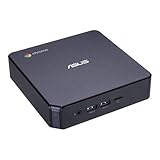
ASUS CHROMEBOX 3-N017U Mini PC with Intel Celeron, 4K UHD Graphics and Power Over Type C Port, Star... | $169.98 | Buy on Amazon |
This is an architecture pattern, not a Chrome requirement. Chrome’s official documentation describes browser modes, automation interfaces, and process behavior; it does not prescribe a queue, orchestrator, replica count, or autoscaling policy.
- Accept and validate a job. Give it a stable identifier, deadline, target URL or task, and the options needed to reproduce it.
- Enqueue it durably. Retain enough state to retry or report failure if a worker exits before completing the job.
- Claim work within a hard limit. Bound active jobs per worker so a sudden queue surge cannot start unlimited browsers.
- Run the browser task. Reuse a process when startup cost matters, or launch a fresh one when stronger process-level cleanup is worth the overhead.
- Return a structured outcome. Record success or a classified failure, duration, and relevant browser and worker identifiers.
- Recycle and scale deliberately. Replace unhealthy browser processes; add or remove workers based on demand and measured saturation.
Keep this design distinct from the browser’s own internal process model. Chromium can place site instances in separate processes to improve responsiveness and limit the effects of a renderer failure, but additional processes use memory. A tab count is therefore not a reliable capacity measure, and a separate tab does not necessarily mean a separate process.
Do these 3 things before closing this tab:
1Repair Windows errors before they cause bigger problems2Fix the driver behind crashes, sound loss and screen glitches3Clear out junk files and repair common Windows errors#1 Best Overall
- Processor and Memory Configuration: Features an Intel Celeron 3865U Processor with 4GB DDR4 Memory, Gigabit LAN, 802.11ac Wi-Fi and 32GB M.2 SATA SSD
- Android App Compatibility: Full support of Android apps from Google play on Chrome OS
- 4K UHD Graphics Display Support: Integrated Intel 4K UHD Graphics supports 2x monitors using HDMI and DisplayPort over Type C for compatibility with legacy Display connections like VGA and DVI
- Wireless Connectivity and File Sharing: Share files or stream your favorite media with Intel 802.11ac Wi-Fi, Bluetooth 4.2, and USB 3.1 Gen 1 Type a & Type C Ports
- Power Over Type C Technology: Power over Type C minimizes cable clutter and delivers power to monitors, projectors, and mobile devices
Choose the Headless mode that matches the job
Unified Headless Chrome
Modern Chrome Headless shares the regular Chrome implementation. Choose it when realistic browser behavior and broad compatibility matter. In this mode Chrome creates platform windows without displaying them.
The separate chrome-headless-shell
The former Headless implementation is distributed separately as chrome-headless-shell. Chrome’s Headless guidance describes it as lighter and potentially more performant in some cases, while unified Headless is the more authentic, feature-complete option. The shell can suit screenshotting or scraping when its behavior meets the job’s requirements. This distinction has changed over time, so verify mode-specific behavior against the Chrome release you deploy; the shell became a separate distribution starting with Chrome 132.
Do not switch modes solely to increase replica count. Compare the modes with your real pages and automation steps, then keep the chosen mode consistent across the fleet.
Pick the automation interface without changing the whole stack
- Puppeteer: Puppeteer controls Chrome through the Chrome DevTools Protocol (CDP) or WebDriver BiDi. Use it when it fits the application and existing automation code.
- ChromeDriver: ChromeDriver supports WebDriver-based frameworks. Use the control layer your framework already expects rather than adding a framework migration just to run more workers.
Chrome for Testing provides versioned browser binaries and matching ChromeDriver releases. Puppeteer can download a compatible Chrome for Testing browser by default. These options make it possible to keep browser and automation components aligned; they do not define how many jobs a worker can safely run.
Make deployments reproducible across workers
- Pin the browser and driver together. Build an immutable worker image, or otherwise publish an explicit browser and driver version pair. Avoid letting different replicas resolve to different versions during one deployment.
- Record the automation stack. Include the browser mode, automation library and relevant configuration with each deployment so a changed result can be traced.
- Canary upgrades. Run a small share of representative jobs on the candidate version, compare rendering and failure behavior, then roll forward or revert deliberately.
- Check the base image and CPU architecture. Puppeteer’s published system requirements list Debian/Ubuntu and openSUSE/Fedora Linux among supported Chrome for Testing environments and document supported architectures. Check that live requirements before choosing an image; they do not identify a single recommended production container or a per-browser memory allowance.
Chrome for Testing is intended for testing and automation. Keep version changes separate from capacity changes where possible: otherwise, a rendering regression or memory change can be difficult to distinguish from a scaling problem.
Find a safe concurrency limit with a representative benchmark
No universal browser-per-worker ratio, CPU request, RAM-per-session figure, or safe concurrency threshold is established by the official sources described here. Treat capacity as a property of your exact browser build, container limits, pages, network conditions, and wait strategy—not as a fixed property of “one Chrome.”
- Define a stable unit of work. Specify the navigation, interactions, viewport, timeout, wait condition, and output required for one job.
- Build a representative page mix. Include ordinary pages, resource-heavy pages, slow or failing loads, and the browser actions your production workload actually performs.
- Hold conditions constant. Use the intended Chrome version, container limits, viewport, wait strategy, and network conditions. Change concurrency gradually rather than changing several variables at once.
- Measure more than completions per minute. Track throughput, job duration and tail latency, CPU, peak and sustained memory, browser launches, crashes, timeouts, and other failures.
- Choose a limit below the degradation point. Leave a safety margin before latency, memory pressure, CPU saturation, or failures rise sharply. Apply the limit per worker and across the fleet.
- Repeat after changes. Rerun the benchmark after a Chrome upgrade, a different page mix, a changed container limit, or a different navigation and wait strategy.
This is an engineering measurement method, not a published Chrome benchmark or official sizing standard. It is especially important because Chromium’s process separation can improve responsiveness while adding memory overhead.
Autoscale on demand while protecting the worker pool
Queue depth and the age of the oldest job help show demand, but they do not tell you whether workers have usable capacity. Combine queue signals with active-job counts, job duration, worker saturation, and failure rates. Keep maximum concurrency and fleet limits as guardrails even when replicas are added automatically.
Free tools Windows power users keep installed
One-click scans. No signup required.
- Scale out: Add replicas when sustained queue pressure indicates demand and existing workers are near their measured limits. More workers help only if downstream sites, proxy capacity, storage, and external service quotas can accept the extra work.
- Apply backpressure: Bound queued work, admission rates, or per-tenant consumption where appropriate. Reject, defer, or rate-limit excess demand explicitly instead of allowing it to become unbounded browser launches.
- Scale in safely: Stop assigning new jobs to draining workers. Let active work finish, or cancel it against an explicit deadline and return a clear outcome.
- Handle retries carefully: Classify failures before retrying. A retry policy should respect the job deadline and avoid multiplying load when a downstream site or shared dependency is already failing.
These are operational recommendations, not settings prescribed by Chrome or a universal autoscaler recipe.
Isolate state at the job boundary
Browser reuse can reduce startup overhead, but reused browser state can leak cookies, local storage, cache, or other session data if jobs are not isolated correctly. Choose the isolation boundary to match the sensitivity of the workload: for example, separate contexts or fresh browser processes where required, with explicit cleanup and ownership rules.
Chromium’s multi-process site isolation is a browser security and stability feature. It is not application-level tenant isolation and does not guarantee that arbitrary sessions are safe to share. Do not rely on assumptions such as “one tab equals one process” or treat renderer separation as a substitute for isolating job data.
Independent reader supportYour contribution helps us test, update, and keep practical guides available for everyone.Or skip the browser setup
If the job is specifically to capture a website screenshot or PDF, rather than to run arbitrary browser automation, ScreenshotNeo offers a hosted screenshot API. It is not a replacement for a general-purpose Chrome worker pool: it is for requests supported by its capture API. One request can return an image or PDF, and the documented API options include full-page capture, CSS-selector element capture, wait conditions, custom headers and cookies, and blocking selected requests or resource types. See the ScreenshotNeo API documentation.
The Tool Desk
Outbyte PC Repair FREERepair Windows errors before they cause bigger problemsFix Now →Outbyte Driver Updater FREEFix the driver behind crashes, sound loss and screen glitchesFind Drivers →For example, save a WebP screenshot of Stripe with cURL:
curl -G "https://api.screenshotneo.com/v1/shot" -d access_key=YOUR_API_KEY --data-urlencode url=https://stripe.com -o shot.webp- Cookie or consent banners are accepted like a visitor, and 60+ known consent platforms, newsletter popups, and chat widgets can be removed before capture; each step can be turned off.
- Bot checks or CAPTCHAs, blank pages, timeouts, failed loads, and cache hits cost nothing. The response reports the page verdict and billing status in
X-Page-VerdictandX-Billedheaders. - An MCP server provides
take_screenshot,get_page_info, andcapture_pdftools for Claude, Cursor, and other MCP clients. - The Free plan includes 1,000 screenshots per month with no card; paid plans start at $5 for 3,000 screenshots.
For a screenshot-only workload, try ScreenshotNeo free: 1,000 screenshots a month with no card.
Troubleshoot common scaling failures
| Symptom | Likely cause | What to check or change |
|---|---|---|
| Workers start failing as the queue grows | Concurrency is not bounded, or the measured limit is too high for the page mix and container. | Reduce active jobs per worker, inspect memory and CPU under representative load, and add replicas only within fleet and downstream limits. |
| Memory rises unexpectedly | Pages vary in process and resource cost; browser reuse, unfinished jobs, or cleanup behavior may also contribute. | Measure peak memory by workload, verify job and context cleanup, and recycle unhealthy or long-lived browser processes according to an explicit policy. |
| Different replicas render or behave differently | Workers may be running mismatched Chrome, ChromeDriver, or automation-library versions, or different Headless modes. | Compare the deployed image and version metadata, pin the browser/driver pair, and roll out upgrades through a canary. |
| Jobs time out despite available workers | The wait condition may not match the page, navigation may be slow, or the destination may be failing or rate-limiting requests. | Separate browser launch time from job execution time, inspect failure categories and downstream latency, and set a deadline appropriate to the task. |
| Scale-out does not improve completion time | A destination, proxy, storage system, or external quota may be the bottleneck; alternatively, the workers may not be saturated. | Measure those dependencies and worker saturation before raising replica limits. |
| Jobs are duplicated or disappear after worker failure | Queue acknowledgement and retry behavior may not match the point at which work becomes durable. | Define when a job is acknowledged, make result writes safe to repeat where possible, and test worker termination during active work. |
What to monitor in production
- Queue: depth, oldest-job age, enqueue and completion rates, and rejected or deferred work.
- Jobs: duration distributions, timeout rate, retries, and classified outcomes.
- Workers: active jobs versus the configured limit, launch failures, process restarts, and drain duration.
- Resources: CPU saturation, memory peak and trend, and container restarts.
- Dependencies: destination latency and errors, proxy capacity, storage behavior, and external quota responses.
- Releases: browser, driver, automation library, and Headless mode for each deployment.
Use these signals to distinguish a queue-capacity problem from a browser failure or downstream bottleneck. Set alert thresholds from your own observed service objectives and load tests; Chrome’s documentation does not provide universal production thresholds.
Documentation basis
The browser behavior and distribution distinctions above reflect Chrome’s Headless documentation, Chrome Headless shell guidance, the Chrome for Testing overview, Chromium’s multi-process architecture documentation, and Puppeteer’s published system requirements. The sources establish browser modes, versioned distributions, automation interfaces, and process and memory trade-offs; they do not publish a universal worker-sizing figure or prescribe this article’s queue and autoscaling design.
Quick wins for a faster PC:
Clear out junk files and repair common Windows errorsFree Scan →Fix the driver behind crashes, sound loss and screen glitchesFind Drivers →Repair Windows errors before they cause bigger problemsFix Now →Frequently Asked Questions
Should I use one browser process per job or keep browsers warm?
Neither is a universal rule. Compare startup overhead with the cleanup and isolation requirements of your workload, then benchmark the choice under the same job mix and container limits.
Does a higher worker count always increase throughput?
No. More workers help only while the browser fleet and its downstream dependencies have capacity; past that point, contention or rate limits can make jobs slower or less reliable.
Quick Recap
Product prices and availability are accurate as of the date/time indicated and are subject to change. Any price and availability information displayed on Amazon at the time of purchase will apply.




