To upgrade a self-hosted GitLab Duo AI Gateway safely, first record your GitLab version and deployment configuration, then choose a stable Gateway image tag compatible with that GitLab version. Update the Gateway using the method that manages it—Docker or Kubernetes/Helm—preserve its configuration and secrets, and verify both service health and actual model inference. Treat a GitLab application upgrade as a separate operation with its own backup and supported upgrade sequence.
Before upgrading, identify what you are changing
A Gateway image refresh, a Gateway Helm chart change, and a GitLab application upgrade are different operations. Establish which one you intend to perform before changing anything: the full GitLab chart upgrade process has separate version-mapping, backup, migration, and sequencing requirements.
As an Amazon Associate I earn from qualifying purchases.
Free tools Windows power users keep installed
One-click scans. No signup required.
- Record the GitLab version, current Gateway image tag and digest, and—if applicable—the installed chart version.
- Save the current container run configuration or Helm values, including environment variables, secrets, TLS and ingress settings, image pull policy, and endpoint configuration.
- Confirm how the deployment obtains images. A connected environment may pull from a registry; an offline environment needs an image-transfer plan.
- Decide how you will roll back before starting. Keep the previous image reference and configuration available, and account for any simultaneous GitLab changes.
GitLab’s AI Gateway installation documentation describes the image-selection and Docker update process. Its guidance should be applied to the Gateway deployment, not mistaken for a complete GitLab application upgrade procedure.
Choose a Gateway image compatible with GitLab
For a GitLab version in the vX.Y.*-ee line, GitLab’s documented convention is to use the latest available stable AI Gateway image in the corresponding self-hosted-vX.Y.*-ee line. Check the registry for the actual available tag; do not assume that an unversioned latest tag is the right choice. For example, the documentation’s example uses self-hosted-v18.2.2-ee with GitLab v18.2.1-ee when that is the latest listed compatible tag.
#1 Best Overall

- HP ProLiant DL360 G7 Business Server, the perfect enterprise server or small business server!
- Processors: Dual (2) Xeon X5675 6-Core 3.06 GHz 12MB CPUs Max Turbo 3.46 GHz
- Memory: 72GB (4 x 16GB) DDR3 PC3-10600R Memory; Storage: 3.6TB (4 x 900GB) 10K 12Gb/s SAS 2.5" HDDs
- Power: Redundant Power Supplies; RAID: HP Smart Array P410i-a 12Gb/s with 4×GigaBit NIC
- Hard drives and memory upgrades included separately NOT installed, installation required.
Prefer a stable release with an explicit version tag. GitLab warns that nightly builds do not guarantee backward compatibility. Pinning by image digest can make the deployed image reproducible and identify exactly what was installed. For Kubernetes, check the chart version separately from the Gateway image tag; they are not interchangeable version numbers.
Before a combined GitLab upgrade, read the release notes for the target GitLab version and verify the supported chart-version mapping. GitLab’s general zero-downtime chart guidance assumes a multi-node deployment with multiple Webservice and Sidekiq replicas, and advances one minor release at a time. Those are GitLab chart upgrade considerations, not requirements for every standalone Gateway image refresh. See GitLab’s Helm chart upgrade guidance.
What’s actually slowing this PC down?
Pick the symptom - the matching free tool is one click away.
Rank #2

- Dell PowerEdge R730xd 24B SFF 2U Server
- 2x Intel Xeon E5-2690 v4 2.6Ghz 14-Core (28-cores Total)
- 128GB DDR4 RAM – 4x 1.2TB 10K SAS 2.5” 12Gb/s
- Dell H730P mini 2GB 12Gb/s RAID
- 2x 750W PSU - 2x 10Gb SFP+ 2x 1Gb (RJ45) NIC
Upgrade a Docker-managed Gateway
- Preserve the existing configuration. Record the image reference and all options used to run the current container. Securely retain signing and validation keys, credentials, and other required secrets; do not rely on reconstructing them after removal.
- Check the target image. Select the compatible stable tag and, if reproducibility matters, record its digest. GitLab documents checking image digests before and after pulling to confirm which image is present.
- Replace the container. GitLab’s basic documented sequence is to stop and remove the existing container, pull the new image, and run it with the required environment variables and configuration. Reapply the recorded settings rather than assuming defaults are unchanged.
- Verify readiness and behavior. Confirm the new container is running, that it can reach the configured GitLab endpoint, and that the relevant Duo feature can complete model inference.
GitLab’s concise instruction is to “download the newest Docker image tag.” In practice, “newest” should mean the latest available stable tag in the compatible version line, not an arbitrary tag.
Upgrade a Kubernetes or Helm deployment
- Inspect the deployed release. Record the chart version, values, image tag or digest, secrets, TLS configuration, ingress settings, and pull policy. Keep the chart version and Gateway image version distinct in your change plan.
- Set the intended image and chart values. Use the chart values for the deployment you already operate, and change only the settings needed for the planned upgrade. Check the chart’s prerequisites if you use GitLab’s standalone AI Gateway Helm chart: GitLab labels that chart experimental, says it was introduced in GitLab 19.1, and documents
self-hosted-v19.1.X-eeor later as a prerequisite for that path. - Account for image pull behavior. GitLab notes that chart versions before 0.7.0 use
imagePullPolicy: IfNotPresentby default. With that policy, a node may keep a locally cached image even if a registry publishes a replacement under the same tag. GitLab documents digest pinning, settingimage.pullPolicy=Always, or restarting the deployment to force a pull as approaches; verify the behavior of your installed chart rather than assuming its default. - Apply the release update and watch the rollout. Use your established Helm release workflow, then wait for Gateway pods to become Ready and inspect rollout status before directing traffic or declaring the upgrade complete.
- Test the endpoint and feature path. Check connectivity from the Gateway to the configured GitLab endpoint, then test the Duo feature and model inference that your users rely on.
The standalone chart documentation also describes TLS configuration and endpoint settings; GitLab 19.2 adds guidance for TLS cipher suites and external runner access. These details apply when using that chart and should be checked against the chart and GitLab versions actually deployed. They do not imply that every self-hosted Gateway uses the standalone chart. See GitLab’s AI Gateway chart documentation.
Rank #3
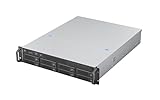
- High-Density, High-Speed Storage Platform: Hosts eight 12Gbps hot-swap drive bays in a compact 2U form, delivering exceptional storage density and bandwidth for data-intensive tasks like video editing, virtualization, or as a primary storage server.
- Flagship E-ATX Compatibility for Demanding Workloads: Supports the largest E-ATX server motherboards, enabling builds with maximum CPU core count, vast RAM capacity, and extensive PCIe expansion for the most demanding computational workloads.
- Enterprise-Grade, Serviceable Cooling System: The 3 Hot-Swap 80x38mm fans delivers high-static pressure to cool components effectively. The hot-swap capability guarantees that cooling integrity is never compromised, even during fan maintenance.
- Accelerate External Workflows with 10Gbps Type-C: The integrated front Type-C port provides ultra-fast connectivity for modern peripherals, significantly cutting down time spent on large file transfers.
- Support Full length CRPS PSU: The max depth of PSU is 280mm
Docker and Helm require different operational checks
| Consideration | Docker-managed Gateway | Kubernetes/Helm Gateway |
|---|---|---|
| Configuration to preserve | Container run options, environment variables, secrets, and endpoint/TLS settings. | Helm values, Kubernetes secrets, chart version, and endpoint/TLS/ingress settings. |
| Image selection | Use a compatible stable tag; record its digest if exact reproducibility is needed. | Set the compatible image tag or digest in the deployed chart values; track the chart version separately. |
| Update verification | Confirm the replacement container is running and validate endpoint access and inference. | Watch pod readiness and rollout status, then validate endpoint access and inference. |
| Image availability | Pull the image or transfer it into an offline environment. | Ensure the cluster nodes can obtain the image, or transfer it to the environment’s image store; verify pull-policy behavior. |
Validate inference, not just health
A successful health check is useful but not sufficient. GitLab’s Duo health check validates connectivity and license status; it does not test model inference for Chat or Code Suggestions. Test the actual feature path after the deployment is ready.
- Check Gateway service health and confirm the relevant self-hosted model is selected for each feature you intend to use.
- Run GitLab’s Duo health check to verify connectivity and license status.
- Separately submit a real test request through Chat or Code Suggestions, as applicable, to confirm model inference works.
- If a request or authentication fails, verify that the GitLab endpoint is reachable from inside the Gateway container and that the configured GitLab URL and API URL settings are correct.
For an offline deployment, transfer the updated Gateway image and check whether the target version also requires a changed executor image tag. GitLab says model weights do not need to be updated solely because GitLab is upgraded; update them when changing models. See GitLab’s offline deployment guidance and troubleshooting guidance for self-hosted models.
Rank #4

- Spacious Chassis: This massive 4U server case has 8 internal 3.5" HDD bays plus room for 3 additional 5.25" devices
- Expandable & ATX/CEB Compatible: 7 PCI expansion slots and ATX and CEB motherboard compatibility give you growth options for all of your needs
- Quiet Cooling: 4 pre-installed cooling fans provide excellent airflow and heat protection at reduced noise. 2 front 120mm PWM fans and 2 rear 80mm fans ensure your drives and chassis avoid overheating
- Desired Features: Front panel LED indicators for power, HDD, and LAN status monitoring allow quick, easy visual assessment. Additional utility with 2 x USB 3.0 port and built-in front panel lock provides extra security for your server case
- Rackmount Design: Standard 4U rackmount form factor allows easy installation in server racks and data center environments with included mounting hardware for professional deployment
Check version-specific GitLab issues and security guidance
GitLab 19.2.0 endpoint settings
GitLab’s 19 upgrade notes say a direct upgrade to GitLab 19.2.0 can clear the Local AI Gateway URL and Local URL for the GitLab Duo Agent Platform service. The affected settings are under Admin > GitLab Duo > Configuration > Service endpoints. The notes say the issue does not occur on 19.2.1 or later. If a GitLab 19.2.0 upgrade has cleared these values, restore and save the endpoint URLs. This is a GitLab application-version issue, not a general consequence of upgrading a Gateway image. See GitLab 19 upgrade notes.
AI Gateway security releases
In a notice dated 2026-02-06, GitLab identified a critical fix for CVE-2026-1868 in AI Gateway versions 18.6.2, 18.7.1, and 18.8.1, and recommended that affected self-hosted deployments upgrade immediately. The notice states that exploitation requires authenticated access. Security guidance can change, so check GitLab’s current security release information and confirm the compatible image tag for your GitLab installation before acting. See GitLab’s AI Gateway critical patch release notice.
Best Value

- [CPU] Intel Core Ultra 7 265 Processor (20 Cores, 20 Threads, 3.9 GHz Base Clock Speed up to 5.5 GHz Max Boost Clock Speed) for Elite Gaming and Content Creation | [STORAGE] 2TB PCIe NVMe M.2 SSD - Experience Hyper-Fast Bootup and Data Transfer thats up to 30x Faster Performance than a Traditional Hard Drive.
- [GPU] Integrated Intel UHD Graphics: Get All the Power You Need for Fast, Smooth, Power-Efficient Performance | [RAM] 24GB DDR5 RAM 5600 Gaming Memory for Seamless Multitasking from Multiple Web Pages to Playing Games Online Simultaneously | [OS] Windows 11 Pro x64
- 2x 3.5" Drive Bays | 4x Expansion Slots | mATX Motherboard | ATX PSU
- [BUY WITH CONFIDENCE] Empowered PCs are Assembled in the USA, Rigorously Stress-Tested Before Shipping, and Supported with Lifetime Technical and Diagnostic Support and 3-Year Limited Hardware Warranty.
Plan rollback for the deployment you actually run
There is no single rollback procedure established for every Gateway setup. The safe recovery path depends on whether you use Docker or Helm, whether the prior image is still available, how configuration and secrets are backed up, and whether the same maintenance also changed GitLab or other components. Retain the previous image tag or digest and deployment configuration, and prepare a method-specific rollback before starting. If GitLab itself is also being upgraded, use the release-specific GitLab recovery guidance; reverting only the Gateway image may not reverse changes to other components.
Quick Recap
Product prices and availability are accurate as of the date/time indicated and are subject to change. Any price and availability information displayed on Amazon at the time of purchase will apply.




