Recommended Free Tools
Start with the place the missing file was stored: check the phone’s Recently Deleted, Trash, or Recycle bin, then the cloud account or app library that synced it. Only consider restoring a whole-device backup after checking its date and contents; on some phones, that process can erase current data or requires setup of a new or reset device.
Before you restore anything, identify what is missing
First work out whether you lost one photo, a document, messages, or data across the phone. Then identify where it lived: in the phone’s gallery or files app, a cloud library, a messaging or other app, or a device backup. The recovery route depends on both the item and the service that stored it.
As an Amazon Associate I earn from qualifying purchases.
- Check that you are using the same Apple, Google, or Samsung account—and the same account inside apps such as Google Photos—that was active when the file was stored.
- Look in the relevant app’s Archive as well as its deleted-items folder. An archived photo, for example, may be hidden rather than deleted.
- Before resetting or restoring a phone, check the backup date and contents and preserve any files currently on the device that you still need.
Check deleted-items folders first
These folders are designed for individual items, so checking them is usually less disruptive than restoring the entire phone. Their contents and retention periods depend on the app and platform.
Free tools Windows power users keep installed
One-click scans. No signup required.
iPhone: Photos Recently Deleted
- Open Photos and find Recently Deleted. Follow the on-screen authentication prompt if one appears.
- Select the photo or video and choose the restore option.
Apple says eligible photos and videos remain in Recently Deleted for 30 days; after that, they are permanently deleted from that album. See Apple’s instructions for deleting photos on iPhone or iPad.
#1 Best Overall
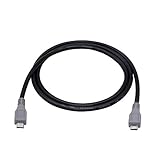
- Micro USB OTG - Connects a Micro USB equipped device to another Micro USB equipped device for charging, data transfer and tethering. Designed for Android/Windows smartphones or tablets connected to other phones, tablets, Kindle Fires, Bluetooth headsets, mp3 players, digital cameras and more data transfer or charging devices.
- EASY TO USE - Both Android devices need to support OTG.The perfect solution for collecting data from old phones with broken screens.
- TRANSMISSION STABILITY - Fully shielded cable with molded connectors.Cable Length: about 1m/3.2ft.
- HIGH SPEED - This high quality cable complies with USB 1.1, USB 2.0 and USB On-The-Go (OTG) specificationsSupporting data transfer speeds up to 480Mbit/sec.
- WIDE COMPATIBILITY - Support All Micro USB OTG equipped device such as Android smart phone,tablet, Bluetooth headset, MP3 players, digital cameras and more devices for data transfer.Perfect solution for gathering data from an old phone with broken screen.
iPhone: iCloud Drive and other iCloud files
- Visit iCloud.com and sign in to the Apple Account used for the files.
- Open Data Recovery or Recently Deleted and look for the file.
- Restore it if it is listed and eligible.
Apple’s iCloud recovery route applies to eligible files within 30 days. Files permanently removed from Recently Deleted cannot be restored through that route. See Apple’s guide to recovering deleted files on iCloud.com.
Android: Google Photos Bin
- Open Google Photos and confirm the profile is the Google Account that backed up or stored the missing images.
- Check Bin and Archive. If an item is in Bin, select it and choose Restore.
Google Photos describes a 30-day Bin retention period on its support page, which does not show a publication year. Items still in Bin may be restored; permanently deleted items or items no longer in Bin cannot be restored from that Bin. See Google Photos Help.
Samsung Galaxy: Gallery Recycle bin
- Open Gallery and go to Recycle bin.
- Select the photo or video and choose Restore if it is available.
Samsung says Gallery’s Recycle bin must have been enabled before deletion and keeps eligible photos and videos for 30 days. Menu names and availability may vary by model or software version. See Samsung’s instructions for recovering deleted photos.
Quick wins for a faster PC:
Scan for outdated or missing drivers - takes under a minuteDriver Scan →Clear out junk files and repair common Windows errorsFree Scan →Fix the driver behind crashes, sound loss and screen glitchesFind Drivers →Rank #2

- Universal IDE SATA to USB 3.0 Adapter: Alxum hard drive reader support SATA 2.5"/3.5" HDD; 2.5"/3.5" IDE HDD, DVD-ROM, CD-ROM, CD-RW, DVD-RW, DVD + RW Optical Drive. Little triangle pro converter with dual-head IDE connector (40-pin and 44-pin) plus one SATA connector (Tips: 4PIN Power Cable is designed for 3.5 inch IDE drive).Using Alxum hard drive transfer kit you can connect the external drive to add storage, perform backups, implement data recoveries and transfer content to your laptop.
- 5Gbps High-Speed Transmission: Alxum SATA IDE to USB adapter Data transfer rates up to 5 Gbps, backward compatible with USB 2.0/1.1. supports UASP. Which is 70% faster than traditional USB 3.0 and has a 40% reduction in required processor resources. Alxum IDE to SATA adapter hard drive connector is universally compatible with Windows 7, Vista, XP,2003/2000/ME, MAC OS X, and Linux. Just plug and play, easy to use. No driver or software is needed!
- Huge Capacity Supportive: Alxum IDE Hard Drive Adapter has a huge capacity.Allowed to operate 2 hard disk drives simultaneouslyThe LED indicator of the USB to SATA IDE adapter can monitor the working status and automatic sleep mode after 30 minutes of inactivity. Hard drive reader to USB support hot swapping, on/off switch for HDD protection. Alxum pocket design hard drives recovery converter is lightweight and compact, mini portable size makes it easy to carry during business travel.
- Get Drives Active: Alxum USB IDE Adapter USB 3.0 to SATA IDE Hard Drive Converter Combo for 2.5" 3.5" IDE SATA SSD Hard Drives Disks. Suitable for Professional and Home Use With the need for data security and data recovery. Alxum USB hard drive adapter could turn any standard 2.5" 3.5" IDE or SATA drive into a convenient external drive. Support adding drive space, performing backups, creating disk images, and implementing data recovery transfer files from a computer or notebook.
- What You Will Get: 1 x USB 3.0 to SATA /IDE converter,1 x USB 3.0 male to male cable 2.62ft,1 x Simple users manual,1 x 12V/2A power supply: can power larger form-factor SATA drives or IDE drives, 1 x 4Pin Molex cable: When using the older parallel IDE connection,1 x USB C to USB Adapter(New and old adapters are shipped randomly): compatible with most laptops, and tablets with a USB Type C port. Any doubts you have when using, we are glad to offer 24h-friendly customer service and email support.
Check the cloud library before restoring a device
A synced library and a device backup are not necessarily the same thing. Check the relevant cloud service directly, using the account that was active when the data was created. For iPhone, Apple distinguishes iCloud Photos and iCloud Drive syncing from the iCloud device backup: iCloud Photos uploads separately and is not included in the nightly device backup, while iCloud Drive files remain synced through iCloud Drive. Some app data must be retrieved from the app provider. Apple explains these cases in its guidance on information missing after restoring with iCloud Backup.
On Android, check Google Photos and the Google Account used on the device before relying on a device backup. A file missing from a particular app may be stored or synced by that app’s own service instead. A backup only helps if the relevant data was included and the account or service is accessible.
When a whole-device backup may help
A backup restore is worth considering when the missing data is not available in a deleted-items folder or synced library and the backup predates the loss. First inspect what the backup covers. Restoring a whole device can replace or reset current contents, and it may not recover every app’s data.
Rank #3

- Quick Access to 2.5-Inch SSD/HDD: SATA drives only, Connect any 2.5" SATA HDD or SSD to your laptop with ease-This SATA to USB adapter supports drives via the high-speed SATA III interface for fast data access and backup, suitable for data transfer and storage expansion
- Transfer Speeds Up to 5 Gbps: The hard drive reader supports USB 3.0 data transfer speeds of 6Gbps, 70% faster than conventional USB 3.0 when connected to a computer that also supports UASP, making large file transfers a breeze by using this hard drive to USB adapter. Reverse compatible with USB 2.0 & USB 1.1
- Plug and Play Easy to Use: Computers use a SATA (Serial AT Attachment) interface to connect to storage drives internally. Your laptop or desktop's external ports use USB, hard drive adapter supports hot-swappable, plug & play, no drivers needed
- Wide Compatibility: SATA to USB cable compatible with USB 3.0 computer systems such as Dell Optiplex & Apple Mac & MacBook laptops/Chromebook/desktop, and 2.5in SATA hard drives & solid-state drives such as Samsung 840 EVO series & Crucial MX 100 series. System requirements: Windows: XP/Vista/7/8/8.1/10, MAC: OS X, Linux
- Power Requirements Note: Our 2.5 inch SATA to USB 3.0 Adapter Cable is USB-bus powered, no need for extra power supply for 2.5 inches HDD/SSD. Not work for 3.5" drive, If you try to use a simple cable adapter on a large desktop drive, it won't spin up
Restore an iPhone or iPad backup
Apple supports restores from iCloud or a computer backup. To restore from iCloud, the device must be new or erased and in its setup process. If it is already set up, Apple says it must be erased before following the restore steps.
The Tool Desk
Outbyte Driver Updater FREEFix the driver behind crashes, sound loss and screen glitchesFind Drivers →Outbyte PC Repair FREEClear out junk files and repair common Windows errorsFree Scan →- Check the available backup’s date and size to choose one that makes sense for when the data existed.
- For an iCloud restore, start with a new device or erase the current device, then follow setup until the restore-from-backup option appears.
- Select the backup and keep the device connected to Wi-Fi while the restore completes.
Erasing is a consequential step: make a separate copy of any current data you cannot afford to lose before proceeding. Follow Apple’s iPhone, iPad, or iPod touch backup restore instructions.
Restore an Android device backup
Google lists apps and app data, call history, contacts, device settings, and SMS/MMS among Android backup data. Coverage varies by app and by device or Android version; not all apps back up or restore everything. Google says the rest of a device backup may need to be restored during initial setup or after a factory reset.
Rank #4

- USB Data Blocker Adapter 2Pack, USB Type-A Male to Female Only for Fast Charging Extender Connector, Protect Against Juice Jacking,Refuse Hacking Provide to provide Secure charging for USB Device
- Review the backup details for the Google Account and device before resetting or replacing the phone.
- During initial setup, or after a factory reset when prompted, sign in to the same Google Account and select the relevant backup.
- Allow the restore to finish. A backup made on a higher Android version cannot be restored to a phone running a lower Android version.
Exact steps and available data vary by device and Android version. See Google’s Android backup and restore guidance.
Samsung Galaxy backup options
Depending on the model, country, provider, and the options enabled before the loss, a Galaxy device may have a Samsung Cloud or Google backup, a Smart Switch copy, or a computer or external-storage backup. Check the backup itself for the needed content and date before relying on it. Samsung notes that availability and supported content vary; use its Galaxy backup and restore guidance and verify instructions for your exact device.
PC Slower Than It Used to Be?
A free scan shows the junk files, broken settings and background clutter dragging Windows down - then fixes them in one click.Free scan · Windows 10 & 11Crashes, No Sound, or Screen Glitches?
Random freezes, missing sound and display glitches usually trace back to one bad driver. Find and replace yours safely.Free scan · under a minuteWhat to do if the file is not in a Bin or backup
If the item is absent from its deleted-items folder and no relevant cloud or device backup exists, the platform’s documented self-service routes may not provide another way to retrieve it. Apple says permanently deleted photos and eligible iCloud files cannot be recovered through the documented routes; Google says items permanently deleted from Photos cannot be restored from its Bin.
Best Value

- Universal Compatibility:Supports simultaneous connection and reading of one IDE and one SATA hard drive. Compatible with 2.5/3.5-inch IDE & SATA HDD/SSD, as well as CD-ROM, DVD-ROM and DVD-RW optical drives, covering most daily storage and optical device usage scenarios.Win 10& Mac OS system is not compatible with DVD drives
- Up to 6Gbps Transfer:Built-in SATA III interface delivers up to 6Gbps transfer speed, 10 times faster than USB 2.0. Backward compatible with USB 2.0 and 1.1, enabling fast and smooth file migration, backup and data reading.
- Plug & Play with Hot-Swap: Driver-free design for plug-and-play use. Supports safe hot-swap, allowing quick replacement of storage devices without rebooting the computer, greatly improving your work efficiency.
- Stable Power Supply: Equipped with a 12V/2A power adapter and dedicated 4-pin power cord to provide stable power supply. It perfectly supports the power demand of 3.5-inch IDE hard drives and prevents data loss caused by unstable power.
- Complete Package & Portable: Comes with full accessories including USB-C adapter, USB-C to Micro USB cable, 4-pin power cord and 12V/2A power adapter. Ready to use out of the box, lightweight and portable for home and office use.
Be cautious of software claiming it can reliably recover permanently deleted files from a modern phone’s internal storage, particularly after a factory reset. The official platform guidance cited here does not establish a reliable recovery method or success rate for that situation. If the device is physically damaged or cannot be accessed and the data is valuable, contact the device maker or a carefully vetted data-recovery specialist; recovery is not guaranteed.
Preserve recovered files and reduce the chance of another loss
Once you recover an important file, make a separate copy on a computer or external storage device rather than treating the phone or one synced account as the only copy. Samsung documents computer and external-storage backup options for supported Galaxy devices; compatibility depends on the phone. Its backup guidance describes available approaches.
Quick Recap
- Confirm that the backup or sync service is enabled for the data you care about, not only for the device generally.
- Check that a backup completed and that it contains the expected categories of data.
- Keep an independent copy of especially valuable files and periodically confirm that it can be opened.
Product prices and availability are accurate as of the date/time indicated and are subject to change. Any price and availability information displayed on Amazon at the time of purchase will apply.




