The simplest Notion system that holds up over time has four parts: a small top-level map, separate homes for active projects and reusable reference notes, one task database when progress needs tracking, and a short weekly review. This structure keeps a meeting note, a project decision and a next action connected without turning your workspace into a maze of dashboards.
Start with the destinations you repeatedly need to find. Add databases, templates and views only when they make retrieval or decisions easier. Notion’s official examples show several valid starting patterns, but none is a universal best setup; the right level of structure depends on whether you work alone, share a hub with a small team, or manage a roadmap with many moving parts.
As an Amazon Associate I earn from qualifying purchases.
Begin with a small map of destinations
Before creating databases, decide where a new page should live. A useful sidebar can be understood at a glance, even months after you build it. Create a handful of top-level pages rather than one page for every subject.
Recommended Free Tools
- Inbox: a temporary landing place for uncategorized notes, links and ideas.
- Active projects: work with a defined outcome, a finish condition and actions.
- Areas: ongoing responsibilities such as marketing, finances, health or team operations.
- Reference: information you expect to reuse, not work that is moving toward a finish line.
- Archive: completed or inactive material that you may need later but do not want in active views.
Use names that match the words you would type when looking for something. If you normally ask “Where is the launch plan?” name the home “Active projects,” not “Operations repository.” Keep the hierarchy shallow: a project can sit under Active projects, while its meeting notes and decisions sit inside that project page. Nest a reference page under an area only when the parent gives it obvious context.
#1 Best Overall

- New and Improved Core: Features premium reusable paper, with improved pen to paper feel, spiral binding and sleekly re-designed, scratch-resistant cover. College-ruled sheets now include Smart Titles and Smart Tags to name and organize files efficiently.
- App-Enabled for Digital Organization: Scan and upload your written work directly to cloud platforms like Google Drive, Dropbox, OneNote, etc. and access your notes from anywhere. Use Smart Titles and Smart Tags to name and organize files efficiently.
- Write, Digitize, Erase, and Re-Write: Write notes with the included Pilot Frixion Pen, digitize effortlessly using the Rocketbook app, store in your preferred cloud service. When done, simply wipe the pages clean with a damp cloth and start fresh.
- Portable and Versatile Sizes: Available in two sizes—Letter (8.5 x 11 inches) and Executive (6 x 8.8 inches)—the Rocketbook Core is compact enough to fit into backpacks, purses, or briefcases. This notebook offers portability and versatility.
- Eco-Friendly Reusability: Designed with sustainability in mind, Rocketbook notebooks help reduce paper waste with a reusable alternative. Enjoy a paper-like notebook that can be used repeatedly, allowing you to save work and erase everything else.
Choose a home for recurring work
Areas are not projects. “Customer support” may continue indefinitely, while “Replace the support form” has an outcome and a completion date. Give an area a page with stable guidance, recurring checklists and links to current projects. Do not create a new top-level page every time a recurring responsibility produces a task.
Set a naming rule before the sidebar grows
Use a predictable title pattern, such as Verb + outcome for projects (“Launch help center”) and Topic + format for reference (“Accessibility—keyboard testing”). Put dates in titles only when they help distinguish recurring records, such as 2026-10-13 Team planning. Consistent names make Notion’s search and your own visual scanning work together.
Separate projects from reference notes
A project page answers “What are we trying to finish, and what happens next?” A reference note answers “What information might I retrieve and reuse?” Mixing them makes both harder to maintain. A long article, a policy explanation or a how-to can support many projects; it should not be copied into each one.
| Type | Use it for | Minimum information | Where it belongs |
|---|---|---|---|
| Project | A finite outcome with actions | Outcome, owner, status, next action | Active projects, with supporting pages nested inside |
| Reference note | Reusable facts, procedures or source material | Clear title, subject, context and links | Reference or the relevant area |
| Meeting note | Agenda, decisions and follow-ups from one meeting | Date, participants, decisions and action items | The project or area that owns the meeting |
| Decision record | Why a significant choice was made | Decision, date, owner, alternatives and review point | Inside the project or area affected by it |
Keep project-specific notes in context
When a note exists only because of one project, create it inside that project page or link it prominently from there. A design review, vendor comparison or launch retrospective should be one click from the work it explains. If the note contains reusable knowledge as well, keep the durable explanation in Reference and link to it from the project rather than maintaining two independent copies.
Use a lightweight capture path
- Send an unprocessed thought, clipped article or voice-to-text fragment to Inbox.
- During your next review, decide whether it is a project action, a reference note, an area item or something to delete.
- Give the page a specific title and add one sentence of context so you can understand it later.
- Move or link it to its permanent home, then clear the Inbox item.
An Inbox is useful only if it is emptied regularly. Treat it as a queue, not a second permanent archive.
Build a project page that exposes the next action
Every active project should have one reliable home. The page can be simple; its job is to make the outcome, current state and next physical action obvious.
Rank #2

- New and Improved Core: Features premium reusable paper, with improved pen to paper feel, spiral binding and sleekly re-designed, scratch-resistant cover. College-ruled sheets now include Smart Titles and Smart Tags to name and organize files efficiently.
- App-Enabled for Digital Organization: Scan and upload your written work directly to cloud platforms like Google Drive, Dropbox, OneNote, etc. and access your notes from anywhere. Use Smart Titles and Smart Tags to name and organize files efficiently.
- Write, Digitize, Erase, and Re-Write: Write notes with the included Pilot Frixion Pen, digitize effortlessly using the Rocketbook app, store in your preferred cloud service. When done, simply wipe the pages clean with a damp cloth and start fresh.
- Portable and Versatile Sizes: Available in two sizes—Letter (8.5 x 11 inches) and Executive (6 x 8.8 inches)—the Rocketbook Core is compact enough to fit into backpacks, purses, or briefcases. This notebook offers portability and versatility.
- Eco-Friendly Reusability: Designed with sustainability in mind, Rocketbook notebooks help reduce paper waste with a reusable alternative. Enjoy a paper-like notebook that can be used repeatedly, allowing you to save work and erase everything else.
Recommended project-page sections
- Outcome: describe the finished result in one or two sentences.
- Boundaries: record what is included, excluded and constrained.
- Owner and collaborators: identify who decides and who contributes.
- Status: use the same vocabulary as your task database.
- Next action: write the smallest visible step, such as “Draft the first three help articles,” rather than “Work on documentation.”
- Milestones: list meaningful checkpoints, not every minor task.
- Notes and decisions: keep links to meeting notes, source material and decision records.
- Risks and waiting items: record dependencies that could block progress.
Put the next action near the top of the page. A project can have dozens of notes and still be healthy if a reader can determine what should happen next without rereading its history.
What’s actually slowing this PC down?
Pick the symptom - the matching free tool is one click away.
Create a repeatable project template
- Create a new page under Active projects and apply a project template, or save a blank project page as a template.
- Pre-fill headings for outcome, owner, status, next action, milestones, decisions and notes.
- Delete headings that do not apply; a template is a starting point, not a form you must complete.
- Add links to the task view or filtered list that shows this project’s open actions.
- When the outcome is delivered, mark the project complete, capture a short retrospective if useful and move it to Archive.
Keep the template neutral. A project that needs a launch checklist should add one; a small personal errand does not need a risk register.
Use a task database when status matters
A plain checklist is enough when you only need to remember a few actions. Create a task database when you need to answer questions such as “What is blocked?”, “What is each person doing?” or “Which actions belong to this project?” A database lets the same task appear in different filtered views without copying it.
Start with a few properties
| Property | Purpose | Good starting choice |
|---|---|---|
| Task name | States one observable action | Begin with a verb: “Confirm accessibility review date” |
| Status | Shows workflow position | Not started, In progress, Blocked, Done |
| Project | Connects the action to its outcome | One project value; leave blank for area or personal tasks |
| Due date | Records a real commitment | Use only when a date matters |
| Owner | Makes responsibility visible | One accountable person |
| Priority | Helps choose among competing actions | Optional; use a small scale such as low, normal, high |
Properties are maintenance costs. If nobody updates a field, remove it. A task database with four reliable properties is more useful than one with fifteen stale ones.
Design statuses around decisions
Notion’s task-board guidance uses a database board whose columns represent statuses, with cards moved as work progresses. Begin with statuses that answer what is new, underway, blocked or complete. Add a review or waiting status only when that distinction changes what you do next. Avoid columns such as “Almost done” or “Maybe later” unless your team has a precise definition for them.
Crashes, No Sound, or Screen Glitches?
Random freezes, missing sound and display glitches usually trace back to one bad driver. Find and replace yours safely.Free scan · under a minuteWindows Errors? Fix Them Before They Spread
Repair common Windows errors and clear accumulated junk for a smoother, more stable PC - no reinstall needed.Free scan · no reinstallSet up a board and supporting views
- Create a database for tasks using a table or board layout.
- Add a Status property and choose a small set of workflow states.
- Switch to a board view and group cards by Status so each column represents a state.
- Add a table view sorted by due date for date-driven work.
- Add a “My open tasks” view filtered to the current owner and excluding Done.
- Add a project view filtered to one project, then place that linked view on the project page.
Menu names can change as Notion updates its interface, so look for the current controls for creating a database, adding a view, grouping by a property and filtering records. The durable principle is the relationship between one task database and several purposeful views, not a particular button label.
Rank #3

- New and Improved Core: Features premium reusable paper, with improved pen to paper feel, spiral binding and sleekly re-designed, scratch-resistant cover. Grid layout pages now include Smart Titles and Smart Tags to name and organize files efficiently.Create, Digitize, Erase, Re-Create: Capture ideas with the included Pilot Frixion Pen, digitize effortlessly using the Rocketbook app, store in your preferred cloud service. When done, simply wipe the pages clean with a damp cloth and start fresh.
- App-Enabled for Digital Organization: Scan and upload your written work directly to cloud platforms like Google Drive, Dropbox, OneNote, etc. and access your notes from anywhere. Use Smart Titles and Smart Tags to name and organize files efficiently.
- Write, Digitize, Erase, and Re-Write: Write notes with the included Pilot Frixion Pen, digitize effortlessly using the Rocketbook app, store in your preferred cloud service. When done, simply wipe the pages clean with a damp cloth and start fresh.
- Portable and Versatile Sizes: Available in two sizes—Letter (8.5 x 11 inches) and Executive (6 x 8.8 inches)—the Rocketbook Core is compact enough to fit into backpacks, purses, or briefcases. This notebook offers portability and versatility.
- Reusability: Designed with sustainability in mind, Rocketbook notebooks help reduce paper waste with a reusable alternative. Enjoy a paper-like notebook that can be used repeatedly, allowing you to save work and erase everything else.
Write tasks that can actually be started
“Prepare launch” is a project or milestone, not a useful task. Break it into actions that produce a visible result: “Confirm launch date with sales,” “Draft the release email” and “Ask support to review the FAQ.” If an item takes several sessions, keep it as a project milestone and create the next concrete action underneath it.
Make notes easy to retrieve
Findability comes from context and consistent signals, not from adding tags everywhere.
Use titles that carry the subject
Prefer “OAuth token rotation procedure” to “Important security notes.” Include the customer, product, location or version when it distinguishes one note from another. Put transient details such as a meeting date in a date property or subtitle when the title should remain stable.
Quick wins for a faster PC:
Repair Windows errors before they cause bigger problemsFix Now →Scan for outdated or missing drivers - takes under a minuteDriver Scan →Clear out junk files and repair common Windows errorsFree Scan →Add a short context block
At the top of a reference page, write what the note covers, who it is for and when it was last checked. This prevents a copied snippet from becoming mysterious months later. Record the original source link when you are permitted to share it and distinguish your own interpretation from quoted material.
Link instead of duplicating
Link a project to the reference pages it uses, and link a reference page back to the projects that depend on it when that context is valuable. If your workspace offers relation properties, use one relationship for the project and avoid creating separate copies of the same note for every team.
Archive deliberately
Move outdated procedures, completed projects and abandoned ideas out of active views. Archive does not mean delete: retain material that may be needed for accountability or future reference, but remove it from dashboards where it competes with current work.
Rank #4
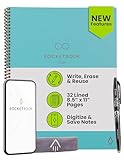
- New and Improved Core: Features premium reusable paper, with improved pen to paper feel, spiral binding and sleekly re-designed, scratch-resistant cover. College-ruled sheets now include Smart Titles and Smart Tags to name and organize files efficiently.
- App-Enabled for Digital Organization: Scan and upload your written work directly to cloud platforms like Google Drive, Dropbox, OneNote, etc. and access your notes from anywhere. Use Smart Titles and Smart Tags to name and organize files efficiently.
- Write, Digitize, Erase, and Re-Write: Write notes with the included Pilot Frixion Pen, digitize effortlessly using the Rocketbook app, store in your preferred cloud service. When done, simply wipe the pages clean with a damp cloth and start fresh.
- Portable and Versatile Sizes: Available in two sizes—Letter (8.5 x 11 inches) and Executive (6 x 8.8 inches)—the Rocketbook Core is compact enough to fit into backpacks, purses, or briefcases. This notebook offers portability and versatility.
- Eco-Friendly Reusability: Designed with sustainability in mind, Rocketbook notebooks help reduce paper waste with a reusable alternative. Enjoy a paper-like notebook that can be used repeatedly, allowing you to save work and erase everything else.
Choose a starting pattern that matches your work
Notion’s official examples illustrate different shapes rather than a single required template. Use the comparison below to choose a starting point, then remove anything you will not maintain.
| Pattern | Best fit | Useful elements | What to simplify |
|---|---|---|---|
| Personal workspace | One person managing projects, to-dos, contacts and resources | Project list, weekly to-do list, resource pages and a small task view | Team permissions, elaborate reporting and unused contact fields |
| Roadmap | Product or delivery work organized into epics, sprints, tasks and bugs | Hierarchy from large outcomes to sprint-level actions, with status tracking | Epics and sprint fields if you do not plan work in those units |
| Agency or team hub | Shared work requiring goals, guides, people and pipeline information | Central documentation, project goals, ownership and shared views | Private personal notes and fields that no team decision uses |
When a personal workspace is enough
If you mainly need to remember commitments and retrieve your own notes, use the small map, one task database and a weekly list. A separate database for contacts or resources is optional; a simple page hierarchy may be faster to maintain.
When a roadmap structure helps
Use epics and sprints only when your work genuinely has those cycles. An epic should represent a substantial outcome, a sprint a bounded planning window, and a task a concrete action. If your projects do not have regular iterations, a project-plus-task model is easier to understand.
When to build a shared hub
A team hub earns its complexity when several people need the same goals, guides, project pages and status views. Give each shared database an owner, document what its statuses mean and decide which pages are private. Without ownership, a hub becomes a collection of stale pages that nobody trusts.
Keep individual and team workflows compatible
Solo and shared work can use the same concepts while differing in permissions and detail. In a team space, make ownership explicit for projects and tasks, store meeting notes with the relevant project, and keep decisions where affected contributors can find them. In a personal space, you can collapse owner and collaborator fields and keep fewer views.
Do not force private planning into a shared project page. Keep personal scratch notes private, then publish the decision, task or context the team actually needs. Conversely, do not hide a team commitment in a personal page that colleagues cannot access.
Best Value

- Sync in Real Time — No Need to Take Photos or Upload Notes: Write naturally on paper while the free Ophaya Pro+ app (iOS/Android) instantly digitizes notes and drawings and syncs them across smartphone and iPad, ensuring no idea is lost.
- Smart Search & Convert to Text: Search handwritten notes by keywords, tags, or timestamps, and convert handwriting to editable text (Word) using integrated OCR technology.
- Multi-Format Sharing & Export: Share notes seamlessly as PDF, Word, PNG, GIF, or MP4 files — combine multiple pages before sharing for efficient collaboration.
- Audio-Linked Notes: Record audio synchronized with writing; tap notes to replay context-specific recordings for review.
- Offline Reliability & Customization: Save notes without connectivity (auto-syncs when online), and personalize your writing with adjustable pen thickness, colors, and eraser tools.
Run a short weekly review
A review keeps the system current; it is not a separate productivity project. Reserve a consistent block of time and work through the same sequence.
- Empty Inbox: classify, title, link or delete each loose capture.
- Check active projects: confirm every project still has a valid outcome and owner.
- Update statuses: move task cards to the state that reflects reality, including Blocked or Waiting when appropriate.
- Choose next actions: make sure every active project has one action that can be started.
- Review dates and dependencies: remove expired due dates, renegotiate real commitments and flag waiting items.
- Close or archive: move completed, cancelled or dormant projects out of active views.
If the review takes too long, reduce fields, statuses or views before adding automation. The system should be quick enough that you will willingly revisit it next week.
Common failure modes and fixes
| Symptom | Likely cause | Fix |
|---|---|---|
| You cannot tell where a note belongs | Too many top-level pages or vague names | Return to the small map and rename homes around likely search questions |
| Projects contain pages but no movement | Notes are present, but no next action or owner | Add one concrete next action and assign responsibility |
| The board has many empty or confusing columns | Statuses describe feelings rather than workflow | Keep only states that change the next decision |
| The same information appears in several places | Copy-and-paste instead of linking | Choose one canonical reference page and link to it |
| Dashboards show outdated work | No review or archive rule | Schedule the weekly review and move inactive items out of active views |
| Templates feel like paperwork | Every possible field was made mandatory | Delete optional sections and keep only information you use to retrieve or decide |
A practical first setup
You can establish the core system in one sitting without importing every old note.
Free tools Windows power users keep installed
One-click scans. No signup required.
- Create the top-level pages Inbox, Active projects, Areas, Reference and Archive.
- Choose one current project and build its page with an outcome, owner, status, next action and links.
- Create a task database with Task, Status and Project properties. Add Due date or Owner only if you already need them.
- Create a board grouped by Status and a filtered view for open tasks.
- Move only the notes you expect to use soon. Leave the rest in a temporary migration page until you know where they belong.
- Schedule the weekly review and adjust the structure after two or three reviews, based on what you actually failed to find or update.
Notion’s templates can accelerate this setup, but template catalogs and interface labels change. Treat the personal workspace, roadmap and agency hub examples as patterns to inspect, not packages you must adopt unchanged.
Bottom line
Organize Notion around retrieval and decisions: a few recognizable homes, a clear boundary between projects and reference, one task database with meaningful statuses, and a weekly habit of updating and archiving. Start with the smallest structure that answers your real questions, then add a view or property only when it removes a repeated obstacle.
Quick Recap
Product prices and availability are accurate as of the date/time indicated and are subject to change. Any price and availability information displayed on Amazon at the time of purchase will apply.




