Sharing a Copilot Notebook can expose more than the notebook page. Microsoft says people you invite may also be invited to the notebook’s linked OneDrive or SharePoint files when you have permission to share them. If a permission cannot be transferred, the file stays restricted and the recipient must request access. Current notebook membership is collaboration-oriented: invitees receive editing access, and Microsoft does not currently offer read-only notebook members.
The safest approach is to audit references first, check every source’s file permissions, confirm each collaborator’s Copilot license, then invite named people through Share. Copilot uses references added to the notebook that the current user can access; it does not automatically search that user’s entire OneDrive, email, Teams chats, or the web. Microsoft’s FAQ also states that Copilot Notebooks data is not used to train the large language model, but that statement does not by itself define your tenant’s retention, residency, logging, or compliance rules.
As an Amazon Associate I earn from qualifying purchases.
What happens when you share a Copilot Notebook?
A notebook share is both a collaboration action and a potential file-access change. The notebook contains a list of references—files, pages, or URLs—that Copilot can use when generating answers. Microsoft says invitees are automatically invited to linked files when the notebook owner has permission to share those files. The invitation does not override existing ownership, sensitivity labels, library rules, or inheritance.
Quick wins for a faster PC:
Scan for outdated or missing drivers - takes under a minuteDriver Scan →Clear out junk files and repair common Windows errorsFree Scan →For each reference, one of three outcomes is possible:
#1 Best Overall

- Compatible Model(s): Magicmoon brand filter only for 24 inch -diagonally measured - widescreen monitor - aspect ratio 16:9 - filter size: width: 20 15/16", Height: 11 13/16" (531mm x 298mm)
- Superior Privacy: The computer privacy filter makes the screen appear dark when looking at it from an angle (the angle is about 30 to 60 degree), but bright when looking directly at it. To change the privacy level - simply adjust your monitor’s brightness accordingly
- Eye and Screen Protection: Privacy Filter does not only protect your private life but also protects your eyes by blocking 30% of blue light , blocking the harmful blue light between 380 to 495 nm, it filters out the blue light and relieves eye strain
- Perfect For Open Workspaces: Great for maintaining screen privacy in open work spaces
- Includes Two Options: Option 1 uses clear adhesive strips that securely attach to any computer screen. Option 2 (for computer screens with a raised bezel only) uses slide mount tabs that easily stick to the display frame, allowing you to slide the privacy screen filter on and off as needed
- Access transfers: the invited person receives the file permission needed to open the reference.
- Access remains restricted: the owner cannot transfer permission, or an organization policy blocks it. The notebook can be shared while the file remains unavailable.
- Access requires a separate request: the recipient sees the notebook but must ask the file owner or site administrator for access.
Sharing a OneNote reference has an additional requirement. Microsoft says that when a notebook contains a OneNote section or page, you should share the entire OneNote notebook so recipients can reach that content; sharing only the Copilot Notebook does not necessarily grant the underlying OneNote access.
Do not describe the feature as a view-only link. Microsoft’s current FAQ says, “Not currently. Anyone you invite to your notebook will have editing access to it.” Group membership is also listed as unavailable in that FAQ. If you need a read-only audience, publish an approved export or share the underlying files with view permissions instead of adding those people as notebook members.
Prepare the notebook before inviting anyone
1. Define the audience and the required material
Write down who needs to collaborate and what they actually need to use. A project team may need drafts and meeting notes, while an executive reviewer may need only a final report. Because Copilot grounds answers in the notebook’s references, every unnecessary reference increases the chance that a collaborator can discover sensitive context or that Copilot will use material outside the intended task.
Recommended Free Tools
2. Audit the References list
Open the notebook and inspect its complete References list. Remove obsolete drafts, personal documents, confidential HR material, customer records, and links that are broader than the project. Add only the files and pages required for the stated purpose. Copilot’s documented scope is the references added to the notebook that the user can access—not an unrestricted search of the user’s Microsoft 365 data.
3. Check your authority to share each source
For every OneDrive or SharePoint item, determine whether you are the owner, have direct sharing rights, or are relying on inherited access. A person who can read a file is not necessarily allowed to grant another person access. Where a library or site administrator controls sharing, ask that administrator before inviting the notebook audience.
4. Classify sensitive references
Mark references that contain personal data, privileged advice, regulated records, customer information, or unpublished business information. Decide whether they should be removed, placed in a separate notebook, or shared only with a smaller named group. A notebook is not a security boundary that makes an over-broad source safe.
Rank #2
![[2 Pack] 24 Inch Computer Privacy Screen Filter for 16:9 Widescreen Monitor](https://m.media-amazon.com/images/I/41SBKw3J4ML._SL160_.jpg)
- 【24 PRIVACY FILTER DIMENSIONS】 Width: 20 15/16" (20.9 inches/532 mm), Height: 11 13/16" (11.8 inches/299 mm) - 16:9 Aspect Ratio. Mamol computer privacy filters are designed to be perfectly compatible with HP, Samsung, Dell, Lenovo, Acer, Asus, LG, ViewSonic and other brands of monitors. Please check the width and height dimensions of your computer screen before ordering. If you have any questions about the dimensions, please contact us.
- 【ENHANCED PRIVACY PROTECTION】Mamol 24 inch computer privacy filter keeps your electronic information confidential, making it excellent for use in high traffic areas. the computer privacy screen 24 inch is designed with advanced microlouver technology to block visibility at around 30 degrees and black out screens completely near 60 degrees.
- 【EYES PROTECTION】 This blackout privacy screen greatly reduces eye strain and minimizes potential hazards to vision. It filters 99.9% of UV rays and suppresses 98% of blue light. As a reversible 24-inch privacy screen filter: The glossy side of the protector provides extra clarity and greater privacy, and the matte side minimizes glare and distracting reflections. Satisfy your different daily uses as needed.
- 【BETTER HD CLARTIY】Mamol 24 inch computer privacy screen Shield adds an extra layer of AR Ultra HD light transmission compared to others. It maintains the high definition of the screen without sacrificing too much screen brightness. It won't reduce the brightness and cause eye fatigue because of the privacy screen installed on the screen.
- 【ANTI SCRATCH & WASHABLE 】Our privacy anti-glare Monitor film has a surface enhancement layer to protect the privacy filter from scratches and fingerprints. It is washable and reusable. Even after prolonged use, you will get a brand new privacy screen for your desktop computer monitor after cleaning. Very Durable!
How to share a notebook safely
- Open the notebook. Review the References list and remove anything the intended collaborators should not use.
- Verify source permissions. In OneDrive or the relevant SharePoint library, open each item’s sharing or Manage access view. Check direct access, inherited access, current roles, and whether download or resharing is restricted.
- Confirm licenses and source compatibility. Check each invitee’s Copilot product and whether it supports the reference types in your notebook. The limits and organizational-source support differ between Copilot Chat and Microsoft Copilot for work or school.
- Use the notebook’s Share control. Invite people by name or email rather than distributing an untracked link. Tell recipients that current notebook members have editing access.
- Review the resulting file invitations. After the notebook invitation is sent, open the access panel for each linked file and verify who received access and at what level.
- Resolve exceptions separately. If a file stayed restricted, have the recipient use the documented request-access route or ask the file owner or site administrator to grant the appropriate permission.
- Test with a representative account. Ask one collaborator to open the notebook and several references. Confirm that expected files open, restricted files remain restricted, and Copilot answers do not rely on a source that was meant to be excluded.
Microsoft’s pages describe gradual feature rollout, so labels and the exact placement of controls can vary by tenant, license, and client version. The security decision remains the same: validate the notebook and each source after the invitation, not just the moment you click Share.
Manage permissions at the file level
Notebook membership and document access are related but separate controls. For OneDrive for work or school, Microsoft’s document-privacy guidance describes these direct-access choices:
| Control | What it does | When to use it |
|---|---|---|
| Can edit | Allows the person to change the document and, subject to organization policy, may allow further sharing. | Use only for collaborators who must update the source. |
| Can view | Allows reading without ordinary editing rights. | Use for a reviewer who needs the file but not authoring access. |
| Can’t download | Restricts downloading for the supported sharing scenario; it is not a guarantee that screen capture or every form of copying is impossible. | Use when browser-only viewing is an explicit policy requirement. |
| Remove direct access | Removes a person’s direct grant. It does not necessarily remove access they receive through a group, team, site, or folder inheritance. | Use when a named invitation should end, then check inherited paths. |
Folder-level changes can apply to documents inside the folder. A file with a different permission configuration may be an exception, so inspect the individual item when the content is sensitive. Organization customizations can change which controls appear and how they behave.
When you remove a person from the notebook, also review every linked file. Removing notebook membership is not a substitute for revoking a direct OneDrive or SharePoint grant, removing a group membership, or changing a folder’s inherited permission.
Read-only access, groups, and collaboration limits
There is no read-only notebook membership
Microsoft’s June 2026 FAQ explicitly says invited notebook members receive editing access. You cannot currently add someone as a read-only member while keeping them inside the notebook collaboration model. That matters for legal review, leadership briefings, external advisers, and any project where an accidental edit would be unacceptable.
Free tools Windows power users keep installed
One-click scans. No signup required.
Use a separate review path when editing is inappropriate
- Share a finalized source file with Can view permission.
- Export or publish an approved summary through your organization’s normal document-review process.
- Create a separate notebook containing only material that every member is allowed to edit.
- Keep the working notebook private and distribute generated material only after a human checks it.
These alternatives do not turn the notebook itself into a read-only workspace; they keep non-editors outside the membership boundary.
Rank #3

- 【Privacy Filter Dimensions】- Width: 20 15/16" (532 mm), Height: 11 13/16" (299 mm), Diagonal: 24" (609.6 mm) - SightPro Blackout Privacy Screen Filter is engineered to be compatible with HP, Dell, Samsung, Lenovo, LG, Acer, ASUS, ViewSonic, and other monitor brands. Please verify your computer screen's width and height measurements before ordering. It's not recommended to make your selection based solely on your computer screen's diagonal size.
- 【Two Attachment Options】- Installs in minutes. Option 1 uses clear adhesive strips that securely attach to any computer screen. Option 2 (for computer screens with a raised bezel only) uses slide mount tabs that easily stick to the display frame, allowing you to slide the privacy screen filter on and off as needed.
- 【Superior Privacy and Anti Glare】- Our advanced multi-layered film filter blacks out your computer screen when viewing from the side, while maintaining a crystal clear screen straight-on. It also protects your eyes from harmful glare, UV, and blue light. [Note: It does not block visibility directly behind you, regardless of the distance.]
- 【Perfect for Travel and Open Workspaces】- Our computer screen privacy filter is the ideal solution for healthcare providers, mobile workers, commuters, students, and business travelers. Now you can stay compliant and safeguard sensitive corporate information while working in airplanes, subways, airports and public areas.
- 【Package Contents】- Each package includes one privacy screen shield filter, two sets of clear adhesive strips, two sets of slide mount tabs, and a microfiber cleaning cloth. Buy with confidence – located in the US, Sight Pro specializes in providing best-in-class privacy solutions to individuals, small businesses, corporations, government, and educational institutions. Our privacy screens are Section 889 and TAA compliant.
Group invitations are not the same as notebook groups
The current FAQ also says group membership is unavailable. If access must follow a changing team, manage that team through the underlying SharePoint, OneDrive, or Microsoft 365 group controls where supported, and review how those inherited permissions affect each source. Do not assume that adding a group to a file automatically creates a group-aware notebook experience.
Licenses determine which references collaborators can use
Source limits are product limits, not a measure of how many documents your organization owns. Microsoft’s licensing comparison observed in October 2026 lists the following distinctions:
| Product or plan | Reference limit | Documented source availability | Sharing implication |
|---|---|---|---|
| Copilot Chat | Up to 50 sources per notebook. | Standard references such as Office files and external URLs are supported. The sharing guide does not list premium organizational sources such as Teams, SharePoint/OneDrive, and internal URLs for Copilot Chat. | A notebook built around organizational sources may not work for a Copilot Chat recipient even when the owner can access those sources. |
| Microsoft Copilot for work or school | Up to 300 sources. Microsoft’s reference guidance says that when more than 300 are added, only the first 300 are used for grounding. | Supports additional organizational sources, including Teams, SharePoint/OneDrive, and internal URLs, subject to access and tenant policy. | The add-on expands reference support; it does not give the notebook owner permission to share a file they cannot share. |
| Microsoft 365 Personal, Family, Premium, or Pro | Availability and feature details vary by plan. | Copilot Notebooks is listed as available, but Microsoft’s June 2026 sharing guide says notebook sharing is not yet available for these consumer subscribers. | Do not promise collaborative notebook membership to a consumer-plan subscriber; check the current plan documentation before planning a shared workflow. |
Ask each invitee which product they are using, not merely whether they have “Copilot.” A recipient may be able to open the notebook while lacking support for a premium reference type. If a notebook exceeds the applicable limit, organize references deliberately and ensure the first 300 are the sources you want used for grounding.
Do these 3 things before closing this tab:
1Fix the driver behind crashes, sound loss and screen glitches2Repair Windows errors before they cause bigger problems3Scan for outdated or missing drivers - takes under a minuteWhat Copilot Notebooks can access
Microsoft’s overview states that Copilot “doesn’t access your entire OneDrive, email, Teams chats, or the web, and only uses the references you’ve added to the notebook to generate responses.” The practical boundary has two parts:
- Reference selection: a source must be added to the notebook to be in scope for grounding.
- User authorization: the current user must be able to access that source. Adding a link does not bypass its permission.
This is why removing a reference before sharing is more effective than telling collaborators not to open it later. It removes the source from the notebook’s intended grounding set, while file permissions provide the independent enforcement layer.
External URLs have stricter requirements
Microsoft’s June 2026 reference instructions allow publicly accessible external pages. Authenticated or paywalled pages and linked subpages are unsupported. If a source requires a sign-in, save an approved copy in a supported organizational location and apply the correct file permissions, or use a public page only when your organization permits that disclosure.
Rank #4

- 【PRIVACY FILTER DIMENSIONS】- Width: 20 15/16" (532 mm), Height: 11 13/16" (299 mm), Diagonal: 24" (609.6 mm) - Peslv Dark 24 inch Privacy Screen Filter is engineered to be compatible with 24in Dell, HP, Samsung, Lenovo, LG, Acer, ASUS, Toshiba, ViewSonic, Aoc, Sceptre, PHILIPS, ViewSonic and other brands monitors with 16:9 aspect ratio. Please verify your computer screen's width and height measurements before ordering. It is not recommended to select a size based solely on the diagonal.
- 【HIGH-CLASS PRIVACY ABLE】Peslv collected suggestions from more than 2000 computer users and performed 22188 anti-peep angle corrections on the micro-blind optical technology to ensure that any line of sight beyond +-30° facing the screen will be shielded. With a Peslv computer privacy screen 24 inch, Protect the privacy of your computer monitor screen and no longer leak any confidential data.
- 【2 MOUNTING OPTIONS FOR EASY INSTALLATION】The Peslv 24 inch privacy screen for monitor supply 2 installation options, Various installation options, are Compatible with both 24" computer monitors with raised bezels and full-screen 24" computer monitors without raised bezels, and convenient installation allows you to complete the installation in 9 seconds. NOTE: Monitors without raised bezels are only available with mounting option 2.
- 【EXCLUSIVE DOUBLE-SIDED TECHNOLOGY】24-inch monitor privacy filter has a double-sided surface technology developed by Peslv. Matte or Glossy. With the matte surface facing outward, you can experience the advanced AG anti-glare technology from Germany while maintaining a 30-degree privacy angle, softening the strong light outdoors, and making the screen content clearly visible. With the glossy side facing outward, you can get a super anti-peeping effect with a privacy angle of 26 degrees.
- 【PROTECT SCREEN ALSO EYES】Filtering optical materials imported from Japan can reduce 92% of blue light and 98% of UV light, and filter all harmful light emitted from the screen to protect your eyes. The high-transparent and reinforced built-in protective layer not only presents high-definition picture quality but also protects your screen from scratches. Hurry up and place an order, own a privacy screen for a computer monitor 24 inch, and protect your monitor screen and your eyes.
Supported files and changing content
Supported formats and behavior can change as Copilot Notebooks rolls out. Treat a reference as a live permissioned source: if its location, contents, or sharing policy changes, recheck the notebook and test an answer that depends on it. A successful add operation is not proof that every collaborator can later open or ground on the source.
PC Slower Than It Used to Be?
A free scan shows the junk files, broken settings and background clutter dragging Windows down - then fixes them in one click.Free scan · Windows 10 & 11Crashes, No Sound, or Screen Glitches?
Random freezes, missing sound and display glitches usually trace back to one bad driver. Find and replace yours safely.Free scan · under a minutePrivacy: training, storage, and governance are different questions
What Microsoft says about model training
Microsoft’s FAQ gives a narrow, direct statement: “Copilot Notebooks doesn’t use user data to train the large language model.” That addresses training of the large language model. It does not state that data is never processed, cached, logged, retained, copied into a generated document, or accessible to administrators and service providers under the applicable service terms.
What the statement does not establish
The end-user FAQ does not, by itself, settle your organization’s retention period, data residency, eDiscovery, audit logging, encryption configuration, legal hold, regulatory obligations, or tenant-specific processing settings. Work and school users should consult Microsoft’s separate privacy and governance documentation and their tenant administrator for those decisions. Consumer subscribers should review the privacy terms that apply to their plan and region.
Where the notebook is stored
Microsoft’s FAQ says the notebook is held in a creator-owned SharePoint Embedded container. Ownership and lifecycle therefore matter: when the creator leaves an organization or loses a license, an administrator may need to address the container and its linked sources under the tenant’s governance process. Do not infer a retention or transfer policy that Microsoft has not stated for your tenant.
Generated answers still require verification
Microsoft advises users to verify Copilot answers before acting on them. A response can omit a restricted source, misunderstand a document, or reflect an outdated reference. For financial, legal, medical, security, personnel, or customer-impacting decisions, require a human review of the cited material and the final action.
The Tool Desk
Outbyte Driver Updater FREEScan for outdated or missing drivers - takes under a minuteDriver Scan →Outbyte PC Repair FREEClear out junk files and repair common Windows errorsFree Scan →Removing access and deleting a notebook
Revoke a collaborator
- Remove the person from the notebook’s sharing list.
- Open each linked OneDrive or SharePoint item and remove direct access where it is no longer required.
- Check folder, site, team, and group inheritance; a person may retain access through one of those paths.
- Ask the person to close downloaded or exported copies according to your organization’s incident and records procedures.
Access revocation prevents future access through the controls you changed, but it cannot recall a copy someone already downloaded or copied into another system.
Best Value
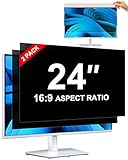
- [How To Determine The Screen Size]: Before Purchasing Our 24 inch privacy screen for monitor, Please Measure The Size Of Your Computer Screen First. Our computer privacy screen 24 inch Is Suitable For Computer Screens With A Width Of 20.92 Inches (53.13 Cm), A Height Of 11.77 Inches (29.89 Cm), And A Diagonal Length Of 24 Inches (60.96 Cm). (It Is Not Recommended To Choose The Size Only Based On The Diagonal Length.) The ZOEGAA 24-Inch 16:9 computer privacy screen Is Compatible With HP, Samsung, Dell, Lenovo, Acer, ASUS, Viewsonic And Other 24-Inch 16:9 Computer Monitors. Welcome To Your Purchase!
- [Outstanding Privacy Effect]: The Engineer Team Of ZOEGAA Has Collected Suggestions From Over 5,000 Computer Users And Corrected The Anti-Peep Viewing Angle Of The Micro-Blind Optical Technology For 35,462 Times To Ensure That The View Beyond ±30 Degrees Will Be Hidden. People On Your Left And Right Will See A Black Screen.
- [How To Install]: ZOEGAA 24 inch monitor privacy screen Supports 2 Installation Methods. The First One Is The Insert Type Installation, Which Is removable. The Second One Is The Mounting Adhesive Installation, Which Is Non-Detachable. For Detailed Installation Methods, Please Refer To The Pictures Or Videos In The Listing.
- [Better Clarity]: ZOEGAA privacy screen 24 inch monitor. It Has Added An AR High-Definition Light-Transmitting Layer, Which Enables The computer monitor privacy screen To Maintain Its Original Clarity While Achieving The Anti-Spy Effect; It Will Not Cause Eye Fatigue Due To The Installation Of The privacy screen for monitor.
- [Reversible Glossy And Matte Surfaces]: The 24 in privacy screen for monitor Of ZOEGAA Has Two Different Surface Textures - The Glossy Surface Offers Better Anti-Peeping Effect, While The Matte Surface Provides Better Anti-Glare Performance. The Matte Surface Is Suitable For Use In Strong Light Environments. This 24 inch monitor privacy screen Also Has Anti-scratch And Anti-Fingerprint Functions, Ensuring That You Won't Worry About Being Damaged By sharp Objects During Use. It Is Washable And Can Achieve A Brand-New Appearance After Being Washed.
Delete only when you understand the consequence
Microsoft’s current overview says notebook deletion is permanent and cannot be undone. Treat that as a volatile product detail and verify the current behavior in your tenant before deleting a notebook that may be needed for records, investigation, or continuity. Deleting the notebook does not automatically describe what happens to the original OneDrive, SharePoint, OneNote, or exported files; manage those items under their own lifecycle rules.
Troubleshoot common access problems
“The recipient can open the notebook but not a file”
The file permission did not transfer, or the recipient lacks access through the owning site. Have the file owner use the item’s access controls or the organization’s request-access process. Confirm that the recipient is using an account covered by the required tenant and license.
“Copilot ignores a reference”
Check that the source is still in References, that the user can open it, and that it falls within the plan’s supported source types and limit. For a work/school notebook with more than 300 references, verify that the needed item is among the first 300 used for grounding.
“A public URL does not work”
Confirm that the page is publicly reachable without authentication, is not paywalled, and does not depend on unsupported linked subpages. Replace it with an approved file or a supported public page if those conditions cannot be met.
“I need viewers, not editors”
That is not available for notebook members under Microsoft’s current FAQ. Keep the person outside the notebook and share a reviewed output or the source files with view permission.
“Removing direct access did not block the person”
Look for inherited folder or site permissions, a Microsoft 365 group, a team membership, or another direct invitation. Remove the applicable path, then retest with the person’s account.
Quick Recap
A repeatable privacy checklist
- Identify the business purpose and the exact audience.
- Remove references that are not necessary for that purpose.
- Check direct and inherited permissions for every linked file.
- Confirm that each collaborator’s Copilot product supports the source types and reference count.
- Invite named people through Share; do not promise read-only notebook access.
- Validate file access after the invitation, including OneNote’s whole-notebook requirement.
- Document who owns the notebook and how the creator-owned SharePoint Embedded container is governed.
- Tell users that Microsoft says notebook data is not used to train the large language model, while directing retention and compliance questions to the tenant’s governance policy.
- Require verification of generated answers before consequential action.
- When the project ends, remove notebook and file access separately and follow the organization’s retention process before deletion.
Product prices and availability are accurate as of the date/time indicated and are subject to change. Any price and availability information displayed on Amazon at the time of purchase will apply.
What’s actually slowing this PC down?
Pick the symptom - the matching free tool is one click away.




