To run an ocean-waves livestream on YouTube, first confirm your channel can livestream, then send either a live camera feed or rights-cleared ocean footage through an encoder. Set it up in YouTube Studio’s Live Control Room, use the current encoder settings YouTube provides, and monitor the stream. A continuous broadcast needs a plan for interruptions; a test does not guarantee unattended 24/7 operation.
1. Check that your channel can livestream
YouTube’s live-streaming eligibility guidance says a channel must be verified and must not have had a live-streaming restriction in the previous 90 days. The guidance also sets a minimum age of 16 for livestreaming. Check the current requirements and access in YouTube Studio before preparing your video or equipment.
As an Amazon Associate I earn from qualifying purchases.
2. Choose a live camera or prepared footage
| Approach | Use it when | What it requires |
|---|---|---|
| Live camera feed | You want viewers to see the ocean as it is happening. | A camera positioned to capture the scene, plus a way to send its video to YouTube. YouTube documents webcam and encoder methods; the right choice depends on your camera and workflow. |
| Prepared video through an encoder | You have an ocean recording you own or are permitted to use and do not need the scene to be live. | The video file, an encoder workflow, and rights to all included footage and audio. You do not need to buy a camera just to broadcast footage you already have. |
These are different kinds of broadcast: an encoder can send either a live camera source or prepared video, but prepared footage does not become a live view of current ocean conditions. Do not assume that repeatedly playing a video inside YouTube creates a livestream; use a supported live-streaming method.
3. Clear the footage and sound rights
Use footage, ambient sound, and music that you created or have permission to use in a livestream. Permission to use material does not necessarily prevent an interruption: YouTube scans live streams for third-party content, and a match can lead to a warning, a placeholder replacing the stream, or interruption or termination.
#1 Best Overall
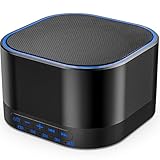
- ❤Notice: This sound machine needs to be plugged in for use.
- ❤20 Non-Looping Sleep Sounds: White noise ,Brown noise, pink noise, blue noise, fan,brook, rain, ocean,bird and Bonfire,suitable for for Baby and Kids and Adults.
- ❤Precise Volume & Timer Settings:With 32 Levels of Volume ,it is perfect for baby sleeping .And you can set 1 hour,2 hours,3 hours,4 hours and continuous play,control the comfort level for your own environment.
- ❤Unique Design: Solid-state design with 3.01inch*3.01inch *1.77inch,it is portable for home, office or travel,can give you a perfect sleep.
- ❤Function & Safety:Memory function automatically restores your previous volume, sound and time,it is powered by AC or USB.The machine is approved by FCC, CE and RoHS,don't need to worry about accidents.
If you have licensed third-party content, ask the rights owner to add your channel to their Content ID allowlist before you go live. YouTube explains this risk and the allowlist step in its copyright guidance for live streams. A license alone is not a guarantee that Content ID will leave the broadcast uninterrupted.
4. Create the stream in YouTube Studio
- Open Live Control Room. In YouTube Studio, start a new livestream or schedule one and choose the encoder workflow if you are sending video from an encoder. YouTube’s getting-started guide describes the available live-streaming methods.
- Copy the stream settings into your encoder. Use the stream URL and stream key shown by YouTube for that broadcast. Treat the key like a password: do not publish it, show it on screen, or send it to someone who should not control the stream. If it is exposed, replace or reset it in YouTube Studio.
- Set the video and connection parameters. Follow YouTube’s current encoder settings, bitrate, and resolution guidance and the values shown in Live Control Room. These settings can change, so do not rely on an old preset or guess a bitrate from a different resolution or frame rate.
- Start the encoder and check the incoming signal. Confirm that Live Control Room receives the stream and that its stream-health status is acceptable before starting or sharing the broadcast. Check the picture, sound, and framing from the viewer’s perspective.
YouTube’s encoder guidance is the authority for resolution, bitrate, keyframe interval, and related settings. Confirm those values in the current documentation and Live Control Room rather than treating a fixed recipe as universal: the suitable settings depend on the source and connection.
Rank #2

- 【Sleep, Finally】- 31 real nature sounds like white noise, fan sounds, rain, thunder and ocean—recorded from real environments to bring true-to-life soundscapes for relaxation and sleep
- 【Sound That Wraps You】- Forward-facing speaker directs sound only to you—so you hear clearly at low volume, shielded from outside noise or snoring. Other machines fill the room. Ours protects your sleep
- 【Sleep on Your Rhythm】- Set your timer, or let it flow till morning. Volume fades softly—no sudden shifts, just seamless rest
- 【Controls That Guide You to Sleep】- A 45° tilt meets your hand where it naturally rests, so you can adjust it without effort, or even opening your eyes. No clicks, No light
- 【Looks Like Nature. Sleeps Like Peace】- Real wood texture and soft curves bring a touch of nature to your space—more aesthetically pleasing than the plain white designs out there. Natural design for a restful night's sleep
5. Test and plan for interruptions
Run a monitored test before promoting the broadcast. Watch the stream in Live Control Room and, where practical, check playback as a viewer would. Verify that the ocean image is clear, the audio is at the intended level, and the stream remains healthy on the connection you plan to use.
Outdated Drivers Are Slowing You Down
One free scan finds every outdated or missing driver and matches the right update for your exact hardware.Free scan · exact hardware matchWindows Errors? Fix Them Before They Spread
Repair common Windows errors and clear accumulated junk for a smoother, more stable PC - no reinstall needed.Free scan · no reinstallA successful test only shows that the setup worked during that test. YouTube’s documentation establishes how to send a stream and inspect its incoming health, but it does not provide a guaranteed unattended 24/7 operating recipe, hardware specification, monitoring schedule, or uptime guarantee. For a continuous broadcast, decide who will monitor it and how you will respond if the encoder, connection, or YouTube stream stops. The YouTube LiveStreams API documentation describes stream status and health information for incoming streams; OBS’s Help Portal provides encoder help but does not establish continuous uptime.
Rank #3

- ✨【 Notification】This sound machine needs to be plugged in.
- ✨【 30 Soothing Sounds】This plug-in white noise sound machine with white noise, brown noise, pink noise, fan, rain, sea waves, lullabies, meditation and other relaxing natural sounds, to help you relax and unwind, suitable for baby kids adults.
- ✨【 12 Colors Night Light 】The cord-powered sound machine has 12 colors night lights and 10 adjustable brightness to help babies fall asleep easily with warm lights. It can be used not only as white noise, but also as a night light, suitable for baby night care, milk powder changing, night time feeds, or parent-child interaction.
- ✨【 Easy to Use】Touch the metal grill on the top of the sound machine to control the night light. Double touch to turn on/off the night light, adjust night light color with one touch and hold down to adjust the brightness smoothly, allowing you to easily find your white noise at night, which can be used in the office, nursing baby, bedside sleep.
- ✨【 Noise Isolation 】The pink noise sound machine for sleep with 32 levels of volume, adjust as needed to effectively block out hotel noises, noisy neighbors, and city hustle, create a comfortable environment for sleeping, relaxing, working, studying and travelling.
6. Troubleshoot common problems
| Symptom | What to check | Action |
|---|---|---|
| You cannot start a livestream. | Channel verification, the 90-day restriction rule, minimum age, and live-stream access. | Review YouTube’s current eligibility guidance and resolve any access issue shown in Studio before configuring the encoder. |
| YouTube does not receive the encoder feed. | Whether you copied the stream URL and key for the intended broadcast and whether the encoder is sending. | Recheck the values in Live Control Room. Keep the key private; replace it if it may have been exposed. |
| Stream health is poor or the picture drops. | The encoder’s resolution, bitrate, and other parameters against YouTube’s current recommendations, along with the available connection. | Use the settings YouTube provides for your stream and check the connection and encoder output. Avoid increasing bitrate beyond what the connection can sustain. |
| The stream is warned, replaced, interrupted, or terminated. | Possible third-party footage, audio, or music matches. | Use material you own or have permission to livestream. For licensed material, ask the rights holder to allowlist your channel through Content ID; see YouTube’s live-stream copyright guidance. |
| The broadcast stops after it was working. | The incoming stream’s status and health in Live Control Room, plus whether the source and encoder are still running. | Check the encoder and connection, then follow the current YouTube workflow to restore the feed. Do not treat a single successful test as proof that it will recover unattended. |
Or let it run in the cloud
If you are streaming prepared ocean footage rather than a live camera view, StreamNeo is a YouTube-only cloud option: upload a recording or build a playlist, add your YouTube stream key once, and go live. Nothing has to stay on at home; it loops uploaded videos, not a camera feed. It supports whatever quality you upload up to 4K 60fps at one flat price per slot, with automatic recovery if YouTube drops the stream. The first day is free with no card. Monthly: $9.99 per month.
Quick Recap
Best Value

- THE ORIGINAL - Since 2013, we have been bringing wonderful moments of relaxation into everyday life. Enjoy the positive effects with our Oceanbox.
- INTUITIVE RELAXATION - Thanks to the “Feel Sound“ principle of our Oceanbox, you will instantly feel transported to nature.
- UNIQUE DESIGNS - With fine woods, bright colors, and beautiful designs, our nature sound box will bring a warm smile to your face.
- NATURAL SOUND - Simply activate the nature sound by walking past the motion sensor. It will play for two minutes, and you can adjust the volume. The batteries have power for up to one year.
- RELAXOUND PROMISE - Whether in the office, living room, hallway, or bathroom with our original Oceanbox you can enjoy nature every day.
Rank #4

- White Noise Sound Machine: The Homedics White Noise Sound Machine includes 6 digitally recorded relaxing sounds designed to mimic the natural environment: White Noise, Thunder, Ocean, Rain, Summer Night, and Brook
- Compact and Portable: This portable sound machine is lightweight, compact, and easily fits into your purse, bag, or suitcase
- Baby Sleep Aid: Add these rhythmic sounds to your baby’s sleep routine to help them fall asleep faster and stay asleep longer; it makes the perfect baby sound machine and baby registry must-have
- Auto-Off Timer and Volume Controls: Choose to play relaxation sounds on this ambient sound machine continuously or opt for the auto-off timer; the timer features 3 options: 15, 30, or 60 minutes; adjust the volume with convenient volume control buttons
- What’s in the Box: (1) Homedics White Noise Sound Machine, (1) Wall Outlet Adapter, (1) Quick-Start Guide
Start your free StreamNeo day.
Product prices and availability are accurate as of the date/time indicated and are subject to change. Any price and availability information displayed on Amazon at the time of purchase will apply.




