Do these 3 things before closing this tab:
1Fix the driver behind crashes, sound loss and screen glitches2Clear out junk files and repair common Windows errors3Scan for outdated or missing drivers - takes under a minuteGoogle Chat works on a desktop in several ways: as a web app in your browser, inside Gmail, or as an installed Progressive Web App that opens in its own window. The installed version feels more like a regular desktop app, while the browser and Gmail options are useful if you prefer to keep everything in one tab.
To get started, you’ll need a Google account with access to Google Chat and a supported desktop browser such as Chrome, Microsoft Edge, Safari, or Firefox. From there, you can sign in, choose the setup that fits your workflow, enable notifications, create shortcuts, and remove the app later if you no longer need it.
As an Amazon Associate I earn from qualifying purchases.
Check Desktop Requirements and Sign In to Google Chat
Before installing Google Chat on a desktop, make sure you can access it in a supported browser and that you have the right Google account. Google Chat runs in the browser and can also be installed as a Progressive Web App, so there is no traditional desktop installer to download from Google. The desktop app experience depends on your browser, operating system, account access, and notification permissions.
Google Chat works on common desktop operating systems such as Windows, macOS, ChromeOS, and most modern Linux distributions when used through a supported browser. For the smoothest experience, use an up-to-date version of Google Chrome or Microsoft Edge, since both support installing Google Chat as an app-like window. You can also open Chat in other modern browsers, but the install option may not appear or may work differently.
#1 Best Overall

- 【4K UHD Webcam】This webcam for pc supports resolutions from 4K@30FPS to 1080P@60FPS, with frame rates that capture every detail for a clear and smooth video conferencing experience. This web cam is perfect for conference calls, online classes or live streaming.
- 【Three Colours Infinitely Dimmable】The built-in ring fill light has 3 color temperature settings (white /natural /warm ), and the color temperature can be adjusted by touching the sensor area on the back of the camera with your fingertips. Adapt to different environments, always present the best skin color. The streaming camera's innovative outer ring rotary adjustment brightness light intensity control, even in low light conditions can also get the best fill light effect.
- 【TOF autofocus dual noise-canceling microphones】The TOF fast autofocus function instantly locks onto faces or moving objects, ensuring ultra-clear image quality performance in dynamic scenes stays in perfect focus. Equipped with dual noise-canceling microphones, this computer camera effectively reduces background noises such as keyboard tapping and air-conditioning operation, ensuring that your voice is always clearly conveyed.
- 【Built-in Privacy Cover】The 4K webcam has a built-in sliding privacy cover that physically blocks the lens with a gentle push, completely eliminating the risk of hackers peeking in or privacy leaks, allowing you to control your privacy and security at all times.
- 【Widely Compatible】The web camera runs easily on multiple platforms such as Windows (Win7, 10, 11), Mac OS 10.6 and higher and Linux. Ideal for use with Zoom, Teams and other popular communication software such as Skype, Facetime, Microsoft Teams and more.
What you need before you start
- A Google account: Use a personal Google account or a Google Workspace account provided by your school or workplace.
- Chat access enabled: If you use a work or school account, your administrator must allow Google Chat for your organization.
- A current browser: Update Chrome or Edge before attempting to install the web app.
- An internet connection: Google Chat is cloud-based, so messages, spaces, and search require an active connection.
- Notification permission: To receive desktop alerts, your browser and operating system must allow notifications from Google Chat.
To sign in, open chat.google.com in your browser. If you are not already signed in, Google will ask for your email address and password. Accounts with two-step verification may also require a security prompt, passkey, authenticator code, or hardware security key. After sign-in, Google Chat should load your direct messages, group conversations, and spaces. If you see a message that Chat is unavailable, you may be using an account that does not have access, or your Workspace administrator may have disabled the service.
If you have mulle Google accounts in the same browser, confirm that Chat is open under the account you want to use. Click your profile picture in the upper-right corner to switch accounts or add another one. This matters because installing Google Chat as a desktop app usually ties the app window to the browser profile you used during installation. For example, installing Chat from a personal Chrome profile will not automatically sign you in to a separate work profile in another browser window.
It is also worth checking whether your browser profile sync, cookies, and site data are allowed. Google Chat needs cookies to keep you signed in, and restrictive privacy settings or certain extensions may interfere with loading, notifications, or file previews. If Chat opens in an incognito or private window, it may not stay signed in after you close the browser, and installation as a desktop app is typically unavailable from that mode.
What’s actually slowing this PC down?
Pick the symptom - the matching free tool is one click away.
Install Google Chat as a Desktop App from Chrome
Google Chat can be installed from Chrome as a Progressive Web App, often called a PWA. This gives Chat its own app-style window, a launcher icon, and optional desktop notifications, while still using the web version in the background. You do not need to download a separate installer from Google; the install option appears inside Chrome when you open Google Chat with a supported account.
Before installing, open Chrome and go to https://chat.google.com. Sign in with the Google Account you want to use for Chat. If you use both a personal Google Account and a work or school account, make sure the correct profile is active in Chrome. Installing the app from one Chrome profile keeps it tied to that profile’s signed-in sessions, bookmarks, permissions, and notification settings.
- Open Google Chrome on your desktop.
- Go to chat.google.com and sign in if prompted.
- Look at the right side of the address bar for the Install icon. It may look like a computer screen with a downward arrow.
- Select the icon, then choose Install in the confirmation prompt.
- Google Chat opens in a separate app window. You can now launch it from your operating system’s app menu, Start menu, Dock, Launchpad, or desktop launcher, depending on your device.
If the install icon does not appear in the address bar, use Chrome’s menu instead. With Google Chat open, select the three-dot menu in the top-right corner of Chrome, then choose Save and share or More tools, depending on your Chrome version. Select Install Google Chat or Create shortcut. If you see a checkbox labeled Open as window, enable it so Google Chat opens like a standalone desktop app rather than as a regular browser tab.
After installation, pin Google Chat where you normally launch apps. On Windows, right-click the Google Chat icon in the taskbar and choose Pin to taskbar, or find it in the Start menu and pin it there. On macOS, open the app, right-click its Dock icon, then choose Options and Keep in Dock. On ChromeOS, right-click the Chat icon in the shelf and select Pin. These shortcuts make Chat easier to open without returning to Chrome first.
Free tools Windows power users keep installed
One-click scans. No signup required.
The installed Chrome app uses the same Google Chat service as the browser version, so your spaces, direct messages, mentions, and shared files stay in sync. If your organization manages Chrome or Google Workspace settings, an administrator may control whether installation is available, whether mulle accounts can be used, or whether notifications are allowed. In that case, you may need to use the browser tab or Gmail integration if the install command is hidden.
Install Google Chat Using Microsoft Edge
Microsoft Edge can install Google Chat as a Progressive Web App, which gives it a desktop-style window, its own taskbar or Dock icon, and optional system notifications. This does not install a separate Google Chat program from the Microsoft Store; it creates an app wrapper for the official Google Chat website. You still need an internet connection and a Google account that has access to Chat.
Start by opening Microsoft Edge and going to https://chat.google.com. Sign in with the Google account you want to use for Chat. If you use a work or school account, your administrator may control whether Google Chat is available, whether external conversations are allowed, and whether notifications can appear on managed devices.
- Open Microsoft Edge on your Windows, macOS, or Linux desktop.
- Go to chat.google.com and sign in if prompted.
- Select the Settings and more button, shown as three dots in the top-right corner of Edge.
- Choose Apps, then select Install this site as an app.
- Confirm the app name, such as Google Chat, then select Install.
After installation, Google Chat opens in its own window without the usual browser tabs and address bar. Edge may show options to pin the app to the taskbar, add it to the Start menu, create a desktop shortcut, or start it automatically when you sign in to your computer. Choose only the options you want. On Windows, pinning it to the taskbar is usually the most convenient choice if you plan to use Chat throughout the day.
You can reopen the installed app from the Start menu on Windows or from your app launcher on other supported desktop systems. In Edge, you can also manage it by going to the three-dot menu, selecting Apps, and opening Manage apps. From there, you can launch Google Chat, adjust app permissions, or remove it later. If the install option does not appear, make sure you are on the Google Chat site itself, update Edge to the latest version, and check whether your organization has disabled web app installation through browser policies.
Rank #2
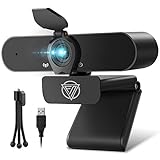
- Webcam privacy cover&Tripod:As the picture shows, there is a webcam cover and tripod that come within the package box. The privacy cover helps protects your privacy and secret from being spied by hackers, providing privacy,security and ease of mind. And the tripod makes it convenient for you to place the webcam everywhere you want. You will not miss these two accessories.
- The real 1080P camera:With the enhanced CMOS image sensor to deliver the real 1080P High Definition Image and video, it offers you a real clear image for Zoom,Skype,Google Meet when doing online meeting,video call,conference,online classes,gaming,etc.
- Built-in digital stereo MIC: With automatic noise reduction and echo-canceling technology, making the sound purer, clearer and more natural. It can pick up your voice even over 10ft distance. Everyone hears the real you.
- Plug and Play&Widely compatible:USB 2.0 connector with 1.8m long cable. No need to download or install any complicated driver or software, easy and convenient. Compatible with windows 2000/XP/7/8/10 or above, Mac OS, Chrome OS, Android 5.0 or above.
Set up notifications in the Edge app
When Google Chat asks for permission to send notifications, select Allow if you want message alerts on your desktop. You may also need to confirm notification access in your operating system settings. On Windows, check Settings > System > Notifications and make sure Microsoft Edge and Google Chat are allowed to show alerts. Inside Google Chat, review your notification preferences for direct messages, spaces, and mentions so you are not overwhelmed by every conversation.
Access Google Chat Through Gmail or a Web Browser
You do not have to install Google Chat as a desktop app to use it on a computer. Google Chat also works directly in a browser at chat.google.com, and it can appear inside Gmail if Chat is enabled for your account. Both options use the same Google sign-in, so your conversations, spaces, shared files, and meeting links stay synced across the browser, the installed app, and your mobile devices.
To open Google Chat in a browser, go to https://chat.google.com in Chrome, Microsoft Edge, Safari, Firefox, or another modern browser. Sign in with the Google Account you use for Chat. If you use a work or school account, your organization may control whether Chat is available, whether external conversations are allowed, and which apps or integrations appear. After signing in, you can select Chat for direct messages, Spaces for group collaboration, or use the search bar to find people, messages, and files.
Use Google Chat inside Gmail
If you already keep Gmail open during the day, using Chat from Gmail can be the simplest desktop setup. Open https://mail.google.com, sign in, and look for the Chat or Spaces icons in the left sidebar. If they are not visible, open Gmail settings by selecting the gear icon, choose See all settings, then go to the Chat and Meet tab. Select Google Chat, save the changes, and reload Gmail if prompted. The exact labels may vary slightly depending on your account type and Gmail layout.
Once Chat is enabled in Gmail, you can send direct messages, open spaces, start a new chat, and continue conversations without leaving your inbox. This is useful when you need to discuss an email with a coworker, switch between mail and chat quickly, or keep one browser tab open instead of several. Gmail may also show Chat in a side panel or left navigation area, depending on your display density, window size, and Google Workspace settings.
Browser access compared with an installed app
| Option | Best for | What to expect |
|---|---|---|
| chat.google.com | Using Chat in a dedicated browser tab | Full Chat interface without installing anything |
| Gmail | Managing email and chat together | Chat and Spaces available beside your inbox |
| Installed web app | App-like desktop use | Separate window, launcher icon, and fewer browser controls |
For faster access, bookmark chat.google.com or Gmail in your browser. In Chrome or Edge, you can also pin the tab by right-clicking it and choosing Pin, which keeps Chat visible as a compact tab on the left side of the tab bar. If you use mulle Google Accounts, check the profile icon in the top-right corner before sending messages, especially when switching between personal and work accounts.
Browser-based Google Chat can also show desktop notifications if your browser and operating system allow them. When prompted, choose Allow for notifications, or adjust permission settings later from the browser’s site settings. If notifications do not appear, check that the correct account is signed in, the tab is not muted, focus or do-not-disturb modes are off, and notifications are enabled for both the browser and Google Chat.
Enable Notifications and Create Desktop Shortcuts
After you start using Google Chat on your desktop, the next step is to make it easy to open and ensure you do not miss new messages. Notifications and shortcuts work slightly differently depending on whether you use the Google Chat Progressive Web App, Google Chat in a browser tab, or Chat inside Gmail. In all cases, you need to be signed in with the correct Google account, and your browser or desktop app must have permission to send notifications.
Turn on Google Chat notifications
Open Google Chat and check the notification settings inside the app first. Select the Settings gear in Google Chat, then look for notification options such as message notifications, do-not-disturb settings, and email notification preferences. If you use Chat through Gmail, open Gmail settings and make sure Chat is enabled, then check the Chat notification controls from the Chat panel or Gmail settings area. For a work or school account, some notification behavior may be managed by your organization.
You also need to allow notifications at the browser or operating system level. In Chrome, open Google Chat, select the site information icon near the address bar, and set Notifications to Allow. You can also go to Settings > Privacy and security > Site settings > Notifications and confirm that chat.google.com is allowed. In Microsoft Edge, use the lock or site information icon beside the address bar, or go to Settings > Cookies and site permissions > Notifications. On Windows or macOS, confirm that Chrome, Edge, or the installed Google Chat app is allowed to show notifications in system notification settings.
Create shortcuts for faster access
If you installed Google Chat as a desktop app from Chrome or Edge, it usually appears in your operating system’s app launcher automatically. On Windows, open the Start menu, search for Google Chat, then right-click it to pin it to Start or the taskbar. On macOS, open the app from Launchpad or the browser’s apps folder, then Control-click its Dock icon and choose Options > Keep in Dock. This gives Google Chat the feel of a regular desktop messaging app while still running as a web-based app.
Outdated Drivers Are Slowing You Down
One free scan finds every outdated or missing driver and matches the right update for your exact hardware.Free scan · exact hardware matchWindows Errors? Fix Them Before They Spread
Repair common Windows errors and clear accumulated junk for a smoother, more stable PC - no reinstall needed.Free scan · no reinstallIf you are using Google Chat only in a browser, create a bookmark or desktop shortcut instead. In Chrome, open chat.google.com, select the three-dot menu, then choose Save and share or More tools, depending on your Chrome version, and select Create shortcut. You can choose to open it as a window if that option is available. In Edge, open Google Chat, select the three-dot menu, then use Apps > Install this site as an app for an app-style shortcut, or save the page as a favorite for quick access from the browser toolbar.
Rank #3
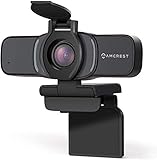
- Experience magnificent full-HD 1080P. This USB Webcam comes with enhanced capability utilizing the CMOS ⅓ image sensor. Wide 70° viewing angle, no optical distortion. Great for webinars, and video conferencing.
- The Amcrest 1080p HD Webcam comes with a Privacy Cover, the privacy covers your webcam when not in use, and prevents web hackers from spying on you. Provides security, privacy and ease of mind.
- Webcam with Built-in Microphone. Built-in dual noise reducing microphone, superior stereo audio, which allows for clear and natural sound recording. It’s the best choice of video combined with a built-in microphone to provide the best video conference experience even in a noisy environment.
- USB 2.0 Plug & Play. Compatible with multiple platforms and operating systems including Windows 11/10/8/7, MacOS, Linux, and Android. Works seamlessly with popular applications like Zoom, Microsoft Teams, Skype, YouTube, Google Meet, OBS Studio, Facebook Live, and more.
- Versatile Placement - The Amcrest Webcam comes with a mounting clip and ¼ tripod thread, so that you can use it on just about any surface. At Amcrest, we want to ensure the safety of our customers, their loved ones, homes, and businesses.
- Taskbar or Dock: Best for users who want Google Chat to behave like a standalone desktop app.
- Browser bookmark: Best if you already keep Gmail, Drive, and other Google services open in your browser.
- Gmail side panel: Best if most of your conversations are tied to email and calendar work.
- System notifications: Best for receiving alerts even when the Chat window is not currently in front.
Uninstall or Remove Google Chat from Your Desktop
If you installed Google Chat as a Progressive Web App, removing it is different from uninstalling a traditional desktop program. The app is usually tied to the browser you used to install it, such as Chrome or Microsoft Edge. Removing the desktop app does not delete your Google Chat messages, spaces, contacts, or Google Account. It only removes the app window, launcher entry, shortcut, and related local site data depending on the option you choose.
Remove Google Chat Installed from Chrome
- Open the Google Chat desktop app from your Start menu, Dock, Applications folder, or desktop shortcut.
- Select the three-dot menu in the app window, usually near the top-right corner.
- Choose Uninstall Google Chat or Remove Google Chat.
- Confirm the removal when Chrome asks whether you want to uninstall the app.
You can also remove it from Chrome directly. Open Chrome, go to chrome://apps, right-click Google Chat, then select Remove from Chrome. If you see a checkbox to clear data from Chrome, select it only if you want to remove locally stored app data such as cached files and settings for that web app. Your actual Chat history remains available when you sign back in at chat.google.com or through Gmail.
Remove Google Chat Installed from Microsoft Edge
- Open Microsoft Edge.
- Go to edge://apps.
- Find Google Chat in the installed apps list.
- Select the three-dot menu next to it, then choose Uninstall.
- Confirm the uninstall prompt.
On Windows, Edge-installed web apps may also appear under Settings > Apps > Installed apps. Search for Google Chat, open the app’s menu, and choose Uninstall. This removes the app entry from Windows, but you may still want to check Edge’s apps page if the browser shortcut remains listed there.
Quick wins for a faster PC:
Scan for outdated or missing drivers - takes under a minuteDriver Scan →Repair Windows errors before they cause bigger problemsFix Now →Delete Shortcuts and Turn Off Notifications
If you only created a shortcut instead of installing the full web app, delete the shortcut from your desktop, taskbar, Start menu, Dock, or Applications folder. On Windows, right-click the shortcut and choose Delete or Unpin from taskbar. On macOS, drag the shortcut or app icon to the Trash, then remove it from the Dock if it was pinned there.
To stop notification prompts or alerts without removing browser access, revoke the notification permission. In Chrome, open Settings > Privacy and security > Site settings > Notifications, then remove or block chat.google.com. In Edge, open Settings > Cookies and site permissions > Notifications, then remove or block the same site. If you use Google Chat inside Gmail, you may also need to check Gmail’s notification settings and your operating system’s notification controls for Chrome or Edge.
Remove Access Without Uninstalling the Browser
If you share the computer or no longer want the account connected, sign out of Google Chat and remove the Google Account from the browser profile. Open Google Chat or Gmail, select your profile picture, then choose Sign out. For a cleaner separation, use the browser’s profile menu to remove the entire Chrome or Edge profile that was associated with the account. After removal, Google Chat can still be used again later by visiting chat.google.com, signing in, and reinstalling the app if needed.
Frequently Asked Questions
Is there a separate Google Chat desktop app for Windows or Mac?
Google Chat does not have a traditional standalone desktop installer for Windows or macOS. Instead, you can install it as a Progressive Web App from Chrome or Microsoft Edge, which gives it its own window, app icon, and desktop-style behavior. You can also use Google Chat directly at chat.google.com or inside Gmail without installing anything.
Do I need Chrome to install Google Chat on my desktop?
No, Chrome is not the only option. You can install Google Chat as an app from Microsoft Edge as well, using the browser’s app installation menu. If you do not want to install it, any supported browser can open Google Chat through chat.google.com or Gmail.
Why am I not seeing Google Chat in Gmail?
Google Chat may be turned off in your Gmail settings. In Gmail, open Settings, go to the Chat and Meet section, and make sure Google Chat is enabled instead of off. You also need to be signed in with a Google account that has access to Chat, which may be controlled by your organization if it is a work or school account.
How do I get Google Chat notifications on my desktop?
Open Google Chat in your browser or installed app and allow notifications when prompted. If notifications still do not appear, check your browser site permissions, your operating system notification settings, and Google Chat’s own notification preferences. On work or school devices, an administrator may restrict notification permissions.
How do I uninstall Google Chat if I installed it as a desktop app?
If you installed Google Chat from Chrome or Edge, open the installed Chat app, use the app menu, and choose the uninstall or remove option. You can also remove it from your browser’s apps page, such as chrome://apps in Chrome or the Apps section in Edge. Removing the desktop app does not delete your Google Chat messages or Google account.
Recommended Free Tools
Bottom Line
Google Chat is easy to use on a desktop whether you install it as a Progressive Web App, open it in your browser, or access it through Gmail. The PWA gives you the most app-like experience, while the browser and Gmail options are best if you prefer to keep everything in one place.
Choose the setup that fits your workflow, sign in with the right Google account, and turn on notifications or shortcuts if you want faster access. If you later change your mind, you can remove the PWA just like any other installed web app and keep using Chat from the web.
Quick Recap
Product prices and availability are accurate as of the date/time indicated and are subject to change. Any price and availability information displayed on Amazon at the time of purchase will apply.




