Crashes, No Sound, or Screen Glitches?
Random freezes, missing sound and display glitches usually trace back to one bad driver. Find and replace yours safely.Free scan · under a minuteWindows Errors? Fix Them Before They Spread
Repair common Windows errors and clear accumulated junk for a smoother, more stable PC - no reinstall needed.Free scan · no reinstallTo extend unplugged time on a large-screen Windows 2-in-1, start with the display and idle settings: lower brightness to a comfortable level, choose a lower refresh rate if available, and shorten the screen-off timeout. Then use Windows 11’s power-saving options, check which apps are using battery, and compare Sleep with Hibernate if the device drains while idle. These changes can reduce power use, but the result depends on your model, screen, Windows version, battery condition, and workload.
Start with the Windows 11 power recommendations
- Open Settings > System > Power & battery > Energy recommendations. Apply the recommendations that suit how you use the device; you do not have to accept every suggested change. Microsoft’s Windows 11 power-settings guidance covers these options.
- In Settings > System > Power & battery, set Power mode to Best power efficiency when longer runtime matters more than peak speed. Use Balanced for mixed work, or Best performance when a demanding task needs the extra responsiveness and you can accept higher battery use. The available choices can depend on the PC and its power plan; if the setting is missing, use the options your device exposes. Microsoft explains Windows power modes and their limitations.
- Turn on Energy saver when you want Windows to reduce power use. It can dim the screen and limit background activity, so notifications or background tasks may be affected. Feature names and controls vary between Windows versions and devices. See Microsoft’s power-settings overview.
Reduce display power without making the screen hard to use
Lower brightness
Use the brightness control in Quick Settings or open Settings > System > Display. Set it to the lowest level that remains comfortable and readable for your room and task; a fixed percentage is not right for every panel or lighting condition. Microsoft lists reducing display brightness among its battery-saving tips and provides instructions for changing brightness and color.
As an Amazon Associate I earn from qualifying purchases.
Consider a lower refresh rate
For reading, writing, or other mostly static work, open Settings > System > Display > Advanced display and select a lower refresh rate if Windows offers one. Motion may look less smooth, especially when scrolling or using a pen. Microsoft Support notes: “A higher refresh rate will provide smoother motion on your display, but it also uses more power.” The choice is available only when supported by the display and device. Microsoft’s battery tips discuss refresh rate and power.
Free tools Windows power users keep installed
One-click scans. No signup required.
Use dark mode selectively
A dark theme may save power on an OLED display, but the benefit should not be assumed for every screen technology. Windows’ power guidance discusses dark mode as a battery option; check your display type before treating it as a meaningful runtime measure. See Microsoft’s Windows 11 power settings.
#1 Best Overall
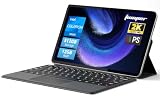
- 2-in-1 Tablet & Laptop Design:This versatile 2-in-1 device integrates tablet portability with laptop productivity, equipped with a detachable magnetic leather keyboard and multi-angle adjustable stand. Crafted with premium metal body at only 0.64kg, ultra thin and lightweight for easy backpack storage, perfect for business, study, office and daily portable use.
- 12 Inch 2K Touch IPS Display:Features 12-inch 2000×1200 FHD IPS touchscreen with 16:9 cinematic ratio, delivering vivid and delicate visual effects. Adopts in-cell full-fit anti-glare technology and 10-point capacitive touch, brings smooth touching operation and eye-friendly protection for working, studying and video watching.
- Intel N5095 Processor & Upgraded Storage:Powered by Intel N5095 4-core 4-thread processor, up to 2.9GHz turbo frequency with 4MB smart cache, running smoother than regular Celeron processors. Built-in 12GB RAM and 512GB SSD, effortlessly handle multi-tasking, web browsing and daily office software.
- 4300mAh Battery & Full-Featured Connectivity:Built-in upgraded 4300mAh large capacity battery supports up to 8 hours of video playback for all-day outdoor use. Comes with dual-band WiFi and Bluetooth 5.0 for faster and more stable wireless connection. Dual full-function Type-C ports support charging, data transfer and video output, paired with 3.5mm audio jack and built-in cooling fan for efficient heat dissipation and stable long-time operation.
- Dual Cameras & Windows 11 Home System:Equipped with front 200W and rear 500W HD cameras, ideal for online classes, video conferences and Zoom calls. Matched with dual stereo speakers for clear sound quality. Pre-installed Windows 11 Home system with multi-language support, ready to use out of the box, great choice for students, office workers and home entertainment.
Make the screen turn off sooner when you pause
In Settings > System > Power & battery > Screen, sleep & hibernate timeouts, shorten the on-battery screen-off and sleep intervals. Choose times that fit your routine: a shorter screen timeout helps during brief interruptions, but an interval that is too short can interrupt reading or note-taking. The exact controls can differ by Windows build and manufacturer. Microsoft’s power-settings page describes screen and sleep timeouts.
Find apps and tasks that keep using power
Review Battery usage
Open Settings > System > Power & battery > Battery usage. Look for apps whose background use seems high relative to how often you use them. Where Windows and the app provide a background-activity control, restrict it if the app does not need to stay current. Controls are not available for every app, and limiting background activity can delay syncing, alerts, or updates. Microsoft’s battery troubleshooting guidance covers app usage.
Rank #2

- 【360° Flip 2-in-1 Convertible Laptop】Designed with a flexible 360° hinge, this 2-in-1 touchscreen laptop easily switches between laptop, tablet, tent, and stand modes for work, study, streaming, presentations, and everyday entertainment.
- 【15.6" Full HD IPS Touchscreen】Features a 15.6-inch IPS Full HD touchscreen display with clear visuals, responsive touch control, vibrant colors, and 178 degrees wide viewing angles, delivering an immersive viewing experience for browsing, video playback, online learning, and office tasks.
- 【16GB RAM & 512GB SSD Storage】Equipped with 16GB (dual-channel) high-speed RAM and a 512GB SSD for fast startup, smooth multitasking, responsive application performance, and reliable storage space for documents, photos, videos, and daily files.
- 【Core m3-8100Y Processor】Powered by an Core m3-8100Y processor for efficient daily computing, web browsing, online meetings, document editing, streaming, and light productivity tasks while maintaining low power consumption.
- 【Lightweight Design with Multiple Connectivity Options】Slim and portable notebook computer with WiFi 5, Bluetooth 5.1, USB ports, Type-C, and HDMI connectivity for convenient file transfer, external display support, and stable wireless connections wherever you go.
Adjust video playback and demanding apps
For video playback, select Optimize for battery life in the available battery options and consider enabling lower video resolution on battery if that option is offered. For graphics-intensive apps, choose a power-saving graphics preference when performance permits. These controls and labels vary across Windows versions, graphics hardware, and applications. See Microsoft’s battery-saving guidance for video and app settings.
Turn off radios only when you do not need them
Airplane mode can help when you do not need network connections. Otherwise, turn off Wi-Fi or Bluetooth individually only if those connections are unused; disabling a radio you rely on can interrupt work or accessories. Microsoft includes Airplane mode in its battery tips.
Rank #3

- 1.1 GHz (boost up to 2.4GHz) Intel Celeron N5030 Quad-Core
Choose Sleep or Hibernate based on how long you will be away
| State | Best fit | Trade-off |
|---|---|---|
| Sleep | Short breaks when you want to return quickly | Uses more power than Hibernate while idle |
| Hibernate | Longer periods away from power, if the option is available | Uses less power than Sleep, but takes longer to resume |
If the battery drops noticeably while the 2-in-1 is idle, try Hibernate for longer absences and Sleep for quick pauses. Hibernate may not be exposed on every machine. Microsoft describes the behavior and availability of Sleep and Hibernate.
Check whether the battery has lost capacity
Power settings cannot restore capacity lost through battery aging. Microsoft notes that lithium-ion batteries deteriorate over time and with use. To inspect battery history and estimated capacity, open Command Prompt as administrator, run powercfg /batteryreport, and open the HTML report at the location Windows displays. Review Installed battery, Recent usage, and Battery usage to see the installed-battery details, recent charge and usage history, and capacity estimates. Treat the report as diagnostic information, not a guarantee of how many hours the device will run: actual runtime depends on workload and conditions. If capacity appears substantially degraded, contact the manufacturer about service for your exact model. Microsoft’s battery-care guidance explains the report and battery aging.
Rank #4

- [ Latest And Greatest ] The Latitude 5330 2-in-1 is DELL's latest release in the 13" Latitude 5000 family. It comes with all the latest technology including DDR4 Memory and a 12th generation INTEL 10-core Processor. The 10 cores on the Core i5-1245U processor allows for exceptional multitasking.
- [ Display & Graphics ] This Latitude 5330 2-in-1 comes with a 13.3" Touch Screen with (1920x1080) resolution for stunningly clear visuals and a integrated graphics card built into the INTEL Core i5-1245U processor which will use the computer's 16 GB of RAM for the graphics memory.
- [ High Speed RAM And Enormous Space ] The 16GB DDR4 RAM will let you smoothly run multiple applications and browser tabs all at once and a 256GB Solid State Drive will provide fast startup, data transfers, and large file storage!
- [ Operating System ] Microsoft Windows 11 Professional 64 Bit Operating System software delivers the performance, manageability, built-in security and stability of the Intel platform, the platform built for business.
- [ Extra Details ] The Dell Latitude 5330 2-in-1 Touchscreen Business Laptop is a refurbished product. The power supply and charger of refurbished products may not be original, but they are compatible with the computer and fully functional. The product is delivered in an ordinary packaging box, not the original packaging box.
Keep battery health separate from today’s runtime
For battery health, Microsoft recommends keeping the charge between 20% and 80% several times a week when practical, avoiding high temperatures during use or charging, and storing a device around 40–60% in a cool, dry place for long-term storage. Those are care practices, not settings that immediately increase runtime. If the battery is visibly expanded, stop using the device immediately and follow the manufacturer’s safety and service instructions. Read Microsoft’s battery-care recommendations.
Do these 3 things before closing this tab:
1Clear out junk files and repair common Windows errors2Fix the driver behind crashes, sound loss and screen glitches3Repair Windows errors before they cause bigger problemsSome Windows 2-in-1s use manufacturer-specific Smart charging. It may intentionally keep the charge below 100% while the device is plugged in to support battery health. Keep it enabled when you do not need a full charge soon; consult the device maker for its exact controls, and follow its instructions when you need the available capacity for travel or a long unplugged session. Microsoft explains Smart charging and its manufacturer-specific behavior.
Quick Recap
Best Value

- 【4 Modes 2-in-1 Design: Laptop, Tablet, Tent & Stand Mode】One device adapts to every situation. The innovative 360° hinge allows you to seamlessly switch between four versatile modes: use it as a traditional Laptop for typing, flip it to Tablet mode for drawing and browsing, set it in Tent mode for sharing videos, or position it as a Stand for comfortable video calls. Unleash your creativity and productivity in the way that suits you best.
- 【15.6" FHD Touchscreen & Powerful 16GB RAM + 512GB SSD】Interact intuitively and work efficiently. The vibrant 15.6-inch office laptop with Full HD touchscreen puts control at your fingertips—perfect for sketching, navigating, or playing games. Under the hood, the substantial 16GB RAM ensures smooth multitasking across apps and browser tabs, while the speedy 512GB SSD offers ample space for all your projects, movies, and music, with faster boot times and file access.
- 【Efficient Performance for Daily Tasks & Stylish Deep Purple Design】Powered for your everyday adventures. The Intel m3-8100Y processor delivers reliable performance for online classes, web browsing, document editing, and streaming. Housed in a sleek and unique Deep Purple chassis, this 2-in-1 business laptops doesn't just work well—it stands out with a bold, modern aesthetic that reflects your personal style.
- 【All-Day Battery Life & Comprehensive Connectivity】Laptop computer 2-in-1 8100y,your portable hub for work and play. The pc laptop with 38Wh battery supports hours of use, making it ideal for a full day of classes or cozy couch streaming sessions. Stay connected to all your peripherals with 3x USB 3.0 ports, HDMI output, Type-C data port, and more. Dual-band Wi-Fi 5 and Bluetooth 5.0 ensure stable wireless connections.
- 【Genuine Win 11 & Your Perfect Creative Companion】Ready to create and explore from the moment you open it. This 2-in-1 laptops comes with the genuine Win 11 pre-installed, offering a touch-optimized and secure experience. Whether you're a student taking digital notes, an artist sketching ideas, or a family enjoying movies, the AULA Flip Pro 360 is the versatile and stylish tool that evolves with your needs.
Product prices and availability are accurate as of the date/time indicated and are subject to change. Any price and availability information displayed on Amazon at the time of purchase will apply.




