If a Puppeteer PDF on Heroku does not use Times New Roman, treat it first as a font-resolution problem—not as a PDF-generation bug. Confirm which font Chromium actually resolves, then either deploy legally redistributable Times New Roman files or select a compatible substitute such as Liberation Serif or Tinos. Separately verify that Heroku can run Chromium: a Puppeteer buildpack or Chrome for Testing buildpack supplies browser dependencies, but neither proves that Times New Roman is installed.
1. Identify what “missing” means
The same complaint can describe three different symptoms:




- Missing glyphs: boxes, blank characters or replacement symbols appear for some letters or scripts.
- Font substitution: the text is complete, but the serif design visibly differs from Times New Roman.
- Layout drift: line wrapping, pagination or element widths change because the resolved font has different metrics.
Open a generated PDF at normal zoom and compare a page with the expected output. Save the PDF from the deployed dyno, not only from a local machine; local font availability can hide a deployment defect.
2. Check the font that Heroku actually resolves
Fontconfig matches a requested family against fonts visible to the running Linux process and applies its configuration to the request. Therefore, inspect the deployed environment as the same user and in the same release that runs Puppeteer.
Windows Errors? Fix Them Before They Spread
Repair common Windows errors and clear accumulated junk for a smoother, more stable PC - no reinstall needed.Free scan · no reinstallOutdated Drivers Are Slowing You Down
One free scan finds every outdated or missing driver and matches the right update for your exact hardware.Free scan · exact hardware match#1 Best Overall
Check installed families
Open a Heroku one-off dyno with the application’s build and run:
heroku run bash --app YOUR_APP
fc-match "Times New Roman"
fc-match "Times New Roman:style=Regular"
fc-list | grep -i -E "Times New Roman|Liberation Serif|Tinos"
fc-match reports the font Fontconfig would choose, not merely a filename you hoped was present. If it returns Liberation Serif, Tinos or another family, Chromium is substituting it. If it returns a generic serif or no usable match, install or package a suitable font and refresh font discovery during the build.
Do not describe the check as successful until it has run on the deployed app. A build log from your workstation says nothing about the dyno’s font set.
3. Decide between the original typeface and a substitute
Use exact Times New Roman when fidelity requires it
Obtain font files through a license that permits your deployment and redistribution model. The Times New Roman files bundled with an operating system are not automatically free to copy into a slug or container. Package only files you are entitled to use, and document their provenance for your team.
Place the files in a directory included in the slug (for example, an application-owned fonts/ directory), then make them visible to Fontconfig during the build. A typical build step is:
mkdir -p "$HOME/.fonts"
cp fonts/*.ttf "$HOME/.fonts/"
fc-cache -f -v "$HOME/.fonts"
fc-match "Times New Roman"
The exact location and cache command depend on your buildpack and stack. The important sequence is: install authorized files, refresh the host’s font-discovery mechanism, then verify the match in the same release that will launch Chromium. Never assume that copying files into the repository alone makes them available.
Use a layout-compatible substitute when the original is not required
Chromium’s Fontconfig alias configuration lists Liberation Serif and Tinos as alternatives for Times New Roman. The Liberation Fonts project describes its goal as document-layout compatibility with Times New Roman. That can preserve pagination and approximate metrics, but it does not make either substitute the original typeface.
Choose a substitute only after checking the characters your document needs. Compare regular, bold, italic and bold-italic styles, then render representative pages. Metric compatibility does not guarantee identical glyph shapes, hinting, line breaks or pagination.
4. Make the HTML request explicit
Ask for the family in CSS, but keep a deliberate fallback so an unavailable font does not silently become an unrelated face:
@font-face {
  font-family: "Times New Roman Deployed";
  src: url("file:///app/fonts/times-new-roman-regular.ttf") format("truetype");
  font-weight: 400;
  font-style: normal;
}

body {
  font-family: "Times New Roman Deployed", "Times New Roman", "Liberation Serif", Tinos, serif;
}
If you use @font-face, provide every weight and style that the document requests. A regular file cannot faithfully satisfy a bold declaration. For web pages loaded from an external origin, also check that the font request is allowed by the page’s policy and is reachable from the dyno.
5. Keep browser installation separate from font installation
Puppeteer’s Heroku guidance says Heroku’s Linux environment may lack dependencies required by Chromium and recommends its Heroku buildpack. It also calls for --no-sandbox in the launch arguments. Those measures address browser execution; they do not install Times New Roman.
Launch Puppeteer with a deployment-safe configuration
const puppeteer = require('puppeteer');

(async () => {
  const browser = await puppeteer.launch({
    headless: true,
    args: ['--no-sandbox', '--disable-setuid-sandbox']
  });

  const page = await browser.newPage();
  await page.goto(process.env.DOCUMENT_URL, {
    waitUntil: 'networkidle0',
    timeout: 90000
  });
  await page.evaluate(() => document.fonts.ready);
  await page.pdf({
    path: '/tmp/document.pdf',
    format: 'A4',
    printBackground: true,
    preferCSSPageSize: true
  });
  await browser.close();
})();
document.fonts.ready prevents PDF generation from racing a web font load. It cannot create a font that the operating system or page cannot resolve.
Rank #4
Choose a browser source
- Puppeteer-managed browser: confirm the version’s browser download and cache are present in the slug or are downloaded during build.
- Chrome for Testing buildpack: Heroku’s announcement describes adding
heroku-community/chrome-for-testingas the first buildpack. It makeschromeandchromedriveravailable on the dynoPATH. The buildpack defaults to Stable; pinning a specific version is discouraged because browsers quickly become outdated.
Use one approach consistently with your Puppeteer version. The Chrome buildpack supplies an executable; it still does not supply Times New Roman.
6. Investigate Puppeteer’s browser cache when Chrome will not launch
If the error says Chrome cannot be found, do not change fonts first. Check the installed Puppeteer version and where it expects its browser cache. Deployment hosts may not include the default cache in the project. The community Heroku buildpack notes that Puppeteer version 19 and later changed Chromium’s cache location and documents a heroku-postbuild workaround.
Because that workaround is version-sensitive, consult the current Puppeteer and buildpack documentation for your exact version rather than copying an old script unchanged. A cache failure is a browser-availability problem; a wrong serif face after successful launch remains a font-resolution problem.
7. Deploy, then verify the PDF on the dyno
- Commit the authorized font files or build step and deploy.
- Run
fc-matchin a one-off dyno using the same slug. - Generate a PDF through the production code path.
- Inspect glyphs, font appearance, line wrapping and page count.
- Repeat with a page containing accented characters, symbols and every weight or style your templates use.
Keep a small fixture document in your deployment checks. Compare text extraction, page count and screenshots of key pages after changing fonts or browser versions. A successful Fontconfig match is necessary, not proof that the PDF is visually identical.
Free tools Windows power users keep installed
One-click scans. No signup required.
Best Value
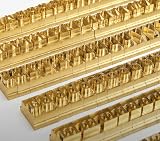
- 204-PIECE BRASS STAMPING SET: Comprehensive set includes 3 uppercase letters, 3 lowercase letters, 4 lowercase vowels, numbers, and punctuation marks.
- TIMES NEW ROMAN FONT: Classic 6mm tall Times New Roman typeface delivers clean, professional impressions for leather, wood, and other stampable materials.
- COMPLETE CHARACTER COVERAGE: Generous quantity of each character type ensures you have enough stamps for longer words, names, and custom text projects.
- UNIVERSAL HOLDER INCLUDED: Comes with a universal holder and hardware kit, making it easy to align and stamp characters consistently and accurately.
- SOLID BRASS CONSTRUCTION: Crafted from durable brass material for long-lasting performance, delivering sharp, detailed impressions with every use.
Common failures and fixes
| Symptom | Likely cause | Fix |
|---|---|---|
fc-match returns Liberation Serif or Tinos |
Fontconfig aliasing or no Times New Roman files | Accept the documented substitute after visual testing, or deploy licensed Times New Roman files and refresh the cache. |
| Boxes or missing characters | The selected family lacks required glyphs, or a script-specific font is absent | Install a font covering the document’s characters; verify each script in a generated PDF. |
| Font looks right locally but not on Heroku | Local fonts are not in the slug | Run fc-match on a dyno and add the authorized files or build step to deployment. |
Could not find Chrome |
Puppeteer cache is absent or the executable is not on PATH |
Check the Puppeteer version and cache location, or configure the Chrome for Testing buildpack first. |
| Chrome starts, then crashes | Missing Linux dependencies or sandbox restrictions | Use the Puppeteer Heroku buildpack guidance and launch with --no-sandbox; treat this separately from font setup. |
| Pagination changes after installation | Substitute metrics differ, or fonts were not loaded before PDF creation | Await document.fonts.ready, verify the resolved family, and test the exact font or a metric-compatible substitute. |
| Only bold or italic text is wrong | The corresponding face was not installed or declared | Provide and map regular, bold, italic and bold-italic files explicitly. |
8. Performance, reliability and cost considerations
- Build once, reuse at runtime: install fonts during the Heroku build rather than downloading them for every request. This reduces latency and avoids failures when a runtime download is unavailable.
- Warm browser processes carefully: reusing a browser can reduce launch overhead, but isolate pages and close them after each job so one document’s cookies or CSS do not affect another.
- Set bounded timeouts: use a finite navigation timeout and log whether the failure occurred during navigation, font loading or PDF writing.
- Watch slug size: multiple font families and browser binaries increase the slug and build time. Keep only the weights, scripts and browser source you need.
- Test upgrades: Chromium and Fontconfig changes can alter rendering. Re-run the fixture PDF after changing Puppeteer, the Heroku stack, buildpacks or font files.
Or skip the browser setup
If your goal is a clean screenshot or PDF of a URL rather than maintaining Puppeteer on Heroku, ScreenshotNeo provides a website screenshot API and MCP server. It accepts consent banners before capture and removes more than 60 known consent platforms, newsletter popups and chat widgets; each step can be disabled. Bot checks, CAPTCHAs, blank pages, timeouts, failed loads and cache hits are not billed, and the response identifies the page verdict and billing result in X-Page-Verdict and X-Billed headers.
One GET request can return PNG, JPEG, WebP or a PDF. The same service supports full-page captures with lazy images loaded, CSS-selector element captures, dark mode, device presets, custom viewport and retina scale, PDF paper size, margins, landscape and page ranges, custom CSS or JavaScript, clicks, selector or network-idle waits, request and resource blocking, headers, cookies, user agent, authorization, timezone, geolocation, transparent backgrounds, resizing, chosen cache TTLs, signed image links, asynchronous jobs with signed webhooks, bulk capture for up to 100 URLs per call, usage reporting and an OpenAPI specification. Its parameter names are compatible with those used by other screenshot APIs.
For AI workflows, its MCP server exposes take_screenshot, get_page_info and capture_pdf to Claude, Cursor and other MCP clients.
cURL
curl -G "https://api.screenshotneo.com/v1/shot" -d access_key=YOUR_API_KEY --data-urlencode url=https://stripe.com -o shot.webpPython
import requests
r = requests.get("https://api.screenshotneo.com/v1/shot", params={"access_key": "YOUR_API_KEY", "url": "https://stripe.com"}, timeout=90)
open("shot.webp", "wb").write(r.content)
Node.js
const q = new URLSearchParams({ access_key: 'YOUR_API_KEY', url: 'https://stripe.com' });
const res = await fetch(`https://api.screenshotneo.com/v1/shot?${q}`);
See the ScreenshotNeo documentation for parameters, PDF options and response headers. The Free plan includes 1,000 screenshots a month with no card; paid plans start at $5 for 3,000 shots. Sign up free to try it.
Recommended Free Tools
Frequently Asked Questions
Does installing the Puppeteer Heroku buildpack install Times New Roman?
No. The buildpack addresses Chromium’s Linux dependencies. Font availability must be checked and supplied separately.
Are Liberation Serif and Tinos identical to Times New Roman?
No. Fontconfig lists them as alternatives, and Liberation Fonts targets document-layout compatibility; their glyph designs are not the original typeface.
Should I pin a Chrome for Testing version on Heroku?
Heroku’s announcement advises against pinning because the browser quickly becomes outdated. Match the buildpack and Puppeteer versions, then test upgrades with a fixture PDF.
Quick Recap
Product prices and availability are accurate as of the date/time indicated and are subject to change. Any price and availability information displayed on Amazon at the time of purchase will apply.
Quick wins for a faster PC:
Clear out junk files and repair common Windows errorsFree Scan →Fix the driver behind crashes, sound loss and screen glitchesFind Drivers →



