Do these 3 things before closing this tab:
1Clear out junk files and repair common Windows errors2Fix the driver behind crashes, sound loss and screen glitches3Repair Windows errors before they cause bigger problemsEscape from Tarkov crashes are easiest to fix when you first identify where they occur. A launcher crash, a freeze while loading a map, a crash to desktop during a raid, a BattlEye error, and a full computer restart point to different causes. Work through the low-risk checks below in order: confirm your hardware and Windows version, install stable Windows and graphics updates, return the system to stock settings, disable overlays, repair the game files in the Battlestate launcher, and then isolate configuration, anti-cheat, or hardware stability problems.
Steam’s published requirements are a baseline, not a guarantee. The listing gives 16 GB of RAM and a GTX 1660-class graphics card as minimums, while its recommended specification is 64 GB of RAM and an RTX 4070-class card. A system that only meets the minimum can still stutter or run out of memory on demanding maps, but the requirements alone cannot prove that hardware caused a particular crash.

As an Amazon Associate I earn from qualifying purchases.
Start by identifying the failure point
Write down exactly what happens and when. “The launcher will not open,” “the game closes while loading Streets,” “the screen freezes in a raid,” “BattlEye refuses authentication,” and “the whole PC reboots” are separate troubleshooting cases. Also record any error text, the map or menu, the approximate time, and whether the problem began after a Tarkov patch, Windows update, graphics-driver update, BIOS change, overclock, or new utility.
| Failure pattern | Most useful first checks | Evidence to preserve |
|---|---|---|
| Launcher or immediate startup crash | Windows and graphics-driver updates, stock settings, overlays, configuration and log backup, launcher repair | Exact message, launch time, recent updates, logs |
| Crash while loading a map | Available RAM and disk space, overlays, file integrity, graphics-driver stability | Map name, loading stage, memory use, crash time |
| Crash during a raid | Stock CPU/GPU/RAM settings, temperatures, overlays, driver and file checks | Map, elapsed raid time, visual symptoms, error text |
| BattlEye or authentication error | Capture the exact BattlEye message and repair the supported BattlEye installation | Error code, account/login state, launcher and BattlEye logs |
| Black screen, blue screen, or full restart | Return BIOS tuning to stock, check temperatures, RAM and power stability, and run normal hardware diagnostics | Stop code, restart time, Event Viewer or dump information, hardware configuration |
Keep a short before-and-after note for every change. Changing five settings at once can make a temporary coincidence look like a fix and makes the real cause harder to find.
#1 Best Overall
![TOP CUSTOMS Escape from Tarkov - Tagilla Figurine Replica [Updated Packaging]- Collectible Figurine Statue- FactoryBoss - Gift Idea - Gamers](https://m.media-amazon.com/images/I/41EZSWsEqsL._SL160_.jpg)
- Exclusive Top Customs design – crafted to closely resemble Tagilla’s in-game appearance with premium attention to detail
- Made from durable hard PVC, NOT 3D printed, using high-quality injection molding for a clean, professional finish
- Perfect for collection and display alongside your Tarkov gear or gaming setup!
- Ideal gift for your squadmates, friends, boyfriends/girlfriends
- A must-have for Tarkov fans. Whether you’re messing around in the hideout or building the ultimate 'Chad' loadout, this collectible hits hard.
Check the published system requirements
The Steam Support table published for Tarkov lists these specifications. “Class” means an equivalent-performing processor or graphics card may qualify; it is not a promise of identical performance.
| Component | Minimum listed | Recommended listed |
|---|---|---|
| Operating system | 64-bit Windows 10 | 64-bit Windows 11 |
| Processor | Ryzen 5 3600-class CPU | Intel Core i7-14700F-class CPU |
| Memory | 16 GB RAM | 64 GB RAM |
| Graphics | GTX 1660-class GPU | RTX 4070-class GPU |
| Graphics API | DirectX 11 | DirectX 11 |
| Free storage | 80 GB | 80 GB |
Check your configuration in Windows Settings or Task Manager and compare it with both columns. Leave more than the bare 80 GB free on the game’s drive so Windows and the launcher have working room. If you are below 16 GB, close memory-heavy applications before testing. If you are below the 64 GB recommendation and the crash happens during a demanding map, a compatible memory upgrade is worth investigating, but RAM is not a universal crash repair.
What to verify before buying memory
- Match the motherboard’s DDR generation; DDR4 and DDR5 modules are not interchangeable.
- Check the board’s supported speed, maximum capacity, and number of slots.
- Use a compatible kit rather than mixing modules with unknown timings.
- After installation, verify that Windows recognizes the full capacity and run the system at stock memory settings while diagnosing.
Check for a recent Tarkov update before making irreversible changes
The Steam listing records a major update on October 6, 2026, identified as patch 1.2.0.0. If your crashes started immediately afterward, check current Battlestate Games notices and launcher messages first. A post-update compatibility issue may be acknowledged or corrected in a hotfix; deleting configuration data or changing BIOS settings before checking can remove useful evidence. The same caution applies after a Windows or graphics-driver release.
Quick wins for a faster PC:
Repair Windows errors before they cause bigger problemsFix Now →Fix the driver behind crashes, sound loss and screen glitchesFind Drivers →Clear out junk files and repair common Windows errorsFree Scan →Apply the low-risk software fixes
1. Install Windows updates
Open Settings > Windows Update, install available updates, restart, and test Tarkov again. Record the Windows version and update date. If the crash began directly after a particular update, note that fact for support rather than immediately removing the update; rollback decisions depend on the exact release and on whether other software also fails.
2. Install the current stable graphics driver
Use the normal driver channel for your GPU manufacturer and choose the current stable release, not an experimental preview, while troubleshooting. Restart after installation. If the problem began with a new driver, document the version and consider the manufacturer’s supported rollback procedure instead of downloading a driver package from an unofficial mirror.
3. Remove overclocks and aggressive tuning
Temporarily return CPU, GPU, RAM, undervolt, fan-control, and BIOS performance profiles to their default values. This includes memory profiles that were stable in other games. Tarkov can expose marginal instability that lighter workloads do not. Leave the system at stock settings until you can complete several repeatable launches and raids.
4. Disable overlays and injectors
Turn off Discord, recording, monitoring, frame-counter, capture, and similar overlays for one test session. These programs inject code into the game or hook graphics calls and can change the result even when the game files are unchanged. Close them completely, not just their visible window, then launch Tarkov and compare the result.
The Tool Desk
Outbyte PC Repair FREERepair Windows errors before they cause bigger problemsFix Now →Outbyte Driver Updater FREEScan for outdated or missing drivers - takes under a minuteDriver Scan →5. Close memory-heavy applications and check disk space
Close browsers with many tabs, virtual machines, video editors, and other high-memory programs. Confirm that the Windows and Tarkov drives have free space. This is a diagnostic step, not a claim that deleting random files will speed up the game. Do not remove game or Windows folders simply to make space; use normal uninstall and storage-management tools.
Rank #2
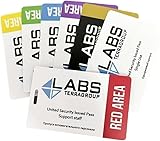
- Card's inspiration comes from Game, high similarity to the original.
- The cards is made of PVC.And all cards have a card holder to protect them.
- Excellent material and thickness.A great replica!
- Best choice for game fans,halloween cosplay prop and even cards collectors.
- Include:7pcs cards
6. Repair the installation in the supported launcher
Open the Battlestate launcher and use its integrity-check or repair option if that option is present in your current version. Allow it to finish, let it replace damaged or missing files, restart Windows, and test again. Do not interrupt the process or copy replacement DLL files from file-sharing sites. If the launcher reports a specific error, save a screenshot or the exact text.
Fix startup-only crashes without losing evidence
When Tarkov fails before the main menu, configuration or log data may be involved. Before resetting anything, close the launcher and back up the relevant folders to another location. Preserve the backup until the issue is resolved so you can restore settings or provide logs to support.
Test the configuration carefully
Use only reset or repair actions exposed by the supported launcher or the game’s own installation. Rename or move one configuration folder at a time rather than deleting it permanently. Launch once after each change. If the reset makes no difference, restore the backup and continue with the next branch; a reset that appears to work may simply have coincided with a driver or server change.
Community log-file workaround
One Reddit report says that deleting Player.log and Player-prev.log helped a startup crash. The files are under %AppData%LocalLowBattlestate GamesEscapeFromTarkov. This is an anecdotal, unverified lead, not an official fix. Back up the files first, close the game and launcher, move the two files to a backup folder rather than permanently deleting them, and test once. If nothing changes, restore them and do not keep repeating the deletion.
Handle BattlEye and authentication failures
If the message names BattlEye, treat it as an anti-cheat or authentication branch rather than a generic graphics crash. Capture the exact wording, code, and time. Use the supported launcher or the game’s installation files to repair the BattlEye installation if that option is available. Restart Windows and test with overlays and tuning disabled.
Do not download a “replacement” BattlEye DLL from an unofficial website and do not overwrite files with packages from another game. Such files may be incompatible and can create a new security or launch problem. If repair fails, include the exact BattlEye message and the launcher’s response in your support report.
When the crash happens while loading a map or in a raid
First compare the failure with your memory and graphics baseline. A machine that only meets the 16 GB minimum may run out of usable memory when Windows, the launcher, and other applications are open, especially on a demanding map. Close other applications, confirm free disk space, disable overlays, use stock hardware settings, and complete the launcher integrity check before changing graphics settings.
Recommended Free Tools
Record whether every map fails or only one. A single-map pattern is useful evidence for support; it is not proof that the map files are the only damaged component. If the crash repeats at the same loading stage, note the stage and approximate elapsed time. If it happens at random points in different raids, prioritize stability checks, temperatures, drivers, overlays, and memory use.
Rank #3
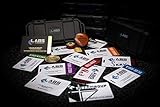
- The product is NOT an in-game items, 1:1 real keycards from escape from tarkov.
- All EFT Labs keycards,TerraGroup Labs access keycard,Black,Blue,Green,Red,Violet,Yellow Keycards. Object 21WSObject 11SR Keycards.
- Blank emfc Chips(no info was written) are integrated in all cards.
- All cards are in a protective plastic holder to prevent from scratches,the plastic holder was to protect the cards,but they might folded,sorry.
- Secure Container Outer Dimension:6.88'(L)x3.22'(W)x1.54'(H)
Separate a game crash from a whole-PC stability failure
A crash to the desktop with Windows still responsive usually points toward the game, driver, files, configuration, or an injected overlay. A black screen, blue screen, automatic restart, or power loss indicates a wider system-stability problem and should be treated more cautiously.
Return hardware to a known-good state
- Shut down and return CPU, GPU, RAM, undervolt, and BIOS performance settings to stock.
- Check that graphics-card and power cables are firmly connected and that the system is not operating in an unusual power profile.
- Monitor temperatures with your normal hardware utility while reproducing the problem; record the readings and the moment the failure occurs instead of guessing from a single number.
- Run the platform’s standard memory and hardware diagnostics. If a diagnostic reports errors, stop changing game files and address the hardware or firmware issue first.
- Review Windows reliability history, Event Viewer, and any blue-screen dump for the timestamp. Preserve the stop code or driver name for support.
Do not run several stress tests, flash firmware, and replace drivers simultaneously. Change one variable, reproduce the issue, and record the result. If other demanding applications also reboot the PC, the problem is not specific to Tarkov and may involve RAM, GPU power delivery, cooling, motherboard settings, or a driver.
Use a clean comparison to isolate software conflicts
After the basic checks, perform one controlled test with nonessential overlays, recorders, monitoring injectors, and startup utilities closed. Keep security software and required Windows services running; do not disable protection indiscriminately. If Tarkov works in the controlled session, re-enable utilities one at a time until the conflicting program is identified. If it still crashes, the result makes an overlay conflict less likely and gives support a clearer reproduction.
Free tools Windows power users keep installed
One-click scans. No signup required.
Interpret each test before choosing the next one
If an update, stock-setting change, or overlay shutdown stops the crash, repeat the same launch or raid several times before declaring success. Re-enable only one utility or setting at a time so you can identify the trigger. If the crash returns immediately after one change, leave that change disabled and record its exact version or profile name.
If file repair changes nothing, do not keep running it repeatedly; move to the branch indicated by the symptom. A startup failure with a BattlEye message needs anti-cheat evidence, while a restart under load needs hardware evidence. A crash that occurs only on one map should be reported with the map and loading stage, even after general checks pass.
Upgrade decisions: requirements versus diagnosis
The 64 GB recommendation can justify comparing a 64GB RAM kit for gaming PC or another compatible desktop memory upgrade when your system has less capacity and repeatedly exhausts available memory. Match DDR generation, supported speed, maximum board capacity, and slot layout before buying. A matched kit is preferable to combining unrelated modules, and the new capacity should be confirmed in Windows after installation.
Do not buy memory solely because Tarkov crashed once. Steam’s figures describe a baseline for running the game, not a diagnosis of a particular failure. If the computer also crashes in other demanding applications, test stability first. If Tarkov alone crashes and the machine is otherwise stable, files, drivers, overlays, configuration, or BattlEye remain plausible causes even when the system is below the recommended specification.
Know when to stop experimenting and contact support
Escalate through Battlestate Games’ official support and bug-reporting process when the crash survives the staged checks, when BattlEye repair fails, or when the PC produces a blue screen or restart. A useful report is reproducible and specific rather than a list of guesses.
Rank #4
Include these details
- Crash class: launcher, startup, map loading, in-raid, BattlEye, blue screen, restart, or black screen.
- Exact error text or code and the local timestamp.
- Map, menu, or action that preceded the failure, plus repeatable steps.
- CPU, GPU, installed RAM, Windows edition and version, graphics-driver version, and whether BIOS settings are stock.
- Recent Tarkov, Windows, driver, BIOS, or hardware changes; mention the October 6, 2026 patch 1.2.0.0 if it is relevant to the timeline.
- Launcher integrity-check results and whether disabling overlays or returning to stock settings changed anything.
- Relevant logs, crash dumps, screenshots, and the backed-up configuration or log files requested by support.
Describe what you tried and what happened after each step. Avoid attaching unrelated personal files or downloading unofficial “fix” packages at the request of strangers. Support can then distinguish a game defect, anti-cheat issue, configuration problem, driver conflict, and broader hardware instability.
As an optional shortcut after you have tried the manual steps, Outbyte PC Repair can address some common Windows issues, tune settings, clean temporary and cache files, check for vulnerabilities and potentially unwanted apps, provide a real-time boost, shred files, and record app-crash events. It runs on Windows 11, 10, 8, and 7 and offers a free trial by category for at least two days before a subscription; results vary, it does not repair every crash, and it complements rather than replaces antivirus software.
Frequently Asked Questions
Why does Escape from Tarkov keep crashing?
The cause depends on the failure point. Start by checking requirements, Windows and graphics drivers, stock hardware settings, overlays, free memory and disk space, and the Battlestate launcher’s integrity repair. Then branch into configuration, BattlEye, or hardware diagnostics based on the exact symptom.
What should I do if Tarkov crashes on startup?
Back up configuration and logs, update Windows and the graphics driver, disable overlays and tuning, and run the launcher’s repair option. You can test moving Player.log and Player-prev.log from the LocalLow folder, but that community workaround is unverified and should be reversible.
Can 16 GB of RAM cause Tarkov crashes?
Sixteen gigabytes is the published minimum, while 64 GB is recommended. With 16 GB, close other memory-heavy programs and watch memory use during map loading. An upgrade may help when memory is exhausted, but RAM alone cannot be assumed to be the cause.
How do I fix a BattlEye crash in Tarkov?
Capture the exact BattlEye message and code, repair BattlEye through the supported launcher or installation files, restart Windows, and test with overlays and overclocks disabled. Never download replacement DLLs from unofficial websites.
Why does Tarkov restart my whole PC?
A full restart, black screen, or blue screen suggests system instability rather than an ordinary game crash. Return CPU, GPU, RAM, undervolt, and BIOS settings to stock; check temperatures, power connections, memory, hardware diagnostics, and Windows crash records.
Should I reinstall Tarkov when it crashes?
Use the launcher’s integrity or repair function first and preserve logs. Reinstalling immediately can remove useful evidence and may not address a driver, overlay, BattlEye, or hardware problem. Escalate with the repair result if the failure continues.
What details should I send Battlestate Games support?
Provide the crash type, exact error, timestamp, map or menu, repeatable steps, hardware and Windows versions, graphics-driver version, recent updates, BIOS stock status, repair results, and relevant logs, dumps, and screenshots.
The Bottom Line
Fix Tarkov crashes in stages: identify the failure point, compare your PC with Steam’s requirements, update Windows and graphics drivers, return tuning to stock, disable overlays, repair files in the supported launcher, and then isolate configuration, BattlEye, or hardware causes. Back up logs before testing community workarounds, never use unofficial DLL downloads, and contact Battlestate Games with precise evidence when the staged checks do not resolve the problem.
Quick Recap
Product prices and availability are accurate as of the date/time indicated and are subject to change. Any price and availability information displayed on Amazon at the time of purchase will apply.




