ASUS laptop RGB backlights are controlled by a mix of hardware lighting controllers, embedded controller (EC) firmware, and software (most commonly Armoury Crate). When the lights stop working, the cause is usually one of those layers being out of sync.
This guide focuses on the fixes that actually resolve RGB failures on 2024-era ASUS laptops—starting with the fastest software resets and moving toward driver, EC/BIOS, and hardware checks.
For ASUS RGB backlight troubleshooting, Outbyte Driver Updater can optionally check keyboard and chipset drivers for missing or outdated official versions.
As an Amazon Associate I earn from qualifying purchases.
If your keyboard backlight never turns on, turns on only briefly, or works only in BIOS, follow the steps in order. You’ll narrow the fault quickly and avoid unnecessary part swapping.
What ASUS RGB Backlight Problems Usually Mean
On most ASUS notebooks, RGB lighting problems fall into a few repeatable categories: a lighting profile is stuck, Armoury Crate/AURA service is misconfigured, a driver update broke the lighting controller, Windows power settings prevent the controller from waking, or the EC/BIOS firmware state is corrupted.
#1 Best Overall

- Compatible With: ASUS ROG Zephyrus G15 GA503 GA503Q GA503QS GA503QR GA503QM Series Game Laptop
- Compatible With: ASUS ROG Zephyrus M16 GU603 GU603ZW GU603HM Series Game Laptop
- Keyboard Layout: Color: Black. Layout: US Layout with RGB Backlit. Each replacement keyboard was tested before shipping and are 100% working
- Wear-Resistant: This rog zephyrus g15 ga503 ga503q ga503qs ga503qm laptop keyboard surface was UV-processed, make it still clear after being repeated 10 million times.
- Good Quality: Each replacement keyboard was tested before shipping and working good
Knowing which symptom you have helps you pick the right path.
- RGB never turns on: often a control toggle issue, broken Armoury Crate service, or EC/driver mismatch.
- RGB turns on once then stops: usually a Windows power/hibernation issue or a conflicting app.
- RGB works in BIOS but not in Windows: almost always a Windows driver/software conflict.
- Only one zone works: could be a profile/per-key mapping problem or partial hardware failure.
Before You Troubleshoot: Quick Checks in 5 Minutes
Do these first—they’re common and they rule out simple causes.
Recommended Free Tools
- Hard reboot the laptop: hold the power button for ~10 seconds until it shuts off, then power back on.
- Try the RGB/keyboard backlight hotkey: on many ASUS models it’s
Fn+ a function key (oftenF3/F4/F5/F7depending on the model). Look for a keyboard/lighting icon on yourFkeys. - Check if brightness is set to minimum: even when RGB is “on,” brightness can be at 0 or an invisible effect.
- Confirm the right lighting mode: “Off,” “Static,” “Breathing,” “Color Cycle,” and per-key profiles can behave differently.
Step-by-Step Fixes (Start Here)
These steps fix the majority of RGB backlight failures on ASUS laptops running Windows 10/11 in 2024.
1) Confirm the RGB type (keyboard vs. chassis) and the correct control key
Some ASUS systems have multiple lighting areas (keyboard backlight, underglow, or chassis accent LEDs). The keyboard usually responds to the keyboard hotkey; chassis lighting is usually controlled only through Armoury Crate.
Open Armoury Crate and check whether you’re viewing keyboard settings or system lighting. If you only change the keyboard profile but the issue is in the chassis, you’ll miss the real cause.
2) Reset lighting inside Armoury Crate
A stuck profile is one of the most common causes. Resetting clears the controller’s last state.
- Open Armoury Crate.
- Go to Device (or your keyboard tile) and then Lighting.
- Select a known-good mode like Static and choose a bright color (for example, White or Red).
- Set Brightness to about 50–100% (not 0).
- If you see per-key customization, hit Reset or choose a factory preset.
If Armoury Crate refuses to show effects or the lighting page is empty, skip to the reinstall/repair section.
Rank #2
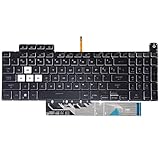
- Compatible With:Asus TUF Gaming F15 FX507 A15 FA507 A17 FA707 Series keyboards;For Asus TUF Gaming F15 FX507 FX507ZE FX507ZM FX507ZC FX507ZR Series Laptop;Engineered for gaming, rejuvenate your gaming laptop to like-new condition
- Compatible With:Asus TUF Gaming A15 FA507 FA507R FA507RE FA507RM FA507RC FA507RR Series Laptop;With RGB Colorful Backlit Keyboard US Layoutl;Elevate your gaming experience with our replacement keyboard designed for Asus TUF A15 FA507;The replacement keyboard for Asus TUF A15 FA507RE is meticulously crafted for durability
- Compatible With:Asus TUF Gaming A17 FA707 FA707RC,F17 FX707 FX707VV, TUF Dash F15 FX517 FX517ZR FX517ZM Series Laptop;Upgrade your typing experience with a compatible keyboard for Asus TUF A17 FA707;For Asus TUF F17 FX707 Keyboard Replacement
- Upgrade your Gaming routine:with our compatible replacement keyboard designed for Asus TUF Gaming F15 A15 A17 series—models FX507 FA507, and FA707; Engineered to seamlessly fit, this keyboard ensures uninterrupted productivity whether you're typing essays or coding projects
- Warranty: provide a 120-day warranty against any manufacturer defective such as dead-on arrival (DOA), lines, video failure, and outage
3) Reinstall and repair Armoury Crate (and AURA-related components)
When Armoury Crate’s services break, lighting often goes dead without a clear error. A clean reinstall fixes service registration and driver bindings.
- Uninstall Armoury Crate from Settings > Apps > Installed apps.
- Then install the latest Armoury Crate package for your model from the ASUS support site (or via the Armoury Crate installer update flow if it offers a repair/reinstall).
- After install, reboot the laptop.
- Open Armoury Crate and verify the device is detected (it should show your model name).
- Go to Lighting and apply Static > White.
Gotcha: some laptops also use ASUS AURA services/components. If your uninstall removed Armoury Crate but left AURA remnants, reinstalling from a clean installer typically restores the full chain.
4) Update drivers and firmware that affect keyboard lighting
RGB lighting relies on EC firmware and controller drivers. Updating these can fix broken behavior after Windows updates.
Windows Errors? Fix Them Before They Spread
Repair common Windows errors and clear accumulated junk for a smoother, more stable PC - no reinstall needed.Free scan · no reinstallOutdated Drivers Are Slowing You Down
One free scan finds every outdated or missing driver and matches the right update for your exact hardware.Free scan · exact hardware match- Go to MyASUS (or ASUS Support site) and run System Diagnosis / Driver Updates.
- Update in this order when available:
- Chipset
- ATK Hotkey / ATK Package (varies by model)
- ACPI / System devices related to Armoury Crate
- Keyboard device driver entries (if listed)
- Update BIOS and EC firmware if ASUS provides a newer one for your exact model.
- Reboot and retest the hotkey and a Static color in Armoury Crate.
If Armoury Crate works but lighting doesn’t change, focus on ATK Hotkey and EC/BIOS updates.
5) Fix Windows power and fast startup settings
Windows can prevent the lighting controller from initializing correctly after sleep/hibernate or with Fast Startup enabled.
- Open Control Panel > Power Options > Choose what the power buttons do.
- Click Change settings that are currently unavailable.
- Uncheck Turn on fast startup and click Save changes.
- Then go to Settings > System > Power & battery (Windows 11) and set Sleep to a short time for testing, or temporarily disable sleep.
- Reboot the laptop (don’t just sleep it) and test RGB again.
If RGB starts working after this, re-enable sleep gradually and keep Armoury Crate open once after waking to confirm it reinitializes properly.
6) Check hardware toggles and BIOS/EC behavior
Some ASUS laptops include BIOS settings or EC behavior that impacts keyboard illumination. Also, the embedded controller can get into a bad state.
Free tools Windows power users keep installed
One-click scans. No signup required.
Rank #3

- 【Compatible With】: Asus TUF Gaming F15 FX506 FX506U FX506II FX506IH FX506HC FX506LI A15 FA506 FA506IV FA506Q FA506U Series Laptop
- 【Compatible With】: Asus TUF Gaming F17 F17 FX706 FX706L FA706U FX706U FA706 Series Laptop
- 【Keyboard Layout】: Color: Black with RGB Backlit. US Layout with 8 PINS
- 【WEAR-RESISTANT】: This asus tuf fx506 fa506 laptop keyboard was under UV-processed, the symbol on the keys can be still very clear after being repeated 10 million times.
- 【Quality Guarantee】: Each keyboard was tested before shipping and guarantee 100% working and brand new! Offer 6 month full warranty for any defects. Please do not hesitate to contact us and you will get a reply with 12 hours!
- Reboot and enter BIOS (commonly
EscorF2on ASUS; your model screen will show the prompt). - Check whether keyboard lighting (or backlight) appears while in BIOS.
- If lighting works in BIOS but not Windows, the issue is almost certainly software/driver.
- If lighting does not work in BIOS, the issue is more likely EC/firmware or hardware.
Tip: after a BIOS update, fully shut down and power back on (not just restart) to ensure EC state refresh.
When the RGB Still Won’t Work: Deeper Troubleshooting
If the basic steps didn’t fix it, use the symptom-based checks below to avoid wasting time.
Keyboard backlight works in BIOS setup but not in Windows
This strongly points to a Windows-side problem—usually Armoury Crate services, hotkey/ATK package, or a driver conflict.
- Verify Armoury Crate is running and your device is detected.
- In Device Manager, look under Keyboards and System devices for entries related to your keyboard/hotkeys. If anything shows a warning icon, update the driver.
- Temporarily uninstall conflicting lighting utilities (common offenders include overlay tools and third-party RGB control apps that hook into input events).
- Reinstall Armoury Crate again if it’s partially installed.
No RGB at all: test with Armoury Crate installed/uninstalled
Some models depend on Armoury Crate for lighting, while others fall back to a simpler controller. Testing helps you decide whether the software is the blocker.
What’s actually slowing this PC down?
Pick the symptom - the matching free tool is one click away.
- Uninstall Armoury Crate.
- Reboot.
- Test the keyboard hotkey again. If RGB still never lights, your EC/controller may not be initializing (hardware/BIOS/firmware path).
- If RGB works after uninstalling, a lighting service in Armoury Crate is conflicting with the controller state—reinstall from the latest ASUS package.
External influences: macro apps, overlays, and conflicting lighting tools
RGB control is sensitive to background hooks. If you run tools that change keyboard behavior, they can interfere with lighting initialization.
- Close overlays (capture tools, RGB overlays, performance overlays).
- Temporarily disable macro utilities and keyboard remappers.
- Reboot after disabling, then test lighting immediately.
Clear controller state and reset embedded controller (EC)
Resetting the EC can clear a stuck lighting state. Exact steps vary by ASUS model, so this is a safe “try” approach rather than a one-size-fits-all procedure.
- Shut down the laptop completely.
- Unplug the charger.
- Hold the power button for 30 seconds.
- Leave it unpowered for 1 minute, then power on with the charger connected.
- Test lighting in Windows and then in BIOS.
If you have a removable battery model, ASUS service documentation sometimes includes a battery disconnect method—use only if your model supports it safely.
Rank #4

- Compatible Model: ASUS ROG Zephyrus G14 GA401 GA401Q GA401QM GA401I GA401IV GA401U Series Game Laptop 2021 2020 2019 Released
- NOTE: This rog zephyrus g14 replacement keyboard just fit for 2021 2020 2019 asus rog zephyrus g14 ga401 ga401u series laptop. NOT FOR 2022 Released Asus ROG G14 Series Laptop
- Keyboard Layout: Color: Black. Layout: US Layout with Backlit
- WEAR-RESISTANT: This rog zephyrus g14 Laptop keyboard was under UV-processed, the symbol on the keys can be still very clear after being repeated 10 million times.
- Good Quality: Each replacement keyboard was tested before shipping and working good!
Driver and Software Checklist (2024)
Use this checklist to make sure the required components are present and current. Your goal is consistency: latest Armoury Crate plus model-specific drivers.
Quick wins for a faster PC:
Repair Windows errors before they cause bigger problemsFix Now →Scan for outdated or missing drivers - takes under a minuteDriver Scan →| Component | Where to Check | If Missing/Outdated | What to Do |
|---|---|---|---|
| Armoury Crate | Installed apps; Armoury Crate home screen | Lighting page empty, no device detected | Reinstall latest for your exact model; reboot |
| ATK Hotkey / ATK Package | ASUS driver list; Device Manager (varies) | Fn hotkeys work poorly or lighting won’t respond | Update from ASUS support for your model |
| Chipset driver | MyASUS / Device Manager | Services initialize unreliably after updates | Update chipset; reboot |
| BIOS / EC firmware | ASUS BIOS/firmware page | No lighting in BIOS or persistent failure | Update BIOS (EC included); full power cycle |
| Windows power settings | Power Options; Sleep settings | RGB works until sleep/hibernate | Disable Fast Startup for testing; adjust sleep |
Common Mistakes That Make RGB Look Dead
- Only changing one zone: chassis lighting and keyboard lighting may use different toggles inside Armoury Crate.
- Leaving brightness at 0%: some presets keep brightness at the last saved value.
- Skipping a full reboot: some service fixes require a power cycle, not just a restart.
- Installing the wrong Armoury Crate version: always use the package for your laptop model/series.
- Using third-party RGB tools: they can conflict with ASUS lighting control hooks.
How to Get the Right Fix for Your Exact ASUS Model
ASUS has multiple sub-lines (ROG, TUF, Vivobook, ProArt, ROG Strix, Zephyrus). The lighting control app looks similar, but the driver/firmware dependencies differ.
Find your model and current software stack
- Press
Win+R, typemsinfo32, press Enter. - Record System Model and BIOS Version/Date.
- Open Armoury Crate and note the device name and software version if shown.
Match the right app and settings
If your laptop is ROG/TUF, Armoury Crate is typically the core controller. If your laptop uses a different ASUS lighting management approach, Armoury Crate may be optional—but the model-specific ASUS support page will tell you what’s required.
For best results, use the ASUS support download page for your exact model and install in this order: chipset, hotkey/ATK, then Armoury Crate, then BIOS/EC if provided.
Service and Hardware Options
If the RGB never works in both BIOS and Windows after software/EC resets, you could be dealing with a hardware fault (lighting ribbon, controller board, or connector).
The Tool Desk
Outbyte PC Repair FREEClear out junk files and repair common Windows errorsFree Scan →Outbyte Driver Updater FREEFix the driver behind crashes, sound loss and screen glitchesFind Drivers →- Test by observation: does the keyboard backlight show any faint glow, or is it fully off?
- Check warranty coverage: if your laptop is within warranty, don’t attempt internal reseating unless ASUS service documentation instructs it.
- Contact ASUS support: provide your System Model, BIOS Version/Date, and what you already tried (Armoury Crate reinstall, BIOS update, fast startup off).
If you’re comfortable with service, a trained technician can verify the lighting controller signals and inspect the keyboard backlight harness safely.
Bottom Line
Most ASUS laptop RGB backlight failures in 2024 are fixed by repairing/reinstalling Armoury Crate, updating ATK hotkey/chipset drivers, and clearing Windows power behavior (especially Fast Startup). Then, if the lights still fail, BIOS/EC state and hardware become the primary suspects.
Best Value

- 【Compatible models】Compatible With Asus Vivobook 15 F512 F512DA F512JA F512FA F512UA Series Laptop
- 【Compatible models】Compatible With Asus Vivobook X512 X512FA X512DA X512JA X512UA Series Laptop
- 【Good Package】This keyoard is covered bubble bag in box,make sure you can receive a high quality keyboard.
- 【Solution of keys don't work】If some keys don't work after install ,You can try to reconnect the ribbon cable in case bad connected ,pls use a dry cloth to wipe metal head of the connect ribbon,then try to connect about few times,many customer solve this problem after did this.
- 【★Please cheak whether this kryboard fits your laptop or not before bidding.】
Work symptom-first: test in BIOS, then in Windows with a clean Armoury Crate install, and only then move to EC resets and hardware service.
FAQs
Why does my ASUS keyboard backlight work in BIOS but not in Armoury Crate?
That pattern usually means Windows-side software control is broken. Reinstall Armoury Crate, update the ATK hotkey/related drivers, and remove any conflicting RGB/macro/overlay tools. Also try disabling Fast Startup and rebooting.
Armoury Crate shows the device, but the lighting won’t change at all—what should I do?
Set Lighting to Static and brightness to 100% to eliminate effect/profile issues. If changes still don’t apply, update BIOS/EC and reinstall Armoury Crate using the latest ASUS package for your exact model.
My RGB turns off after sleep—how do I stop that?
Disable Fast Startup, then test with sleep disabled temporarily. If it stops failing, adjust sleep/hibernate settings and confirm Armoury Crate services start cleanly after waking.
Can I fix ASUS RGB without installing Armoury Crate?
Some models expose basic keyboard illumination via hotkeys, but full RGB effects typically rely on Armoury Crate or its lighting controller services. If hotkeys can’t turn the light on, you’ll likely need the ASUS lighting software stack.
What if none of the steps work and the lights never turn on?
If keyboard lighting doesn’t work in BIOS either, software is unlikely to be the cause. Check for BIOS/EC updates, then consider hardware inspection under warranty or ASUS service.
Do these 3 things before closing this tab:
1Clear out junk files and repair common Windows errors2Fix the driver behind crashes, sound loss and screen glitches3Repair Windows errors before they cause bigger problemsQuick Recap
Product prices and availability are accurate as of the date/time indicated and are subject to change. Any price and availability information displayed on Amazon at the time of purchase will apply.




