Use Adobe Acrobat for a guided crawl, Playwright for a repeatable list of URLs, or Adobe PDF Services when conversion belongs in a backend. The right choice depends on whether you are capturing a bounded site tree, automating a known URL list, or building a service. In every case, define scope first, control rendering and rate, and verify that every expected PDF was produced.
Choose the bulk-conversion method that fits your job
| Approach | Best for | Important controls | Trade-off |
|---|---|---|---|
| Adobe Acrobat desktop | Nontechnical users and bounded site captures | Capture multiple levels, entire-site capture, same-path or same-server limits, queued requests | Less programmable orchestration |
| Playwright | Developers processing a repeatable URL list with custom rendering | Chromium PDF export, media emulation, page.pdf() options, application-defined retries and naming | Requires code and a Chromium browser |
| Adobe PDF Services | Teams embedding conversion in an application or backend | HTML or URL input, REST and SDK integrations, application-managed jobs | Requires API integration and current service terms |
Acrobat is the shortest path when a person can start a capture and review its output. Playwright gives you deterministic code for a list such as urls.txt. PDF Services is appropriate when another system must submit jobs, track them, and store results. None of the documented options guarantees identical output for every authenticated, script-heavy, or protected page; test representative pages before committing to a large run.
Plan the URL set and crawl boundary
For an entire site or section
Write down the starting URL and decide how far links may spread. “Same path” keeps a crawl inside a directory such as https://example.com/docs/; “same server” permits other paths on that host. A whole-site crawl can include far more pages than expected, so a bounded path and explicit level count are safer defaults.
For a list of independent pages
Keep one absolute URL per line and decide how the output filename will be derived. A stable ID or an index is safer than using raw titles, which can contain slashes, punctuation, or duplicates. Record the input list so missing or failed items can be retried without reprocessing successful PDFs.
The Tool Desk
Outbyte PC Repair FREEClear out junk files and repair common Windows errorsFree Scan →Outbyte Driver Updater FREEScan for outdated or missing drivers - takes under a minuteDriver Scan →#1 Best Overall

- Work securely offline — without connecting to the cloud — with desktop-only PDF tools.
- Edit text and images and reorder and delete pages in a PDF.
- Convert PDFs to Microsoft Word, Excel, or PowerPoint files while preserving fonts, formatting, and layouts.
- Easily create, fill, and sign forms.
- Password-protect documents or redact sections of a PDF to keep sensitive information secure.
Set output and retention rules
- Choose a directory and a naming convention before starting.
- Decide whether each page gets its own PDF or whether files will be merged later.
- Estimate disk usage: Adobe warns that unnecessary crawl levels can consume disk space and slow processing.
- Keep a manifest containing source URL, timestamp, output path, and status.
Method 1: Capture multiple website levels in Adobe Acrobat
Acrobat’s website conversion is the no-code option for a bounded site capture. Adobe’s documented workflow lets you select a number of levels or choose the entire site, then constrain links by path or server. It also queues additional conversion requests, which is useful when several captures are required.
- Open Acrobat and choose the command for creating a PDF from a web page.
- Enter the starting URL.
- Select Capture Multiple Levels.
- Choose Get level(s) and enter the number of levels, or select Get Entire Site.
- Use Stay on Same Path when the capture must remain in a directory; use Stay on Same Server when links anywhere on that host are in scope.
- Choose the output location and start the conversion.
- Review the resulting PDFs and compare them with the pages you intended to include.
Adobe describes the level control in its Acrobat Help Center instructions. Start with one or two levels, inspect the result, and expand only when the link structure is understood. “Entire site” is a scope decision, not a guarantee that every page is publicly reachable or renderable.
When Acrobat is the better choice
- You want a guided interface rather than a codebase.
- The site has a clear hierarchy and a manageable boundary.
- You need to queue several captures but do not need custom retry, naming, or database logic.
Method 2: Batch-render URLs with Playwright
Playwright is the programmable route. Its PDF export is Chromium-only, and the application must provide URL iteration, retries, throttling, naming, and validation. The following Node.js script reads URLs from a file, waits for page loading, writes one PDF per URL, and records failures.
Install and prepare
- Install Node.js and create a project:
mkdir bulk-pdf && cd bulk-pdf && npm init -y. - Install Playwright:
npm install playwright. - Download its browser:
npx playwright install chromium. - Create
urls.txtwith one absolute URL per line.
Runnable converter
const fs = require('node:fs/promises');
const path = require('node:path');
const { chromium } = require('playwright');

const urls = (await fs.readFile('urls.txt', 'utf8'))
  .split(/r?n/).map(s => s.trim()).filter(Boolean);
const outDir = 'pdf';
await fs.mkdir(outDir, { recursive: true });
const browser = await chromium.launch();
const context = await browser.newContext({
  viewport: { width: 1440, height: 900 },
  colorScheme: 'light'
});
const results = [];

for (let i = 0; i < urls.length; i++) {
  const url = urls[i];
  const file = path.join(outDir, `${String(i + 1).padStart(4, '0')}.pdf`);
  let ok = false, error = '';
  for (let attempt = 1; attempt <= 3 && !ok; attempt++) {
    const page = await context.newPage();
    try {
      await page.goto(url, { waitUntil: 'networkidle', timeout: 90000 });
      await page.emulateMedia({ media: 'print' });
      await page.pdf({
        path: file,
        format: 'A4',
        printBackground: true,
        margin: { top: '16mm', right: '14mm', bottom: '16mm', left: '14mm' },
        preferCSSPageSize: true
      });
      ok = true;
    } catch (e) {
      error = e.message;
      if (attempt < 3) await new Promise(r => setTimeout(r, attempt * 2000));
    } finally {
      await page.close();
    }
  }
  results.push({ url, file: ok ? file : null, ok, error });
  await new Promise(r => setTimeout(r, 500));
}
await fs.writeFile('manifest.json', JSON.stringify(results, null, 2));
await browser.close();
Run it with node bulk-pdf.js. networkidle can wait indefinitely on pages that keep analytics connections open; for such sites, replace it with domcontentloaded plus an explicit selector wait or delay. Add authentication through a browser context only when you are authorized to access the pages.
Quick wins for a faster PC:
Scan for outdated or missing drivers - takes under a minuteDriver Scan →Clear out junk files and repair common Windows errorsFree Scan →Fix the driver behind crashes, sound loss and screen glitchesFind Drivers →Useful Playwright controls
page.pdf()supports paper format, margins, landscape output, page ranges, backgrounds, and CSS page sizing.page.emulateMedia({ media: 'print' })selects print styles; use screen media when the on-screen layout is the required artifact.- Wait for a meaningful selector (for example, the article container) when JavaScript fills the page after navigation.
- Throttle requests and limit concurrency to avoid overwhelming the origin or triggering access controls.
- Validate each file’s existence and non-zero size; retain the manifest for retries.
Method 3: Build a backend pipeline with Adobe PDF Services
Adobe documents HTML-to-PDF conversion for static and dynamic HTML and URL inputs, with REST and SDK examples. A bulk implementation submits each URL or HTML document through the service, tracks the returned job, downloads the result, and records status in your application.
Rank #2

- Perfect Adobe Acrobat Pro alternative – lifetime license for Windows 10 and 11.
- EDIT text, images, pages, hyperlinks, designs in PDF documents. ORGANIZE PDFs.
- READ and Comment on PDFs – Intuitive reading modes & document commenting and mark up tools!
- CREATE, COMBINE, SCAN and COMPRESS PDFs.
- FILL forms & Digitally Sign PDFs. Work with Digital certificates
- Obtain credentials and confirm the current Adobe PDF Services terms and limits for your account.
- Put input URLs or generated HTML into a queue.
- Submit one conversion request per item through the REST endpoint or an official SDK.
- Persist the job identifier, source URL, attempt count, and destination path.
- Poll or receive the documented completion result, then download and checksum the PDF.
- Retry transient failures with exponential backoff; route repeated failures to a review queue.
Use Adobe’s PDF Services documentation for the current endpoint and authentication details. The service provides conversion primitives; URL scheduling, deduplication, rate control, storage, and alerting remain application responsibilities.
Or skip the browser setup
ScreenshotNeo provides a website screenshot API and MCP server. Its PDF capture endpoint can be called directly when you want a service rather than maintaining Chromium. The same API supports bulk capture of up to 100 URLs per call, asynchronous jobs with signed webhooks, custom waiting rules, cookies and headers, geolocation, timezone, and other rendering controls.
One-call cURL example (change the URL or add the documented PDF parameters):
Outdated Drivers Are Slowing You Down
One free scan finds every outdated or missing driver and matches the right update for your exact hardware.Free scan · exact hardware matchWindows Errors? Fix Them Before They Spread
Repair common Windows errors and clear accumulated junk for a smoother, more stable PC - no reinstall needed.Free scan · no reinstallcurl -G "https://api.screenshotneo.com/v1/shot" -d access_key=YOUR_API_KEY --data-urlencode url=https://stripe.com -o shot.webpFor PDF output, request the PDF format and paper, margin, orientation, or page-range options described in the ScreenshotNeo documentation. Equivalent requests in Python and Node.js are:
import requests
r = requests.get("https://api.screenshotneo.com/v1/shot", params={"access_key": "YOUR_API_KEY", "url": "https://stripe.com"}, timeout=90)
open("shot.webp", "wb").write(r.content)
const q = new URLSearchParams({ access_key: 'YOUR_API_KEY', url: 'https://stripe.com' });
const res = await fetch(`https://api.screenshotneo.com/v1/shot?${q}`);Before capture, ScreenshotNeo accepts cookie or consent banners and removes more than 60 known consent platforms, newsletter popups, and chat widgets; each cleanup step can be disabled. Bot checks or CAPTCHAs, blank pages, timeouts, failed loads, and cache hits cost nothing, and response headers identify the page verdict and billing status. An MCP server exposes take_screenshot, get_page_info, and capture_pdf to Claude, Cursor, and other MCP clients.
| Plan | Allowance | Price |
|---|---|---|
| Free | 1,000 shots/month | $0, no card |
| Starter | 3,000 shots | $5 |
| Growth | 15,000 shots | $15 |
| Pro | 60,000 shots | $39 |
| Scale | 250,000 shots | $99 |
| Business | 1,000,000 shots | $249 |
Yearly billing gives two months free, and every feature is included on every plan. Create a free ScreenshotNeo account to get 1,000 screenshots a month without adding a card.
Rank #3

- Edit PDFs with Ease. Modify text, images, and layouts directly within your PDF documents.
- Convert & Organize. Export PDFs to Word, Excel, or ePub, and organize files with ease.
- Read & Annotate. Enjoy intuitive reading modes and powerful tools to comment, highlight, and mark up PDFs.
- Create & Manage PDFs. Create new PDFs, combine multiple files, scan documents, and compress for easy sharing.
- Fill & Sign Forms. Complete forms and digitally sign documents with secure e-signature tools.
Rendering, reliability, and cost controls
Dynamic content
Wait for the selector that proves the content is present, not merely for the network to become quiet. Lazy-loaded images may require scrolling or a full-page capture mode. Pages that depend on login, consent, region, or a particular user agent should be tested with those exact settings.
What’s actually slowing this PC down?
Pick the symptom - the matching free tool is one click away.
Rate and concurrency
Start with sequential conversion, then increase concurrency only after observing origin responses, memory use, and queue behavior. Back off on 429 and 5xx responses. A deterministic manifest prevents a rerun from duplicating completed work.
PDF quality checks
- Confirm the file exists and is larger than zero bytes.
- Open a sample from every page template and viewport class.
- Check fonts, background colors, page breaks, images, links, and clipped fixed-position elements.
- Compare the number of successful outputs with the input count.
Troubleshooting common failures
Only the first page or a shell appears
The site may render content after navigation. Wait for a content selector, use a controlled delay, or switch from networkidle to domcontentloaded plus explicit waits.
Conversion times out
Large images, never-ending connections, or blocked third-party resources are common causes. Set a finite timeout, block nonessential resources where appropriate, and retry with backoff. Do not interpret a timeout as proof that the URL is permanently unavailable.
Pages are missing from an Acrobat crawl
Check whether the selected level count is sufficient and whether links leave the chosen path or server. Raise the level deliberately rather than selecting the entire site immediately.
Recommended Free Tools
Rank #4
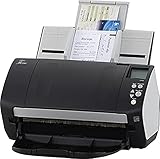
- Includes 1-year subscription to Adobe Acrobat Pro DC license - Turn scanned documents into editable, searchable PDFs
- World's most popular business scanner--#1 Choice!
- Day in and day out reliability with industry leading image quality
- Integrates with ECM solutions across all industries via TWAIN/ISIS and Kofax VRS Compatability
- Superior paper handling technologies reduce jams minimizing labor costs
Access denied, CAPTCHA, or login wall
Confirm that automated access is permitted and provide authorized cookies, headers, or authentication in your chosen workflow. Protected content may not be convertible without an authenticated session.
PDF layout differs from the browser
Print CSS, viewport size, fonts, and media emulation change pagination. Choose print or screen media intentionally, wait for fonts and images, and test the same viewport and device settings on every run.
A practical decision checklist
- Need a guided capture of a bounded site? Start with Acrobat and set levels plus a same-path or same-server boundary.
- Have a known URL list and need custom retries, filenames, or validation? Use Playwright with Chromium.
- Need conversion inside a product or worker queue? Use Adobe PDF Services and implement orchestration around its API.
- Want hosted capture with consent cleanup, PDF options, bulk requests, and MCP access? Try ScreenshotNeo.
- Run a small pilot, inspect representative PDFs, then scale while monitoring failures and disk or storage use.
Frequently Asked Questions
Can I merge the PDFs after batch conversion?
Yes. Produce and validate individual files first, then merge them with a PDF library or desktop tool so a single failed URL does not invalidate the whole run.
Does Playwright generate PDFs in Firefox or WebKit?
No. Playwright’s documented PDF generation is Chromium-only.
Should I crawl an entire domain by default?
No. Begin with an explicit level count or path boundary; an unrestricted crawl can create unexpected volume and slower processing.
Will every JavaScript application render exactly as it does for a user?
Not necessarily. Authentication, delayed data, browser differences, access controls, and print CSS can change the result, so validate representative pages.
Quick Recap
Product prices and availability are accurate as of the date/time indicated and are subject to change. Any price and availability information displayed on Amazon at the time of purchase will apply.




