Recommended Free Tools
Usually, not by plugging the Yeti’s USB cable straight into a DSLR. A documented wired setup sends audio from the Yeti’s 3.5 mm headphone socket to a compatible camera microphone input using a 3.5 mm TRS-to-TRS cable, while the Yeti is connected to a computer over USB for power and audio routing. Direct USB audio works only on cameras that explicitly support it; Mevo documents that option for the Mevo Start and Mevo Core.
Choose a connection method your camera supports
First check the camera manual for a microphone input, its connector size, and any audio-input settings. A USB port alone does not establish that a camera accepts USB microphone audio. The Yeti’s 3.5 mm socket is a headphone output, not a dedicated standalone microphone output; the analog method below relies on the computer-routed setup described by the practical guide.
As an Amazon Associate I earn from qualifying purchases.
| Method | What it requires | When it fits |
|---|---|---|
| Analog cable to camera | Compatible camera microphone input, matching cable or adapter, and the documented Yeti-to-computer routing | When the camera accepts audio through its microphone input |
| Direct USB | Camera maker-documented USB microphone support, plus any specified power and mixer settings | For supported models such as Mevo Start and Mevo Core |
| Separate recording | A computer or recorder that accepts the specific Yeti model, followed by audio/video synchronization in editing | When the camera has no compatible mic input or supported USB-audio path |
Connect the Yeti’s headphone output to a camera mic input
- Confirm in the camera manual that the port is a microphone input and check its size. The practical camera guide specifies a 3.5 mm TRS-to-TRS cable. Fujifilm documentation lists camera microphone connectors in both 2.5 mm and 3.5 mm sizes and recommends a conversion plug when sizes differ, so do not assume every camera accepts the same cable.
- Connect the Yeti to a computer with its USB cable. In the documented Windows setup, select the Yeti as both the recording and playback device.
- Connect the Yeti’s 3.5 mm headphone socket to the camera’s microphone input with the compatible TRS cable. This is a routed setup, not a claim that the headphone socket is a dedicated mic-level output.
- Enable manual audio recording or level control on the camera if available. Start with a low level, adjust cautiously, and record a short test clip.
- Review the clip before the shoot. Some cameras provide headphone monitoring; if yours does not, transfer the test clip and listen to it on another device.
A passive USB-to-3.5 mm adapter should not be treated as a universal way to make this connection: USB audio support depends on the camera, and the cited analog method uses a computer in the signal path.
Use direct USB only where the camera maker documents it
Mevo’s instructions specifically support Logitech Yeti-family USB microphones with the Mevo Start and Mevo Core. Connect the microphone to the camera’s USB-C port with the appropriate cable or adapter, enable Power External Devices in the Mevo app, and select the microphone in the mixer if necessary. Mevo says Logitech microphones are driverless and identifies Logitech models as the ones it has officially tested for full compatibility. These directions apply to those named Mevo cameras, not to DSLR or mirrorless cameras generally.
#1 Best Overall

- Perfect for Blue Yeti Mic – Connect your Blue Yeti USB microphone to USB-C devices like MacBook Pro 2023, iPad Pro, Galaxy S25/S24/S23, and more without losing audio quality.
- High-Speed USB 3.0 (5Gbps) – Supports fast data transfer & stable power delivery, ideal for streaming, podcasting, and gaming with no lag or disconnections.
- Durable Aluminum Shell – Premium oxidized aluminum casing protects against corrosion, overheating, and daily wear, more reliable than plastic adapters.
- Reversible & Compact – Sleek plug-and-play design fits tightly into USB-C ports, perfect for travel, studios, and office use.
- Universal Compatibility – Works with USB-C laptops, tablets, phones and standard USB-A devices like flash drives, keyboards, and audio interfaces.
Record separately if the camera cannot accept the signal
If the camera lacks a compatible microphone input and its manufacturer does not document USB microphone support, record through a computer or an audio recorder that accepts your Yeti model. Then synchronize the separate audio with the video during editing. Confirm that the chosen recorder supports the particular Yeti and plan for synchronization before filming.
Quick Recap
Rank #4

- Professional Screw Thread - Compatible with most heavy or light microphones and multiple models of microphone shock mounts such as: Hyperx Quadcast mic, Blue Yeti, Shure SM7B, ShureMV7, Rode, Ice Snowball, Razer seiren mini and other gaming mic.
- Suitable Places - Works with most microphone mounts. Used for connecting the interface of shock mount/suspension stand for professional recording microphone. Great for recording, singing, video calling, zoom meetings, training video production, online teaching, podcasting, gaming and live streaming.
- Easy to install - Made of aluminum alloy, Knurled surface, anti-slip, complete and deep thread without burrs, convenient to install, stable and tight.
- Mic Stand Accesorry - The mic stand adapter connect your microphone to a Boom Arm Mic Stand with 3/8" or 3/8" threaded.
- Note - Package includes 2 pieces thread screw adapters ONLY! Mic Stand, Shock Mount Not Included.
Rank #3

- USB-C type C cable / cord / wire for Blue Snowball iCE USB Mic & Blue Yeti USB Mic Black Out. Note: not compatible with other Blue Yeti Microphone models.
- Compatible with newly released devices with USB C ports. Compatible with PCs, MacBook, iPhone 15 16, laptops, Samsung, LG, Pixel, Moto, smartphones and tablets with a USB-C Type C port.
- Also compatible with HyperX Quadcast (please see product picture before buying). This USB cord is for Blue Yeti Black Out and Blue Snowball iCE USB Mic for Recording and Streaming. Specifications: USB-C to Mini-B.
- This cable has been tested with the devices stated in the product title.
- If you encounter issues using this cable, please send us a message. We will do our best to resolve any technical and non-technical issues you encountered.
Rank #2
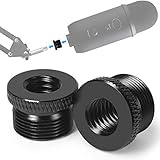
- High Quality - This mic stand adapter is well constructed made out of solid metal. Rugged metal construction ensures long life and reliable daily use. Great replacement for the cheap plastic adapter. Holds your mic on nice and sturdy.
- Specialty - This 5/8" male to 3/8" female thread adapter is designed for most mic stand on the market, such as Blue Yeti mic, Blue Yeti X mic, Neewer boom arm, Blue Snowball Ice Mic, Blue Radius III shock mount.
- Save Your Money - Don't need to cost a lot more to return the mic stand and re-order another stand any more. Conversion of microphone holders and accessories from 5/8 "threads to 3/8". If you have some sort of mic stand or boom arm that has a small screw but your microphone has a big screw, this is the adapter for you.
- Knurled Surface - This blue yeti adapter knurled surface provides excellent grip for easy installation and removal. Anti-slip, complete and deep thread without burrs, convenient to install, stable and tight.
- Specification - 2 pack screw adapters. The diameter of a 5/8 threaded hole is about 15mm. You can check it before purchase. It's good to have a strong connection for your mic. You will feel more secure and safe knowing that you don't have to worry about the thread breaking off and your expensive mic falling off and getting damaged.
Troubleshoot a silent, distorted, or weak recording
- No sound: Verify that you are using a microphone input, the plug is seated, camera audio recording is enabled, and the Yeti is connected to USB and routed as required by the computer-based setup.
- Connector does not fit: Check the camera manual for a 2.5 mm or 3.5 mm input. Use a conversion plug only after confirming the port and the required connection.
- Distortion or low level: Begin with a low manual camera level and adjust the routed output carefully. Make and review a test clip; headphone loudness alone does not show how the camera recording will sound.
- USB produces no audio: Check whether the camera maker explicitly supports USB microphone input. The Mevo steps are model-specific, including external-device power and mixer selection.
- Audio sounds disappointing: Room noise, microphone placement, gain, and the camera’s preamp behavior can affect the result. The available sources do not provide controlled sound-quality comparisons across Yeti models and cameras, so a successful connection alone does not establish professional-quality audio.
What to verify before recording
- Whether the camera has a microphone input or documented USB-audio support.
- Whether the cable or adapter matches the camera port and the Yeti connection.
- Whether the Yeti is powered and its signal is routed through the intended setup.
- How you will monitor or review a test recording.
- Whether recording into the camera or recording separately is the better fit for the shoot.
Product prices and availability are accurate as of the date/time indicated and are subject to change. Any price and availability information displayed on Amazon at the time of purchase will apply.




