You can enable NFC on a Galaxy A03s only if your exact regional model includes NFC hardware. Samsung lists some A03s variants as having NFC and others as not having it, so first check the full model number in Settings → About phone. If Samsung’s specification for your model says NFC is supported, look under Settings → Connections for the NFC control. If the model lacks NFC, there is no setting or app that can add it.
Does the Samsung Galaxy A03s have NFC?
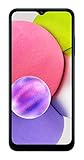
It depends on the model and sales region. Samsung’s U.S. specification sheets list NFC as “N/A” for Verizon and unlocked A03s handsets. Samsung’s Gulf listings for model SM-A037F say NFC is not supported, while Samsung Ireland’s listing for SM-A037G says NFC is supported. The retail name “Galaxy A03s” alone therefore does not establish whether a particular phone has NFC.
As an Amazon Associate I earn from qualifying purchases.
| Samsung listing | Model or market | NFC specification |
|---|---|---|
| U.S. Verizon and unlocked specification sheets | Galaxy A03s | “NFC — N/A” |
| Samsung Gulf | SM-A037F | No |
| Samsung Ireland | SM-A037G | Yes |
Samsung’s regional listings are the strongest guide to the device configurations they describe. A carrier guide from Three UK gives A03s NFC menu instructions, but it does not identify a full SKU that resolves the regional differences; treat it as guidance for the carrier’s configuration, not proof that every A03s has NFC.
Recommended Free Tools
How to check your A03s model and its NFC support
- Open Settings → About phone and note the complete model code, such as SM-A037F or SM-A037G. Do not rely only on the Galaxy A03s name.
- Look up that model on Samsung’s product or support page for the phone’s sales region and check its connectivity specifications for NFC.
- If the listing confirms NFC, continue to the settings check below. If it says NFC is not supported, your phone cannot enable NFC.
How to turn on NFC if your A03s supports it
- Open Settings → Connections.
- Look for NFC or NFC and contactless payments; the exact label can vary by software version.
- Turn on the NFC control. If your phone provides an NFC button in Quick Settings, you can also use that tile to toggle NFC.
Samsung’s general NFC instructions describe this settings route and a possible Quick Settings control, but they do not imply that every Galaxy A-series model—or every A03s variant—has NFC. Samsung describes NFC as working at close range, from a touch to a few centimetres, and requiring devices to be close together (Samsung UK, updated 29 May 2026).
#1 Best Overall

- 6.5 720 x 1600 (HD+) PLS TFT LCD Infinity-V Display, 5000mAh Battery, Fingerprint (side-mounted)
- Rear Camera: 13MP, f/2.2, (macro) + 2MP, F2.4, (depth) + 2MP, F2.4, Front Camera: 5 MP, f/2.2, Bluetooth 5.0
- 2G: 850/900/1800/1900MHz, 3G: 850/900/1700(AWS)/1900/2100, 4G LTE: B2(1900)/B4(AWS)/B5(850)/B12(700)/B14(700)
- Width: 2.99 inches; Length: 6.46 inches; Height: 0.36 inches; Cpu Model Family: Snapdragon
What to do if there is no NFC setting
If the specification for your exact model says NFC is absent and no NFC control appears in Settings, there is no hidden switch to find. An app, NFC sticker, or phone case cannot add the missing radio hardware. Use a different phone that is confirmed to support NFC if you need an NFC function.
Having NFC hardware also does not guarantee that contactless payments will work. Payment availability can depend on your region, bank or card issuer, software, and the payment service’s eligibility requirements; the phone’s NFC specification alone does not confirm those conditions.
Quick Recap
Rank #4

- Fully tested with light signs of wear
- All-day power for calls, games, and more
- Expandable via microSD card (sold separately)
- Smooth everyday performance
- Ideal for browsing, video, and apps
Rank #3

- Immersive 6.7-inch Super AMOLED display with 120 Hz refresh rate, offering smooth scrolling, vibrant colors, and enhanced contrast for watching videos, gaming, or browsing social media. The large screen is ideal for multitasking, allowing apps and media to feel spacious and engaging even in a single glance.
Product prices and availability are accurate as of the date/time indicated and are subject to change. Any price and availability information displayed on Amazon at the time of purchase will apply.
Free tools Windows power users keep installed
One-click scans. No signup required.




