Use Edge’s built-in Screenshot tool first: open the page, press Ctrl+Shift+S, choose Capture full page, then copy or save the result. You do not need an extension for a normal full-page capture. An add-on such as GoFullPage is useful when you specifically want its image/PDF workflow, but its store listing says exceptionally large pages can be split into separate images.
Capture a full webpage with Edge’s built-in tool
Microsoft documents a native Screenshot feature for Edge. It captures content extending beyond the visible screen, so you can save one long image instead of taking several viewport screenshots. Availability and behavior can vary by device, market and Edge version; if a command is missing, update Edge and check the alternate entry points below.
- Open the webpage in Microsoft Edge and wait for the content you need to appear.
- Press Ctrl+Shift+S. Edge opens the Screenshot controls. The same feature can be reached from the page’s right-click menu or through Edge Settings. See Microsoft’s current guidance at Microsoft’s Edge Screenshot page.
- Select Capture full page. Edge captures the page area that continues below the current viewport.
- Review the result. Use the available markup tools if you need to annotate it, then choose the control to copy or save the capture.
The native tool is the simplest choice when you need a quick image for documentation, bug reports or sharing. It also avoids granting a third-party extension access to pages you visit.
If the shortcut does not open Screenshot
- Try the page’s right-click menu and look for the Screenshot command.
- Open Edge Settings and search for “Screenshot”. Microsoft notes that feature availability can differ across installations.
- Confirm that the active window is Edge and that another application has not captured the keyboard shortcut.
- Update Edge, restart it and retry on a normal, non-restricted webpage.
Use a full-page capture extension instead
An extension is optional. Choose one when you want a dedicated toolbar button, a separate export workflow or an image/PDF download path that suits your process. Review the extension’s permissions, publisher, update history and compatibility with your current Edge installation before adding it.
Free tools Windows power users keep installed
One-click scans. No signup required.
#1 Best Overall
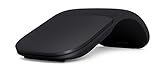
- Ultra slim and lightweight. Battery life: Up to 6 months
- Snaps flat and slips easily into a pocket or bag
- Innovative full scroll plane lets you scroll both vertically. Wireless range: 32.8 feet (10 meters) in open area, and 16.4 feet (5 meters) in office environment
- Dimensions: 5.17 x 2.17 x 0.56 inches. Weight: 2.91 ounces (including batteries). Battery: 2 AAA alkaline batteries (included). Battery life Up to 6 months
- Compatibility: Microsoft Windows 10 / 8.1 / 8. Must be Bluetooth 4.0 enabled. Wireless frequency 2.4 GHz frequency range. PC must meet these requirements to download: Microsoft Windows 11 Home/Pro / 10 / 8.1 / 8, 150MB available hard disk space.
GoFullPage – Full Page Screen Capture
The GoFullPage listing in Microsoft Edge Add-ons describes a workflow in which you activate the extension and it scrolls through visible page sections, assembling them into a full-page capture. Its listing says the result can be downloaded as an image or PDF. It also warns that exceptionally large pages may be split into images in separate tabs. Those are the publisher’s stated behaviors, not a guarantee that every site will produce an identical result.
- Open the GoFullPage listing and select the option to add it to Edge.
- Approve the requested permissions only after checking that they are appropriate for the pages you intend to capture.
- Open the target webpage and allow dynamic sections to finish loading.
- Activate GoFullPage from Edge’s Extensions button or its pinned toolbar icon.
- Wait while it scrolls through the page and assembles the capture.
- Choose the image or PDF download option described in the listing. For an exceptionally long page, check whether Edge opened multiple image tabs.
Edge lets you add, disable and remove extensions. Microsoft’s instructions are at Add, turn off, or remove extensions in Microsoft Edge.
Built-in Screenshot or extension: which route fits?
| Option | How you start | Output and cautions |
|---|---|---|
| Edge Screenshot | Ctrl+Shift+S, then Capture full page; right-click and Settings are alternatives | Copy or save the capture and mark it up before sharing. Availability and functionality vary by device, market and browser version. |
| GoFullPage extension | Activate the installed extension; it scrolls through visible sections | The listing describes image or PDF downloads. Exceptionally large captures may be split into separate images. |
Use the native tool when the command is present and you simply need a complete page. Use an extension when its export workflow or toolbar integration solves a specific need. There is no evidence here that the extension is more accurate or reliable than Edge’s own feature.
Prepare pages that are difficult to capture
Lazy-loaded images and infinite scroll
Some pages load images only after they enter the viewport, while others keep adding content as you scroll. Let the page settle before starting. If the capture omits content, scroll through the page once manually, wait for images to appear and then run the capture again. An infinite feed has no fixed “entire page”; capture the loaded portion or use a print/PDF workflow with a defined stopping point.
Quick wins for a faster PC:
Fix the driver behind crashes, sound loss and screen glitchesFind Drivers →Repair Windows errors before they cause bigger problemsFix Now →Scan for outdated or missing drivers - takes under a minuteDriver Scan →Rank #2

- [Ultra-Slim and Lightweight] – Designed for portability, it easily fits into your bag or pocket without adding bulk.
- [Snaps Flat for Easy Travel] – Folds flat to slip effortlessly into your pocket or laptop sleeve — perfect for on-the-go use.
- [Natural, Intuitive Design] – Ergonomically shaped for comfort and optimized for smooth, natural interaction.
- [Scroll in Every Direction] – Innovative full scroll plane supports both vertical and horizontal scrolling for easier navigation.
- [Precise and Responsive] – Enjoy accurate tracking with optimized left and right click functionality for everyday use.
Sticky headers, cookie banners and popups
A fixed navigation bar can appear repeatedly in a stitched image. Dismiss consent dialogs and close newsletter or chat popups before capturing when the site allows it. If a dialog blocks the page, the extension may capture the dialog in every segment.
Protected or embedded content
Login walls, cross-origin embeds, bot checks and content rendered inside an iframe can limit what a browser capture includes. Capture only pages you are authorized to access, and avoid attempting to bypass access controls. If a chart or video remains blank, verify that it is visible in the page itself before blaming the screenshot tool.
Quality, privacy and file-size checks
- Review the top and bottom: stitched captures can reveal a clipped footer or a final lazy-loaded section.
- Check text legibility: a very long image may be difficult to read when scaled down. Save the original and provide a PDF or separate sections when readers need selectable text.
- Watch sensitive data: browser screenshots include anything visible, including account names, tokens displayed in a page, private messages and personal information. Redact before sharing.
- Keep the source context: record the page URL and capture date beside the file, especially for documentation that may become stale.
- Expect large files: long, high-resolution pages consume memory and disk space. If Edge or an extension becomes unresponsive, capture logical sections instead of one enormous image.
Troubleshooting full-page captures
Only the visible viewport was saved
You may have selected a normal region capture rather than Capture full page. Reopen Screenshot with Ctrl+Shift+S and choose the full-page option. In GoFullPage, activate the extension rather than using Edge’s ordinary snip command.
The bottom of the page is missing
Check for lazy loading or infinite scroll. Manually scroll to the bottom, wait for network activity and images to finish, then retry. A page that continuously appends content has no stable final boundary.
Rank #3

- Light, portable, ergonomic mouse is perfect for precise navigation on the go
- No cords or dongle — connects wirelessly to your Surface via Bluetooth
- Enhanced wheel is optimized for smooth, natural scrolling
- Works on virtually any surface thanks to BlueTrack technology
- Elegant, sculpted design — sits comfortably in your hand. Available in a choice of rich colors. Up to 1 year of battery life
The capture contains repeated or displaced elements
Sticky headers, animations and rapidly changing ads can be stitched more than once or appear between segments. Close overlays, pause moving content where the site provides a control and retry. Capturing smaller sections can be more predictable for highly dynamic pages.
The extension does nothing
Open Edge’s Extensions management page and confirm it is enabled. Check whether the site is a restricted browser page, whether the extension has permission for that domain and whether another extension is interfering. Disable the add-on and try Edge Screenshot to determine whether the problem is extension-specific.
A huge page opens as multiple images
GoFullPage’s listing warns that exceptionally large captures may be split into separate tabs. Save each image, label the sequence and combine them in an image or PDF editor if a single deliverable is required. Alternatively, capture the page in planned sections.
Or skip the browser setup
For automated captures, a screenshot API avoids keeping an Edge window open. ScreenshotNeo is a website screenshot API and MCP server for developers. It accepts a URL and returns PNG, JPEG, WebP or PDF. Before capture it can accept cookie/consent banners and remove more than 60 known consent platforms, newsletter popups and chat widgets; each cleanup step can be turned off. Only clean shots are billed: bot checks or CAPTCHAs, blank pages, timeouts, failed loads and cache hits cost nothing, and response headers report the page verdict and billing status.
Crashes, No Sound, or Screen Glitches?
Random freezes, missing sound and display glitches usually trace back to one bad driver. Find and replace yours safely.Free scan · under a minutePC Slower Than It Used to Be?
A free scan shows the junk files, broken settings and background clutter dragging Windows down - then fixes them in one click.Free scan · Windows 10 & 11One GET request is enough. Replace the example URL and key with your own values; the parameter names used by many other screenshot APIs also work.
cURL
curl -G "https://api.screenshotneo.com/v1/shot" -d access_key=YOUR_API_KEY --data-urlencode url=https://stripe.com -o shot.webpPython
import requests
r = requests.get("https://api.screenshotneo.com/v1/shot", params={"access_key": "YOUR_API_KEY", "url": "https://stripe.com"}, timeout=90)
open("shot.webp", "wb").write(r.content)
Node.js
const q = new URLSearchParams({ access_key: 'YOUR_API_KEY', url: 'https://stripe.com' });
const res = await fetch(`https://api.screenshotneo.com/v1/shot?${q}`);
See the ScreenshotNeo documentation for request options and response handling. Relevant controls include full-page capture with lazy images loaded, CSS-selector element capture, dark mode, device presets or custom viewports, retina scale, PDF paper size/margins/landscape/page ranges, custom CSS and JavaScript, clicks before capture, hidden selectors, waits for a selector/delay/network idle, ad and tracker blocking, custom headers/cookies/user agent/Authorization, timezone and geolocation, transparent backgrounds, resizing, configurable caching TTLs, signed links, asynchronous jobs with signed webhooks, bulk capture for up to 100 URLs per call, a usage API and an OpenAPI specification. An MCP server provides take_screenshot, get_page_info and capture_pdf tools for Claude, Cursor and other MCP clients.
Rank #4
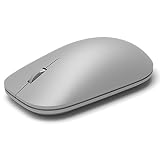
- This Certified Refurbished product is tested and certified to look and work like new. The refurbishing process includes functionality testing, basic cleaning, inspection, and repackaging. The product ships with all relevant accessories, a minimum 90-day warranty, and may arrive in a generic box. Only select sellers who maintain a high performance bar may offer Certified Refurbished products on Amazon.com
- Compatible with Windows 10 / 8. 1 / 8 and Windows RT 8.1 / RT 8, Mac OS X v10.10.5 / 10.11.1 / 10.11.4, Microsoft Windows 10 phone, Android 4.4.2-5.0
- Sleek and simple design
- Metal scroll wheel
- Host must support Bluetooth 4.0 or higher
The Free plan includes 1,000 shots per month with no card. Paid plans are Starter $5 for 3,000 shots, Growth $15 for 15,000, Pro $39 for 60,000, Scale $99 for 250,000 and Business $249 for 1,000,000; yearly billing gives two months free, and every feature is on every plan.
Create a free ScreenshotNeo account to get 1,000 screenshots a month without a card.
Do these 3 things before closing this tab:
1Scan for outdated or missing drivers - takes under a minute2Clear out junk files and repair common Windows errors3Fix the driver behind crashes, sound loss and screen glitchesFAQ
Can Edge capture a full page without installing anything?
Yes. Microsoft’s built-in Screenshot tool includes Capture full page, opened with Ctrl+Shift+S when available in your installation.
Will a full-page screenshot include content below a collapsed section?
Only content that is rendered and exposed during capture is normally available. Expand accordions, load tabs and trigger “show more” controls before capturing if you need those sections included.
Best Value

- Pair and Play: With fast, easy Bluetooth wireless technology, you’re connected in seconds to this quiet cordless mouse —no dongle or port required
- Less Noise, More Focus: Silent mouse with 90% reduced click sound and the same click feel, eliminating noise and distractions for you and others around you (1)
- Long-Lasting Battery Life: Up to 18-month battery life with an energy-efficient auto sleep feature, so you can go longer between battery changes (2)
- Comfortable, Travel-Friendly Design: Small enough to toss in a bag; this slim and ambidextrous portable compact mouse guides either your right or left hand into a natural position
- Long-Range: Reliable, long-range Bluetooth wireless mouse works up to 10m/33 feet away from your computer (3)
Is a browser extension suitable for scheduled screenshots?
Extensions are designed for an interactive browser session. For repeatable, server-side or multi-URL jobs, an API such as ScreenshotNeo provides asynchronous jobs, webhooks, bulk capture and usage reporting instead.
Frequently Asked Questions
Can I capture a page as a PDF with Edge’s native Screenshot tool?
The documented native workflow focuses on copying or saving the screenshot. Choose an extension whose listing explicitly provides PDF output, or use a PDF-capable capture workflow.
Recommended Free Tools
Why is my screenshot unreadable when shared?
A very long image may be reduced dramatically by a chat or document system. Share the original file, provide a PDF, or split the page into logical sections.
Quick Recap
Product prices and availability are accurate as of the date/time indicated and are subject to change. Any price and availability information displayed on Amazon at the time of purchase will apply.




