Quick wins for a faster PC:
Scan for outdated or missing drivers - takes under a minuteDriver Scan →Clear out junk files and repair common Windows errorsFree Scan →Fix the driver behind crashes, sound loss and screen glitchesFind Drivers →I improved Bluetooth Low Energy (BLE) reception in my Home Assistant setup by flashing two compatible ESP32 boards with ESPHome Bluetooth proxy firmware and placing each near a different weak-coverage area. That gave Home Assistant more places to hear nearby BLE devices. It is a practical coverage fix, not a guarantee against every disconnect: the benefit depends on device support, placement, and whether a device only broadcasts or needs an active connection.
Why two ESP32 proxies helped my setup
Home Assistant can extend its Bluetooth reach by communicating through ESPHome Bluetooth proxy nodes. In my case, two boards let me position a receiver near devices in each of two separate areas instead of relying on one receiver to hear everything through walls and distance. The result was better reception for devices that had been unreliable in those locations.

As an Amazon Associate I earn from qualifying purchases.
The topology is straightforward: each ESP32 runs ESPHome proxy firmware, joins the network, and reports Bluetooth observations to Home Assistant. Home Assistant’s Bluetooth integration aggregates data from ESPHome proxies and any USB Bluetooth adapters; compatible device integrations then use that data. A proxy supports BLE, not classic Bluetooth, and it cannot make an otherwise unsupported device work with Home Assistant. Check both that the device uses BLE and that Home Assistant has an integration for it.
Do these 3 things before closing this tab:
1Fix the driver behind crashes, sound loss and screen glitches2Repair Windows errors before they cause bigger problems3Scan for outdated or missing drivers - takes under a minuteTwo nodes make sense when devices are spread across distinct areas with weak reception. They are not a universal fix, and ESPHome’s documentation does not quantify a two-node reliability or range improvement. Place each node where it can hear the devices it is intended to serve.
#1 Best Overall
How to set up an ESPHome Bluetooth proxy
- Confirm the device and integration. Verify that the Bluetooth device uses BLE and is supported by a Home Assistant integration. The proxy carries BLE observations; it does not add device support.
- Choose a compatible ESP32 board. ESPHome’s ready-made generic Bluetooth proxy project targets plain ESP32 boards, not ESP32-C3 or other chip variants. Check the exact chip and board configuration before buying or flashing.
- Install the ESPHome Bluetooth proxy configuration. Use ESPHome’s ready-made Bluetooth proxy project or configure the proxy component for the specific board. Connect the board to your network and Home Assistant.
- Place the proxy near the BLE devices. Favor the device area rather than a central network closet. ESPHome recommends placing proxies at least 3 meters from racks, routers, switches, or similar network equipment where possible.
- Add another node only for another weak area. Flash a second compatible board and place it near a separate group of devices that the first node does not reliably hear.
- Check operation and logs. Confirm that the ESPHome node is online in your setup and inspect its logs if the device remains unreliable. The exact Home Assistant UI path for checking proxy status depends on the installed version.
One proxy or two: choose by coverage area
| Choice | When it fits | Trade-off |
|---|---|---|
| One proxy | BLE devices are clustered in one area and a single well-placed receiver can hear them. | It may not hear devices far away or separated by walls or other obstructions. |
| Two proxies | Devices occupy separate weak-coverage areas, allowing each node to be placed near its own group. | Requires another compatible board and network connection. Documentation does not promise a specific range or reliability gain. |
Wi-Fi board or Ethernet/PoE board?
A plain ESP32 development board is the direct DIY choice for a Wi-Fi-based proxy, provided the exact variant is supported by the ready-made project. Check the chip designation instead of relying on a product listing that says only “ESP32.”
For a wired installation, ESPHome lists Olimex Ethernet/PoE options, including the Olimex ESP32-POE-ISO. The ESP32-POE-ISO-EA variant has an external antenna that may provide better Bluetooth range. ESPHome’s ready-made Olimex installation disables Wi-Fi and requires Ethernet, so this option is for a wired network setup—not a requirement for a two-board Wi-Fi arrangement.
Rank #2
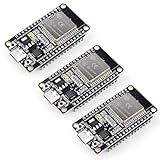
- Dual-Core Performance Up to 240 MHz: Run sensor processing, wireless communication, automation logic and connected-device tasks on a 32-bit dual-core ESP32 platform designed for responsive embedded and IoT projects
- Built-in Wi-Fi and Bluetooth 4.2: Connect to 2.4 GHz Wi-Fi networks or use Bluetooth Classic and BLE for wireless sensors, smart devices, remote controls, home automation and other connected projects
- Flexible Power-Saving Modes: ESP32 power-management features support dynamic clock scaling and low-power operating modes, helping developers reduce energy use in compatible sensing, monitoring and connected-device applications, suitable for battery-powered Internet of Things (IoT) devices.
- USB-C Programming with CP2102: Connect through USB-C for power, sketch uploads and serial monitoring, while GPIO, UART, SPI and I2C interfaces support sensors, displays, motor drivers and other modules (USB-C cable not included)
- Over-the-Air Update Support: Configure OTA functionality through a compatible ESP-32 software framework to update deployed firmware over Wi-Fi without reconnecting the board by USB for every revision
Why some Bluetooth devices still disconnect
Advertisement sensors and active connections behave differently
Many BLE sensors broadcast advertisements that a proxy receives passively; those observations do not occupy an active connection slot. Other devices, such as some locks or thermostats, need an active GATT connection to read, write, or subscribe to data. ESP32 proxies can forward advertisements and proxy active GATT connections, but active connections are limited.
Free tools Windows power users keep installed
One-click scans. No signup required.
ESPHome documents three simultaneous active connection slots as the ESP32 default. Each configured slot uses about 1 KB of RAM, and ESPHome recommends not exceeding five slots to avoid stability and memory issues. Five is a documented recommended ceiling, not a promise that five active connections will be reliable on every board or workload.
Rank #3

- 2.4GHz Dual Mode WiFi + Bluetooth Development Board
- Support LWIP protocol, Freertos
- SupportThree Modes: AP, STA, and AP+STA
- Ultra-Low power consumption, Compatible with Arduino IDE
- ESP32 is a safe, reliable, and scalable to a variety of applications
Notification registrations can also be a limit
ESPHome’s ESP32 BLE documentation gives a default maximum of 12 notification registrations. If logs show ESP_GATT_NO_RESOURCES (status 128) while registering notifications, that can indicate the notification-registration limit rather than a weak radio signal.
Placement and network equipment matter
Moving a proxy closer to its BLE devices is a better first adjustment than changing scan settings. Keep it away from network racks, routers, and switches where possible; ESPHome’s placement guidance is at least 3 meters away. A second node is useful when it can serve a genuinely separate weak area.
Rank #4
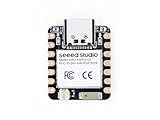
- Enhanced Connectivity: Combines 2.4GHz Wi-Fi 6 (802.11ax), Bluetooth 5(LE), and IEEE 802.15.4 radio connectivity, allowing you to apply the Thread and Zigbee protocols.
- Matter Native: Supports building Matter-compliant smart home projects thanks to its enhanced connectivity, achieving interoperability
- Security Encrypted on Chip: Powered by ESP32-C6, it brings enhanced encrypted-on-chip security to your smart home projects via secure boot, encryption, and Trusted Execution Environment (TEE)
- Outstanding RF performance: Has an on-board antenna with up to 80m BLE/Wi-Fi range, while reserving an interface for external UFL antenna
- Leveraging Power Consumption: Comes with 4 working modes, with the lowest being 15 μA in deep sleep mode, while also supporting lithium battery charge management.
Troubleshoot in this order
- Check BLE and integration support. Make sure the device is BLE and supported by a Home Assistant integration.
- Verify the proxy node and board target. Confirm the ESPHome node is online and the firmware configuration matches the actual ESP32 variant.
- Improve placement. Move the node nearer to the affected device and away from network equipment.
- Identify the device’s Bluetooth behavior. Determine whether it broadcasts advertisements or requires a sustained GATT connection. The latter consumes one of the limited active slots.
- Inspect ESPHome logs. Review the node logs for connection problems; ESPHome identifies the
bluetooth_connectiontag as useful for active connection issues. Look for status 128,ESP_GATT_NO_RESOURCES, if notification registration fails. - Check resource limits and versions. Review configured connection slots, notification registrations, and available memory, then check the installed ESPHome and ESP-IDF versions before changing scan behavior.
Why I left scan settings alone at first
ESPHome says its default scan parameters suit most users. Changing scan interval or window generally offers no meaningful benefit while increasing CPU use and network traffic; aggressive settings can overheat PoE proxies or destabilize Wi-Fi proxies. Start with defaults and consider a change only when there is a diagnosed, version-specific reason.
Version matters: ESPHome 2026.8.0, released August 19, 2026, discusses changed ESP32 BLE scanning behavior with ESP-IDF 5.5.5 or newer. With Wi-Fi coexistence, the default scan window matches the interval. Check the release notes and the versions actually installed before applying advice about scan defaults; the release post attributes the underlying coexistence fix to ESP-IDF 5.5.5.
Quick Recap
Best Value

- (2.4Ghz)Wi-Fi 6, Zigbee, and Thread, Matter wireless protocols are supported
- Built-in infrared LED and RGB
- Equipped with Grove port
- Ceramic antenna
- Super Small and Compact
Sources
- ESPHome Bluetooth Proxy documentation
- ESPHome ESP32 BLE documentation
- ESPHome Bluetooth ready-made projects
- ESPHome 2026.8.0 release notes
Product prices and availability are accurate as of the date/time indicated and are subject to change. Any price and availability information displayed on Amazon at the time of purchase will apply.




