If you’ve ever typed an email, deleted it, and started over, you don’t need more willpower—you need a better first draft. Gmail’s Help me write feature can generate clearer subject lines, rewrites, and full messages so you can spend your time on decisions, not wording.
This guide shows exactly where Help me write appears, how to use it on Gmail for the web and on iPhone/iPad and Android, and how to steer the AI toward your preferred tone and outcome. You’ll also get prompt patterns that work in real inbox scenarios and a troubleshooting section for when responses aren’t what you expected.
As an Amazon Associate I earn from qualifying purchases.
What Help me write in Gmail actually does
Help me write is an AI writing assistant embedded in Gmail’s compose experience. It can draft or rewrite email text based on what you already wrote, what you select, and the context you provide in your prompt.
Do these 3 things before closing this tab:
1Repair Windows errors before they cause bigger problems2Scan for outdated or missing drivers - takes under a minute3Clear out junk files and repair common Windows errorsIn practice, you use it when you want to:
- Turn bullet points into a full email
- Rewrite a rough message to sound more professional (or more friendly)
- Shorten or expand a message without losing meaning
- Create a subject line that matches the body
- Adjust tone (direct, polite, appreciative, urgent, etc.)
Prerequisites and what you need to check first
Help me write isn’t guaranteed for every account or workspace configuration. Before you troubleshoot, confirm the basics.
#1 Best Overall

- Type on Any Device: A new type of wireless computer keyboard for your desk that also works with your tablet and smartphone; connect with any Bluetooth-enabled device with external keyboard support. Wireless range: > 10m wireless range
- Easy-Switch Dial: Simply turn the dial of the Logitech K480 keyboard to switch typing between 3 connected Bluetooth wireless devices, you can work with Windows, macOS, Chrome OS, Android, and iPadOS
- Familiar Keyboard Layout: Find all the shortcut keys you use the most, but in a space-saving design that lets you place your mouse close to you, for less arm reaching and better posture
- Integrated Cradle: A cradle to hold your phone or tablet at just the right angle for you to read while you type; fits most phones and tablets up to 0.4 inches thick and 10 inches wide
- Reliable Power: This portable, wireless Bluetooth keyboard comes with 2 pre-installed AAA batteries which can last up to 24 months (2) and is compatible with wired, wireless or Bluetooth mice. Battery indicator light
1) Make sure you’re using the right Gmail interface
Help me write typically shows up in the compose window in Gmail. It’s most consistent on Gmail for the web; mobile availability can vary by region, app version, and account type.
2) Confirm the feature is enabled for your account
For consumer accounts, it depends on Google’s rollout. For Google Workspace, administrators may control AI features by policy.
- If you don’t see Help me write in the compose window, check your Google Workspace admin settings (if applicable).
- If you see related AI options but not this one, the feature name can differ by rollout phase.
3) Use the latest app and browser
For mobile, update the Gmail app. For web, use a current Chrome, Edge, Safari, or Firefox build. AI compose features can fail to render when the browser is too old or extensions interfere.
How to use Help me write in Gmail (web)
On Gmail for the web, Help me write generally appears in the compose window as a button or tool prompt. The exact UI label can vary slightly, but the workflow is consistent.
Step-by-step workflow
- Open Gmail in your browser and click Compose.
- Enter the To address(es). Add a subject if you already know it, or leave it blank for now.
- Type a rough draft, or add a few bullet points. Even 1–3 sentences are enough to start.
- Select the text you want to improve (optional, but helpful).
- Find and click Help me write in the compose window.
- Choose a direction when prompted (for example, “make it more formal,” “shorten,” or “draft a message”). If the UI lets you add instructions, type your goal and any must-include details.
- Review the AI draft in the preview area. Edit anything that looks off.
- Click Insert or Apply to move the text into the email body.
- Re-check the subject line for accuracy and tone, then send.
Get better results with what you feed it
AI performs best when you provide constraints. Include the outcome you want and any non-negotiables (date, price, meeting link, policy wording, names, or call-to-action).
How to use Help me write in Gmail (Android and iPhone)
On mobile, the feature may appear as an AI icon or as part of the compose editing tools. The Gmail app UI changes over time, so focus on the “AI assist” entry point rather than the exact button shape.
Step-by-step workflow (mobile)
- Open the Gmail app.
- Tap Compose.
- Add recipients in To, then start your draft with a short description or bullets.
- Look for an AI, Help me write, or Compose with AI option near the editor toolbar.
- Tap it, then enter your instruction (tone + goal + any required details).
- Review the generated text and choose Insert/Use/Apply (wording varies).
- Edit for accuracy and send.
When you don’t see it on mobile
Try these fast checks:
- Update the Gmail app from the Google Play Store or the App Store.
- Switch networks (Wi‑Fi vs cellular) to rule out stalled UI loading.
- Sign out and back in to refresh feature flags.
- Draft on web, then copy the final text into mobile if needed.
Write better emails with structured prompts
Help me write works best when your instruction is explicit. You’ll get more consistent results using a simple prompt structure: Goal + Audience + Tone + Constraints + CTA.
What’s actually slowing this PC down?
Pick the symptom - the matching free tool is one click away.
A prompt template you can reuse
Paste and adapt this:
Write an email to [audience]. Tone: [tone]. Goal: [what you want]. Must include: [facts]. Keep it [short/medium/long]. End with a clear call to action: [CTA].
Rank #2

- Connect in seconds: Fast, easy Bluetooth wireless technology simply connects without the need for a dongle or USB port
- Durable and reliable: Built for quality, K250 offers long-lasting keys, a spill-resistant design (2)
- Comfort is key: Deep-profile keys and an adjustable tilt-leg design make typing feel great
- Space-saving: with a compact layout that still includes number pad, arrow keys, and handy F-key shortcuts
- Made responsibly: Designed to last, K250 plastic parts are durably made with minimum 64% recycled plastic (3) to withstand everyday use
Prompt examples that produce high-quality drafts
- Professional + concise: “Write a concise follow-up to my recruiter. Tone: professional and friendly. Must include: interview date, availability next week, and that I’m excited about the role. End with a request for next steps.”
- Apology + accountability: “Rewrite this apology email to be accountable, not defensive. Tone: calm and respectful. Must include the corrected timeline and a proposed solution. Keep it under 120 words.”
- Sales outreach: “Draft a first outreach email to a small business owner. Tone: helpful and direct. Goal: book a 15-minute call. Must include 1 relevant outcome and 2 questions. Keep it under 150 words.”
Use “rewrite” when you already have the facts
If your information is correct but the message feels awkward, ask for a rewrite instead of a full draft. That reduces the chance of missing critical details.
Real-world email templates you can generate
These examples are designed to be prompt-ready. You can paste the prompt into Help me write and then adjust names, dates, and specifics.
1) Polite meeting follow-up
Use when you met someone and need next steps without sounding pushy.
Quick wins for a faster PC:
Clear out junk files and repair common Windows errorsFree Scan →Scan for outdated or missing drivers - takes under a minuteDriver Scan →Draft a follow-up email after a meeting. Audience: [name/role]. Tone: professional and appreciative. Include: what we discussed [topic], confirmation of next steps [X], and my availability [two date/time options]. End with a clear CTA: “Please confirm the next step and any materials you want me to review.”
2) Client status update (project is on track)
Use when you want to be reassuring with specifics.
Write a brief status update to a client. Tone: confident and transparent. Include: progress since last update, current milestone, and next milestone date. Add a one-sentence risk statement: “No major blockers at the moment.” End with a question: “Is there anything you’d like us to prioritize?”
3) Reschedule request
Use when you need to shift a meeting while preserving goodwill.
Rewrite this reschedule request. Tone: courteous and concise. Include: reason [one sentence], apology, and three new options (provide specific dates/times). Ask them to pick one option.
Windows Errors? Fix Them Before They Spread
Repair common Windows errors and clear accumulated junk for a smoother, more stable PC - no reinstall needed.Free scan · no reinstallOutdated Drivers Are Slowing You Down
One free scan finds every outdated or missing driver and matches the right update for your exact hardware.Free scan · exact hardware match4) Job application follow-up
Use after submitting an application or after an interview.
Rank #3

- 7-Color LED Backlit: This Bluetooth keyboard has a 7 colors backlight mode, 1 breathing light mode, and 3 brightness levels. Even in the dark, it makes your typing more easily and conveniently. You can turn the lights on/off and adjust the backlight mode by the light bulb key, and switch colors among red, yellow, purple, green, ice blue, blue, and white by the RGB key. When the keyboard is idle, the light will automatically turn off to save power.
- Broad Compatibility: Perfect for iPad A16 11th 10th 9th Gen, iPad Air Mini Pro iPhone, Android Samsung galaxy tab tablet smartphone cell phone, and so on mobile devices with built-in Bluetooth, and compatible with Android, iPad OS, iOS, etc. multiple operating systems. This Bluetooth keyboard is specially designed for small mobile devices such as tablets, smartphones. SO, NOT suitable for desktop devices such as laptops, computers, Macs, MacBooks, etc.
- Stable and Reliable Bluetooth Connection: The advanced Bluetooth technology can provide a stable reliable and powerful connection. The keyboard is easy to connect and easy to use. Don't worry about delay. The keyboard has shortcut hot keys, which makes your work easier and more efficient. Keyboard size: 9.65 x 5.91 x 0.24 inch.Weight: 6.53 ounce/0.4pounds.
- Rechargeable Battery: The Bluetooth keyboard has a built-in rechargeable battery, so there is no need to replace the battery frequently, you can use the included Type-C cable for charging. It will enter sleep mode after about 5 minutes of inactivity to save power, you can press any key to activate it and wait for 3 seconds to use it again. If not used for a long time, you can turn off the keyboard power.
- Quiet Typing and Ultra-Slim: The keyboard adopts a scissor switch structure to provide you with a quiet, sensitive and comfortable typing experience, so that you can focus on your work without worrying about disturbing others. The compact and portable design can be easily put into your bag or backpack, easy to carry, can be used at home school travel office. The back of the keyboard is aluminum alloy design, which is perfect for use with iPad/ tablet case with magnetic adsorption function.
Draft a follow-up email for my application to [role]. Tone: upbeat but professional. Include: when I applied, a short reminder of why I’m a fit, and a request for timeline/next steps. End with thanks and my availability for a quick call.
5) Conflict resolution / correction
Use when something went wrong, but you want a constructive outcome.
Write an email to resolve a mistake. Tone: calm, respectful, and solution-focused. Include: what went wrong (briefly), what you’re doing to fix it, and when they can expect the corrected outcome. End with confirmation: “Please reply to confirm receipt.”
Recommended Free Tools
Common problems and how to fix them
AI-generated emails are usually close—but small issues happen. Here’s what to try when Help me write doesn’t deliver what you need.
Problem: The draft sounds generic
Fix: Add concrete details and constraints. Include 2–4 facts (dates, deliverables, link, product name, or customer context) and specify the length.
Try: “Make it specific to [company/product] and include [fact A] and [fact B]. Keep under 120 words.”
Problem: It changes facts you already provided
Fix: Switch from “draft” to “rewrite” and explicitly say: “Do not change any names, numbers, or dates.”
The Tool Desk
Outbyte PC Repair FREEClear out junk files and repair common Windows errorsFree Scan →Outbyte Driver Updater FREEFix the driver behind crashes, sound loss and screen glitchesFind Drivers →Try: “Rewrite only the wording. Preserve all facts exactly. Do not invent anything.”
Rank #4

- 3 Devices Switch with A Single Clicking: This keyboard is able to connect to 3 devices at the same time. You can switch between 3 devices with a single key clicking.
- Ergonomic design: Stainless steel material gives heavy duty feeling, low-profile keys, full size keys, number pad, shortcuts offer quiet and comfortable typing.
- Broad Compatibility: Use with all four major operating systems supporting Bluetooth (iOS, Android, Mac OS and Windows), including Computer, Desktop, PC, Laptop / iPad Pro, iPad Air, iPad, iPad Min, iPhone, Smartphone / Android Tablets like Samsung Galaxy, Surface etc.
- 6-Month Battery Life: Rechargeable lithium battery with an industry-high capacity lasts for 6 months with single charge (based on 2 hours non-stop use per day).
- Package contents: Arteck Stainless Bluetooth Keyboard, USB charging cable, welcome guide, our 24-month warranty and friendly customer service.
Problem: Tone is off (too formal, too casual, or too harsh)
Fix: Specify tone and point to a reference style.
Try: “Tone: warm, confident, and brief. Avoid overly apologetic language.”
Problem: Formatting (bullets, spacing, signatures) gets messy
Fix: After you insert the AI draft, manually tidy formatting before sending. Then check that your Gmail signature still appears correctly at the bottom.
- If you need bullet structure, ask for “Use 3–5 bullet points” and then confirm each bullet reads cleanly.
- If you’re using tracked links or meeting URLs, paste them after the AI draft to prevent link drift.
Problem: Help me write button is missing
Fix this in order:
- Confirm you’re composing in a regular email (not a special compose flow like some templates).
- Try a different browser (Chrome is the most consistent).
- Disable blockers/extensions that alter page scripts.
- Refresh the Gmail page and sign out/in.
- Check if your account/workspace has AI features disabled by admin policy.
Problem: The AI response stops mid-sentence
Fix: Regenerate or reduce instructions. Very long prompts or excessive context can cause truncated output.
Try: “Write a shorter version (under 100 words).” Then insert and expand only where needed.
Independent reader supportYour contribution helps us test, update, and keep practical guides available for everyone.Privacy, accuracy, and safety: what to verify every time
AI can help you write, but it can still be wrong. Treat every generated email like a draft—not a finished document.
Verify these items before you hit Send
- Dates and times: confirm time zone and meeting schedule.
- Numbers: prices, amounts, invoice totals, and version references.
- Names and titles: correct spelling and proper roles.
- Links and attachments: verify the URL text and that the right file is included.
- Policies and promises: avoid committing to anything you can’t deliver.
Reduce risk by constraining the task
If you’re worried about hallucinations, say so directly: “Only use the facts in my draft.” That forces the model to stay anchored to your content.
Best practices: settings, tone, and quality control
To get consistently better emails, use a two-pass workflow: generate quickly, then refine with human judgment.
Use a two-pass workflow
- Draft pass: Ask Help me write for a complete email or a strong rewrite.
- Edit pass: Adjust for accuracy, tighten wording, and ensure the call to action is unambiguous.
Match your audience
Internal emails for coworkers can be shorter and more casual. External emails (clients, partners, HR) should be clearer, with fewer assumptions. Tell the AI who it’s writing to and what relationship you have.
Best Value
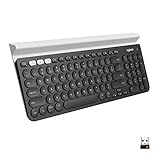
- Multi-device wireless keyboard: beautiful type-on-everything keyboard for any computer, tablet and smartphone via USB or Bluetooth smart wireless connection
- Type and switch between devices: Type on up to three devices and switch between them at the touch of an easy-switch button
- Comfortable typing: full size, fully equipped keyboard with large, quiet keys and convenient Number pad
- Integrated phone and tablet stand: Holds your devices at the perfect angle to Type and read
- Wide compatibility: works with Windows, Mac, Chrome OS, iOS and Android devices
Control length explicitly
If you care about brevity, request word count or a max number of sentences. It helps the output stay readable on mobile.
Examples: “Keep it under 5 sentences” or “Under 140 words.”
Don’t forget the subject line
Some drafts include a subject, but Gmail still won’t send the subject until you set it. If Help me write provides options, choose the one that’s specific and action-oriented.
Free tools Windows power users keep installed
One-click scans. No signup required.
Alternatives if Help me write isn’t available
If your Gmail account doesn’t show Help me write, you still have workable options—without sacrificing quality control.
Use Google Docs or a writing tool, then paste into Gmail
Draft in a separate editor where AI writing is available, then paste into Gmail. This is useful when Gmail’s AI compose tool isn’t enabled on your account.
Use copy-and-rewrite prompts with any AI tool you already have access to
If you use a writing assistant elsewhere, keep the same prompt structure: audience + tone + goal + constraints + CTA. Then paste the final text into Gmail.
Manual upgrade: rewrite with a checklist
If you can’t use AI, use a simple checklist before sending:
- First sentence states the point
- Middle contains 2–4 facts
- Close includes a single clear next step
- Subject matches the ask
Bottom Line
Help me write in Gmail is at its best when you treat it like a drafting partner: give it real details, specify tone and constraints, then verify facts and tighten the final message. You’ll get clearer emails faster—without losing your voice.
Once you start using structured prompts and a two-pass workflow (generate, then edit), your Gmail compose time usually drops and your replies become more consistent, especially for follow-ups, reschedules, and client updates.
Quick Recap
Product prices and availability are accurate as of the date/time indicated and are subject to change. Any price and availability information displayed on Amazon at the time of purchase will apply.




