Google Wallet is rolling out a new control on Android called Verification settings. It’s designed to give you more control over when Google Wallet asks you to verify your identity (or re-verify) before performing sensitive actions.
If you’re seeing the toggle or menu item appear after an app update, this guide will help you find it, understand the tradeoffs, and set it up the way you want—without breaking payments or creating unnecessary prompts.
As an Amazon Associate I earn from qualifying purchases.
What Google Wallet Verification settings are
Verification settings is a Google Wallet security configuration that affects when you’re asked to confirm your identity before Wallet can complete certain actions. Depending on your device and account state, this typically means re-checking a verification method such as your device lock, biometrics, or an identity prompt.
The Tool Desk
Outbyte PC Repair FREEClear out junk files and repair common Windows errorsFree Scan →Outbyte Driver Updater FREEScan for outdated or missing drivers - takes under a minuteDriver Scan →In practice, this feature helps separate “normal” Wallet usage from actions that carry higher risk (like adding new payment methods or changing payment-critical details).
#1 Best Overall
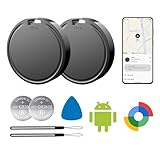
- 📱 Global Cloud Positioning – Works with both Google's Find Hub (Android Only,Not for GPS & ios)
- 📢 Loud Alert Sound – Built-in speaker with up to 85dB for quick locating
- 🔋 Far Superior Battery Life – Up to 2 years battery life on Android
- 💧 IP65 Waterproof – It provides protection against rainwaterand splashes
- 👮 Data Encryption – With the help of Google's technology, all location information is encrypted
Why this change matters
Wallet already uses strong protections—however, one-size-fits-all security can either feel too strict or too loose. Verification settings aims to improve that balance by letting the app decide when re-verification is appropriate, and by giving you the tools to influence that behavior.
- Prevents unauthorized changes: Re-verification can reduce the chance someone uses your unlocked device to add or alter payment credentials.
- Reduces account takeover impact: Even if credentials are exposed, verification prompts can slow down fraud attempts.
- Controls user friction: You can often choose between stricter verification and smoother day-to-day use.
What you need before you can use it
You’ll need the Google Wallet app on Android, updated to a version where the rollout has reached your device. Because rollouts are staged, you may not see the setting immediately.
- Android device: Any supported Android smartphone with Google Wallet installed.
- Google Wallet app: Updated from the Google Play Store.
- Secure device lock: Many verification flows rely on your Android screen lock (PIN, pattern, password, fingerprint, or face).
- Signed-in Google Account: The feature is applied per account and device state.
Where to find Verification settings on Android
The menu location can vary slightly by Android version and Wallet UI updates. Use these steps to locate it quickly:
- Open the Google Wallet app.
- Tap your profile icon or settings/gear icon (often in the top-right or from a side menu).
- Go to a section like Security, Privacy, or Verification.
- Look for Verification settings and open it.
If you don’t see it after updating, use the troubleshooting section below—don’t assume it’s blocked on your device. Staged rollouts are common.
How to configure Verification settings
When you open Verification settings, you’ll typically see one or more options that determine how often and what kind of verification is required for sensitive actions. Exact wording may differ, but the intent usually stays the same.
Before changing anything, think about your threat model: is your phone often handed to others, kept unlocked for long periods, or frequently used in shared spaces?
Scenario A: tighten verification for sensitive actions
Choose the option that enforces re-verification more frequently for high-risk Wallet operations. This is a good fit if your phone is sometimes used by others or you frequently authenticate on public Wi‑Fi / travel.
Rank #2

- 📱 Global Cloud Positioning – Works with both Google's Find Hub (Android Only,Not for GPS & ios)
- 📢 Loud Alert Sound – Built-in speaker with up to 85dB for quick locating
- 🔋 Far Superior Battery Life – Up to 2 years battery life on Android
- 💧 IP65 Waterproof – It provides protection against rainwaterand splashes
- 👮 Data Encryption – With the help of Google's technology, all location information is encrypted
- Open Google Wallet → Settings.
- Open Verification settings.
- Select the stricter option (often labeled along the lines of “Require verification” or “More secure”).
- Confirm any prompt shown by Android (biometric / PIN).
After saving, test one non-destructive action (like opening Wallet’s payment details) to ensure the prompt behavior matches what you selected.
Scenario B: reduce friction for everyday payments
If you hate repetitive prompts and your phone stays under your control, you can usually pick a less frequent verification option. The goal here is fewer interruptions while still keeping high-risk changes protected.
- Open Google Wallet → Settings.
- Open Verification settings.
- Select the option that requires verification less often (often labeled along the lines of “Use less frequent verification” or similar).
- Save and verify with your current lock method if prompted.
If you later notice suspicious prompts failing to appear for sensitive actions, revert to the stricter option (the troubleshooting section covers how to diagnose that).
Scenario C: keep verification aligned with your lock screen
Verification settings work best when your Android lock screen is solid and consistent. Make sure your device unlock method is enabled and functioning.
- Open Android Settings.
- Go to Security or Security & privacy.
- Verify that Screen lock is set (PIN/pattern/password/biometrics).
- Confirm biometrics are enabled under something like Biometrics.
Wallet verification flows commonly rely on the same credentials you use to unlock your phone.
How Verification settings affects common Wallet actions
Verification settings generally influences actions that could change payment access or account-linked behavior. Here are the most common ones users notice:
Adding a new card
Adding or linking a new card is typically treated as a sensitive action. With stricter Verification settings enabled, you may be prompted to confirm identity before the card is added or before the final confirmation step.
Rank #3
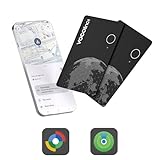
- 【Dual-System Compatibility】:This upgraded tracker seamlessly works with iOS (via the "Find My" app) and Android (via Google Find Hub). Due to system limitations, it can only be paired with one device at a time. Switching between iOS and Android is easy—just unpair the tracker from one device, reset it, and then reconnect it to another. (Note: It is not compatible with Huawei's HarmonyOS.)
- 【Find Nearby Items – Instant Ring】:Using Apple Find My on iOS or Google Find Hub on Android, you can quickly locate your items by triggering a loud ring (80-100 dB) from the built-in speaker. (Note: This tracker does not support UWB ultra-wideband.)
- 【Find Distant Items – Global Network Tracking】:The VOCOlinc Air Card Tag Pro utilizes the Google Find Hub or Apple Find My network, covering millions of compatible devices worldwide. Even if your item is out of Bluetooth range, you can still track it without any extra fees or subscriptions.
- 【Long Battery Life, Wireless Charging, and IP68 Waterproof】:With a single charge, the tracker provides up to 6 months of battery life. The VOCOlinc Air Card Tag Pro can be easily charged using any Qi-certified magnetic charger, making it convenient and reusable. It also has a low battery reminder that alerts you when it’s time to recharge. This tracker is built to last with an IP68 rating for water and dust resistance.
- 【Privacy Protection】:Your privacy is fully protected. The Google Find Hub and Apple Find My app networks use encrypted, anonymous connections, ensuring that the VOCOlinc tracker doesn’t store any location data or history.
Using contactless payments
Day-to-day contactless payments usually don’t require repeated verification every time. However, Wallet may trigger verification more often for higher-risk contexts (for example, after long inactivity, device changes, or certain account events).
Recommended Free Tools
Managing passes, subscriptions, and tickets
Some pass-related actions (like editing details, transferring access, or confirming ownership) can require verification. If you use Wallet for tickets frequently, you may see occasional identity prompts depending on your chosen settings.
Refunds, returns, and account changes
Actions that affect money movement or account configuration are more likely to trigger verification. Expect extra prompts if Verification settings is configured to be stricter.
Best practices for choosing verification options
- Use a strong device lock: A secure PIN (or password) reduces risk if biometrics fail or aren’t available.
- Avoid “phone stays unlocked” patterns: If you keep your phone unlocked for long periods, choose stricter verification.
- Prefer consistent biometric behavior: If your fingerprint/face recognition is unreliable, you may experience repeated prompts or delays.
- Don’t optimize for convenience only: The best setting is the one that still meaningfully protects card changes.
Troubleshooting
If something doesn’t match expectations, don’t guess for too long. The most common issues come from rollout timing, app versions, or device security settings.
The feature is missing (or the settings page doesn’t appear)
- Update Google Wallet: Open Play Store → search Google Wallet → update.
- Restart your phone: Some UI elements appear after a reboot.
- Check for staged rollout behavior: If the option isn’t there yet, it may appear later without further action.
- Verify you’re on the right Google Account: Wallet settings apply to the account currently active on the device.
- Try the latest app build: If you’re on an older version, you may not see the menu item.
If you still can’t find it after updating, check whether your device has restrictions from corporate profiles, device management (MDM), or security policies. Those can hide or override settings.
Do these 3 things before closing this tab:
1Fix the driver behind crashes, sound loss and screen glitches2Clear out junk files and repair common Windows errors3Scan for outdated or missing drivers - takes under a minuteChanges don’t save or revert
This usually happens when the app can’t complete the verification step or when Android denies biometric access.
- Open Android Settings → Apps → Google Wallet.
- Check Permissions related to biometrics, if present.
- Try signing out and back into your Google Account in Wallet settings.
- Clear cache for Google Wallet (avoid “clear data” unless you’re comfortable reconfiguring Wallet): Storage → Clear cache.
Verification prompts trigger too often
If you get repeated verification for actions that used to work smoothly, start by checking lock screen behavior.
Rank #4

- google search
- google map
- google plus
- youtube music
- youtube
- Ensure Screen lock isn’t constantly expiring due to aggressive security policies.
- Disable any “lock after timeout” settings you don’t understand (if you have them).
- Revisit Verification settings and switch to the less frequent option.
- Remove and re-add affected cards only if prompts occur specifically during card management.
Verification prompts never trigger
If Wallet doesn’t ask for verification when you expect it to, your device or account might be in a state where Wallet assumes it’s already verified.
- Confirm your Android lock method is active and works reliably.
- Reopen Verification settings and confirm your chosen level is actually selected.
- Update Wallet again, then reboot.
- Check for managed device restrictions if you use a work profile.
Play Protect / device security issues block verification
Google Wallet verification can be affected by device integrity signals. If your device is rooted, has tampering flags, or fails certain security checks, verification behavior may change.
What’s actually slowing this PC down?
Pick the symptom - the matching free tool is one click away.
- Open Play Store → Play Protect → run a scan.
- Remove suspicious accessibility services or security-modifying apps.
- Verify the device is passing standard integrity checks.
If your device fails integrity checks, the safest move is to restore to an unmodified, fully supported configuration.
Independent reader supportYour contribution helps us test, update, and keep practical guides available for everyone.Alternatives and related security controls
Verification settings is only one piece of Wallet security. If your goal is “better security without constant friction,” pair it with the controls Android and Google already provide.
Use Android device lock and biometric settings
Make sure Screen lock is enabled and biometrics are set to reliable methods. Wallet verification flows often use the same underlying authentication.
Review Google Account security and recent activity
Check your Google Account security page for recent sign-ins. If you see unexpected activity, fix that first—then adjust Wallet verification behavior.
Check payment settings inside individual cards
Some verification and authentication behavior can vary by card type and issuer policies. If the prompts happen only for one card, compare behavior across the other cards in Wallet.
Best Value

- 🥇【Dual-System Item Locator】Our wallet tracker natively compatible with both Google's "Find Hub" and Apple's "Find My" networks. It pairs quickly and directly without requiring additional apps. Leveraging Google and Apple's cloud networks, it eliminates the fear of loss.
- 🌍【Located at a Glance】 Whether your item is lost in the office, parking lot, park, mall, a friend's house, or farther away, you can quickly pinpoint its general area with our spotminders tracking card on Google/Apple Maps and navigate directly to retrieve it.
- 🔍️【Extended Bluetooth Range】Even if your lost item is over 330 feet away, our wallet tracker card's extended Bluetooth range combined with Google’s exclusive "Find Hub" distance prediction feature allows you to easily identify and locate your items.
- 📢【Ultra-High Decibel Ringtone Alert】Tearing the place apart but still can't find your item? Simply tap the "Play Sound" button on the Google or iOS app, and as long as our wallet tracking card is within Bluetooth range, it will emit a ringtone. With a volume exceeding 90 decibels, the sound remains clearly audible even when covered by obstacles.
- 🔋【Wireless Charging】This tracker was made with high-quality lithium battery raw materials and certified by multiple authoritative institutions, it undergoes rigorous pressure testing procedures to compatible with universal wireless chargers on the market for convenient plug-and-play charging. Single charge provides up to 6 months of battery life. We provide 2 years of 24/7 after-sales technical support, allowing you to rely on our product with confidence and no need to worry about failure or technical issues during use.
FAQs
Is Verification settings the same as card-specific authentication?
No. Card issuers and networks can impose their own rules, but Verification settings controls when Google Wallet itself asks you to re-verify for sensitive actions.
Why do I see verification prompts after updating Wallet?
After an app update, security behavior can be refreshed. If your Verification settings are set to stricter levels, prompts can become more noticeable right away.
Will Verification settings affect contactless payments at the checkout terminal?
Usually not in normal situations, but you may see prompts for certain high-risk moments (for example, after inactivity or during account/card changes).
Free tools Windows power users keep installed
One-click scans. No signup required.
What if I don’t see the option yet?
That’s common with staged rollouts. Update Google Wallet, reboot, and wait. If your device is managed by work/corporate policy, the feature may also be restricted.
Should I choose stricter verification if I’m worried about theft?
Yes—stricter verification is typically better protection against unauthorized changes if someone gets physical access to your phone.
Bottom Line
Google Wallet’s Verification settings gives Android users more control over when identity confirmation is required for sensitive Wallet actions. Set it based on how you use your phone—stricter for shared or high-risk scenarios, lighter for uninterrupted everyday payments.
If you don’t see the setting yet, it’s likely just a rollout timing issue or a managed-device restriction. Update Wallet, confirm your Android screen lock is working, and use the troubleshooting steps if prompts don’t match your chosen level.
PC Slower Than It Used to Be?
A free scan shows the junk files, broken settings and background clutter dragging Windows down - then fixes them in one click.Free scan · Windows 10 & 11Outdated Drivers Are Slowing You Down
One free scan finds every outdated or missing driver and matches the right update for your exact hardware.Free scan · exact hardware matchQuick Recap
Product prices and availability are accurate as of the date/time indicated and are subject to change. Any price and availability information displayed on Amazon at the time of purchase will apply.




