The Tool Desk
Outbyte Driver Updater FREEFix the driver behind crashes, sound loss and screen glitchesFind Drivers →Outbyte PC Repair FREERepair Windows errors before they cause bigger problemsFix Now →To use the Gemini app, open gemini.google.com or launch Gemini on a supported mobile device, enter a prompt, and submit it. You can ask for help brainstorming, planning, summarizing, or drafting; some features work without signing in, while additional capabilities and activity saving require a Google Account. Before relying on an answer, check important facts: Google warns that Gemini can make mistakes.
Start a conversation
On a computer, go to gemini.google.com, type a request in the prompt field, optionally attach a file or image, and submit it. Choose New chat to start a separate conversation. For example, you could ask Gemini to outline a weekend trip or summarize an uploaded document; treat the response as a starting point, not a verified result.
As an Amazon Associate I earn from qualifying purchases.
Some features are available without signing in. A Google Account is needed for additional capabilities and for saving activity. Google lists personal accounts, qualifying work accounts, and school accounts where an institution has enabled access. Country, language, age, and account policies can affect whether you can use particular features. See Google’s computer guide to using Gemini Apps for current access details.
What the app can do
Google’s help center organizes Gemini features into several areas. The list is a map of documented capabilities, not a guarantee that every feature is available to every account or platform.
#1 Best Overall

- IMMERSIVE 360° SOUND – Enjoy rich, room-filling audio with clear vocals, detailed highs, and deep bass designed to enhance music, podcasts, audiobooks, and more.
- DESIGNED FOR MUSIC AND ENTERTAINMENT – Enjoy your favorite music, podcasts, audiobooks, and more with room-filling sound and impressive audio clarity.
- STEREO PAIRING CAPABILITY – Pair two compatible speakers together for a wider soundstage and enhanced stereo performance throughout your space.
- MODERN DESIGN WITH MULTIPLE COLOR OPTIONS – Features a sleek, contemporary design available in Sage, Porcelain, Berry, and Hazel to complement a variety of home décor styles.
- DESIGNED FOR EVERYDAY ENTERTAINMENT – Ideal for enjoying music, podcasts, radio stations, and other audio content with premium sound quality and simple operation.
- Chat and mobile use: ask questions and use Gemini on supported devices.
- Creation and research: image, video, and music generation, Canvas, Deep Research, and learning tools.
- Connected services: use Connected Apps for supported app-specific actions and responses.
- Custom assistants: create Gems with your own instructions and, optionally, knowledge files.
- Personalization: tailor responses using eligible chat history, connected data, or response instructions.
- Sharing and settings: share or export responses and adjust options such as theme, voice, and language.
The help index also lists newer or context-dependent workflow capabilities. Check the Gemini Apps Help Center for current availability rather than assuming a feature appears in your app.
Choose how chats are saved
Chat visibility, activity history, model training, retention, and processing for safety or to produce a response are different things. The setting you choose affects particular behaviors, not necessarily all of them.
Keep Activity on or off
Gemini Apps Activity lets you review and delete saved activity. Google’s Privacy Hub says that when Keep Activity is off, future chats are not used to improve Google’s AI unless you submit feedback. Chats made with Keep Activity off are still retained with the account for 72 hours so Google can respond and help protect its services, users, and the public. The setting is not a promise that a chat is neither processed nor retained. Details are in the Gemini Apps Privacy Hub.
Quick wins for a faster PC:
Repair Windows errors before they cause bigger problemsFix Now →Fix the driver behind crashes, sound loss and screen glitchesFind Drivers →Rank #2
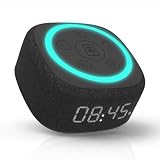
- Bedside Speaker and Sleep Sound Machine: This compact wireless speaker combines Bluetooth audio, 16 built-in sleep sounds (white noise, brown noise, rain, ocean, and more) and multiple RGB night light modes in one rechargeable device. Stream music while the light pulses in time with your audio, or switch to sleep mode and drift off to the sound you picked. A practical gift for teens and adults upgrading a bedroom setup.
- One Button, Your AI, Instantly: The BRS-180 has a dedicated AI button on top. Press it once and it wakes Google Assistant, Siri, or whichever assistant lives on your paired device. Ask it anything, play music, set a reminder, check the weather, or control your smart home, all from across the room without picking up your phone.
- Pairs in Seconds and Stays Connected: Bluetooth connects to any iOS or Android phone, tablet, or laptop with no app and no account required. Once paired, the 12-hour LED clock display syncs the correct time on its own. Three display settings keep you in control: full brightness, dimmed, or completely off for total darkness. A memory function saves your last volume, sleep sound, and light settings automatically.
- Built for the Nightstand, Night After Night: The soft fabric-wrapped enclosure sits on a nightstand, dresser, or shelf without looking like a gadget. Plug it in over USB-C and it runs continuously, or use the built-in rechargeable battery for up to 6 hours of wireless playback. Either way it is ready when you are. Available in White, Black, and Green.
- 16 Sleep Sounds, Fully Customizable: Choose from 16 built-in sleep sounds that play straight from the speaker with no phone, no app, and no subscription. Set a 15, 30, or 60-minute sleep timer and the sound fades out by itself. Want a different library? Connect it to any PC with the included USB-C cable and swap out every sound stored on the device.
Use Temporary Chat for a conversation outside Activity
Temporary Chats do not appear in Gemini Apps Activity or recent chats. Google says they are not used to train its AI models, but they are retained with the account for 72 hours and still processed to generate a response and protect Google, its users, and the public. Temporary Chat is the documented option when you do not want a conversation to appear in Activity or recent chats; it does not mean nothing is stored or processed. See the Privacy Hub for Google’s explanation.
Control personalization and memory
Depending on your account and settings, Gemini personalization can draw on past Gemini chats, certain connected Google app data, and response instructions you provide. These features are not available to everyone and require a personal Google Account. For memory of past Gemini chats, Google specifies that users must be at least 18, use a personal Google Account, and have Keep Activity on. Availability varies by app; memory does not apply in some contexts, including Gems and Gemini Live.
You can turn chat-based memory off and find or delete past chats in Gemini Apps Activity. Turning personalization off is not the same as preventing a conversation from being saved: use Temporary Chat if you want a conversation excluded from Activity and recent chats. Google’s current eligibility and controls are described in its memory and personalization help page.
Rank #3

- Bedside Speaker and Sleep Sound Machine: This compact wireless speaker combines Bluetooth audio, 16 built-in sleep sounds (white noise, brown noise, rain, ocean, and more) and multiple RGB night light modes in one rechargeable device. Stream music while the light pulses in time with your audio, or switch to sleep mode and drift off to the sound you picked. A practical gift for teens and adults upgrading a bedroom setup.
- One Button, Your AI, Instantly: The BRS-180 has a dedicated AI button on top. Press it once and it wakes Google Assistant, Siri, or whichever assistant lives on your paired device. Ask it anything, play music, set a reminder, check the weather, or control your smart home, all from across the room without picking up your phone.
- Pairs in Seconds and Stays Connected: Bluetooth connects to any iOS or Android phone, tablet, or laptop with no app and no account required. Once paired, the 12-hour LED clock display syncs the correct time on its own. Three display settings keep you in control: full brightness, dimmed, or completely off for total darkness. A memory function saves your last volume, sleep sound, and light settings automatically.
- Built for the Nightstand, Night After Night: The soft fabric-wrapped enclosure sits on a nightstand, dresser, or shelf without looking like a gadget. Plug it in over USB-C and it runs continuously, or use the built-in rechargeable battery for up to 6 hours of wireless playback. Either way it is ready when you are. Available in White, Black, and Green.
- 16 Sleep Sounds, Fully Customizable: Choose from 16 built-in sleep sounds that play straight from the speaker with no phone, no app, and no subscription. Set a 15, 30, or 60-minute sleep timer and the sound fades out by itself. Want a different library? Connect it to any PC with the included USB-C cable and swap out every sound stored on the device.
Connect or disconnect apps
Connected Apps can let Gemini use supported services to give app-specific responses or take supported actions. On the web, open Settings and then Connected Apps; in some interfaces this appears under Personal Intelligence. You can inspect available apps and their supported actions there, connect or disconnect them, or specify an app in a prompt with @.
PC Slower Than It Used to Be?
A free scan shows the junk files, broken settings and background clutter dragging Windows down - then fixes them in one click.Free scan · Windows 10 & 11Crashes, No Sound, or Screen Glitches?
Random freezes, missing sound and display glitches usually trace back to one bad driver. Find and replace yours safely.Free scan · under a minuteReview the supported and unsupported actions before relying on an integration, and consider what information a connection may expose. Availability depends on device, location, account, and app. If Keep Activity is off, Connected Apps are unavailable on web, iOS, and watches. Android retains a limited set, including Device assistance, Phone, Messages, and WhatsApp. Check Google’s Connected Apps guide for current steps and limitations.
Independent reader supportYour contribution helps us test, update, and keep practical guides available for everyone.Create a custom Gem
A Gem is a custom assistant defined by instructions and, optionally, knowledge files. Create, edit, or delete custom Gems on the web; Gems you create there can be used on web and mobile, but not in Gemini Live.
Rank #4

- Google Audio Bluetooth Speaker Wireless Music Streaming - Chalk
- Music here. Music there. Music everywhere - Create a home audio system that fills your home with sound.* Nest Audio works together with your other Nest speakers and displays, Chromecast-enabled devices, or compatible speakers. And it's easy to set up.
- Rich, full sound. Room filling sound with 30 watt woofer, tweeter and tuning software. Cranks out powerful punchy music to fill your room
- Connect with family and friends - Nest Audio helps you stay in touch. Just say, “Hey Google” to broadcast messages on every Nest speaker and display in the house. Use your Nest speakers as an intercom and chat from room to room.
- Huge help around the house. You can say things like, "Hey Google, what's the weather this weekend?" Ask Google about the news or sports scores. - Includes LED Key Chain (Color May Vary)
- In the web app, open Settings and help.
- Choose Gems, then create a new Gem.
- Give it a name and write instructions describing its role and how it should respond.
- Optionally add knowledge files, then save the Gem.
Using a Drive file as a knowledge source requires Workspace connectivity and Keep Activity to be turned on. Google documents more about creating and using Gems in its Gems help guide.
Adjust appearance, voice, and language
Gemini Apps Help includes controls for dark theme, voice, and language. The exact menu names and locations can differ across web, Android, iOS, app versions, and feature rollouts. Consult the platform-specific instructions in the Gemini Apps Help Center if a setting is not where you expect it.
What’s actually slowing this PC down?
Pick the symptom - the matching free tool is one click away.
Quick Recap
Use a quick verification routine
- Check consequential factual claims against reliable sources rather than treating a generated answer as authoritative.
- Before asking Gemini to act through a connected app, review the integration’s supported actions and what information it can access.
- Avoid entering confidential information unless you understand the relevant activity, personalization, and connected-app settings.
- For account, region, or platform-specific access questions, confirm the latest guidance in Google’s help center because features and eligibility can change.
Product prices and availability are accurate as of the date/time indicated and are subject to change. Any price and availability information displayed on Amazon at the time of purchase will apply.




