Free tools Windows power users keep installed
One-click scans. No signup required.
Google Drive for desktop is now available in beta for Windows 11 on Arm, giving Snapdragon-powered PCs a native sync client instead of relying only on the web app, browser uploads, or compatibility workarounds. The beta brings Google’s file syncing experience closer to what users already expect on traditional Intel and AMD Windows machines.
This early release is aimed at users who want Drive integration in File Explorer on Arm-based Windows laptops, but it still comes with beta expectations. Device compatibility, installation requirements, feature support, and possible stability issues all matter before replacing existing workflows.
As an Amazon Associate I earn from qualifying purchases.
What Google Drive for Windows 11 on Arm Beta Means
Google Drive for desktop is now available in beta for Windows 11 on Arm, giving users of Snapdragon-powered PCs a native way to sync files between Google Drive and File Explorer. Until now, many Windows on Arm users relied on the browser version of Drive, third-party sync tools, or emulation-based workarounds that could be inconsistent, slower, or unsuitable for daily file management. The beta changes that by bringing Google’s desktop sync client directly to Arm-based Windows hardware.
PC Slower Than It Used to Be?
A free scan shows the junk files, broken settings and background clutter dragging Windows down - then fixes them in one click.Free scan · Windows 10 & 11Outdated Drivers Are Slowing You Down
One free scan finds every outdated or missing driver and matches the right update for your exact hardware.Free scan · exact hardware matchIn practical terms, this beta means Google Drive can run as a Windows desktop app on compatible Arm devices rather than depending entirely on x86 emulation or web-only access. Users can sign in with a Google Account, access Drive files from File Explorer, and choose how files are stored locally. For people who move between Google Workspace, Microsoft Office, and local Windows folders throughout the day, that integration is the main benefit: Drive becomes part of the normal Windows file workflow instead of a separate browser destination.
#1 Best Overall
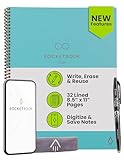
- New and Improved Core: Features premium reusable paper, with improved pen to paper feel, spiral binding and sleekly re-designed, scratch-resistant cover. College-ruled sheets now include Smart Titles and Smart Tags to name and organize files efficiently.
- App-Enabled for Digital Organization: Scan and upload your written work directly to cloud platforms like Google Drive, Dropbox, OneNote, etc. and access your notes from anywhere. Use Smart Titles and Smart Tags to name and organize files efficiently.
- Write, Digitize, Erase, and Re-Write: Write notes with the included Pilot Frixion Pen, digitize effortlessly using the Rocketbook app, store in your preferred cloud service. When done, simply wipe the pages clean with a damp cloth and start fresh.
- Portable and Versatile Sizes: Available in two sizes—Letter (8.5 x 11 inches) and Executive (6 x 8.8 inches)—the Rocketbook Core is compact enough to fit into backpacks, purses, or briefcases. This notebook offers portability and versatility.
- Eco-Friendly Reusability: Designed with sustainability in mind, Rocketbook notebooks help reduce paper waste with a reusable alternative. Enjoy a paper-like notebook that can be used repeatedly, allowing you to save work and erase everything else.
The beta is aimed at users who are comfortable testing pre-release software. It is not the same as a fully polished general release, and Google may still be collecting compatibility feedback, fixing bugs, and refining performance on different Snapdragon platforms. That makes it most suitable for early adopters, IT evaluators, and users who need Drive integration on Windows 11 on Arm but can tolerate occasional issues. If Drive is central to business-critical work, users should test it with nonessential files or on a secondary device before replacing an existing workflow.
This release is also a sign that Windows on Arm is becoming more relevant for mainstream productivity apps. Newer Copilot+ PCs and Snapdragon X Series laptops are designed to offer long battery life, instant-on behavior, and strong performance in thin-and-light designs. Native support from a widely used service like Google Drive helps close one of the practical gaps that previously made Arm-based Windows PCs harder to recommend for users invested in Google’s cloud ecosystem.
Supported Devices and System Requirements
Google Drive for desktop on Windows 11 on Arm is intended for modern Arm-based Windows PCs, especially the current wave of Snapdragon-powered laptops and tablets. That includes systems built around Qualcomm Snapdragon X Elite and Snapdragon X Plus chips, along with other Windows 11 on Arm devices that meet Google’s beta requirements. If you are using a Copilot+ PC from brands such as Microsoft, Lenovo, HP, Dell, Samsung, Acer, or ASUS with a Snapdragon processor, your device is the main target for this beta.
The key requirement is that the PC must be running Windows 11 on Arm, not the standard x64 edition of Windows 11 on an Intel or AMD processor. Google Drive for desktop already supports traditional Windows PCs, so this beta specifically addresses the Arm version of Windows. Users should also make sure their system is fully updated through Windows Update before installing, since file syncing tools depend on current shell integration, file system support, and background service behavior.
Basic requirements to check before installing
- Operating system: Windows 11 on Arm, updated to a recent build.
- Processor: Arm-based Windows PC, such as a Qualcomm Snapdragon-powered device.
- Google account: A personal Google account, Google Workspace account, or school account that allows Drive for desktop.
- Storage: Enough local disk space for the app itself, cached files, and any folders you choose to mirror.
- Network: A stable internet connection for initial sign-in, syncing, streaming files, and account verification.
- Permissions: Administrator access may be required during installation, depending on your Windows configuration.
Users in managed environments should check with their IT administrator before trying the beta. Some organizations restrict beta software, block consumer Google services, or control Drive for desktop through enterprise deployment tools. Even if the installer runs, sync behavior may depend on admin policies, endpoint security software, data loss prevention rules, or whether the Google Drive desktop client is enabled for the account.
It is also worth separating device eligibility from everyday readiness. A compatible Snapdragon laptop may be able to install the beta, but that does not automatically mean every workflow is ready to move over. If you rely on Drive for desktop for large shared drives, offline access to many files, third-party backup tools, or deep integration with Microsoft Office and File Explorer, test the beta with a smaller set of files first. Keep web access to Google Drive available as a fallback while you confirm that syncing, file streaming, and account switching work reliably on your specific Windows 11 on Arm device.
Rank #2

- 6.3" OLED, 422PPI, 1080 x 24246px,, 120Hz, HDR10+, Bluetooth 6.0, 4870mAh battery, Android 16 w/ 7 Major Software Updates
- 128GB storage, 12GB RAM, Google Tensor G5 (4 nm), Octa-core (1x3.78 GHz Cortex-X4 & 5x3.05 GHz Cortex-A725 & 2x2.25 GHz Cortex-A520)
- Rear Camera: 48MP, f/1.7 (wide) + 10.8MP, f/3.1 (telephoto) + 13MP, f/2.2, 120˚ (ultrawide), Front Camera: 10.5MP, f/2.2
- Pixel 10 Pro is built - durable aluminum and Corning Gorilla Glass Victus 2 for scratch and drop resistance; the 6.3-inch Super Actua display - 3,300-nit peak brightness is easy on the eyes, even in direct sunlight[3,13,18]
- Renewed Device - US Model (eSIM Only)
Key Features Available in the Beta
The Google Drive beta for Windows 11 on Arm brings the core desktop sync experience to Snapdragon-powered PCs without requiring browser-only access or x64 emulation workarounds. Once installed, it integrates Google Drive into File Explorer so users can browse My Drive and shared locations from the Windows desktop, open cloud files in local apps, and manage files using familiar drag-and-drop, copy, rename, and delete actions.
The beta is focused on delivering the main Google Drive for desktop workflow rather than a reduced web shortcut. For many users, the most useful feature is file streaming, which keeps files visible in File Explorer while storing most data in the cloud until opened. This is especially helpful on thin-and-light Arm laptops with limited internal storage, because large Drive folders do not need to be fully downloaded just to remain accessible.
Core features included
- File Explorer integration: Google Drive appears as a desktop-accessible location, allowing users to navigate Drive files alongside local folders and external drives.
- File streaming: Files can remain in the cloud and download on demand when opened, reducing local storage use.
- Offline access: Selected files and folders can be made available offline, which is useful for travel, meetings, or unreliable Wi-Fi.
- Automatic syncing: Changes made to supported files through File Explorer or local apps sync back to Google Drive when the PC is online.
- Shared file access: Users can work with files and folders shared through Google Drive, subject to their account permissions.
- Multiple account support: As with Google Drive for desktop on other Windows PCs, users can sign in with supported Google accounts to access their Drive content.
The beta should also support common productivity workflows such as opening Microsoft Office files from Drive, editing PDFs or images with installed Windows apps, and saving changes back to the synced Drive location. This makes the app more practical than relying only on drive.google.com, particularly for users who frequently move files between local folders, cloud folders, and desktop applications.
Users can expect status indicators in File Explorer that show whether files are stored online-only, available offline, or currently syncing. These visual cues matter on Arm laptops because they help avoid filling local storage unexpectedly and make it clearer which files will be available without an internet connection. The Drive desktop app also typically includes background sync controls from the system tray, where users can pause syncing, review errors, and open preferences.
What the beta is best suited for
This beta is most useful for Windows 11 on Arm users who already depend on Google Drive for everyday document storage and collaboration but want a more native desktop workflow. Students, mobile professionals, and users of Snapdragon X Elite or Snapdragon X Plus PCs can benefit from cloud-first storage while still using Windows apps directly. It can also reduce friction for people moving between a traditional Intel or AMD Windows laptop and a newer Arm-based Copilot+ PC.
Because this is still a beta, users should treat these features as functional but not final. Sync performance, battery behavior, context menu integration, and compatibility with every file type or enterprise configuration may still change before general release. Anyone handling critical files should keep backups, confirm that offline files are actually downloaded before travel, and verify that changes are syncing correctly before fully replacing web access or previous workaround methods.
Rank #3
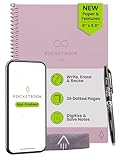
- New and Improved Core: Features premium reusable paper, with improved pen to paper feel, spiral binding and sleekly re-designed, scratch-resistant cover. Grid layout pages now include Smart Titles and Smart Tags to name and organize files efficiently.Create, Digitize, Erase, Re-Create: Capture ideas with the included Pilot Frixion Pen, digitize effortlessly using the Rocketbook app, store in your preferred cloud service. When done, simply wipe the pages clean with a damp cloth and start fresh.
- App-Enabled for Digital Organization: Scan and upload your written work directly to cloud platforms like Google Drive, Dropbox, OneNote, etc. and access your notes from anywhere. Use Smart Titles and Smart Tags to name and organize files efficiently.
- Write, Digitize, Erase, and Re-Write: Write notes with the included Pilot Frixion Pen, digitize effortlessly using the Rocketbook app, store in your preferred cloud service. When done, simply wipe the pages clean with a damp cloth and start fresh.
- Portable and Versatile Sizes: Available in two sizes—Letter (8.5 x 11 inches) and Executive (6 x 8.8 inches)—the Rocketbook Core is compact enough to fit into backpacks, purses, or briefcases. This notebook offers portability and versatility.
- Reusability: Designed with sustainability in mind, Rocketbook notebooks help reduce paper waste with a reusable alternative. Enjoy a paper-like notebook that can be used repeatedly, allowing you to save work and erase everything else.
How to Install Google Drive on Windows 11 on Arm
Installing Google Drive on a Windows 11 on Arm PC is similar to installing it on a standard Windows laptop, but you need to make sure you are downloading the beta build that includes Arm support. This is aimed at devices such as Snapdragon-powered Copilot+ PCs and other Windows 11 systems running on Arm processors. Before installing, confirm that your device is running an up-to-date version of Windows 11 and that you have permission to install desktop apps, especially if the PC is managed by a school or workplace.
The beta is distributed through Google’s Drive for desktop installer rather than through the Microsoft Store. Users should download the installer from Google’s official Drive for desktop download page or from the beta link provided by Google. Avoid third-party download sites, since Drive for desktop runs continuously in the background and handles account authentication, file syncing, and local file access.
- Open Microsoft Edge, Chrome, or another browser on your Windows 11 on Arm device.
- Go to Google’s official Drive for desktop download page and choose the Windows installer that supports the Arm beta.
- Download the installer file, then open it from your Downloads folder.
- Approve the Windows security prompt if it appears.
- Follow the setup prompts to install Google Drive for desktop.
- When prompted, sign in with the Google account you want to use for Drive.
- Choose whether to stream files from the cloud or mirror selected files locally on the PC.
- Allow Drive to finish setup, then check File Explorer for the Google Drive entry.
During setup, pay close attention to the file access option you select. Streaming files keeps most content in the cloud and downloads items as needed, which saves storage on thin-and-light Arm laptops. Mirroring files stores selected Drive content on the device, which is better for offline work but can consume significant local storage. On PCs with smaller SSDs, streaming is usually the safer starting point.
If you previously used Google Drive through the web, a browser shortcut, or an emulated x64 version, close those sessions before testing the beta desktop client. You do not usually need to remove browser access, but you should avoid running mulle sync tools against the same local folders. After installation, open File Explorer and confirm that your Drive files appear under the Google Drive location. Test with a small folder first, then verify that uploads, downloads, edits, and deletions sync correctly across your PC and drive.google.com.
Before You Switch Fully
- Back up local files: Keep copies of critical documents before changing sync settings.
- Check account type: Personal Google accounts and supported Google Workspace accounts may have different admin policies.
- Review storage: Mirrored folders can quickly fill local storage on compact Arm laptops.
- Expect beta behavior: Sync delays, missing options, or occasional sign-in issues may still occur.
Once installed, let the app run for a while before judging performance. Initial indexing and syncing can use more network, CPU, and battery than normal. After the first sync is complete, Drive should settle into background operation, giving Windows 11 on Arm users a more integrated option than relying only on the browser or compatibility-based workarounds.
Known Limitations and Beta Considerations
Because Google Drive for Windows 11 on Arm is still in beta, it should be treated as pre-release software rather than a drop-in replacement for every production workflow. The main appeal is native Arm support on Snapdragon-powered PCs, but beta builds can still have rough edges around setup, syncing behavior, performance consistency, and integration with Windows File Explorer. Users who rely on Drive for time-sensitive work should test it with a limited set of folders before moving their full daily workflow over from the browser or older workarounds.
Rank #4

- New and Improved Core: Features premium reusable paper, with improved pen to paper feel, spiral binding and sleekly re-designed, scratch-resistant cover. College-ruled sheets now include Smart Titles and Smart Tags to name and organize files efficiently.
- App-Enabled for Digital Organization: Scan and upload your written work directly to cloud platforms like Google Drive, Dropbox, OneNote, etc. and access your notes from anywhere. Use Smart Titles and Smart Tags to name and organize files efficiently.
- Write, Digitize, Erase, and Re-Write: Write notes with the included Pilot Frixion Pen, digitize effortlessly using the Rocketbook app, store in your preferred cloud service. When done, simply wipe the pages clean with a damp cloth and start fresh.
- Portable and Versatile Sizes: Available in two sizes—Letter (8.5 x 11 inches) and Executive (6 x 8.8 inches)—the Rocketbook Core is compact enough to fit into backpacks, purses, or briefcases. This notebook offers portability and versatility.
- Eco-Friendly Reusability: Designed with sustainability in mind, Rocketbook notebooks help reduce paper waste with a reusable alternative. Enjoy a paper-like notebook that can be used repeatedly, allowing you to save work and erase everything else.
One practical limitation is that beta availability may not cover every account type, region, or device configuration at the same time. Even on supported Windows 11 on Arm hardware, installation can depend on having an up-to-date operating system, current Google Drive installer, and a compatible processor such as those used in recent Snapdragon X or Snapdragon 8cx-based PCs. Managed enterprise devices may also be restricted by administrator policies, endpoint security tools, or software allowlists that block beta apps until IT teams approve them.
Recommended Free Tools
What to watch for during beta testing
- Sync reliability: Confirm that newly created, edited, renamed, and deleted files sync correctly across Windows, the web, and other devices.
- Offline access: Check whether files marked for offline use remain available after sleep, reboot, or network changes.
- File Explorer integration: Look for missing status icons, delayed context menu actions, or Drive folders that take longer than expected to appear.
- Large file handling: Test uploads, downloads, and edits for large media files, archives, design assets, or shared project folders before depending on them.
- Third-party app compatibility: Verify that desktop apps can open and save directly to Drive paths without permission errors or file-locking issues.
Users coming from web access should expect a more desktop-like experience, but not necessarily a flawless one in the beta period. Drive for desktop can stream files so they appear in File Explorer without storing everything locally, or mirror selected content for offline use, depending on the configuration available to the account. On Arm PCs, those features should feel more natural than relying on browser downloads or emulated tools, but behavior may still vary with network quality, storage settings, antivirus scanning, and Windows power management.
Before switching fully, it is sensible to keep the Drive web app bookmarked and avoid uninstalling any existing fallback workflow until the beta proves stable. For business users, testing should include shared drives, permission changes, Microsoft Office files, Google Docs shortcuts, and collaboration scenarios involving mulle editors. If a PC is used for client work, field work, or travel, users should confirm offline availability in advance rather than assuming all cloud files are cached. The beta is a meaningful step forward for Windows on Arm, but it is best adopted gradually, with backups and verification in place for critical files.
Independent reader supportYour contribution helps us test, update, and keep practical guides available for everyone.Why Native Arm Support Matters for Windows PCs
Native Arm support matters because Snapdragon-powered Windows 11 PCs are designed around a different processor architecture than traditional Intel and AMD machines. When an app is built specifically for Arm, it can run directly on the hardware instead of relying on emulation. For an always-on utility like Google Drive for desktop, that difference can affect launch time, sync responsiveness, battery use, and overall system smoothness throughout the day.
Google Drive is not just an app that opens occasionally. It runs in the background, watches folders for changes, uploads and downloads files, integrates with File Explorer, and keeps account status available from the system tray. On Arm-based laptops such as Copilot+ PCs with Snapdragon X Elite or Snapdragon X Plus chips, a native version is better positioned to handle those background tasks efficiently. This is especially relevant for users who bought these devices for long battery life, quiet operation, instant wake, and mobile-style standby behavior.
What users may gain from a native Arm build
- Better efficiency: A native Arm app can reduce the overhead associated with translating x86 instructions, which may help preserve battery life during file syncing.
- Improved reliability: File sync tools depend on shell integration, background services, and sign-in components. Native compatibility can reduce friction in those areas compared with unofficial workarounds.
- More consistent performance: Large folder scans, frequent file changes, and offline file handling may feel more predictable when the app is designed for the device architecture.
- Cleaner setup: Users no longer have to rely solely on the web version, third-party sync methods, or unsupported installation paths to access Drive from File Explorer.
For many Windows on Arm users, the web version of Google Drive has been a practical fallback, but it does not fully replace desktop sync. Browser access works well for viewing, sharing, and downloading individual files, yet it cannot provide the same local folder workflow as Drive for desktop. Native support brings the experience closer to what users expect on conventional Windows PCs: files visible in File Explorer, selective access to cloud content, and background synchronization tied into the operating system.
Best Value

- LASTS ALL YEAR. GUARANTEED! Guarantee is valid for one year from purchase or delivery date, whichever is longer. Does not cover misuse.
- Scan, study and organize your notes with the Five Star Study App. Create instant flashcards and sync your notes to Google Drive to access them anywhere from any device.
- Rearrange the movable plastic divider anywhere in your notebook to organize notes. Divider with expanding pockets holds 8-1/2" x 11" handouts. Visible tabs from the durable, plastic front cover make it easy to flip to any section.
- This 5 subject notebook has 200 double-sided, college ruled sheets of high-quality paper that are perforated for easy tear out. Sheets measure 8-1/2" x 11" when torn out.
- Spiral Guard covers the wire to help prevent snags on clothes and backpacks. Label your notebook on the writable spine and keep your favorite pen or pencil handy in the pen loop. Available in Amethyst Purple.
The beta also signals broader progress for the Windows on Arm ecosystem. Productivity hardware is only as useful as the software people depend on every day, and cloud storage is a core part of that stack. As more major apps arrive in native Arm versions, Snapdragon-powered PCs become easier to recommend beyond early adopters. Users should still treat the current Google Drive release as a beta and keep expectations realistic, but native support is a meaningful step toward making Windows 11 on Arm feel less like a compatibility experiment and more like a mainstream Windows platform.
Frequently Asked Questions
Can I install Google Drive for desktop on any Windows 11 Arm PC?
The beta is intended for Windows 11 devices running on Arm-based processors, such as Snapdragon-powered laptops and tablets. You should make sure your device is fully updated before installing, since beta builds often depend on current Windows components and drivers. If your PC uses a standard Intel or AMD processor, you should use the regular Google Drive for desktop installer instead.
Does the beta support the same Google Drive features as the regular Windows version?
The beta is expected to support core Drive for desktop features such as syncing files, accessing Drive from File Explorer, and working with files stored in the cloud. Some advanced features, integrations, or enterprise controls may not behave exactly the same as they do on the x86 version yet. If you rely on Drive for business-critical workflows, test the beta with a small set of files before replacing your current setup.
Quick wins for a faster PC:
Scan for outdated or missing drivers - takes under a minuteDriver Scan →Clear out junk files and repair common Windows errorsFree Scan →Fix the driver behind crashes, sound loss and screen glitchesFind Drivers →Is Google Drive for Windows 11 on Arm better than using Drive in a browser?
For many users, yes, because the desktop app lets Drive appear directly in File Explorer and makes it easier to open, sync, and manage files with local Windows apps. Browser access is still useful for quick edits, sharing, and working on devices where you do not want to install software. The native Arm app should feel more integrated and efficient on Snapdragon PCs than relying only on the web version.
Should I remove my workaround before installing the Arm beta?
If you were using browser access only, there is nothing to remove before trying the beta. If you used an unofficial workaround, emulated installer, or third-party sync tool, back up files and disable that setup before installing Google’s beta to avoid duplicate syncing or file conflicts. After installation, confirm that the correct folders are syncing and that your Drive files appear as expected in File Explorer.
What should I watch out for before using the beta as my main Drive app?
Because this is beta software, you may run into bugs, missing features, performance issues, or occasional sync problems. Avoid testing it first on your only copy of work files, and keep an eye on sync status icons and error messages after installation. If reliability matters more than native Arm performance, it may be safer to keep using Drive in the browser until the stable release arrives.
Bottom Line
Google Drive’s beta for Windows 11 on Arm is a meaningful step for Snapdragon-powered PCs, especially for users who have been relying on the browser, emulation, or other workarounds to keep files synced. It brings the desktop Drive experience closer to parity on Arm hardware, but it is still a beta, so occasional bugs, missing polish, or compatibility issues should be expected.
What’s actually slowing this PC down?
Pick the symptom - the matching free tool is one click away.
If you use a Windows 11 Arm device and depend on Drive every day, try the beta only after confirming you meet the installation requirements and are comfortable with pre-release software. For mission-critical workflows, keep web access or another backup method available until Google’s native Arm support reaches a stable release.
Quick Recap
Product prices and availability are accurate as of the date/time indicated and are subject to change. Any price and availability information displayed on Amazon at the time of purchase will apply.




