Do these 3 things before closing this tab:
1Clear out junk files and repair common Windows errors2Fix the driver behind crashes, sound loss and screen glitches3Repair Windows errors before they cause bigger problemsEcho in Microsoft Teams meetings is almost always a feedback loop: your microphone picks up sound from your speakers (or even from a second device in the room), then Teams sends it back to the other participants.
The fastest path to a clean call is to (1) verify the correct input/output devices, (2) reduce or eliminate speaker playback while you speak, and (3) confirm Teams’ audio processing settings are aligned with your hardware.
As an Amazon Associate I earn from qualifying purchases.
Use the steps below in order. If you try one fix at a time, you’ll know exactly what solved the problem.
What Echo in Microsoft Teams Usually Means
When someone says they hear an echo, they’re typically hearing one of these:
#1 Best Overall

- SUPPORT WORK FROM ANYWHERE WITH SYNC: Whether employees are in the office, at home, or somewhere else, Sync device management software helps everyone stay connected by letting you ensure their Logitech video collaboration personal devices are being used and up to date.
- Open workspaces are great for collaboration, but not so great when the noise around you makes it hard to concentrate. Active noise cancellation substantially reduces unwanted ambient sound, so you can get focused and stay focused.
- Great for Music and Talking with immersive sound for listening to music and a noise-canceling mic that ensures that your voice is heard on the other end of a call—not the noise around you.
- On ear controls to adjust volume, start/end calls, and invoke Teams. Plus button controls for power, active noise cancellation (ANC), wireless Bluetooth pairing, and mute on/off or use the flip-to-mute mic feature.
- Certified for Microsoft Teams ensures it’s easy to pick-up or answer Teams meetings, calls, messages, and notifications with a single press to the Teams button. Or apply a longer touch to invoke Cortana voice skills.
- Acoustic echo: sound from your speaker bounces into your mic.
- Playback echo: Teams outputs audio to a different device than the mic input expects (common with Bluetooth).
- Loopback due to multiple devices: Windows/macOS/Teams has two microphones or outputs active.
- Network/processing artifacts: less common, but can happen if audio processing is misconfigured.
Teams supports noise suppression and echo reduction, but those tools can only do so much if the hardware setup creates a strong feedback loop.
Quick Checks Before You Change Settings
Start with these 60-second checks; they fix a surprising number of echo reports.
- Use headphones (wired USB or 3.5mm preferred). If you’re using speakers, echo is expected.
- Mute when you’re not speaking. In a busy meeting, constant background audio increases echo chances.
- Confirm you’re the only active audio device. Unplug extra headsets/dongles and disable unused microphones.
- Lower output volume. If your speakers are loud, the mic hears everything.
Fix Echo on Windows (Teams Desktop)
On Windows, echo is often caused by the wrong output device (speakers vs headset) or a Bluetooth device that Windows routes audio inconsistently.
The Tool Desk
Outbyte PC Repair FREEClear out junk files and repair common Windows errorsFree Scan →Outbyte Driver Updater FREEScan for outdated or missing drivers - takes under a minuteDriver Scan →1) Set the correct speakers and microphone in Teams
- Open Microsoft Teams.
- Click Profile picture (top-right) > Settings.
- Select Devices.
- Under Speaker, choose your headset (e.g., Headset (USB Audio)).
- Under Microphone, choose your headset mic (not “Stereo Mix” or an external array you don’t want).
- Click Make a test call (or use Test audio if available) and speak for 5–10 seconds.
2) Enable Teams audio processing correctly
- In Settings > Devices, find audio processing options.
- If you see Noise suppression, set it to High (or the highest available).
- If you see options for Echo cancellation / Audio enhancements, keep them enabled for your headset/USB mic.
If you don’t see these toggles, your version of Teams might rely on Windows audio effects instead. In that case, use the Windows steps in the next section.
3) Disable “hands-free” Bluetooth audio if available
Bluetooth often exposes multiple audio modes on Windows (stereo vs hands-free). The wrong one can cause echo or poor mic pickup.
- In Windows, open Settings > Bluetooth & devices > Devices.
- Select your Bluetooth headset.
- For audio, prefer Stereo mode when the option exists.
- Then go back to Teams > Devices and re-select the matching Speaker and Microphone.
4) Check Windows sound input/output and disable duplicates
- Right-click the speaker icon on the taskbar > Sound settings.
- Under Output, choose only one device (your headset).
- Under Input, choose only one microphone (your headset mic).
- Open More sound settings > Recording.
- Right-click unused mics (extra webcam mics, array mics you’re not using) > Disable.
Fix Echo on macOS (Teams Desktop)
On macOS, echo usually comes from selecting the wrong input/output device or using Bluetooth where audio routing can fluctuate.
Rank #2

- Microsoft Teams Certified & UC Optimized: Ensure crystal-clear communication with Microsoft Teams Open Office certification and UC platform compatibility, perfect for hybrid workspaces and virtual meetings. Use of USB-A receiver required for all Microsoft Teams functionality.
- Bluetooth 5.3 & Multipoint Technology: Seamlessly switch between two devices with dual Bluetooth connections or use the USB-A receiver for plug-and-play convenience
- Advanced Noise Cancellation: Three-mic noise suppression technology blocks distractions, delivering unmatched audio clarity for professional calls or casual gaming
- Ergonomic & Lightweight Design: At only 140g, the headset features adjustable memory foam earcups and a flexible headband for extended comfort during long workdays or gaming sessions
- Unmatched Battery Life: Stay powered with up to 31 hours of talk time or 60 hours of music playback on a single charge, ensuring productivity and entertainment without interruptions
1) Set speaker and mic inside Teams
- Open Microsoft Teams.
- Click … (More) (or your profile picture) > Settings.
- Select Devices.
- Set Speaker to your headset.
- Set Microphone to your headset mic.
- Use Make a test call to confirm voice is clean on both ends.
2) Confirm macOS input/output matches Teams
- Go to System Settings > Sound.
- Under Output, choose the headset.
- Under Input, choose the headset microphone.
- If you see any virtual or secondary devices, remove them from use (or select the correct one in Teams).
3) Reduce Bluetooth issues
If you’re using AirPods or a Bluetooth headset, test with a wired headset if possible. If you must use Bluetooth, ensure Teams is using the Bluetooth mic and speaker consistently (Teams > Devices), and then restart the meeting.
Quick wins for a faster PC:
Repair Windows errors before they cause bigger problemsFix Now →Scan for outdated or missing drivers - takes under a minuteDriver Scan →Fix Echo on iPhone and iPad (Teams Mobile)
Mobile echo is often caused by speakerphone playback plus mic pickup. If someone hears echo, switch away from speaker output.
1) Turn off speakerphone and use a headset
- Join the Teams meeting.
- Tap the meeting controls.
- Look for the speaker icon and switch to Headset/Earphones mode (or turn speaker off).
- Put on wired earphones or use AirPods/AirPods Pro.
2) Re-check the audio route
- Open Control Center on iPhone/iPad.
- Verify the audio output is set to your intended device (headphones, not the iPhone/iPad speaker).
- Return to Teams and confirm the mic is active (you should see mic indicators during speech).
3) Avoid “two devices in the room”
If you have another phone, tablet, or laptop playing the same meeting audio nearby, mute or stop playback. Echo on mobile gets worse fast when multiple devices are audible.
Fix Echo in Teams on the Web
Browser-based Teams is sensitive to device routing. Your browser (Chrome, Edge, or Firefox) and the OS must agree on input/output.
1) Set the right microphone and speakers in the browser
- Join the meeting on Teams in your browser.
- When prompted, allow microphone and speaker/permissions.
- Click the device icon (usually a headset/mic icon) inside the meeting controls.
- Select the correct Microphone and Speakers.
2) Reset browser permissions if echo started after a device change
- Open your browser settings for site permissions.
- Find teams.microsoft.com (or the relevant Microsoft domain used in your meeting).
- Reset permissions for Microphone and Sound.
- Reload the meeting and select your devices again.
3) Prefer a single audio device
If you’re switching between headphones and speakers mid-call, refresh the meeting audio routing after the change. Echo often appears during routing transitions and then “sticks.”
Recommended Free Tools
Fix Echo Caused by Your Audio Hardware
Teams can reduce echo, but bad hardware setup can overwhelm any software processing. If your call environment is quiet and echo still happens, treat this as a hardware problem first.
Use a headset whenever possible
For meetings, the most reliable setup is a headset (mic close to your mouth) rather than room speakers. If your headset has both a mic and speakers, the mic stays isolated from the audio output.
Rank #3
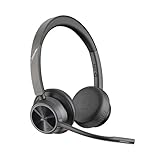
- CUT THE CORD, CUT THE COSTS. Stay productive anywhere with this dual-ear Bluetooth headset, wireless headset with mic featuring all-day comfort, rich stereo sound, and up to 164 ft range via Bluetooth 5.2 or USB-C plus USB-C to USB-A adapter
- CALLERS HEAR YOU, NOT BACKGROUND NOISE. Be heard, not your background, using wireless headset with mic for work. The noise-canceling dual mic with HP Poly Acoustic Fence filters distractions so callers hear you, even in busy offices or noisy areas
- ONE HEADSET, MANY DEVICES. Wirelessly connect this wireless headset for work to PC or mobile device or plug in via USB-A for corded audio. Includes convenient charging stand. Use it across your work devices with up to 24 hours of talk time
- SEAMLESS DEVICE AND PLATFORM CONNECTIVITY . Designed for home and office use, this Microsoft Teams-certified bluetooth headset with microphone features an on-call indicator light, Microsoft Teams button, plus a travel pouch for easy portability
USB vs 3.5mm vs Bluetooth
- USB headsets: typically most consistent with echo cancellation.
- 3.5mm wired: generally stable and avoids Bluetooth “hands-free” routing quirks.
- Bluetooth: can switch modes; echo and latency are more common.
Disable “Stereo Mix” / loopback devices
If Windows allows capturing system audio (often called “Stereo Mix”), Teams may treat it as a microphone input. That can create an immediate loop.
- On Windows: Sound settings > More sound settings > Recording.
- Disable any device that sounds like loopback/stereo capture.
- Select your actual microphone in Teams > Devices.
Check your mic sensitivity and placement
A mic placed too far from your mouth picks up more speaker audio and room reflections. Move the mic closer, reduce background noise, and lower speaker volume.
What’s actually slowing this PC down?
Pick the symptom - the matching free tool is one click away.
Room and Setup Adjustments That Actually Work
Software echo reduction can’t beat physics. If participants hear a delayed “ringing” or “bouncing” sound, your room is likely reflecting audio back to your mic.
Best physical layout
- Place speakers/headset carefully: avoid putting your mic-facing side directly toward the speakers.
- If using speakers, move them farther away from the microphone (and reduce volume).
- Use a table layout that doesn’t point the mic at a bare wall.
Add absorption where it matters
- Carpet helps.
- Soft furnishings (curtains, cushions) reduce reflections.
- Wall panels or even a bookshelf can cut echoes.
Avoid simultaneous audio playback
If you (or others) have Teams open on two devices in the same room (like a laptop and a TV), mute one device. Overlapping audio sources create echo loops even with headsets.
Advanced Troubleshooting When Echo Persists
If you’ve tried correct device selection and a headset and echo still shows up, use these targeted diagnostics.
Run Teams audio test and isolate the failure
- Use Make a test call in Teams (or Test audio if your build shows it).
- On a second device, mute everything except your test receiver.
- Change only one variable: mic device, speaker device, or Bluetooth on/off.
If the test call sounds clean but meeting calls don’t, the issue can be other participants’ audio routing or your audio route changing when the meeting starts.
Rank #4

- CRYSTAL-CLEAR CALLS: Hear and be heard clearly with advanced noise-canceling microphones for seamless communication.
- LIGHTWEIGHT COMFORT: Experience all-day comfort with its lightweight design and foam or leatherette ear cushions that won't weigh you down during long meetings or calls.
- EFFORTLESS SETUP: Simply plug into your laptop via USB-A or USB-C for instant use, plus easy call and volume controls for smooth call management.
- ONLINE MEETINGS THAT JUST WORK: Works with all leading online meeting platforms and certified for Microsoft Teams.
- SOLID SOUND: Powerful 28mm speakers deliver richer sound for a better audio experience.
Restart the meeting after device changes
Teams sometimes caches audio device routing. After switching from speakers to headset (or switching Bluetooth modes), leave the meeting and rejoin, then confirm Devices > Speaker/Microphone.
If you prefer an automated option for updating outdated Windows audio or Bluetooth drivers, Outbyte Driver Updater is available, while direct manufacturer updates remain an alternative.
Update Teams and audio drivers
- Update Microsoft Teams desktop for Windows/macOS.
- Update USB audio device drivers via the manufacturer (headsets, webcams, conference room mics).
- On Windows, ensure your Bluetooth drivers are current if you use AirPods or another Bluetooth headset.
Check conferencing hardware for echo cancellation conflicts
Conference-room systems often have built-in echo cancellation. If Teams also applies aggressive processing, conflicts can happen. Try reducing additional audio enhancements (either in Teams or in the device software), then retest.
Reset audio settings on the OS level
If you suspect Windows/macOS audio effects are misbehaving, temporarily revert changes: disable third-party “mic enhancement” tools and retest with a plain headset mic. Third-party tools can accidentally create loopback behavior.
Common Mistakes That Make Echo Worse
- Using room speakers with an open mic (especially in large rooms).
- Selecting the wrong microphone (webcam mic or loopback device).
- Allowing multiple audio inputs at once on the OS.
- Switching audio devices mid-call and not refreshing routing.
- Turning up volume to “fix” low audio—this increases echo pickup.
Compare Options: Headsets vs Speakers, USB vs Bluetooth
Use this decision table when you need the most reliable setup for your meeting type.
| Setup | Echo Risk | Recommended Use |
|---|---|---|
| Wired headset (3.5mm) | Low | Most meetings, quiet offices |
| USB headset | Low–Medium | Frequent calls, stable routing needs |
| Bluetooth headset / AirPods | Medium | Mobile calls; acceptable with correct routing |
| Speakers + external mic | High | Only if you can use directional mics and keep volume low |
| Two devices playing in same room | Very High | Avoid; mute one device |
FAQs
Why do I hear my own voice echo back in Teams?
If you hear it yourself, Teams output routing is likely wrong or you’re using speakers without headphones. Switch to a headset and confirm in Teams > Settings > Devices that the Speaker is your headset and the Microphone is the headset mic.
My meeting participants say there’s echo, but the test call is fine. What should I do?
Have them confirm which device they’re using (headset vs speakers). If their speakers are on, they may be experiencing acoustic echo. Also, restart your meeting after any audio device changes, then re-check Teams > Devices.
Best Value

- Certified for Microsoft Teams: This USB headset features 2 noise-canceling microphones and a 30mm audio driver to ensure you can hear and be heard clearly in noisy open workspaces
- Effortless Controls for Better Productivity: The easy-to-use inline controls on this wired headset provide convenient access to volume, mute, call and Microsoft Teams features
- Call and Mute Status Indicators: LED lights on the computer headset controller provide a convenient visual cue for call and mute status
- USB Plug-and-Play: Connect to a PC or Mac via USB-A cable with no additional software required; reliable wired connection ensures uninterrupted use, eliminating concerns about low batteries
- Designed for Sustainability: This office headset with mic is made with a minimum of 54% post-consumer recycled plastic (1) in the plastic parts, plus replaceable earpads to extend product life
Can Teams noise suppression cause echo?
Noise suppression usually reduces unwanted audio, not echo. If you suspect processing issues, temporarily reduce or disable noise suppression and retest. If echo disappears, keep noise suppression at the correct level rather than maximum.
Does Teams on the web handle echo reduction differently?
Web meetings depend on browser and OS audio routing. If echo appears only in the browser, reset the browser microphone permissions for the Teams domain and re-select the correct microphone/speakers from the in-meeting device menu.
What’s the single best fix for echo?
Use a wired or USB headset and ensure Teams is using that headset as both the Speaker and Microphone. If you can’t use a headset, lower speaker volume and improve room absorption.
Bottom Line
Echo in Microsoft Teams is usually a feedback loop caused by speaker playback being captured by the microphone. Fix it by aligning Teams’ Speaker and Microphone devices, using a headset, and eliminating duplicate audio sources in the room.
If echo persists after device selection and a headset test, restart the meeting after changes, update Teams and drivers, and temporarily disable competing audio enhancements to isolate what’s creating the loop.
Free tools Windows power users keep installed
One-click scans. No signup required.
Quick Recap
Product prices and availability are accurate as of the date/time indicated and are subject to change. Any price and availability information displayed on Amazon at the time of purchase will apply.




