You can post an existing GIF on Facebook from the post composer, share one from GIPHY, or attach a GIF file saved on your device. To make a new GIF, GIPHY’s desktop tool accepts a video file or URL, while its mobile app can record or edit phone media. Before publishing, check the post’s audience setting; it determines who can see the Facebook post.
Choose how you want to get the GIF
| Route | Best for | What you do |
|---|---|---|
| Facebook GIF picker | Finding and posting an existing GIF | Search for a GIF in the post composer, select it, then publish with your chosen audience. |
| GIPHY sharing control | Posting a GIF you found in GIPHY | Choose the GIF on GIPHY and use its Facebook sharing option. |
| Saved GIF file | Posting a GIF already on your device | Save the file, select Photo/Video in Facebook’s composer, and attach it. |
| GIF creation tools | Making or editing a GIF | Use GIPHY GIF Maker on desktop or its mobile app, then share the finished GIF. |
Button names and availability can differ by device, account, or app version. Look for the GIF or Photo/Video option actually shown in your composer rather than expecting every interface to match.
As an Amazon Associate I earn from qualifying purchases.
Post a GIF using Facebook’s GIF picker
- Open the Facebook post composer for the profile, group, or destination where you want to post.
- Choose the GIF option, if it appears, and search for a GIF or browse the available choices.
- Select the GIF. Add text to the post if you want.
- Review the audience selector before publishing. Facebook’s Help Center describes choosing an audience as part of the post flow and notes that a GIF can be added as a post item. Facebook Help Center: create a post
- Publish the post.
If the composer does not show a GIF button, try another documented route below; the controls available to you may vary.
Quick wins for a faster PC:
Fix the driver behind crashes, sound loss and screen glitchesFind Drivers →Repair Windows errors before they cause bigger problemsFix Now →Share a GIF from GIPHY or attach a saved file
Share from GIPHY
- Find the GIF on GIPHY and select its Facebook sharing control.
- If a Facebook pop-up opens, add a caption if desired, review the destination and audience controls it presents, then post.
GIPHY documents this sharing route, but the pop-up and its controls may not look identical for every user. GIPHY: how to share a GIF
#1 Best Overall
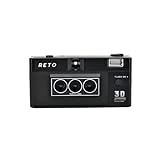
- 📷 35mm Film : suitable for 35mm negatives and slides, either colors or B&W
- 📷 3D Image : a 3D camera which carries a unique design can wiggle a still moment, giving a new life for 2D images
- 📷 Built-in Flash : enable you to photograph day and night
- 📷 Triple-Lens : a design which simultaneously captures the same object with three slightly different angles
- 📷 IOS/Android App Available : a perfect accessory to go along with our RETO3D film camera - assists you in generating videos with 3D effect. Special editing features are also added to allow awesome customised designs of 3D images!
Attach a GIF saved on your device
- Save the GIF file to your computer or phone.
- Open the Facebook post composer and choose Photo/Video, if available.
- Select the saved GIF, check how it appears in the composer, and publish with the audience you intend.
GIPHY documents saving a GIF and attaching it through Facebook’s Photo/Video option. Check the resulting post after publishing to confirm it displays as intended.
Make a GIF on desktop with GIPHY GIF Maker
- Open GIPHY GIF Maker and start with a video file or a video URL.
- In GIPHY’s documented desktop workflow, the video input must be under 100 MB and shorter than 15 seconds. These are GIF Maker input limits, not Facebook upload limits.
- Use the available editing options to add captions or stickers, adjust layers, or crop the image.
- Continue to upload. GIPHY’s upload process lets you add tags and a source URL and choose public or private visibility. GIPHY GIF Maker GIPHY: uploading GIFs
- Share the finished GIF using a Facebook route above. Give credit to the original source when appropriate, and upload only material you have the right to share.
A private GIPHY upload cannot be seen by others or shared, so it will not work as a way to post that GIF on Facebook.
Rank #2

- easy
- image filter
- gif
Make a GIF on your phone
- Open GIPHY’s mobile app and enter its creation flow.
- Record a GIF with the app camera or choose existing media from your phone’s camera roll.
- Edit the result using the available decorations and trimming controls, then upload it.
- Share the finished GIF to Facebook using the sharing controls available to you, or save it and attach it through Facebook’s composer.
GIPHY’s exact mobile controls can change as the app is updated. Its guide covers creating from a recording or camera-roll media, editing, and uploading. GIPHY: creating GIFs on mobile
Check who can see the GIF
For a GIF posted directly to Facebook, inspect the audience selector before you publish. Check it on the specific destination—such as your profile or a group—rather than assuming the same visibility controls apply everywhere. Facebook’s audience setting governs the post on Facebook.
Rank #3

- Free gif video creator
- Share on Instagram
GIPHY upload visibility is a separate setting. Choosing public or private on GIPHY does not replace Facebook’s audience control; GIPHY says private uploads cannot be seen by others or shared. GIPHY upload visibility guidance
Independent reader supportYour contribution helps us test, update, and keep practical guides available for everyone.Send a GIF in a message
Facebook’s help overview also covers sending GIFs in messages. That is a messaging action, not a Feed post, so use the GIF control in the message conversation if it is available. Facebook Help Center
Quick Recap
Best Value

- - Continuous shooting for making animated GIF.
- - Camera flash ON/OFF, front & back camera, camera of no shutter sound, width & length available, high-resolution continuous shooting
- - Number of photos : Minimum 10 ~ Maximum 50
- - Shooting Time : Minimum 5.0 Seconds ~ Maximum 25.0 Seconds
- - Edit : You can choose number of photos and playing time.
Rank #4
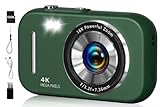
- 48MP & 4K Digital Camera: This cameras for photography can not only record 4K FHD videos but also take 48MP photos. The images it captures are rich in detail, vivid in color, and can accurately reproduce real scenes. It is perfectly suited for documenting precious moments in events, trips, gatherings, or everyday life.
- Beauty Filter & Framing Grid: Camera digital comes with natural beauty enhancement, which optimizes skin tone and reduces blemishes while preserving a realistic texture. Equipped with smart grid lines, it aids framing based on classic composition principles, allowing even beginners to take balanced, visually appealing shots. It works well for selfies, group photos, outdoor shooting, and more scenarios.
- 16X Digital Zoom & Versatile Shooting Modes: Equipped with 16x digital zoom, this compact digital camera lets you easily present distant subjects clearly. Its built-in image stabilization technology ensures photos are stable and detailed. Additionally, it also features motion detection, continuous shooting, self-timer, and slow-motion functions, making it an ideal camera for recording family gatherings, friend parties, and other joyful occasions.
- 2.8-inch Screen & Webcam/Vlogging Function: Travel camera is equipped with a 2.8-inch screen that clearly displays shooting images and operation menus. Whether for real-time viewing, or reviewing photos and videos, it delivers an intuitive and convenient visual experience. This vlogging camera can also be used as a webcam, allowing you to easily start live streams or make video calls on social media platforms such as YouTube, Facebook, and Twitter, meeting diverse creative needs.
- Best Choice & Full Accessories: This digital camera for teens is especially suitable as a gift for kids. Whether it's a child's birthday or various festivals, it’s perfect to give on these important occasions. The small digital camera set comes with a 32GB SD card, a card reader, a USB cable, a lanyard, and an instruction manual you can start using it directly after unpacking, which is extremely convenient.
Product prices and availability are accurate as of the date/time indicated and are subject to change. Any price and availability information displayed on Amazon at the time of purchase will apply.
What’s actually slowing this PC down?
Pick the symptom - the matching free tool is one click away.




