Start with your DVR’s make and model, then check its rear-panel ports and manual. There is no universal export method: some compatible TiVo models can transfer eligible recordings over a network, Xfinity’s documented cloud-DVR downloads are made in its mobile app rather than exported as general computer files, and analog capture is possible only when the DVR has a supported output and the playback signal can be captured.
Identify your DVR and its connections first
Find the exact model number on the DVR’s label or in its settings, and check the manufacturer’s manual for recording-transfer options and output ports. Do this before installing software or buying capture hardware. A port’s presence does not guarantee that every recording can be copied.
As an Amazon Associate I earn from qualifying purchases.
- Network: Check whether the specific DVR and its software support a computer transfer.
- Composite video: Usually a yellow RCA video connector, paired with red and white RCA audio connectors.
- S-Video: A round video connector that carries video separately; analog audio still needs its own connection.
- HDMI: A digital connection, not interchangeable with composite or S-Video capture. Supported capture hardware and signal restrictions matter.
Choose a route the model and recording support
| Route | When it may work | What you get | Main limits |
|---|---|---|---|
| Network transfer from a compatible TiVo | The exact TiVo model, software, account settings, and computer operating system support the transfer. | A transfer of eligible recordings to a PC. | TiVo’s guide is legacy documentation; copy-protected programs cannot be transferred. |
| Provider app download | The provider offers downloads for the recording and the selected mobile device. | App-managed playback or a download within the mobile app. | This is not necessarily a reusable video file on a PC or Mac; recording and device eligibility can be limited. |
| Real-time analog capture | The DVR has composite or S-Video output, the capture device accepts it, and playback is capturable. | A computer file recorded from the DVR’s output. | It runs in real time, may be standard definition, and cannot defeat copy protection or unsupported signals. |
Network transfer from a compatible TiVo
TiVo’s legacy TiVo Desktop guide describes transferring eligible programs from a network-connected DVR to a PC. Its workflow is to select the DVR, choose recordings from its Now Playing list, and start the transfer. The guide says copy-protected programs are marked and cannot be transferred. Because this is legacy documentation, verify that the exact DVR model, software, account settings, and PC operating system are currently supported before relying on it.
Recommended Free Tools
Xfinity cloud DVR downloads
Xfinity documents downloading completed cloud DVR recordings in the Stream app to supported Apple or Android devices. Not every recording is available, and a download is checked out to the selected device under the documented workflow. Xfinity’s app requirements describe supported devices and limits. This route provides app-based access; it does not establish a general export of an editable video file to a PC or Mac. A mobile-app download should not be assumed to become a transferable computer file.
#1 Best Overall
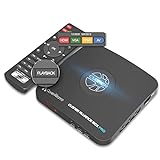
- What can it do? - Standalone 1080p@60fps video capture device and digital video recorder. Record video to a USB storage device while watching it on TV, playback the recorded video on TV with the included remote, No PC required at all. Analog to digital video converter, HDMI/RCA/Composite/Component/YPbPr/VGA inputs are supported. Gaming capture and live are also available if you prefer using a PC.
- Why do I need it? - Digitalize or archive analog videos to MP4 files from old devices without using a PC. Backup videos from HD/UHD video discs and old VHS tapes. Gaming capture and live. Capture and record videos from cable TV receivers, set-top boxes, PVRs or DVRs. Record online conferencing video. Record online HD video for recreating. Capture screen contents of PC.
- Why choose it over other similar products? - Friendly to use by newbies or older adults. Specifically designed for work with big screen TVs and HD/UHD/Analog video players. Recorded MP4 files can be saved on both retro and modern PCs (exFAT, NTFS, FAT/FAT32, MBR,GPT). Ultra-low latency (less 90ms). Various schedule tasks. Trusted since 2016.
- Is my device compatible with it? - It works with: VHS Players, VCRs, Camcorders, Hi8 camcorders, DVRs, Set-top Boxes, Video disc Players, Media players, TV Sticks, Endoscopes, Surgery Microscopes, Game Consoles, and any other devices with HDMI/RCA/Composite/Component/VGA Output. [Tip: The Smart TV & TV Antenna can't be a video Source.]
- What's more? - 90-Day No Hassle Return (at our cost) and 2-Year replacement Service. Free video edit/conversion software included(Windows system only. Mac is not supported). [The device does not support any content protected by HDCP. When connected to an HDCP (Content Protection) source, it will output an error message or nothing. This does not indicate a defect.]
Analog capture
Use this route only if the DVR provides a matching analog output and its playback signal is capturable. It records the video and audio playing out of the DVR, rather than copying the DVR’s original digital recording. Capture takes at least as long as the program’s playback.
Capture a recording over composite or S-Video
1. Confirm the output and capture-device inputs
Inspect the DVR’s rear panel and manual. Confirm it has composite video (typically yellow RCA) with red and white analog audio, or S-Video with analog audio. Check that the capture device accepts the same type of connection. Elgato says its Video Capture device supports DVRs and set-top boxes with composite or S-Video output; its guidance describes S-Video as clearer than composite. This is product-specific guidance, not a guarantee for other devices.
Rank #2

- This VHS RCA YPbPr to USB 2.0 Video Capture Card supports AV(CVBS) composite video and YPbPr component signal input, specially designed for VHS tape digitization, old DVD players, retro game consoles and analog video equipment.It converts analog audio and video signals into digital format via USB 2.0, allowing you to preview, record, save and archive old VHS videos on your computer.
- USB 2.0 transmission, maximum data acquisition 1920x1080@60Hz Video, preserving the original quality of your analog video sources, with clear and smooth recorded images, suitable for saving old home videos, gameplay footage and TV programs.
- Plug-and-play, widely compatible with mainstream capture software, it is the ideal tool for converting old analog VHS footage into digital files. Supports most Third-part Software such as OBS, Potplayer, VCL, XSplit, F-Live etc., easy to use. Compatible with Windows/Mac/Linux/Android systems.
- According to the currently connected signal source, press the "Switch" button to toggle to the corresponding input mode: ①When connected to an AV signal source, switch to AV mode, the AV indicator will light up; ②When connected to a YPbPr signal source, switch to YPbPr mode, the YPbPr indicator will light up
- Suitable for scenarios such as converting old cassette tapes to digital archives, recording DVD content, live streaming/screen recording of retro games, and converting old cameras to digital files.
2. Connect the DVR, capture device, and computer
Connect the DVR’s video and audio outputs to the corresponding capture-device inputs. For the cited Elgato device, the quick-start guide directs users to connect yellow composite video and RCA audio, connect the capture unit to a free USB 2.0 port, install the software, and follow the setup wizard. Check the instructions for your actual capture device; connections and computer requirements can differ.
The Tool Desk
Outbyte Driver Updater FREEScan for outdated or missing drivers - takes under a minuteDriver Scan →Outbyte PC Repair FREERepair Windows errors before they cause bigger problemsFix Now →3. Set the input and video format
Open the capture application, select the capture device, and choose the correct video standard and aspect ratio if prompted. Elgato’s support guidance for its Video Capture device lists NTSC, SECAM, PAL, and PAL/60 input standards and standard-definition capture. For letterboxed 4:3 material, Elgato advises choosing a 4:3 setting to avoid stretching the picture. See its video-standard and resolution guidance; options vary by device and source.
Rank #3
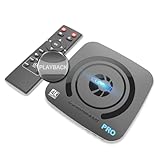
- What can it do? - Standalone 4K Ultra-HD digital video recorder with HDMI capture. Record UHD video to a USB storage device or TF card with Cinematic-FPS 4K@24fps(Up to 4K@30fps). H.264/H.265 codec. Support 4K@60fps HDMI passthrough and playback on a TV with one press, No PC required at all. Gaming capture and live are also available if you prefer using a PC.
- Why do I need it? - Capture and record 4K Ultra-HD videos. Record online conferencing video. Record online UHD video for recreating. Capture screen contents of PC. Pause/resume recording helps keep important moments in one file, and audio-only recording is also available when needed.
- Why choose it over other similar products? - Friendly to use by newbies or older adults. Both H.264 and H.265 codecs are supported. Recorded MP4 files can be saved on various file systems(exFAT, NTFS, FAT/FAT32, MBR, GPT). Ultra-low latency (less than 90ms). Various schedule tasks. Up to 50Mbps bitrate and selectable output/recording resolutions. [Optional software is included for basic trimming and conversion (Windows only)]
- Is my device compatible with it? - It works with: DVRs, Set-top Boxes, Cable TV Receivers, DSLRs, Camcorders, DVD Players, Media players, TV Sticks, Endoscopes, Surgery Microscopes, Game Consoles, Laptops with HDMI OUT. [Note: The Smart TV/TV Antenna can't be video sources. Dolby audio formats and HDR should be disabled from the video source during recording.]
- What's more? - 90-Day No Hassle Return (at our cost) and 2-Year replacement Service. Free video edit/conversion software included(Windows system only. Mac is not supported). [The device does not support any content protected by HDCP. When connected to an HDCP (Content Protection) source, it will output an error message or nothing. This does not indicate a defect.]
4. Test, then capture the full program
- Make a short test capture and check that picture and sound are present and correctly framed.
- Cue the DVR recording, start capture in the application, and then start playback on the DVR.
- Let the recording play from beginning to end. Analog capture runs in real time, so a two-hour program takes at least two hours to capture.
- Save the resulting file somewhere with enough free storage, play it back to check it, and keep a second copy if the recording matters to you.
5. Troubleshoot a missing picture or sound
If the application shows no signal, or the capture has no picture or audio, check the DVR’s selected output, the capture device’s input selection, cable connections, device compatibility, and the software’s chosen input. A signal converter is not a reliable fix for copy protection or an unsupported output.
Independent reader supportYour contribution helps us test, update, and keep practical guides available for everyone.Understand copy protection, HDMI, and quality limits
Copy protection can prevent transfer or capture
TiVo’s copy-protection FAQ explains that provider-assigned restrictions can prevent TiVoToGo and related transfers; restricted recordings may show a red circle-slash symbol. Respect those restrictions. This guide does not provide steps to defeat DRM, HDCP, or other access controls.
Rank #4

- [HDMI Capture] Record or Live Stream Audio & Video at up to 1080P from HDMI Sources up to 4K 30 FPS (NOTE: Does NOT Support HDMI Sources That Are Copyrighted or Content-Protected)
- [AV & S-Video Capture] Record or Live Stream from Analog Video Sources Such As VCR, VHS, Camcorders, Video8, Hi8, DVD, Gaming Systems (Device Automatic Upscales to HD Resolution)
- [USB-C Plug & Play] Modern USB-C Plug and Play Interface (Works with Laptops and Desktops - Full Size USB-A Adapter Included)
- [Software Included] Video Capture & Live Streaming Software & Step By-Step Instructions Included
- [Compatible with PC, Mac, & Linux] Works with Windows 10/11/12, OS X 11.0 or higher, and Ubuntu 14.04 or higher
HDMI is not the same as analog capture
The cited Elgato Video Capture device has no HDMI input and is limited to standard-definition analog inputs. Elgato states, “Elgato Video Capture does not have an HDMI input.” A separate HDMI capture device works only when it supports the signal and the signal is not protected; Elgato says HDCP-protected HDMI signals cannot be used with its cited Game Capture HD hardware. See its HDCP content-protection guidance.
Do these 3 things before closing this tab:
1Repair Windows errors before they cause bigger problems2Fix the driver behind crashes, sound loss and screen glitches3Clear out junk files and repair common Windows errorsAnalog capture has a quality trade-off
Capture quality depends on the DVR’s output and the capture device. Elgato lists its Video Capture product’s output as 640×480 at 4:3 or 640×360 at 16:9, with H.264 at 1.4 Mbit/s for PC software. These are specifications for that product, not a promise of the quality you will get from a particular DVR, recording, or connection. They also illustrate why analog capture may not preserve the original recording’s digital quality.
Quick Recap
Best Value

- Analog to digital converter: Digitize VHS, VCR, Hi8, mini DV, camcorder or other analogue video source for your MAC or PC. Preserve your good old memories for ever.
- Automatically detect NTSC, PAL and PAL/60 video; captures video in MP4 or other digital formats, good for video editing in video editing software.
- Capture software: driveless setup; easy to use; we recommend OBS or PotPlayer for Windows, or QuickTime Player for Mac, perfect for video recording, live broadcasts. User-friendly with Step-by-Step instructions.
- Video resolution: 1920*1080 (MJPEG) or 720*576 (YUV); easy to convert your old home videos and also modern videos. (capture resolution depends on your video source.)
- Comes with USB Video Capture Device*1, RCA cable*1, blank CD*2, User Manual*1.
Check compatibility before committing
- Model support: Confirm that the exact DVR supports the chosen transfer route.
- Recording eligibility: Provider or copy-protection restrictions can block an otherwise compatible transfer.
- Output file: Decide whether you need a reusable local computer file or whether app-limited playback is sufficient.
- Signal and quality: Verify the output type, capture-device inputs, supported video standard, and resolution before purchase.
- Time and cost: Network transfer may depend on current software support; app downloads depend on the provider and supported device; analog capture requires compatible hardware and runs in real time. Include hardware cost where needed, and check current availability rather than relying on an old listing.
Product prices and availability are accurate as of the date/time indicated and are subject to change. Any price and availability information displayed on Amazon at the time of purchase will apply.




