Recommended Free Tools
Creating multiple invoices by hand is slow, error-prone, and hard to audit. If your billing data already lives in Microsoft Excel, you can generate consistent invoice documents at scale using templates.
This guide focuses on practical, repeatable workflows—especially the reliable Excel → Word mail merge path—plus options for generating PDFs in bulk. You’ll also get a checklist for making your Excel data merge-ready.
As an Amazon Associate I earn from qualifying purchases.
Whether you’re invoicing 10 customers or 10,000 lines across hundreds of invoices, the core idea is the same: structure your data once, then let a template produce one invoice per customer (or per invoice number).
Why create multiple invoices from Excel?
Excel is already good at holding structured billing data (customer details, invoice numbers, dates, line items, totals). The bottleneck is usually document formatting.
#1 Best Overall

- Two-Part Carbonless Invoice Book: Each invoice book has 50 sets of invoices, each with a white/light yellow section, with the yellow section retained in the invoice book to maintain detailed records.
- Consecutively Numbered: Enlarged red 6-digit numbers in the upper right corner of each invoice receipt book help you quickly navigate through your orders.
- Wraparound Divider Flap: A thick folded cardboard divider is integrated into the back of each invoice book for use between each two-part sales order to prevent the written content from rubbing off on subsequent copies of the invoice, resulting in wasted invoices.
- 2 Packs/50 Sets (100 Sets Total): Each invoice book provides 50 sequentially numbered carbonless sets of 2 invoice books for long-term use.
- Customizable Space: Each invoice book for small business has space at the top to add a company seal or sticker.
By pairing Excel with a template-based generator—commonly Microsoft Word—you can keep formatting consistent while producing individualized invoices.
- Consistency: Same layout, tax rules, and payment terms every time.
- Speed: Generate dozens of invoices in minutes.
- Auditability: Invoice numbers and totals come from the source data.
- Lower errors: Reduce copy/paste mistakes across invoices.
Prerequisites and template strategy
Before you start, decide what “multiple invoices” means for your dataset:
- One invoice per customer per period (e.g., monthly subscription invoices)
- One invoice per invoice number (preferred if you already track invoice IDs)
- One invoice per order (if you generate billing from orders)
You’ll typically need:
- Microsoft Excel (2016/2019/2021 or Microsoft 365)
- Microsoft Word (2016/2019/2021 or Microsoft 365), since mail merge is Word-driven
- A clean invoice template in Word (DOCX), with merge fields
- Your invoice dataset in Excel, usually one row per invoice (or a well-defined grouping key)
Versions that matter: Word mail merge controls are mostly stable across recent Microsoft 365 builds, but menu names can vary slightly between Windows and Mac. This guide assumes Word on Windows.
Windows Errors? Fix Them Before They Spread
Repair common Windows errors and clear accumulated junk for a smoother, more stable PC - no reinstall needed.Free scan · no reinstallOutdated Drivers Are Slowing You Down
One free scan finds every outdated or missing driver and matches the right update for your exact hardware.Free scan · exact hardware matchMethod 1: Word Mail Merge (Excel → Word → PDFs)
This is the most common and dependable approach for creating many invoices from MS Excel. Word performs the document generation; Excel only supplies data.
1) Prepare your Excel workbook for merging
Your Excel sheet must have a header row with column names that match the merge fields you’ll insert in Word. For a simple invoice-per-row merge, structure your data like this:
| Column (Excel header) | Example value | Used in invoice as |
|---|---|---|
| InvoiceNumber | INV-2026-0007 | Invoice ID |
| InvoiceDate | 2026-05-01 | Date |
| DueDate | 2026-05-31 | Payment deadline |
| CustomerName | Northwind Traders | Bill-to name |
| CustomerEmail | [email protected] | Optional |
| Subtotal | 1250.00 | Totals |
| Tax | 250.00 | Totals |
| TotalAmount | 1500.00 | Grand total |
If your Excel contains line-item rows (multiple lines per invoice), mail merge can still work, but you’ll need a more advanced setup (nested tables or preprocessing). For most teams, the best approach is to create an “Invoice Summary” sheet with one row per invoice number.
2) Save the invoice dataset as a stable source
In Excel, go to Data → Filter (optional) to validate rows, then save the file. Mail merge expects a consistent sheet and columns.
If you can, convert your data range to an Excel Table: select your range → Insert → Table. Name it something stable like Invoices.
3) Create the Word invoice template
In Word, create a DOCX template that has your invoice layout (logo, headings, totals block, payment instructions). Add placeholders where each invoice-specific value should appear.
Rank #2
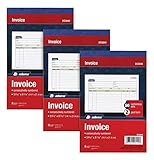
- This value 3 pack of Adams Invoice Books give you 150 two part carbonless invoices with a perforated white customer receipt and yellow duplicates for your records; 3 50-invoice books per pack
- Unique horizontal invoice sheets capture the purchased by and shipped to addresses; a compact 5-9/16 x 8-7/16 page still leaves plenty of room for details on up to 12 items sold
- Wraparound back cover prevents write-through between sets; pull out the perforated white customer receipt and the yellow carbonless duplicates stay behind for your records
- Unique 6 digit invoice numbers help you thumb through orders quickly; blank space up top gives you room for a company stamp—an affordable custom touch
- In value packs with three 50-invoice books for your small business; buy ahead to keep on site or take on the road for pop-up shop sales
Typical fields you’ll merge:
- Invoice number
- Invoice date and due date
- Bill-to address
- Amounts (subtotal, tax, total)
- Optional: customer email, PO number, payment terms
4) Start the Mail Merge in Word
In Word:
- Go to Mailings → Start Mail Merge → Letters (or any document type that supports mail merge; Letters is the usual choice).
- Click Select Recipients → Use an Existing List.
- Choose your Excel file and select the correct sheet/table (e.g.,
Invoices$or the named Excel table). - Click Insert Merge Field and place each field into the template (e.g.,
InvoiceNumber,CustomerName,TotalAmount).
5) Format fields (currency, dates, and addresses)
Word often imports values as text, so formatting matters. For a field you want formatted:
- Select the merge field text in the document (for example, click inside the placeholder like
«TotalAmount»). - Use the Word field options (right-click the field → Toggle Field Codes to inspect, or simply adjust formatting by setting the Number Format in Excel for source columns first).
Best practice: Format dates and currency directly in Excel before merging. For example, store dates as real Excel dates, not text, and store currency columns as numbers formatted with 2 decimals.
The Tool Desk
Outbyte Driver Updater FREEFix the driver behind crashes, sound loss and screen glitchesFind Drivers →Outbyte PC Repair FREEClear out junk files and repair common Windows errorsFree Scan →6) Validate with Preview Results
- Go to Mailings → Preview Results.
- Use Next Record / Previous Record to confirm values look correct for multiple customers.
If something looks wrong for only one invoice, check that the corresponding row’s values in Excel are not blank or malformed.
7) Export to PDF for all invoices
In Word, once preview looks right:
- Go to Finish & Merge → Print Documents (or Finish and Merge → Print to PDF, depending on your Word UI).
- Select All records.
- Choose your printer as Microsoft Print to PDF (Windows) or your preferred PDF export option.
You’ll get separate PDFs per record, but naming may be generic (Word’s print pipeline). If you need strict filenames like INV-2026-0007.pdf, see the VBA method below.
Method 2: Excel + Word template (per-invoice PDF export)
If you want tighter control over PDF filenames, you can still rely on Word templates, but drive the process from Excel with automation or scripted exports. This is especially useful when you have constraints like “one PDF per invoice ID” with deterministic naming.
The exact automation can vary by environment, but the typical pattern is: loop invoice rows in Excel → fill values into a template or trigger Word export → save to a folder with invoice number.
What’s actually slowing this PC down?
Pick the symptom - the matching free tool is one click away.
When to use this method
- You must generate PDFs with invoice-based filenames.
- You need to embed invoice-specific images (e.g., QR codes) that change per invoice.
- You want fewer surprises from mail merge’s record ordering.
Practical approach
Create your invoice template in Word with merge fields, then run either VBA or a Windows PowerShell/automation layer to produce output PDFs into a designated folder. If you don’t want to write code, the closest “no-code” alternative is still Method 1.
For most readers, that leaves one robust implementation option: VBA, covered next.
Method 3: Fully automated generation with VBA (Excel → PDFs)
VBA gives you deterministic output control: one invoice per invoice number, predictable filenames, and the ability to create folders. It’s the go-to choice when mail merge exports aren’t flexible enough.
Rank #3

- QUALITY STATEMENTS: Adams Statement books provide a professional customer statement; a great way to create and maintain a professional image for small businesses and service providers
- 50 TWO-PART CARBONLESS FORMS: Customers get the perforated white top copy; retain the canary copy for your records
- WRAP-AROUND COVER: Fold the back cover between sets to keep invoices neat and legible
- ROOM FOR CUSTOMIZATION: A blank space at top leaves room for your company stamp; a big savings over custom-printed forms
- CONSECUTIVELY NUMBERED: Large 6-digit numbers in the upper right hand corner help you thumb through orders quickly
What you’ll build
- A Word template (DOCX) with bookmarks (or merge fields)
- A VBA macro in Excel that loops through invoices
- For each invoice: create a Word document instance, populate fields, export to PDF, then close
Prerequisites
- Enable the VBA editor: in Excel, go to Developer → Visual Basic (or enable Developer in Excel Options).
- Trust access to Word automation objects. On locked-down corporate machines, macros may be blocked by policy.
- Decide on your data source sheet (e.g.,
InvoiceSummary) with one row per invoice.
Sample VBA macro (structure)
This is a skeleton you can adapt. Replace field population with your chosen mechanism (bookmarks or content controls).
Option Explicit

Sub ExportInvoicesToPDF() Dim ws As Worksheet Dim outFolder As String Dim lastRow As Long Dim i As Long ' Word objects Dim wdApp As Object Dim wdDoc As Object Dim templatePath As String Set ws = ThisWorkbook.Worksheets("InvoiceSummary") lastRow = ws.Cells(ws.Rows.Count, "A").End(xlUp).Row outFolder = ThisWorkbook.Path & "\Invoices_PDF" If Dir(outFolder, vbDirectory) = "" Then MkDir outFolder templatePath = ThisWorkbook.Path & "\InvoiceTemplate.docx" Set wdApp = CreateObject("Word.Application") wdApp.Visible = False For i = 2 To lastRow 'assumes headers in row 1 Dim invoiceNo As String invoiceNo = ws.Cells(i, "A").Value 'InvoiceNumber in column A Set wdDoc = wdApp.Documents.Add(Template:=templatePath) ' Populate fields (example via bookmarks) wdDoc.Bookmarks("InvoiceNumber").Range.Text = invoiceNo wdDoc.Bookmarks("CustomerName").Range.Text = ws.Cells(i, "B").Value wdDoc.Bookmarks("InvoiceDate").Range.Text = Format(ws.Cells(i, "C").Value, "yyyy-mm-dd") wdDoc.Bookmarks("TotalAmount").Range.Text = Format(ws.Cells(i, "H").Value, "0.00") ' Export as PDF with deterministic filename Dim pdfPath As String pdfPath = outFolder & "\" & invoiceNo & ".pdf" wdDoc.ExportAsFixedFormat OutputFileName:=pdfPath, ExportFormat:=17 '17 = wdExportFormatPDF wdDoc.Close SaveChanges:=False Next i wdApp.Quit Set wdApp = Nothing
End Sub
Common ways this VBA approach fails
- Bookmark not found: you used a bookmark name that doesn’t exist in the template.
- Type mismatch: numbers/dates in Excel are stored as text. Convert them in Excel first.
- PDF export errors: output folder permission issues or filename contains forbidden characters (e.g.,
/).
How to replace merge fields with bookmarks (template setup)
In Word template:
- Select the text where a field should go (e.g., where you want InvoiceNumber displayed).
- Go to Insert → Bookmark.
- Name the bookmark exactly (e.g.,
InvoiceNumber) and click Add.
Then update VBA to target those bookmark names.
Method 4: Office Script/Power Automate route (server-side automation)
If you want a more automated pipeline without running VBA on a desktop machine, consider Microsoft Power Automate and Excel/Word connectors. This can be useful when you’re generating invoices on demand or on schedule.
Where this fits best
- Invoices must be generated in a controlled environment.
- You need approvals, logging, or triggers (e.g., “when a file is uploaded”).
- You can accept that Word mail merge automation may be more complex in the cloud.
In many teams, the “server-side” solution actually uses the mail merge logic behind the scenes or a document generation service, then stores resulting PDFs in OneDrive/SharePoint.
If you go this route, you’ll still need the same fundamentals: merge-ready Excel columns and a stable invoice template format.
Do these 3 things before closing this tab:
1Scan for outdated or missing drivers - takes under a minute2Clear out junk files and repair common Windows errors3Fix the driver behind crashes, sound loss and screen glitchesDesigning invoice templates that merge cleanly
Templates should be boring in a good way: repeatable, minimal formatting surprises, and fields placed where data will fit reliably.
Use fixed-width and predictable layouts
- Prefer tables for the totals block (Subtotal / Tax / Total).
- Avoid large variable-height text areas that can push content off the page.
- Keep address fields short; add line breaks deliberately.
Field naming conventions that won’t haunt you later
In Excel, stick to alphanumeric headers (no spaces, no punctuation). Examples:
InvoiceNumberCustomerNameBillingAddressLine1BillingAddressLine2SubtotalTaxRateTotalAmount
Handle multi-line addresses
Instead of trying to merge a single address string with embedded line breaks (often inconsistent), store each line in its own column:
BillingAddressLine1BillingAddressLine2BillingCityBillingStateBillingPostalCodeBillingCountry
Then place merge fields with manual line breaks in Word.
Rank #4

- 6-PACK/50 Sets (300 Total Sets): Six 5-7/16 x 8-7/16" bound Sales Order Books with two-part forms which produces two identical records of each sales transaction, one for the customer and one for your business
- CARBONLESS COPY: No carbon paper! Each 2-part set features a white top sheet for recording each transaction and a bottom canary yellow sheet that captures written text from top sheet.
- CONSECUTIVE NUMBERS: Effortlessly identify the chronological order of transactions in each book by the pre-printed number on each sales order set
- WRAPAROUND DIVIDER FLAP: A thick, folded paperboard divider is integrated into the back of each book to use between each 2-part sales order form.
- PERSONALIZE: Each sales order form sheet contains space at the top to add a company stamp or sticker
Data model requirements in Excel (so merges don’t break)
Most merge failures come from “almost right” Excel data: missing headers, inconsistent data types, blank fields, or multiple rows per invoice without an aggregation step.
Recommended workbook layout
- Sheet 1:
InvoiceLines(many rows per invoice, one per product/service line) - Sheet 2:
InvoiceSummary(one row per invoice number)
In InvoiceSummary, include precomputed totals and any customer fields needed by the template.
Minimum columns for a basic invoice
InvoiceNumberInvoiceDateDueDate(or payment terms)CustomerNameBillingAddressLine1SubtotalTaxTotalAmount
Formatting rules that prevent Word mishaps
- Dates: store as Excel dates (not text). Use a consistent format in Excel like
yyyy-mm-dd. - Currency/amounts: store as numbers with 2 decimals. Avoid manually adding currency symbols like $ in the cells.
- Phone/email: treat as text to prevent Excel auto-formatting (e.g., stripping leading zeros).
Common gotchas and troubleshooting
If your invoices generate but look wrong, you usually have a data formatting issue, a field mapping issue, or a template layout issue.
Problem: Some fields show the wrong record
In Word, run Mailings → Preview Results and ensure you’re selecting the correct recipient list (the right Excel sheet/table). A mismatch often happens when you previously used a different sheet.
Fix: re-run Select Recipients → choose the correct sheet/table and rebuild merge field placement if needed.
Problem: Dates appear as weird text
Word may import date values as text if Excel stored them as text.
- Fix in Excel: convert date text into real dates using DATEVALUE (e.g.,
=DATEVALUE(A2)) and overwrite/replace. - Re-test: preview a couple of records in Word.
Problem: Currency shows too many decimals or trailing zeros are missing
Set currency columns in Excel to numeric format with 2 decimals. Avoid embedding formatting symbols directly in the cell text.
- Fix: In Excel, select the currency column → right-click → Format Cells → Number → Decimal places = 2.
Problem: Export to PDF fails or produces blank PDFs
This is common with automation when Word can’t finish rendering before export.
Free tools Windows power users keep installed
One-click scans. No signup required.
- Fix for VBA: after populating fields, ensure Word finishes and close documents cleanly. Add a small delay only if needed (and keep it short).
- Fix for mail merge: try Finish & Merge → export a smaller subset (e.g., 5 records) first.
Problem: Output pages have clipping or overflow
When a customer name/address is longer than expected, text can spill out of layout.
Best Value

- 2 part carbonless forms (White originals, Canary duplicates) for invoicing customers
- Wraparound cover attached to back to place between sets
- Consecutively numbered within each book
- 50 sets per book
- Space at top for company stamp
- Fix: design for worst-case lengths, allow text wrapping, and keep margins consistent.
- Fix: reduce font size for address blocks, or limit address line lengths in Excel.
Problem: One invoice per invoice number, but you have multiple line items
If your Excel data is “line-item normalized” (multiple rows per invoice), you can’t reliably mail merge line-by-line into a single invoice without building a line table.
- Fix: create an
InvoiceSummarysheet (one row per invoice) for totals and header fields. - For detailed line items: use a specialized template approach (content controls or a preprocessing step that builds an item list string) or choose a document generator beyond classic mail merge.
Quality checks before you send or invoice clients
Don’t ship invoices without a quick validation pass. You can catch most issues before customers see them.
Minimum verification checklist
- Invoice totals match: Confirm
Subtotal + Tax = TotalAmountin Excel for a few sample invoices. - Invoice number uniqueness: Check no duplicates in
InvoiceSummary[InvoiceNumber]. - Dates: Verify invoice date and due date are correct for at least 3 records.
- Address: Confirm line breaks and ordering look correct for short and long addresses.
- PDF readability: Open exported PDFs and zoom to 100% to ensure nothing is cut off.
Use a “sample set” workflow
Before exporting everything, run mail merge or VBA export on the first 5–10 invoice records. If the sample set looks perfect, proceed to the full export.
Quick wins for a faster PC:
Repair Windows errors before they cause bigger problemsFix Now →Scan for outdated or missing drivers - takes under a minuteDriver Scan →Clear out junk files and repair common Windows errorsFree Scan →Alternatives when you can’t use Word mail merge
Mail merge is excellent, but it’s not the best fit for complex invoice layouts with repeating line-item rows.
- Invoice generation from ERP/accounting exports: If your accounting system supports invoice templates, you may generate PDFs directly.
- Dedicated document generators: Tools designed for template rendering can map line-item tables more naturally.
- Custom development: If you need strict control over every element (including line-item grids), a custom generator may be the right long-term investment.
If your current goal is “get it done with what we have,” Word mail merge plus a good InvoiceSummary is the fastest path.
FAQs
Can I create multiple invoices directly from Excel without Word?
Excel can’t natively render a DOCX/PDF invoice template in the same way Word does. You can automate with VBA controlling Word, or use other document-generation tools. If you want zero code, Word mail merge is usually the simplest route.
How do I make sure each invoice has its own PDF file?
In mail merge, exporting to PDF prints one document per record (but filenames may be generic). With VBA, you can set pdfPath = outFolder & "\\" & invoiceNo & ".pdf" so every PDF is named by invoice number.
What if my Excel has multiple rows per invoice for line items?
Classic mail merge is easiest when the data is one row per invoice. For line items, you typically need a preprocessing step (to build a line-item block) or a more advanced template approach that can repeat rows within a single invoice.
Why do fields sometimes shift or show blank?
Common causes: mismatched field names, blank cells in the Excel row, or template fields pointing to the wrong bookmark/merge field. Always test with Preview Results (mail merge) or export a small sample (VBA).
Bottom Line
If you want a reliable way to create multiple invoices from MS Excel, Word mail merge is the fastest, most maintainable starting point—especially when you structure your Excel data as one row per invoice in an InvoiceSummary sheet.
When you need deterministic PDF filenames, tighter automation, or more control over template filling, VBA-driven Word automation is the next level—and it’s still based on the same idea: a clean template plus a merge-ready dataset.
The Tool Desk
Outbyte PC Repair FREERepair Windows errors before they cause bigger problemsFix Now →Outbyte Driver Updater FREEFix the driver behind crashes, sound loss and screen glitchesFind Drivers →Quick Recap
Product prices and availability are accurate as of the date/time indicated and are subject to change. Any price and availability information displayed on Amazon at the time of purchase will apply.




