Most Core Keeper multiplayer failures come from one of four causes: players are on different game versions, the platforms are not compatible, a lobby or Steam session was not recreated after an update, or mods do not match. Update every installation first, then identify the exact error before changing router settings. Steam host-and-play uses Steam networking and does not require port forwarding; a dedicated server is the better option when the world must remain available without its usual host.
Prefer not to run the server on your own PC? Godlike.Host offers hosted Core Keeper servers with free DDoS protection and up to three free backups a day.
Start by identifying the failure
Do not treat every failed join as a port problem. Record the exact message and the circumstances around it. Ask the host and joining player to note:
As an Amazon Associate I earn from qualifying purchases.
- The precise error, such as “Game cannot be found,” “Connection timed out” or “Game version mismatch.”
- Who is hosting and whether the host is using normal in-game multiplayer or a dedicated server.
- Each player’s platform and store: Steam, Epic, GOG, Xbox or PlayStation.
- The game version shown on every installation.
- Whether cross-play is enabled and whether anyone is using mods.
This separates a product-compatibility boundary from lobby discovery, network transport and mod-loading problems. Keep these details for a support report if the later steps fail.
Fix Core Keeper multiplayer in the right order
1. Update every installation
Install the current game update on every PC and console involved. Then fully exit Core Keeper—not just back to its title screen—and relaunch it. The host should create a new session, and the other player should use Join Game rather than trying to reconnect to an old lobby entry.
#1 Best Overall

- DISCOVER 50+ GAMES — Explore a curated library of more than 50 games playable across XBOX consoles, PC, and supported devices, with new favorites ready to discover.
- PLAY ACROSS YOUR FAVORITE DEVICES — Enjoy included games across supported XBOX consoles, PC, and other compatible devices for more ways to play wherever you are.
- PLAY TOGETHER ONLINE — Connect with friends and communities with online console multiplayer included with XBOX Game Pass Essential.
- STREAM WITH XBOX CLOUD GAMING — Enjoy up to 5 hours of cloud playtime per month and stream supported games to compatible devices with XBOX Cloud Gaming.
- EARN REWARDS WHILE YOU PLAY — Earn Rewards points by playing games, completing eligible activities, and shopping in the Store with your XBOX Game Pass membership.
Fireshine’s patch notes document changes addressing lobby discovery, join errors and cross-play networking. That means a client that is only one update behind can fail before any router or firewall setting matters. Do not proceed with network changes until all players are on the same release.
Check the update status on the server as well as on the game clients. A dedicated server package that was not updated with the game can reject otherwise correctly configured players. If an update was just installed, record the new version number so every participant can compare it directly instead of relying on an automatic-update icon.
Do these 3 things before closing this tab:
1Clear out junk files and repair common Windows errors2Scan for outdated or missing drivers - takes under a minute3Repair Windows errors before they cause bigger problems2. Restart the session and Steam when applicable
For a Steam game, close Core Keeper, quit and reopen Steam, and have the host create the lobby again. This refreshes the Steam networking session and removes stale lobby information. The joining player should then open the game’s multiplayer screen and select the newly created session.
Have both players restart rather than leaving one client suspended or sitting at an old invitation. A clean sequence is: exit the world, quit the game, restart Steam, launch Core Keeper, let the host create the world, then have the client select Join Game. If the new lobby appears, the earlier failure was likely stale session state rather than a router fault.
3. Confirm that the platforms can play together
Core Keeper’s current platform rules allow PC storefronts—including Steam, Epic and GOG—to play together. Cross-platform play between PC and consoles is not supported. Cross-generation play within the same console family is supported, so players on different generations of a compatible console can join each other.
| Players | Supported according to the current FAQ | What to do |
|---|---|---|
| Steam, Epic and GOG PC players | Yes | Use the normal multiplayer flow after updating everyone. |
| PC and Xbox or PlayStation | No | This is a platform boundary, not a router fault. |
| Different generations of the same console family | Yes | Update both consoles and retry the session. |
| Mixed console families | Not established as supported by the current FAQ | Check the current platform support information before troubleshooting networking. |
If a PC player is attempting to join a console-only session, or a console player is trying to join a PC host, stop troubleshooting the local network: that combination is not supported. Likewise, installing the game from a different PC store does not by itself explain a failure, because Steam, Epic and GOG are supported together when the other requirements match.
Outdated Drivers Are Slowing You Down
One free scan finds every outdated or missing driver and matches the right update for your exact hardware.Free scan · exact hardware matchPC Slower Than It Used to Be?
A free scan shows the junk files, broken settings and background clutter dragging Windows down - then fixes them in one click.Free scan · Windows 10 & 11Rank #2

- System: Intel Core i5-13400F 2.5GHz 10 Cores | Intel B760 Chipset | 16GB DDR5 | 1TB PCIe 4.0 NVMe SSD | Windows 11 Home
- Graphics: NVIDIA GeForce RTX 5060 8GB Graphics | 1x HDMI | 2x DisplayPort
- Connectivity: 1 x USB-C 3.2 | 2 x USB-A 3.2 | 6 x USB-A 2.0 | 1 x LAN | WiFi 6 | Bluetooth 5.3 | 7.1 Channel Audio
- Tempered Side Case Panel | Custom RGB Lighting | Keyboard and Mouse
- 1 Year Parts & Labor Warranty, Free Lifetime Tech Support
“Game cannot be found” or a missing lobby
Recreate the lobby
After updating and restarting, have the host create the world again. The client should wait for the new lobby to appear and use Join Game. An old invitation or cached listing can point to a session that no longer exists.
Check the host’s platform and cross-play setting
Make sure the host has enabled the cross-play option when the group includes different PC storefronts. This setting cannot overcome the PC-to-console restriction, but it is relevant to supported PC combinations.
Use Steam’s supported host-and-play route
Steam’s official multiplayer announcement says in-game player-hosted sessions use Steam’s networking backend, which was introduced to resolve reported networking problems. It also states that port forwarding is no longer required for this path. Recreate the lobby after restarting Steam and Core Keeper instead of opening router ports merely because a normal Steam-hosted session is not visible.
When testing, use one host and one client first. If that pair can see the lobby, add the other players one at a time. This identifies whether the problem is general discovery or isolated to a particular account, platform or mod set without changing several settings simultaneously.
The Tool Desk
Outbyte PC Repair FREEClear out junk files and repair common Windows errorsFree Scan →Outbyte Driver Updater FREEScan for outdated or missing drivers - takes under a minuteDriver Scan →“Connection timed out”
First determine whether this is normal host-and-play or a direct server connection
The no-port-forwarding guidance applies to in-game Steam player hosting. It does not mean that every possible Core Keeper connection avoids router configuration. A dedicated server accepting direct connections has different requirements: its configured port must be reachable for incoming traffic.
For Steam host-and-play
- Update both players and fully restart Core Keeper.
- Quit and reopen Steam on both machines.
- Have the host create a fresh multiplayer session.
- Have the client join from the in-game multiplayer screen.
- Do not add port-forwarding rules solely for this Steam-hosted path.
If this still times out, test an unmodded world. A mod or a mismatched version can present as a connection failure even when Steam networking is functioning. Keep the successful or failed result of that unmodded test; it tells you whether to continue with networking or move to mod diagnosis.
Rank #3

- Intel Core i7 14700F, NVIDIA GeForce RTX 5070 12GB, 32GB DDR5 RGB 4800MHz 16x2 1TB NVMe SSD, WIFI Ready, Windows 11 Home
- Connectivity: 6 x USB 3.1 | 1x RJ-45 Network Ethernet 10/100/1000 | Audio: On board audio
- Special Add-Ons: Tempered Glass RGB Gaming Case | 802.11AC Wi-Fi Included | 16 Color RGB Lighting Case | Free iBUYPOWER Gaming Keyboard & RGB Gaming Mouse | No Bloatware | AI Workstation PC ready
For a dedicated server
Confirm that the server is running, that the client is using the correct address and port, and that the chosen port is open for incoming traffic. Check the host machine’s firewall and router rules for that exact port. The server documentation says a configured -port enables direct connections and must be open to receive them.
Check the address from the same network and from an outside network separately when possible. A local test can confirm that the process is listening, while an outside test checks the router and incoming-firewall path. If the server works locally but not remotely, review the forwarding rule and the machine receiving it rather than changing the game’s platform settings.
“Game version mismatch” and mod-related failures
Match the base game version
Every client and the dedicated server must be updated to the same Core Keeper release. If one player updated while another is still running an older build, the session can be rejected before the world loads.
Match the complete mod set
Modded multiplayer adds another version check. CoreKeeperMods multiplayer guidance says, in general, that all players and the server should have exactly the same mods installed. Compare names, versions and load order where the mod system exposes one; “almost the same” is not a reliable configuration.
- Confirm every required mod is installed on every client and on the server.
- Confirm the versions are identical.
- Check logs to verify that the mods loaded successfully.
- Remove a broken, outdated or recently changed mod and test again.
- Run an entirely unmodded session to establish whether the base game connects.
If an unmodded session works, add mods back in a controlled way until the incompatible package is identified. If the unmodded session also fails, return to platform, version and networking checks rather than changing mods repeatedly.
Do not compare only the visible mod names. A client may have a newer file under the same name, or the server may be missing a dependency. Record the complete list and version for each installation. When testing, remove or disable the same package everywhere, then restart all clients before trying the world again.
Quick wins for a faster PC:
Scan for outdated or missing drivers - takes under a minuteDriver Scan →Clear out junk files and repair common Windows errorsFree Scan →Rank #4
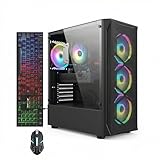
- This Gaming PC Desktop is well-suited for a variety of tasks including gaming, study, business, photo and video editing, streaming, day trading, crypto trading, and so on,ideal for Home, Office, School work
- This high-performance Gaming Computer Desktop is capable of running a wide range of popular PC games for pc gamer, including Fortnite, Call of Duty Warzone, Escape from Tarkov, GTA V, World of Warcraft, LOL, Valorant, Apex Legends, Roblox, Overwatch, CSGO, Battlefield V, Minecraft, Elden Ring, Rocket League, The Division 2, and Hogwarts Legacy with 60+ FPS
- PC Gaming System: This gaming computer desktop is loaded with Intel Core i7 up to 3.9GHz | 16GB Memory | 512GB Solid State Drive | Genuine Windows 11 Home 64-bit
- Gaming Desktop Connectivity: This gaming pc comes with RGB Fan x 4 | 1x RJ-45 | Wi-Fi 6 | Bluetooth 5.0 | Radeon RX 580 8G | HDMI | DisplayPort
- Gaming Computer Special Feature: This gaming pc equips with RGB Gaming Mouse & Keyboard |1 Year parts & labor | Free lifetime tech support,ARGB lighting that brings your gaming setup to life, with easy plug-and-play setup that gets you started in minutes. Built for long-lasting performance, it holds up well over time, while secure packaging ensures it arrives in perfect condition. Backed by reliable customer support for quick issue resolution
Host-and-play versus a dedicated server
Choose the connection model based on how the group plays. Host-and-play is the quickest route for a short session; the world is tied to that host session. A dedicated server is intended to keep the world available without the normal host, but it requires installation, configuration and ongoing maintenance.
| Axis | Host-and-play | Dedicated server |
|---|---|---|
| Host availability | The world is tied to the host session. | Designed to remain available without the normal host. |
| Setup effort | Lowest: use the in-game flow and Steam networking. | Higher: install the server tool and maintain its settings. |
| Port configuration | Steam’s official announcement says port forwarding is not required for this path. | A configured, open port is required for direct connections. |
| Cross-play scope | Determined by the current platform compatibility rules. | The -allowonlyplatform option can restrict direct-connection platforms. |
| Mods | Clients still need compatible mods and versions. | The server and all clients need matching mods and versions. |
A dedicated server does not remove the platform rules or mod requirements. It changes who keeps the world available and how players reach it. If the group only plays when one person is already online, host-and-play avoids the extra server process, port and maintenance work.
Setting up a Core Keeper dedicated server
Install the server tool
The dedicated-server tool is available through Steam’s Tools menu. Install the package on a machine that can remain online whenever players need access. The dedicated-server announcement introduced this option specifically so the usual world host does not have to be in the game.
Configure the key arguments
Use the arguments supported by the server package you installed. Server documentation can lag behind a game update, so verify the exact syntax in the package’s current documentation before deploying it.
| Argument | Purpose | Important behavior |
|---|---|---|
-port |
Binds the direct-connection port. | A configured port enables direct connections and must be open for incoming traffic. |
-ip |
Selects the local network interface. | If unset, the documented default is 0.0.0.0. |
-password |
Sets the password for IP connections. | Give players the exact password; do not confuse it with a platform invitation. |
-maxplayers |
Sets the player cap. | If omitted, the documented default is eight players. |
-allowonlyplatform |
Restricts direct connections to a platform. | The documented values include Steam, Epic, Microsoft and GOG. |
Open and test the connection
- Choose a port and set it with
-port. - Allow that port through the server machine’s firewall.
- Forward the same port on the router to the server machine if players connect from outside the local network.
- Set
-iponly when the server must bind to a particular interface; otherwise the documented default is0.0.0.0. - Set
-password,-maxplayersand-allowonlyplatformto match the group’s needs. - Start the server and test from a client using the configured address and port.
A timeout on a dedicated server usually warrants checking the server process, address, firewall and port forwarding in that order. A version mismatch or mod error still requires matching game and mod versions; opening a port cannot correct either.
Keep a written record of the selected port, IP binding, password policy, player limit and platform restriction. When troubleshooting, change one argument at a time and restart the server after each change. This prevents a new setting from hiding the original cause and gives you precise information to include in a support request.
Best Value

- This Gaming PC Desktop is well-suited for a variety of tasks including gaming, study, business, photo and video editing, streaming, day trading, crypto trading, and so on,ideal for Home, Office, School work
- This high-performance Gaming Computer Desktop is capable of running a wide range of popular PC games for pc gamer, including Fortnite, Call of Duty Warzone, Escape from Tarkov, GTA V, World of Warcraft, LOL, Valorant, Apex Legends, Roblox, Overwatch, CSGO, Battlefield V, Minecraft, Elden Ring, Rocket League, The Division 2, and Hogwarts Legacy with 60+ FPS
- PC Gaming System: This gaming computer desktop is loaded with Intel Core i7 up to 3.9GHz | 16GB Memory | 512GB Solid State Drive | Genuine Windows 11 Home 64-bit
- Gaming Desktop Connectivity: This gaming pc comes with RGB Fan x 6 | 1x RJ-45 | Wi-Fi 6 | Bluetooth 5.0 | GeForce RTX 3050 6G | HDMI | DisplayPort
- Gaming Computer Special Feature: This gaming pc equips with RGB Gaming Mouse & Keyboard |1 Year parts & labor | Free lifetime tech support,ARGB lighting that brings your gaming setup to life, with easy plug-and-play setup that gets you started in minutes. Built for long-lasting performance, it holds up well over time, while secure packaging ensures it arrives in perfect condition. Backed by reliable customer support for quick issue resolution
Common mistakes that waste time
- Opening ports for a Steam lobby: Steam host-and-play does not require port forwarding according to the official announcement.
- Ignoring storefront compatibility: Steam, Epic and GOG PC play is supported, but PC-to-console play is not.
- Updating only the host: One old client can trigger a version mismatch or prevent a lobby from appearing.
- Keeping an old lobby open: Restart the game and create a fresh session after patching.
- Mixing mod versions: Every client and the server need the same mod set and versions.
- Assuming a dedicated server behaves like host-and-play: Direct connections need a configured and reachable port.
- Changing several variables at once: Test an unmodded, same-platform session first so each failure has a clear cause.
- Testing only one player: A single successful connection does not prove that every platform, mod set or account can join. Add players one at a time after the basic path works.
- Using an unverified server argument: Confirm the syntax and supported values in the server package you actually installed.
- Confusing a password with an invitation: A dedicated server’s
-passwordprotects IP connections; it does not replace the address, port or platform requirements.
What to include when contacting support
If the steps above do not resolve the problem, Steam’s Core Keeper support page directs players to Fireshine Games customer support. Send a reproducible report rather than only saying that multiplayer is broken.
- Exact error text and when it appears.
- Game version and, for a dedicated server, server version.
- Host and client roles.
- Platform and store for every player.
- Whether cross-play is enabled.
- Whether mods are active, with the complete mod list and versions.
- Whether the failure occurs in single-player, normal multiplayer or a dedicated server.
- The update, restart, compatibility, mod and network steps already attempted.
- Relevant logs, especially when mods or a dedicated server are involved.
Reproducing the failure with an unmodded session and recording the result gives support a useful comparison point. Include whether the host can start the world alone, whether another player can see the lobby, and whether the failure changes when the same players use a fresh world. Those observations help distinguish a world-specific symptom from a general connection problem.
Quick decision guide
- “Game cannot be found”: update everyone, restart Steam and Core Keeper, recreate the lobby, then verify supported platforms and cross-play settings.
- “Connection timed out” in a Steam lobby: repeat the clean host-and-play sequence and test without mods; do not begin with port forwarding.
- “Connection timed out” on a dedicated server: verify the running process, address, configured port, firewall and router forwarding.
- “Game version mismatch”: align the base game, server package and complete mod set; test unmodded.
- PC trying to join a console session: stop changing network settings because that combination is not supported.
- World must remain available without the host: install and configure a dedicated server, then document its port, password, player cap and platform restriction.
Frequently Asked Questions
Why can’t my friend join my Core Keeper world?
First update both installations, fully restart the game, and have the host create a new session. Then verify that both players are on supported platforms, that cross-play is enabled for different PC storefronts, and that mods and versions match.
Does Core Keeper support Steam, Epic and GOG cross-play?
Yes. PC players from Steam, Epic and GOG can play together. PC-to-console play is not supported, while cross-generation play within the same compatible console family is supported.
Do I need to forward ports for a Steam-hosted game?
No. The official Steam announcement says in-game player-hosted multiplayer uses Steam networking and no longer requires port forwarding. Port configuration applies to direct dedicated-server connections instead.
What causes “Game version mismatch” in a modded world?
The base game, server package or mod set differs. Every client and the server should have the same mods and versions. Check logs, remove broken or outdated mods, and test an unmodded session.
Recommended Free Tools
How many players can a dedicated server support by default?
The documented default for -maxplayers is eight when the argument is omitted. Set the value explicitly if your group needs a different cap.
What should I send Fireshine support?
Include the exact error, game and server versions, host and client roles, every platform and store, cross-play status, mod names and versions, the mode being tested, relevant logs, and the troubleshooting steps already completed.
The Bottom Line
Update every player and server, restart the session, verify platform limits, and identify whether the connection is Steam host-and-play or a direct dedicated server. Steam lobbies do not need port forwarding; dedicated servers do need a configured, reachable port. Match every mod and version, and contact Fireshine with exact errors and logs if the failure persists.
Quick Recap
Product prices and availability are accurate as of the date/time indicated and are subject to change. Any price and availability information displayed on Amazon at the time of purchase will apply.
What’s actually slowing this PC down?
Pick the symptom - the matching free tool is one click away.




