To connect a Samsung Smart TV to Wi-Fi, open Settings > All Settings > Connection > Network > Open Network Settings, choose Wireless, select your network, and enter its password. Menu names differ across models and software versions, so an older TV may instead show Settings > General > Network. Have your network name (SSID) and password ready before you begin.
Connect your Samsung TV to Wi-Fi
- Press Home on the remote and open Settings.
- On current-style menus, go to All Settings > Connection > Network > Open Network Settings. Some models use Settings > General > Network > Open Network Settings instead. Samsung notes that menu labels can vary by model and software version. Samsung US connection instructions and Samsung India setup guidance show regional menu paths.
- Select Wireless, choose your home network, enter the Wi-Fi password, and follow the on-screen confirmation.
- If your network does not appear in the list, choose Add Network and enter the SSID manually.
Connecting to Wi-Fi and activating every smart feature are separate steps. Samsung’s Latin America guidance says smart features require network access, acceptance of the terms and conditions, and Samsung Account sign-in; follow any account or consent prompts shown on your TV. Samsung Latin America setup guidance
As an Amazon Associate I earn from qualifying purchases.
If your Wi-Fi network is missing
Check the network name and TV location
Confirm that the router is on and that the network name is being broadcast. Move the TV or router to improve signal and reduce obstacles, then check the network list again. If you can, test another device on the same Wi-Fi network to see whether it can connect.
Quick wins for a faster PC:
Scan for outdated or missing drivers - takes under a minuteDriver Scan →Repair Windows errors before they cause bigger problemsFix Now →Fix the driver behind crashes, sound loss and screen glitchesFind Drivers →Check whether the TV supports the router’s band
A missing 5 GHz network can be a model-specific compatibility issue. Samsung identifies the 2018 NU7100/NU710D, NU7200, and NU7300/NU730D families as 2.4 GHz-only; do not assume that limitation applies to other Samsung TVs. If you have one of those models, connect it to a 2.4 GHz network. For another model, verify its supported bands in the manual or support information for the exact model. Samsung US model and connection guidance
#1 Best Overall

- Compatible with IEEE 802.11a/b/g and 802.11n draft 2.0
- Supports ConnectShareTM
- Security (64/128bit WEP, WPA/WPA2)
- Supports '09 & '10 Samsung TVs with SAMSUNG SMART TV, AllShareTM OR InfoLink
- Support '09 & '10 Samsung Blu-ray Disk Players with BD Live
Find where a Wi-Fi connection is failing
Open the TV’s Network Status screen. It can help distinguish a failure between the TV and router from one between the router and the internet. Samsung’s troubleshooting guidance uses this distinction to direct the next check. Samsung network troubleshooting guidance
- TV cannot connect to the router: Check that the router is operating, the selected SSID and password are correct, and the TV has a usable signal. Try another device on the same router to determine whether the issue affects the whole network or only the TV.
- TV connects to the router but not the internet: Check the router’s internet connection or your internet service. The TV may be connected to Wi-Fi even when the router cannot reach the internet.
Run the Smart Hub Connection Test
On supported models, Samsung India lists this path: Settings > All Settings > Support > Device Care > Self Diagnosis > Smart Hub Connection Test. The test checks network connectivity and signal strength. Its availability and menu labels can vary by model. Samsung India diagnostics instructions
Rank #2

- Wireless Display:This wireless display adapter can wirelessly monitor or stream to your TV/projector/monitor. Make your TV a smart TV. Easily share videos, photos, movies to the big screen. (Note: Not applicable to projectors)
- Easy to use: No apps and drivers required. 3 steps: Plug in your connection mirror using Miracast, DLNA and Airplay modes. Recognizes your IP address and automatically matches the local language.
- Versatile: Watch with your family at home - mirror your screen to your TV and share photos, videos, movies wirelessly. Take it with you when you travel and share your phone to your TV anytime. Watch meetings with colleagues - wirelessly mirror your screen to projectors, documents and other content. Watch with students mirroring the screen in class and share content wirelessly.
- Applicable models: When your mobile device is upgraded to the latest version, this dongle can be upgraded to the latest version in time for compatibility. Supports Airplay, Miracast, DLNA protocols, i.e. iOS 9.0+, Macbook series and Android 5.0+ devices.
- Note:Regular update Only our company can do it in time in the market. We will update the firmware regularly from our cloud server to add features and improve compatibility, connect this dongle to your wifi and upgrade it automatically so that this dongle is always compatible with the latest version of iOS/Android/Windows devices.
Reset the TV’s network settings if needed
A network reset clears the TV’s network configuration. After resetting, go through the Wi-Fi setup again and re-enter the password. Use the reset option shown for your TV model; menu paths can differ. Samsung Latin America troubleshooting guidance
What’s actually slowing this PC down?
Pick the symptom - the matching free tool is one click away.
Use Ethernet as an alternative
If you prefer a wired connection, some Samsung TVs support Ethernet through a LAN port on the TV or One Connect Box. Samsung’s Mexico setup guide recommends a Cat 7 shielded twisted-pair (STP) cable for that connection, but this is a regional recommendation—not a requirement for Wi-Fi, and some TV models may not support wired networking. Check your exact model’s manual before buying a cable. Samsung Mexico connection guide
Quick Recap
Best Value

- Wireless 4K Display Adapter enables screen mirroring of photos, videos and documents from compatible devices to TVs, monitors and projectors for home, office and presentations.
- Dual Casting Modes: Direct Mirror and DLNA mode. Direct mode supports fast screen mirroring, DLNA mode works via router for stable extended use.
- Easy Plug & Play Setup: No app or Bluetooth required. Connect the adapter to your display and power it via USB port for quick setup.
- Dual-band 2.4G and 5G WiFi ensures stable screen mirroring for presentations, video and online meetings.
- Note: Some subscription-based video apps may be restricted due to copyright protection. 4K output depends on both source device and display capability.
Rank #4
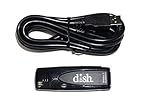
- Allows wireless internet connectivity for Dish Network Models 722, 722k, 622, 222, 222k and 922 Sling Loaded receivers to the Internet without having to run any cables
- place wifi adapter in USB port of your receiver and follow prompts on the screen.
Rank #3

- ✅ [ 2.4GHz only to have WiFi Bridge/Repeater ] This small adapter works with 2.4GHz WiFi to act as a WiFi to LAN bridge (WiFi to Ethernet) or repeater, it can function as WiFi to Wired ( WiFi to Ethernet) at maximum speed of 300Mbps while supporting IEEE 802.11b/g/n. Its small built makes it handy for travelling or easy access in small areas. It requires instatllation, please read carefully the instruction and also check the videos in this listing.
- ✅ [ USB port is for power only ] the adapter's USB port is for power only and does not provide data, so please do not use USB port as data port, also we do not recommend to connect it to TV's USB port since some TVs pick it up as data adapter, unless you go to TV setting and make network connection as Wired. The data port is its Ethernet port and you can use it for LAN or wired data connection.
- ✅ Reeception is up to 50m ( 150ft) in OPEN AREA without obstacles, otherwise there will be signal drop per obstacle such as wall depending on the environement. We recommend to install it close by router, then move it and check the connection strength, it will blink in blue if the connection is weak.
- ✅ Since it can transfer WiFi data to its Ethernet ( LAN ) port therefore there are many applications for this adapter, since some devices do not have internal WiFi adapter (or theirs is faulty) therefore you can use this adapter instead.
- ✅ [ Repeater at 2.4Ghz up to 300Mbps speed ] It can work as WiFi Extender/Repeater as well at 2.4Ghz up to 300Mbps. Please note after installation there is no access to its configuration unless resetting it, after reset it goes back to factory setting and it must be reinstalled and configured as per instruction provided along with it, or you can follow the videos provided in this listing.
Product prices and availability are accurate as of the date/time indicated and are subject to change. Any price and availability information displayed on Amazon at the time of purchase will apply.




