A pulsing white light usually means a Chromecast is disconnected from Wi-Fi or still needs setup—but the meaning depends on the device. First identify whether you have a Chromecast, Chromecast with Google TV, or the newer Google TV Streamer. Then check power, HDMI and setup before considering a factory reset, which erases the device’s configuration.
What a white light means on each device
Google’s LED guide calls the relevant Chromecast state “pulsing white.” People often describe it as blinking or flashing. On the models listed below, a persistent white pulse generally points to setup or a network connection, not automatically to hardware failure. A white signal on Google TV Streamer has different meanings.

| Device | White-light meaning |
|---|---|
| Chromecast with Google TV (4K or HD) | Pulsing white: disconnected from the network or needs setup. |
| Chromecast (2nd or 3rd generation) or Chromecast Ultra | Pulsing white: disconnected from the network or needs setup. |
| Chromecast (1st generation) | Solid white: connected and ready. Google’s current LED guide does not give the same pulsing-white interpretation for this model. |
| Google TV Streamer 4K | A slow white pulse can mean startup or ready for setup; a slow white blink can mean it is looking for the remote. Do not apply Chromecast LED or reset instructions to it automatically. |
Google’s LED guide lists the signals by device. If you are unsure which model you have, check the device’s shape and packaging before following a reset procedure.
Try these fixes before resetting
Work through the checks in order. A reset will not fix a bad power supply, wrong TV input or HDMI problem, and it is best not to erase settings until simpler causes are ruled out.
#1 Best Overall
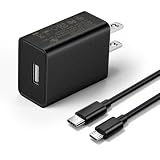
- This replacement wall charger is designed to provide power for Google Chromecast devices, including Chromecast with Google TV, Chromecast Ultra, Chromecast Audio, Chromecast (1st generation), Chromecast (2nd generation) and more
- 2 USB charging cables with different connectors: one has a micro-B plug, and the other has a USB-C plug. Both cables are 6 feet in length
- UL listed - America standard safety passed charge
- This power supply operates at 100 to 240V ac input voltage, 50/60Hz 0.5A; Output: 5V 2A 10W
- Over-load, over-temperate, over-voltage, and short-circuit protection
- Check the TV input. Use the TV remote to select the HDMI input the Chromecast is plugged into. If the TV says “No signal” or stays black, continue with the HDMI checks below.
- Power-cycle the Chromecast. Unplug its USB power cable from the Chromecast or power adapter, wait about one minute, then reconnect it. Unplugging only the HDMI connection does not fully reboot the device. Leave it connected to power while it starts and watch for the LED and TV image to stabilize. See Google’s reboot instructions.
- Use reliable wall power. Use the supplied adapter and cable if possible, plugged into a wall outlet. Reseat the cable at both ends. If you have Chromecast with Google TV and it reports low power, keeps restarting or gets stuck, avoid powering it from the TV’s USB port. Disconnect USB hubs or other devices between the Chromecast and its adapter. Google’s low-power guidance lists 5 V/1.5 A for replacement adapters for Chromecast with Google TV and Google TV Streamer; that specification is not a universal recommendation for every older Chromecast. An unsupported cable can also contribute to reboot loops. See Google’s power guidance.
- Reseat and test HDMI. Unplug the Chromecast from HDMI and power. Turn the TV off completely, turn it back on, then reconnect the Chromecast to power while it is out of HDMI for about 30 seconds. Plug it into HDMI, select that exact input and try another HDMI port if needed.
- Reconnect or complete setup in Google Home. If the TV shows a setup screen or the device is missing from Google Home, connect your phone or tablet to the intended Wi-Fi, open Google Home and start Chromecast setup. If prompted, check that the code in the app matches the one on the TV. Keep the phone near the Chromecast and try a different phone or tablet if discovery fails. For a 5 GHz network, the setup device must support that band. As practical troubleshooting measures, temporarily disable a VPN if local-device discovery is failing and check that the router does not require a browser sign-in. Google says Chromecast does not support captive-portal networks, which are common at hotels, schools, dormitories and some workplaces. See the Wi-Fi troubleshooting guide and setup and 5 GHz guidance.
- If Wi-Fi recently changed, try setup again. A Chromecast configured for an old network may pulse white after that network or password changes. Reboot the router and Chromecast, confirm your phone is on the intended network, then try Google Home setup again. If Home cannot reach the device and the old network is unavailable, a factory reset may be necessary.
- Test another TV if possible. A different HDMI port or television can help distinguish a Chromecast fault from a TV input or HDMI handshake problem. For 4K setups, follow Google’s cable and extension requirements: its guidance specifies HDMI 2.0 for Chromecast with Google TV 4K extension use and HDMI 2.1 for Google TV Streamer 4K. See Google’s black-screen and HDMI guidance.
Use the symptom to choose the next step
White pulse with the setup screen visible
The device likely needs setup or has lost its network. Run Google Home setup, ensure the phone is connected to the intended Wi-Fi, and avoid captive-portal networks. If Home cannot discover or configure the Chromecast after these checks, consider a factory reset.
White pulse with a black screen or “No signal”
A white LED does not confirm that the TV is receiving a picture. Check the selected input, wall power, HDMI seating and another port or TV before resetting. The fault may be in the HDMI connection or power path rather than Wi-Fi.
Rank #2
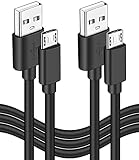
- This 10-foot long USB power or charge cable will allow you to use your tv stick or tablet while charging. You can be up to 10 feet away from the power source while charging your device
- Compatible with Fire TV Stick, TV 4K Media Player (3rd Gen 2017 Edition); Intel Compute Stick, compatible with Roku streaming, compatible with Google Chromecast, Cloud Cam, Azulle-Quantum-Access Mini PC Stick QS-1048-QA and others
- This usb charger is compatible with Kindle Fire Tablet, hd 7,HD 8,HD8 Kids Edition,Echo Dot,E-reader,streaming stick,TV Stick.
- Premium Quality Replacement USB Charging Cord compatible with Amazon Fire 10 Tablet wit micro usb charging port
- Package Include: 2 x 10FT Micro USB Charger Cable
White pulse after a router or password change
The Chromecast may still be trying to use its previous network. Reboot the router and device, then retry setup from a phone on the intended Wi-Fi. If the old network is gone and Google Home cannot connect, reset and set up the device again.
White and orange lights alternating
This can indicate an update rather than the ordinary disconnected/setup state. On older Chromecast models, pulsing orange indicates an update; Chromecast with Google TV uses alternating white and orange pulses during an update. Keep the device powered and do not unplug it while this is happening. If the pattern remains stuck unusually long, use Google’s update or black-screen troubleshooting rather than treating it as a normal white-light issue.
Rank #3

- FOR 2-PRONG DEVICES: Works with most TVs, monitors, printers, and other devices that require a 2-pin power connector
- PACKAGE INCLUDE: 1 x High Quality 5ft AC 2 Prong Power Cord
- COMPATIBILITY: compatible with PS2, PS3, PS4, PS5, Xbox One S, Xbox One X, Xbox Series S, Xbox Series X, Apple TV, many printer, consumer electronics, and power brick models
- FEATURES: High Quality 2 Prong 5ft AC Power Cord, universal power cable is perfect for bedroom, living room office and home use.
Factory-reset only after non-destructive checks
A reboot preserves configuration. A factory reset returns the device to its default settings, clears its data and cannot be undone; you will need to set it up again. Google’s reset instructions distinguish methods by model.
Chromecast with Google TV (4K or HD)
- Keep the Chromecast connected to the TV and powered on.
- Press and hold the button on the back. Keep holding while the LED blinks yellow.
- Release when the LED turns solid white, then wait for the reset and restart.
If the interface works, use Profile icon → All settings → System → About → Factory reset.
Rank #4

- Compatible with Google Chromecast with Google TV
- Brand new high quality USB cable,100% compatibility guaranteed
- Fast Charging And Increasing Current: The maximum 3A fast current, compatible with electronic devices supporting 500mA ~ 3000mA, quickly charge your device.
- Approx Length - 5 ft (1.5 meters).
- [What you get]Premium Nylon Braided Cable(1pack) ; 12-month warranty.
Chromecast (2nd or 3rd generation) or Chromecast Ultra
If your phone is still on the same Wi-Fi network used to set up the Chromecast, you can reset it in Google Home: Google Home → Home → All devices → touch and hold the device tile → Settings → More → Factory reset → Factory reset.
For a hardware reset, keep the Chromecast powered and hold the button on its side. When the LED starts blinking orange, continue holding; release when it turns solid white. The Chromecast will restart and need setup again.
Chromecast (1st generation)
Keep the device powered and hold its button for at least 25 seconds, or until the solid LED flashes red. Release when the LED blinks white and the TV goes blank, then allow the device to restart. Google says support for this generation has ended: it no longer receives software or security updates, and Google does not provide technical support for it.
Google TV Streamer 4K
Do not use the older Chromecast reset sequence. For a hardware reset, hold the rear button for 10–12 seconds until the LED begins blinking yellow; release when it turns solid white. If its menu works, use Profile icon → All settings → System → About → Factory reset.
Independent reader supportYour contribution helps us test, update, and keep practical guides available for everyone.When to suspect a hardware or compatibility problem
If the white pulse continues after setup or reset, test with a known-good power adapter and cable appropriate for the model, then try another HDMI port and TV. Remove hubs, switches and unusual adapters from the connection. Repeated restarts, no image on multiple TVs or persistent failure with reliable power make a device or accessory fault more likely; a reset cannot repair damaged hardware. For a first-generation Chromecast, the end of Google support also limits the value of further software troubleshooting.
Should you replace it?
Replace only after the power, HDMI, setup, network and reset checks fail. Google’s current successor-style product is Google TV Streamer 4K, which adds a full Google TV interface and remote; it is a different device with different LED signals. Google’s U.S. Store listed it at $99.99 on August 18, 2026, with 32 GB storage and built-in Ethernet: Google TV Streamer product page. That price and availability are regional and can change.
Recommended Free Tools
A replacement streamer is a better fit if you want an on-screen interface, remote, more storage or Ethernet. If you only need phone-to-TV casting, or the culprit is a failed adapter, cable, HDMI port or router setting, replacing the whole device may be unnecessary. Google’s Store showed Chromecast with Google TV 4K at $49.99 alongside the Streamer on that date, but treat that older listing as availability-dependent, not a guaranteed current purchase option. Other platforms such as Roku, Fire TV and Apple TV may suit different ecosystems; choosing among them is a separate comparison.
Quick Recap
Product prices and availability are accurate as of the date/time indicated and are subject to change. Any price and availability information displayed on Amazon at the time of purchase will apply.




