Recommended Free Tools
Apple documents controls for ending a Live Listen session on the device running it, and for managing an iPhone session from a nearby Apple device signed in to the same Apple Account. Its reviewed guidance does not describe a bystander setting that remotely blocks Live Listen on someone else’s device. That is a limit of the documented controls, not proof that every technical or managed-device restriction is impossible.
What Live Listen does
Live Listen turns an iPhone or iPad into a microphone and sends sound to compatible connected AirPods, Beats, or Made for iPhone hearing devices. Apple describes it as an accessibility feature that can help someone hear a conversation in a noisy place or a speaker at a distance. The source is the iPhone or iPad microphone; the receiving accessory connects to that device. It is not a feature by which another person’s AirPods independently listen to your phone.
As an Amazon Associate I earn from qualifying purchases.
Apple’s support page puts it this way: “With Live Listen, your iPhone or iPad can act like a microphone that sends sound to your AirPods or Beats.” Apple Support: Use Live Listen with AirPods or Beats
Live Listen is distinct from AirPods Transparency mode and other accessibility features. Apple documents those separately in its AirPods accessibility guide. Supported products and software can change, so check Apple’s current compatibility information rather than assuming every AirPods or hearing-device model works.
#1 Best Overall

- Instant Microphone Block for Total Privacy Plug in this tiny USB-C adapter to physically disable your device’s mic. Perfect for Zoom, Teams, Webex, or any situation where you need guaranteed silence.
- Clean Screen Recordings – No External Noise When recording your screen, this mic blocker eliminates all background and ambient sounds, leaving only crystal-clear internal audio from your phone or laptop – ideal for tutorials, gameplay, presentations, and voiceovers.
- Just Hardware Design – No Apps, Batteries or Software Needed. Plug-and-play, no pairing, no charging, no permissions required – just insert and your microphone is blocked instantly
- Ultra-Portable & Keychain Ready: Weighs under 10g with removable keyring included. Keep it in your pocket or on your keys for on-the-go privacy and clean recordings anywhere.
- This tiny USB-C adapter physically blocks your device’s microphone the moment you plug it in. Perfect for online privacy and noise-free screen recordings mic mute microphone mute
Can someone else block it?
Apple’s reviewed documentation describes ways for the person controlling the source iPhone or iPad—or, in a documented iPhone setup, a nearby paired Apple device on the same Apple Account—to manage a session. It does not describe a public control for a bystander to disable Live Listen remotely on somebody else’s device. These Apple pages also do not establish that every possible technical restriction is impossible.
If your concern is another person’s device, the practical options are to raise it with that person or follow the relevant venue or organization’s procedures. Do not treat your own iPhone’s privacy settings as a way to block another person’s phone.
Rank #2
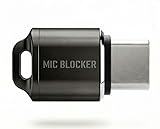
- Prevent Unauthorized Microphone Access : This USB-C adapter blocks access to your device’s built-in microphone at the hardware level by acting as an external audio input, helping prevent apps, malware, or remote processes from capturing sound without your consent.
- True Hardware-Based Microphone Protection: Unlike software settings or permissions, this solution works physically. Once plugged in, your device routes audio input away from the internal microphone—no background access, no system overrides. This microphone protector will allow your virtual assistant works. Does not block Siri and Bixby,
- Plug-and-Play, No Software or Permissions: No apps, no pairing, no battery, and no system access required. Simply insert into the USB-C port and protection starts immediately.
- Silent Screen Recording as an Added Benefit: When recording your screen, external environmental noise is not captured. This makes it ideal for tutorials, presentations, gameplay recording, and professional content creation.
- Compact Design for Daily Privacy Control Ultra-small and lightweight with a detachable keyring. Easy to carry and ready whenever microphone privacy matters—at work, at home, or on the go.
How to stop a Live Listen session you control
AirPods, Beats, or other supported receivers
On iPhone, Apple documents Live Listen controls in Control Center and at Settings > Accessibility > Audio & Visual > Live Listen. Use the Live Listen control in Control Center to stop the active session. See the iPhone Live Listen guide for the current instructions.
Made for iPhone hearing devices
- Open Settings > Accessibility > Hearing Devices.
- Select the connected hearing device.
- Tap End Live Listen.
These steps are Apple’s documented method for using Live Listen with Made for iPhone hearing devices.
Rank #3
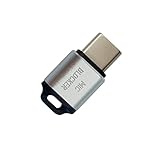
- 🔒 Protect your privacy – Instantly disable your device's built-in or external microphone with just one tap, preventing hackers from eavesdropping or unauthorized software recordings.
- 🎙 Plug and play – USB-C compatible laptops, mobile phones, tablets, and other devices can be plugged and played without drivers, making it easy to control microphone permissions.
- 🔇 Signal Shielding, 100% Secure – Hardware-level switches completely cut off the microphone signal, which is more reliable than software shielding and eliminates any potential listening risks.
- 📱 Thin and portable – Compact and exquisite design, easy to carry around, suitable for business meetings, remote work, and privacy-sensitive scenarios.
- 🛡 Strong compatibility – Supports various systems such as Windows, macOS, Android, etc., suitable for USB-C devices such as mobile phones, computers, tablets, etc.
A nearby Apple Watch or Apple device
Apple says a nearby paired Apple Watch or another nearby Apple device signed in to the same Apple Account can start or stop Live Listen on an iPhone, or return to the session. This is account- and device-based control for the iPhone session, not a bystander blocking feature. Apple describes the Watch controls in its Apple Watch Live Listen guide.
What iPhone microphone privacy controls tell you
To review which apps have microphone permission on your iPhone, open Settings > Privacy & Security > Microphone. Apple says an orange status indicator appears when an app uses the microphone without the camera, and Control Center can show that an app recently used the microphone. These are owner-side tools for reviewing app access and microphone activity; Apple’s guidance does not say they remotely disable Live Listen on someone else’s phone or reveal every possible form of sound capture. Details are in Apple’s iPhone hardware-access guide.
Rank #4
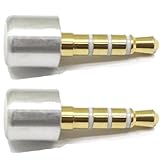
- INSTANT MIC MUTE + CLEAN SCREEN RECORDING – Plug in to instantly disable internal microphone while keeping your screen recording audio crystal clear with zero background noise or external interference.
- TRUE PLUG-AND-PLAY – No software or drivers needed. Simulates an active headset so apps think a mic is connected – 100% hardware solution.
- UNIVERSAL COMPATIBILITY – Works on any device with 3.5mm jack laptops, desktops, conferencing systems – ideal for video tutorials, online courses, meetings, and streaming.
- COMPACT & PREMIUM BUILD – Ultra-portable aluminum body with gold-plated connector and keychain hole. Durable enough for daily carry and travel.
- TOTAL PRIVACY & PROFESSIONAL AUDIO – Prevent accidental voice leaks in meetings and ensure your screen recordings have pristine, high-definition system audio without unwanted ambient
- Check whether the Live Listen control is active on your own device.
- End the session using the relevant Live Listen or hearing-device control.
- Review app microphone permissions and pay attention to the microphone-use indicator.
Privacy and accessibility are both relevant
Live Listen is an accessibility tool designed to help people hear, not inherently evidence of misuse. The useful distinction is who operates the source device: the person using Live Listen can manage that device’s session, while a nearby person does not gain a documented universal block merely by checking their own iPhone settings. Recording, storage, transmission beyond the described feature, and legal consent depend on questions these product-support pages do not answer; rules about listening or recording vary with jurisdiction and context.
Windows Errors? Fix Them Before They Spread
Repair common Windows errors and clear accumulated junk for a smoother, more stable PC - no reinstall needed.Free scan · no reinstallOutdated Drivers Are Slowing You Down
One free scan finds every outdated or missing driver and matches the right update for your exact hardware.Free scan · exact hardware matchQuick Recap
Best Value

- PREVENT UNAUTHORIZED SURVEILLANCE - Stay hacker-safe in this digital age! Stop hackers from spying you and stealing your personal data by attaching this accessory to your gadget's camera. Patented design lets you quickly enable or disable your camera.
- UNIVERSAL COMPATIBILITY - Control your privacy on all your gadgets by using the premium Apeisi. Created to be compatible with almost any devices including your laptop, PC, desktop computer, iPad, iPhone, tablet, and other smartphones.
- HASSLE-FREE APPLICATION - Designed to ensure neat and secure installation in seconds! Equipped with Nano Suction technology that leaves no residue or gunk unlike regular sticker covers that are messy and hard to remove.
- REUSABLE CAMERA COVERS - Includes 12 dot-shaped covers,6 square shaped covers and 8 bar-shaped covers that you can use for various devices. Nano Suction material allows each piece to be reused again and again. Simply rinse with water to regain stickiness and remove dirt.
- PRIVACY SOLUTIONS FOR EVERYONE - Whether you're working from home or using your gadget while on the road,APeiSi offers state-of-the-art cybersecurity-related products that aim to protect your privacy and data so you can be safe from hacking.
Product prices and availability are accurate as of the date/time indicated and are subject to change. Any price and availability information displayed on Amazon at the time of purchase will apply.




