Recommended Free Tools
Chrome’s official help documents built-in PDF viewing, but does not document support for XPS files. Based on that documentation, don’t expect Chrome to open an .xps document directly. Use an XPS-capable viewer, or convert a copy of the document to PDF and open the PDF in Chrome. Simply changing the filename from .xps to .pdf does not convert it.
Why Chrome may not open an XPS document
Google’s Chrome help explains how to open PDFs in the browser, but the cited documentation does not list XPS as a supported document format. That is a documentation-based answer, not a guarantee about every Chrome version or operating system: the reviewed official sources do not explicitly say that no Chrome build can ever handle XPS. In practice, use an XPS viewer or convert the file to PDF rather than relying on Chrome to render the original.
As an Amazon Associate I earn from qualifying purchases.
Microsoft identifies .xps as an XML-based document format. The file’s extension indicates its format; it is not a switch that makes Chrome understand the document.
How to view an XPS file on Windows
Microsoft documents support for XPS and OpenXPS document technologies in Windows 8 and later. However, XPS Viewer is not installed by default starting with Windows 10 version 1803, so a compatible viewer may need to be installed or enabled first. Availability and installation controls can depend on the Windows release and device management policies.
#1 Best Overall

- ➤Smart and Easy Scanning - This document scanner has a one-key automatic correction feature that intelligently fixes skewed images in seconds. It also supports mass automatic scanning, word, pdf, and text formats, and improves your work efficiency with only manual page turning.
- ➤Clear and Bright Images - This document scanner has a 1300W CMOS sensor that captures high-quality images in any light condition. The built-in LED light provides even and intelligent illumination for better results. It can capture and display images up to A4 size. (Note: This product can runs on Windows,Mac OS,Linux.)
- ➤Stepless Dimming - Elevate your lighting experience with our innovative stepless dimming feature. Effortlessly customize your illumination by simply twisting the switch – no preset levels, just uninterrupted, fluid brightness control. Tailor the light to your mood, task, or time of day with this sleek and versatile book camera.
- ➤Live Projection and Video Recording - This document scanner can also shoot videos and display them in real time, making it ideal for distance learning and online teaching. You can use it for making music scores, teaching, meeting, and more.
- ➤Portable and User-Friendly - This document scanner has a high-quality aluminum alloy body that is foldable and easy to carry. It also has a retractable product bracket that allows you to adjust the angle and height of the scanner. You just need to connect it to your computer with a USB cable and install the software to start scanning.(Note: The package contents include a USB flash drive, which contains a downloadable user manual and software installation package.)
- Check whether an XPS-capable viewer is installed. Try opening the document with an installed viewer. If Windows does not offer one, follow Microsoft’s instructions for installing or enabling XPS Viewer for your Windows version.
- Set the app association if needed. In Windows Settings, use the app-association controls to choose an installed XPS-capable app for the
.xpsfile type. Microsoft provides general instructions for Windows 10 and 11; labels and paths can vary by release. - Open the document in that viewer. An association tells Windows which installed app should open the file. It does not add XPS support to Chrome.
Microsoft previously documented a problem where XPS Viewer could fail on some non-English XPS/OXPS documents after a Windows update; its page says the issue was addressed by update KB5017383. That historical issue should not be treated as an unresolved, general current defect.
How to open an XPS document in Chrome
Chrome can open the PDF produced from an XPS document, according to Google’s PDF help. Use a reputable conversion tool to convert a copy, then open the resulting PDF in Chrome. Conversion is a format change, and the reviewed sources do not establish how accurately any particular converter preserves a document’s layout or content.
Rank #2
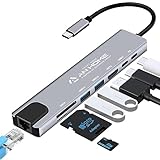
- [USB C HUB 8 IN 1]: AnHome Smart Home USB-C hub adapter is compatible with all devices that include Type-C/USB ports, especially for MacBook Pro and Air. 8-in-1 USB C Hub multiport adapter includes USB 3.0port, USB 2.0 port, USB C port, PD port, 4K HDMI video output, RJ45 100M Ethernet interface and SD / Micro SD card reader slots, compatible with Mac Pro/Air, Chromebook and more Type-C devices. So that you can solve the problem of a single laptop interface anytime and anywhere.
- [4K HDMI OUTPUT]: High resolution USB C to HDMI Adapter supports 4K resolution video at 30Hz and 1080P at 60Hz; you can duplicate or extend your screen for multitasking, viewing spreadsheet data, editing documents, giving presentations, watching movies and playing video games
- [SUPERFAST DATA TRANSFER]: The USB 3.0 port supports up to 5 Gbps transfer speed. The SD/TF slot can access files in a few seconds. The USB-C data port can transfer data to Type-C devices. The RJ45 100M Ethernet port provides more stable and faster Internet access than most wireless connections. (Note: SD/TF card cannot be read at the same time)
- [PD FAST CHARGING, EASY TO CONNECT]: Safe PD charging The USB-C hub uses PD (Power Delivery) protocol and supports fast charging up to 100W. USB 2.0, you can easily connect USB keyboard, mouse, USB driver and USB hard drive to your laptop. Type C Hub also supports OTG function, which allows you to transfer files / pictures / videos directly from USB flash drive to your smartphone.(Note: Fast charging requires a fast charging adapter).
- [EASY TO STORE]: extremely compact and slim, perfect for on-the-go use, commuting, and traveling. Stable connection and transmission: made from high-quality aluminum and ABS material, can withstand high temperatures. Compatible with Mac OS X 10.6 or higher, Windows 7/11 or higher, and Chrome OS, Linux OS.
- Keep the original XPS file. Work from a copy so the original remains available if the converted PDF does not meet your needs.
- Convert the copy to PDF. Choose a converter appropriate to your device and document. The sources cited here do not compare specific converters for privacy, retention, availability, or fidelity.
- Open the resulting PDF in Chrome. Open the PDF file in Chrome or use Chrome’s documented PDF workflow.
For confidential documents, be cautious about uploading them to an online converter. The reviewed sources do not establish the privacy or retention practices of any particular conversion service; check a service’s current terms before using it.
Crashes, No Sound, or Screen Glitches?
Random freezes, missing sound and display glitches usually trace back to one bad driver. Find and replace yours safely.Free scan · under a minuteWindows Errors? Fix Them Before They Spread
Repair common Windows errors and clear accumulated junk for a smoother, more stable PC - no reinstall needed.Free scan · no reinstallShould you use an XPS viewer or convert to PDF?
| Choice | Best fit | What to consider |
|---|---|---|
| Open the XPS in a dedicated viewer | You need to view the original XPS document without converting it. | Microsoft documents XPS/OpenXPS support in Windows 8 and later. On Windows 10 version 1803 and later, XPS Viewer is not installed by default and may need to be installed or enabled. Windows support does not establish availability on other platforms. |
| Convert a copy to PDF, then use Chrome | Your workflow or recipient accepts PDF, or you specifically want to use Chrome. | Chrome’s official help documents PDF viewing. The reviewed sources do not quantify conversion fidelity or establish the privacy practices of a specific converter, so choose a tool with those needs in mind. |
Why renaming the file does not work
Changing document.xps to document.pdf changes only the filename extension; it does not change the document’s format. Microsoft Support puts it plainly: “You can change a file name extension, but that won’t convert the file to another format or change anything else about it except the file name.” Convert the document with a suitable tool if you need a PDF.
Rank #3

- 6-in-1 Multiport Adapter: Integrates a 4K@30Hz HDMI port, two USB-A 3.0 ports (5 Gbps), a USB-C data port, an SD/TF card reader, and a 100W USB-C PD input into a compact adapter.
- 100W High-Power Charging: The USB-C PD charging port provides up to 100W of input power, efficiently powering your host laptop like the MacBook Pro and other USB-C devices.
- 4K HDMI & Card Reader Combo: Connect in Ultra High Definition to an external monitor or TV while simultaneously accessing files from cameras and drones via the dual SD/TF card reader.
- SuperSpeed Data Transfer at 5 Gbps: Transfer large files between USB-C and USB-A devices – including USB flash drives, external hard drives, and more – at blazing-fast USB 3.0 speeds.
- Sleek & Portable Design: The premium aluminum USB-C hub is designed to effectively dissipate heat. Its lightweight profile makes it the ideal travel adapter and laptop accessory for professionals on the go.
Will Microsoft Edge open XPS files?
Microsoft describes Edge as Chromium-based and says it shares underlying technology with Chrome. That does not establish XPS rendering support in either browser. The cited Edge material addresses browser compatibility generally, not XPS support, so an XPS-capable viewer or an actual conversion to PDF is the dependable route supported by the available documentation.
Quick Recap
Rank #4
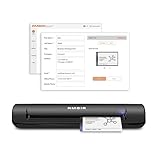
- IMPORT CONTACTS DIRECTLY TO OUTLOOK: Compatibility with Microsoft Outlook makes growing your contact list simple and easy. Scan your business card in just seconds, and the information will be imported directly into your Outlook address book.
- DELETING DUPLICATE CONTACTS: Automatic duplicate detection of Outlook contacts keeps your address book organized and up to date. Never worry about repeating information, and edit contact fields easily if needed.
- AI-POWERED CONTACT RECOGNITION: Enable optional AI processing in AmbirScan to significantly improve accuracy when extracting names, titles, phone numbers, and email addresses from scanned business cards — all processed locally on your PC.
- MULTI-LANGUAGE AI SUPPORT: When AI processing is enabled, AmbirScan's contact extraction supports business cards in English, French, Italian, German, and Spanish — so your global contacts are just a scan away.
- SCAN TO SHARED CONTACT FOLDER: For executive assistants and distributed office environments, scanning contacts to a shared folder allows for easy contact sharing across your organization. Simply set up your shared folder and start scanning.
Product prices and availability are accurate as of the date/time indicated and are subject to change. Any price and availability information displayed on Amazon at the time of purchase will apply.




