The best KVM switch kit is the one that matches your computers’ video outputs, monitor inputs, display count, resolution, refresh rate, and USB needs. A KVM switch shares keyboard and mouse control between computers; some kits also switch multiple displays and USB peripherals. The manufacturer specifications below can help narrow the options, but they are not independent comparative test results.
What to check before choosing a KVM switch kit
Start with the complete signal path and the way you want to work. A kit that fits one monitor and two HDMI computers may not suit a laptop-based dual-monitor desk, even if both products are described as KVM switches.
As an Amazon Associate I earn from qualifying purchases.
- Computers: Count the computers you need to control and identify each device’s available video outputs.
- Displays: Confirm how many monitors the KVM can switch and whether each monitor has a compatible input.
- Video format: Match the computer output, KVM host input, KVM display output, and monitor input. USB-C video requires a computer that supports video output over USB-C, such as DisplayPort Alt Mode; a suitable adapter or dock may be needed in some setups.
- Resolution and refresh rate: Check the stated maximum for the specific KVM and make sure the computers, cables, adapters, and monitors also support the target mode. A model’s maximum specification does not guarantee that every chain of devices will achieve it.
- USB peripherals: Count the ports needed for devices such as a keyboard, mouse, webcam, or storage device, and check the stated USB speed.
- Switching control: Decide whether you prefer a physical button, keyboard hotkey, remote, mouse action, or RS-232 control. Hotkeys can have setup or keyboard-compatibility caveats.
- Display continuity: EDID emulation or management may help preserve monitor information while switching. It does not guarantee that every computer and display combination will avoid re-detection or window movement.
- Box contents: Verify whether the kit includes host and display cables, a remote, power supply, or mounting hardware. Included accessories differ by model.
Manufacturer-listed KVM kits to compare
These examples cover different desk layouts and connection types. Published features and performance figures are manufacturer specifications, not a common independent test. Confirm current product documentation and package contents before buying.
| Model | Setup described by manufacturer | Relevant listed features | Points to verify |
|---|---|---|---|
| ACT AC7922 | Two computers sharing one monitor, keyboard, and mouse over USB-C/HDMI | Up to 4K at 60 Hz; EDID emulation; USB peripheral ports; 100 W USB-C power-delivery pass-through; button, IR, hotkey, mouse, and RS-232 switching. The manufacturer lists cable and mounting items among the included accessories. | Check the precise USB-C and HDMI connections needed by both computers and the monitor, as well as which listed accessories are in the current package. |
| ACT AC7914 | Two computers sharing a dual-HDMI-monitor setup and keyboard/mouse | Up to 4K at 60 Hz; EDID emulation; USB 3.2 Gen 1 peripheral ports; multiple switching methods; supplied cables and accessories. | Confirm that the two display paths match your computers and monitors, and check how the two displays are routed when switching. |
| SIIG CE-KV0C11-S1 | Two DisplayPort computers sharing one display, keyboard, and mouse | Up to 4K at 60 Hz; button, hotkey, and IR switching. | The product page says passive or active DisplayPort-to-HDMI/DVI/VGA adapters are unsupported. It also warns that putting a keyboard in a front USB port may affect some hotkey functionality. Check the manual for your intended setup. |
| IOGEAR GCS62HDPKIT | Two-port cable KVM kit for HDMI and DisplayPort connections, sharing a monitor, USB keyboard, and mouse | The product page describes DynaSync as reading and remembering monitor parameters (EDID). | Match the exact video connections and resolution needs; check the product documentation for the included cables and supported display modes. |
| TESmart HDK202-P23-V2 | Dual-monitor HDMI plus DisplayPort KVM/dock | Designed for a two-display setup; the product page explains requirements for laptop USB-C video. | A laptop’s USB-C video path needs Thunderbolt or DisplayPort Alt Mode support. For another video channel, the manufacturer says a suitable dock or conversion cable may be needed. |
| StarTech P2AD122 | Two-port DisplayPort KVM with USB hub | Manufacturer lists a 4K 60 Hz display path and claims support for Windows, macOS, ChromeOS, and Linux without software. | Treat operating-system compatibility as a manufacturer claim and confirm current documentation for special peripherals and your particular configuration. |
| KanexPro KVM-2X1DUAL8K | Dual-display KVM with multiple switching modes described in surfaced product material | Material describes EDID emulation and lists a remote, receiver, USB and HDMI cables, mounting ears, and power supply. | Verify current model documentation, supported display modes, and package contents before relying on these details. |
How to narrow the choices to a compatible kit
- Write down every connection. For each computer, record the video output or outputs you will use. Do the same for the KVM’s host and display connections and each monitor’s input. Include any dock or adapter in that chain.
- Decide whether you need one display or two. On a dual-monitor model, check that it switches the display paths you intend to use. Do not assume that “dual monitor” means any two video connectors can be mixed freely.
- Set a target display mode. Identify the resolution and refresh rate you want, then check those figures against the KVM’s model-specific listing and the capabilities of every connected device and cable.
- Count USB devices and check switching preferences. Make sure the KVM has enough suitable peripheral ports, then choose among its documented switching methods. If using keyboard hotkeys, read model-specific notes about port placement or keyboard support.
- Check what comes in the box. Compare the listed host cables, display cables, power supply, remote, and mounting parts with what your setup requires.
- Confirm the exact model documentation. Use the manufacturer’s current product page and manual to verify compatibility and setup details, particularly for adapters, USB-C video, special peripherals, and included accessories.
When a dock or adapter may be necessary
Adapters and docks are not universal fixes: they are relevant only when the computer’s available video output does not directly match the KVM input or when a laptop setup needs an additional video path. For USB-C, first establish that the port supports video output. The TESmart HDK202-P23-V2 product page specifically notes Thunderbolt or DisplayPort Alt Mode support for laptop USB-C video, or a suitable dock or conversion cable where another video channel is required. The SIIG CE-KV0C11-S1 page, by contrast, says passive and active DisplayPort-to-HDMI/DVI/VGA adapters are unsupported for that model. Check the documentation for the exact KVM rather than assuming an adapter will work.
#1 Best Overall
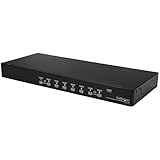
- Package includes 8x 6ft USB VGA KVM cables
- USB Keyboard and Mouse combo/wireless setups supported on 1 USB connection
- OSD security option allows selected KVM ports to be password-protected from unauthorized use
- Auto-scan function automatically switches between connected PCs sequentially
- Cascade configuration expands system capability
Why a single “best” model depends on the desk
A one-monitor USB-C/HDMI arrangement, a two-monitor HDMI desk, and a DisplayPort-only workstation have different compatibility requirements. The useful shortlist is therefore the set of kits that match your complete connection path and target display mode, then provide the USB ports and switching controls you want. Manufacturer listings provide specifications and feature descriptions, but the available information does not establish independent reliability or latency comparisons, current retailer stock, or current prices.
Quick Recap
Best Value

- 【KVM Switch 2 In 1 Out】This KVM switch 1 monitors 2 computers supports sharing a set of mouse and keyboard; simply press the switch button to quickly switch between 2 PCs without having to plug and unplug HDMI and USB cables back and forth, keeping your desktop neat and tidy while increasing your productivity. It also saves you money and reduces the need for duplicate equipment. Note: Each computer and monitor must be equipped with an HDMI port for proper operation. The use of conversion cables or adapters may result in unstable/flickering transmission or failure to transmit images(The device will disconnect intermittently)
- 【Ultra HD 4k】The HDMI KVM switch supports resolutions up to 4K@60Hz, allowing images to be displayed more beautifully and realistically, and colours will be more vivid and dynamic, and backward compatible with 3840*2160@30Hz, 1920*1080P@60Hz, 1920*1080P@30Hz, etc. Note: KVM requires a high-quality HDMI 2.0 standard cable no longer than 3.3 feet in length, and ensure that your computer and monitor support 4K to ensure the transmission of video signals!
- 【Desktop Remote Wired Control】The monitor switch for two computers has two switching modes.1) You can switch directly by clicking the button on the body of the KVM switch.2) You can hide the KVM switch and use the desktop controller to switch between the two computers, which makes your desktop cleaner, saves a lot of space and is more convenient to use. Note: This KVM switch does not support hotkey switching
- 【Mouse Keyboard KVM Switch 】This USB KVM switch has 2 USB 2.0 ports with data transfer speed up to 480Mbps, which can recognise a wired keyboard and mouse or other USB 2.0 devices to move files and photos easily. Different LEDs (green PC1 / blue PC2) clearly show which computer is active. KVM switch is also hot-swappable, allowing you to connect devices without rebooting, ensuring flexibility and portability
- 【Stable Use & After-sales】Our KVM switches are made of high quality materials, lightweight and compact, low power consumption, excellent compatibility, no driver required; plug and play, no external power supply required. Note: For compatibility reasons this small KVM switch is not recommended for use with Mac devices. If you encounter any problems during use, you can send us an email via the order number. Within 24 months, we will replace the switch at no charge
Rank #4

- DEVICE INTERFACE: 1 x VGA /SVGA HDB 15-pin (Female); 2 x USB ports (Keyboard / Mouse); 1 x 3.5mm speaker jack; 1 x 3.5mm microphone jack
- NDAA + TAA COMPLIANT: With our NDAA and TAA compliant network switches, you can plan and install networking solutions that Government customers demand today (U.S. and Canada Only)
- COMPUTER INTERFACE: (Up to 4) 1 x USB 2.0 Type A; 1 x VGA /SVGA HDB 15-pin (Female); 1 x 3.5mm speaker jack; 1 x 3.5mm microphone jack
- CONTROL UP TO 4 COMPUTERS: The 4-Port USB KVM Switch allows you to control up to four computers with one set of console controls
- KVM CABLES INCLUDED: Separate sets (4) of KVM cables are included with the KVM Switch, so users can start controlling four workstations instantly. 2 sets: 1.2m (4 ft.) and 2 sets: 1.8m (6 ft.)
Rank #3

- DEVICE INTERFACE: 1 x VGA /SVGA HDB 15-pin (Female) 2 x USB 2.0 Ports (Keyboard / Mouse) 2 x 3.5mm Microphone/ Speaker acks
- NDAA COMPLIANT: With our NDAA compliant KVM Switches, you can plan and install networking solutions that Government customers demand today (U.S. and Canada Only)
- MANUFACTURER PROTECTION: We stand by the quality of our products.The TK-209K 2-Port USB KVM Switch Kit with Audio is backed and supported with 2 years of TRENDnet Manufacturer Protection.
- RELIABLE TECH SUPPORT: Our team of advisors, support and tech experts are English speaking, and available for all your needs during normal business hours. We take pride in being there for our customers.
- COMPUTER INTERFACE: (Up to 2) 1 x USB 2.0 Type A 1 x VGA /SVGA HDB 15-pin (Female) 2 x 3.5mm Audio acks ;COMPLIANCE: Compliant with Windows, Linux, and Mac OS PLUG PLA : No CD or driver installation required.
Rank #2

- Package includes 16x 6ft USB KVM cables
- USB Keyboard and Mouse combo supported on 1 USB connection
- OSD security option allows selected KVM ports to be password-protected from unauthorized use
- Auto-scan function automatically switches between connected PCs sequentially
- Cascade configuration expands system capability
Product prices and availability are accurate as of the date/time indicated and are subject to change. Any price and availability information displayed on Amazon at the time of purchase will apply.




