For a repeatable score, use the 3DMark demo; to measure a real game session, use CapFrameX; and for direct frame-time and latency telemetry, use Intel PresentMon. They answer different questions, so the best choice depends on whether you want a controlled comparison or a closer look at how your own games run.
Which benchmark tool should you use?
| Tool | Best for | What it provides | Important limitation |
|---|---|---|---|
| 3DMark demo | A repeatable synthetic benchmark and score | Game-like workloads for GPU and CPU performance, hardware monitoring, and selected game-performance estimates. Its catalog includes tests for different APIs and workloads. 3DMark | The demo is not the complete 3DMark suite. A synthetic score cannot represent every game or your exact settings. 3DMark |
| CapFrameX | Capturing and comparing a real gameplay session | FPS, frametime graphs, percentiles, stuttering analysis, recorded sensor data, and run comparisons. The project page lists stable version 1.9.1 and requires .NET 10 Desktop Runtime x64. CapFrameX | Its documentation recommends closing or disabling overlapping FPS and frametime monitoring that may conflict with the capture service. CapFrameX |
| Intel PresentMon | Direct capture and performance telemetry | Frame durations and latencies across Windows graphics applications. The project describes support for DirectX, OpenGL, and Vulkan, plus a per-frame CSV capture app. PresentMon on GitHub | Some OpenGL and Vulkan instrumentation is less complete; GPU execution metrics can be less accurate with Hardware-Accelerated GPU Scheduling enabled. PresentMon documentation |
These tools are available to try without buying a full 3DMark edition: 3DMark offers a demo, PresentMon’s repository includes an MIT license, and CapFrameX provides downloadable Windows releases. The CapFrameX pages cited here do not establish its complete licensing or commercial terms, so a broader claim about its licensing would be unwarranted.
As an Amazon Associate I earn from qualifying purchases.
What does each tool actually tell you?
3DMark: how your PC performs in a controlled workload
Use the 3DMark demo when you want a consistent synthetic workload and a score that can be compared with results from systems using similar hardware. The score is useful for controlled comparison, not as a prediction of performance in every game. Different tests target different APIs and workloads, and any in-game estimate applies only to the selected titles and conditions listed by the tool. See 3DMark’s benchmark information.
A low result is a reason to investigate, not proof that a particular component is faulty. 3DMark identifies cooling, configuration, or component issues as possible explanations and recommends comparing results with similar systems. Check whether the test completed normally and whether the comparison system is genuinely similar before drawing conclusions. 3DMark
#1 Best Overall

- 【INTEGRATED SPEAKERS】Whether you're at work or in the midst of an intense gaming session, our built-in speakers provide rich and seamless audio, all while keeping your desk clutter-free.
- 【EASY ON THE EYES】 Protect your eyes and enhance your comfort with Blue-Light Shift technology. This feature reduces harmful blue light emissions from your screen, helping to alleviate eye strain during long hours of use and promoting healthier viewing habits.
- 【WIDEN YOUR PERSPECTIVE】Our sleek minimal bezel design ensures undivided attention. The nearly bezel-free display seamlessly connects in a dual monitor arrangement, delivering an unobstructed view that lets you focus on more at once, completely distraction-free.
CapFrameX: what happens in a particular game scene
Choose CapFrameX when you need to inspect performance in the games and settings you actually use. Its capture and analysis features help reveal uneven frame delivery that a single average FPS number can conceal: frametime graphs, percentile values, and stuttering analysis add context to the overall rate. Its project describes the goal as “Capture and analyze game performance on Windows.” CapFrameX
Install the required .NET 10 Desktop Runtime x64 if it is not already present. Before capturing, follow CapFrameX’s guidance about other FPS or frametime monitors: overlapping monitoring tools can conflict with its capture service. CapFrameX documentation and downloads
Rank #2

- MSI's 23.8-inch Full HD IPS gaming monitor (1920×1080) delivers a 1500:1 contrast ratio with wide 178°/178° viewing angles — producing deeper blacks, brighter highlights, and accurate colors from virtually any position for gaming and productivity.
- TÜV Rheinland certified Flicker Free and Low Blue Light — eliminating the ~200Hz screen flicker common on standard monitors and reducing harmful blue light exposure to minimize eye strain during extended gaming or work sessions.
- 144Hz high refresh rate delivers ultra-smooth motion and sharper tracking versus standard 60Hz or 75Hz monitors — keeping every frame fluid and responsive for fast-paced FPS, racing, and action games without screen tearing or stuttering.
- MSI's built-in Eye-Q Check provides a vision assessment tool to help optimize display settings for healthier long-term viewing — designed for professionals and students spending extended hours in front of a Full HD IPS screen.
- Tilt-adjustable stand (-5°~20°) for comfortable viewing at any desk setup, with VESA 100×100mm wall mount compatibility for monitor arms, brackets, and multi-monitor arrangements — reducing neck strain during long gaming or work sessions.
PresentMon: frame-level telemetry and capture options
PresentMon is suited to users who want direct performance telemetry and are comfortable choosing among its application components, including a GUI, service, or console-oriented workflow. It can capture per-frame data to CSV, including frame durations and latency measures. That depth is useful when you want to analyze a run beyond its headline FPS. PresentMon on GitHub
Quick wins for a faster PC:
Repair Windows errors before they cause bigger problemsFix Now →Fix the driver behind crashes, sound loss and screen glitchesFind Drivers →Interpret its metrics in light of the documented instrumentation limits: OpenGL and Vulkan coverage may be less complete, and Hardware-Accelerated GPU Scheduling can reduce the accuracy of GPU execution metrics. These caveats do not mean every capture is unusable; they mean those figures should not be treated as equally complete under every API and system configuration. PresentMon documentation
Rank #3

- 【EASY ON THE EYES】 Protect your eyes and enhance your comfort with Blue-Light Shift technology. This feature reduces harmful blue light emissions from your screen, helping to alleviate eye strain during long hours of use and promoting healthier viewing habits.
- 【ENHANCED GAMING EXPERIENCE】 Elevate your gaming prowess with a 2K QHD VA panel featuring lightning-fast 1ms BR (Blur Reduction) and an ultra-smooth 210Hz refresh rate. Enjoy unparalleled responsiveness and seamless visuals reinventing what you perceive as a great gaming experience.
- 【INTEGRATED SPEAKERS】Whether you're at work or in the midst of an intense gaming session, our built-in speakers provide rich and seamless audio, all while keeping your desk clutter-free.
- 【SEAMLESS CONNECTIVITY & PERFORMANCE】 Seamlessly link your devices to our two HDMI ports (up to 144hz), one DisplayPort and one USB Type C providing up to 210Hz refresh rate, ensuring not only versatile connectivity but also a buttery-smooth visual experience for both work and play. Built-in Speakers and Audio Out Jack also provides diverse audio options.
- 【TRUE TO LIFE COLORS】Experience vibrant and true-to-life colors with 115% sRGB color gamut performance, ensuring accurate and stunning visuals for all your creative and multimedia tasks.
How to benchmark your PC so the results are useful
- Choose the question first. Use 3DMark for a repeatable synthetic score. Use CapFrameX or PresentMon when you want to understand a specific game session.
- Define one scenario. For a game capture, note the game, scene or route, resolution, graphics settings, and any relevant background workload. For a synthetic comparison, record the test used.
- Keep conditions consistent. When checking whether a driver or settings change mattered, repeat the same scene, resolution, graphics settings, driver conditions, and background workload as closely as possible. This makes the before-and-after comparison more meaningful.
- Run more than once and record the details. Keep each result with the scenario and configuration used. Repeated runs help you judge whether a difference is consistent rather than relying on a single result.
- Look beyond average FPS. In CapFrameX, inspect frametime graphs, percentiles, and stuttering analysis. In PresentMon, review frame durations and latency alongside the broader run context.
- Compare like with like. For 3DMark, compare with systems using similar hardware. For game captures, compare runs from the same scenario and settings rather than treating results from different scenes as directly equivalent.
How to choose between a synthetic score and a game capture
A benchmark score and a real-game capture are complementary, not interchangeable. The synthetic run helps with a controlled comparison against similar hardware; a capture in your own game shows performance in a particular scene with your settings. If you are diagnosing why one game feels uneven, a game capture is the more relevant starting point. If you want a repeatable general comparison, begin with 3DMark’s demo.
For a straightforward workflow, start with one tool that matches your question rather than running all three by default. Add another only if it answers something the first result cannot: a synthetic score cannot explain every in-game hitch, and a gameplay capture does not provide the same standardized workload as a benchmark test.
Quick Recap
Best Value
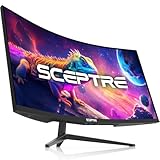
- WQHD Resolution: At 1 million pixels, Wide Quad HD Resolution (3440 x 1440) display resolution provides you with the next level of refined, and detailed picture over the current 1080P standard.
- 1ms MPRT: Colors fade and illuminate instantly with a 1ms response time, eliminating ghosting and piecing together precise imagery during action-packed scenes and gaming.
- Eye Care
- PBP & PIP - Multitasking Without limites
- Luminous Backcover Lights: A colorful LED light illuminates the back cover of the monitor, delivering a uniquely modern design.
Rank #4

- 【SEAMLESS CONNECTIVITY & PERFORMANCE】 Seamlessly link your devices to our two HDMI ports and two DisplayPort providing up to 240Hz refresh rate, ensuring not only versatile connectivity but also a buttery-smooth visual experience for both work and play. Built-in Speakers and Audio Out Jack also provides diverse audio options.
- 【INTEGRATED SPEAKERS】Whether you're at work or in the midst of an intense gaming session, our built-in speakers provide rich and seamless audio, all while keeping your desk clutter-free.
- 【EASY ON THE EYES】 Protect your eyes and enhance your comfort with Blue-Light Shift technology. This feature reduces harmful blue light emissions from your screen, helping to alleviate eye strain during long hours of use and promoting healthier viewing habits.
- 【TRUE TO LIFE COLORS】Experience vibrant and true-to-life colors with a 100% sRGB color gamut performance, ensuring accurate and stunning visuals for all your creative and multimedia tasks.
- 【ENHANCED GAMING EXPERIENCE】 Elevate your gaming prowess with a lightning-fast 1ms response time with blur reduction and an ultra-smooth 240Hz refresh rate. Enjoy unparalleled responsiveness and seamless visuals reinventing what you perceive as a great gaming experience.
Product prices and availability are accurate as of the date/time indicated and are subject to change. Any price and availability information displayed on Amazon at the time of purchase will apply.
Recommended Free Tools




