Android 14 is more aggressive about stopping apps that try to run in the background without the right user-visible reason. If an app you rely on starts delaying notifications, stops syncing, or “goes quiet” after a while, Android 14’s background restrictions are often the cause.
This guide breaks down what changed, how to confirm the behavior, and the most reliable fixes—whether you’re troubleshooting as a user or shipping an app that must keep working.
As an Amazon Associate I earn from qualifying purchases.
What Android 14 changes about background processing
Stricter background limits and the goal: battery + stability
Android has been tightening background execution for multiple releases, and Android 14 continues that trend. The system tries to prevent apps from burning CPU and network in the background when the work isn’t necessary or when it wasn’t triggered in a way the platform considers safe.
Practically, this means apps that previously “seemed fine” with long-running background timers, frequent wake-ups, or loosely managed services may get stopped sooner.
#1 Best Overall

- Please note, this device does not support E-SIM; This 4G model is compatible with all GSM networks worldwide outside of the U.S. In the US, ONLY compatible with T-Mobile and their MVNO's (Metro and Standup). It will NOT work with other CDMA carriers, and it is also not compatible with their MVNO (Visible, Xfinity Mobile, US Mobile, Cricket Wireless, etc).
- Compatibility with certain third-party devices and accessibility accessories, including some hearing aids, may vary depending on manufacturer support, Bluetooth protocols, software compatibility, and regional firmware limitations. For additional hearing aid compatibility information, please refer to Samsung’s official support documentation.
- Camera: 50 MP, f/1.8, (wide), 1/2.76", 0.64µm, AF | 50 MP, f/1.8, (wide), 1/2.76", 0.64µm, AF | 2 MP, f/2.4, (macro). Battery: 5000 mAh, non-removable | A power adapter is NOT included.
What actually gets stopped (and what doesn’t)
Android 14 doesn’t “kill everything.” It targets background execution patterns that the OS can’t justify. Commonly affected areas include:
- Deferrable background work started ad-hoc with timers
- Background network calls that happen without a valid job/scheduled mechanism
- Background services that don’t follow the foreground service rules
- Apps that rely on constant wake locks without proper lifecycle handling
What tends to survive: user-visible foreground work, scheduled jobs (when configured correctly), and event-driven updates (like push).
Symptoms you’ll see when apps are being restricted
Examples: delayed sync, missing notifications, music/VoIP drops
Android 14 restrictions show up as reliability problems. Typical symptoms include:
- Messages arrive late (minutes or hours later)
- Notifications don’t appear until you open the app
- Location updates stop unless the app is actively in use
- Call or messaging apps drop background behavior
- Music playback may keep going, but related background tasks stop
How to confirm it’s Android 14, not the app
Before changing settings, confirm the pattern is consistent with OS restrictions:
- Restart the phone and wait 30–60 minutes without opening the app.
- Note whether the behavior changes compared to when the app is already opened.
- Check whether the app’s battery usage shows background activity spikes before it goes quiet.
- If the app is tied to notifications or syncing, verify notification permission and channel status.
If it only works while the app is open, that’s a strong sign the background execution path isn’t OS-compliant.
User fixes on Android 14 (when your app stops doing work)
Manufacturer skins vary (Samsung, Xiaomi, OnePlus, Pixel, etc.), but Android’s core paths are similar. Use the names exactly as they appear on your phone.
Step 1: Check Battery usage and set the app to Unrestricted
Many devices offer an “Unrestricted” mode that tells the OS not to aggressively limit that app.
Recommended Free Tools
- Open Settings.
- Go to Battery (or Battery & device care).
- Open Battery usage (or App battery usage).
- Find the affected app.
- Set it to Unrestricted or Not restricted.
If you don’t see Unrestricted, use the next steps to disable battery optimization.
Step 2: Turn off battery optimization for that app
Battery optimization is one of the most common reasons Android 14 stops background work.
- Open Settings.
- Tap Apps.
- Select the app.
- Tap Battery (or Battery usage).
- Choose Unrestricted, or Don’t optimize, or Allow background activity.
On some phones, the path is: Settings > Apps > (app name) > Special access > Battery optimization. If it lists the app as “Optimized,” switch it to “Not optimized” / “Don’t optimize.”
Rank #2

- 6.7" FHD+ 120Hz display* and Dolby Atmos**. Upgrade your entertainment with an incredibly sharp, fluid display backed by multidimensional stereo sound.
- 50MP camera system with OIS. Capture sharper low-light photos with an unshakable camera system featuring Optical Image Stabilization.*****
- Unbelievable battery life and fast recharging. Work and play nonstop with a long-lasting 5000mAh battery, then fuel up with 30W TurboPower charging.***
- Superfast 5G performance. Make the most of 5G speed with the MediaTek Dimensity 7020, an octa-core processor with frequencies up to 2.2GHz.******
- Tons of built-in ultrafast storage. Enjoy plenty of room for photos, movies, songs, and apps—and add up to 1TB with a microSD card.
Step 3: Verify background data and network restrictions
Even if the app is allowed to run, network restrictions can stop it from syncing.
- Open Settings.
- Go to Network & internet (or Connections).
- Open Data usage.
- Check the app’s Background data setting.
- On Wi‑Fi, also check Wi‑Fi usage and whether “Restrict background data” is enabled for that app.
If you use a data saver mode, temporarily test with Data saver off to confirm it isn’t blocking sync.
Step 4: Confirm the app has notification permission (and channels)
Android 14 may still allow background execution, but your user experience depends on notifications. If notifications are disabled, the app can be running and you’ll still “feel” like it stopped.
- Open Settings.
- Go to Apps > (app name) > Notifications.
- Ensure notifications are Allowed.
- Open Notification categories or App notifications.
- Verify key channels are enabled (for chat apps, channels like Messages/Alerts are common).
Also check “Do Not Disturb” schedules and Focus modes. They can mimic background failure because you’ll see nothing until you manually check.
Step 5: Remove aggressive OEM battery killers and system-wide task killers
Some phones include “cleaning,” “battery saver,” or “RAM booster” features that actively terminate apps. Android 14’s restrictions make this worse because the OS is already limiting background behavior.
Quick wins for a faster PC:
Repair Windows errors before they cause bigger problemsFix Now →Scan for outdated or missing drivers - takes under a minuteDriver Scan →Clear out junk files and repair common Windows errorsFree Scan →- Check for app management tools like Clean Master, “Game booster” schedulers, or aggressive RAM cleaners.
- Disable their automatic killing/auto-clean features for test.
- Turn off Battery saver temporarily and verify the app behavior.
If your phone has a mode labeled something like “Ultra power saving,” test with it off. Those modes commonly clamp background activity for most apps.
Step 6: Check startup and app permissions (varies by manufacturer)
Some vendors add explicit “Allow auto-start” or “Startup” toggles.
- Open Settings > Apps.
- Select the app.
- Look for Startup, Auto-start, or Run in background.
- Enable the app’s auto-start / background run permission.
For location-based apps, also confirm permissions: Location permission and whether “Allow only while using” is too restrictive for your use case.
Developer guidance: building for Android 14 without relying on “always running”
If you ship an app, the fix isn’t “tell users to disable battery optimization.” The durable solution is to use the platform’s supported mechanisms for background work and user-visible long-running tasks.
PC Slower Than It Used to Be?
A free scan shows the junk files, broken settings and background clutter dragging Windows down - then fixes them in one click.Free scan · Windows 10 & 11Crashes, No Sound, or Screen Glitches?
Random freezes, missing sound and display glitches usually trace back to one bad driver. Find and replace yours safely.Free scan · under a minuteUse WorkManager for deferrable background work
For sync, uploads, periodic cleanup, and other work that doesn’t need to happen instantly, WorkManager is the standard choice.
Rank #3
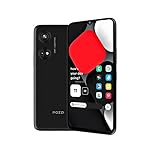
- Seamless Connectivity with Dual SIM Flexibility** – This 4G unlocked smartphone is designed to work flawlessly with T-Mobile LTE and Wi-Fi Calling networks. It's also compatible with popular virtual carriers like Metro by T-Mobile, Mint Mobile, Ultra Mobile, Tello, Boost Mobile, and more. For detailed compatibility with your carrier's Bring Your Own Device program, it's best to consult with them directly. Please note, this device is not compatible with AT&T, Cricket, or CDMA networks such as Verizon and Sprint. Nano SIM cards are sold separately.
- Experience Luxury on a Bigger Screen** – The expansive 6.79” HD+ display delivers stunning visuals with deep contrasts and vibrant colors, transforming every video, game, or photo into a visually compelling experience. Perfect for those who demand more from their screens.
- Massive Storage for All Your Essentials** – With a generous 128GB of internal storage and support for an additional 512GB via MicroSD (sold separately), you have more than enough space to store everything that matters – from photos and videos to documents and apps. Say goodbye to the frustration of running out of storage.
- Blazing Fast Performance for All Your Needs** – Powered by 6GB of RAM and a powerful Octa-Core processor, experience seamless multitasking and lightning-fast responsiveness. Enjoy gaming, streaming, and browsing with zero lag and crystal-clear calls wherever you go.
- Unleash Your Inner Photographer** – The 50MP AI camera system is engineered to capture life's most beautiful moments with breathtaking clarity and detail. From perfect selfies to stunning landscapes, every photo will look like a work of art.
- It respects OS constraints (battery, network, doze).
- It schedules work with system-managed timing instead of fragile timers.
- It’s designed for reliability when apps are backgrounded.
In practice: schedule background tasks with constraints like “requires charging” or “requires unmetered network,” and use backoff policies for retries.
Use foreground services correctly (types + user-visible behavior)
If your app must run right now—navigation, ongoing call, active media playback, data capture—use a foreground service with a visible notification.
Key rule for modern Android: make the foreground service match the right foreground service type and show a user-visible notification that reflects the ongoing work.
Do these 3 things before closing this tab:
1Repair Windows errors before they cause bigger problems2Fix the driver behind crashes, sound loss and screen glitches3Clear out junk files and repair common Windows errorsFor example, in your manifest you’ll typically specify the correct service type (names vary by API level), such as location-related or media-related types. Android 14 users will still see the notification, and the OS is more willing to keep the service alive when it’s truly foreground and properly declared.
Prefer push (FCM) or scheduled jobs over long-lived timers
Long-running background loops (e.g., while(true) + sleep) are exactly the kind of pattern Android tries to stop. Instead:
- Use push notifications (e.g., Firebase Cloud Messaging / FCM) for event delivery.
- Use scheduled jobs via WorkManager for periodic or retry work.
- Use notification taps to trigger app logic on user interaction.
Handle alarms correctly (exact vs inexact) and don’t fight the system
Exact alarms are tightly controlled. If you rely on frequent exact timing (like every 10 minutes), you’ll hit restrictions and reliability problems.
For most background needs, prefer inexact scheduling and let the OS batch work. If you truly need exact timing (e.g., time-critical reminders), use the platform-supported approach and consider requesting the appropriate capability while explaining the user value.
Free tools Windows power users keep installed
One-click scans. No signup required.
Common mistakes that cause Android 14 to stop your app’s background work
Busy loops, long timers, and leaked wake locks
CPU-heavy loops, repeating timers, and wake locks that aren’t released reliably often lead to early termination. The OS can detect abnormal behavior and will clamp execution further.
Audit your code paths: ensure wake locks are acquired briefly, released in all lifecycle paths, and only used when necessary.
Foreground service started from background without proper rules
Starting a foreground service from a background context in a way the platform considers invalid is a classic failure mode. Even when it doesn’t crash, the service can be stopped quickly.
Rank #4

- Please note, this device does not support E-SIM; This 4G model is compatible with all GSM networks worldwide outside of the U.S. In the US, ONLY compatible with T-Mobile and their MVNO's (Metro and Standup). It will NOT work with Verizon, Spectrum, AT&T, Total Wireless, other CDMA carriers, it is also not compatible with their MVNO (Visible, Xfinity Mobile, US Mobile, Cricket Wireless, etc).
- Compatibility with certain third-party devices and accessibility accessories, including some hearing aids, may vary depending on manufacturer support, Bluetooth protocols, software compatibility, and regional firmware limitations. For additional hearing aid compatibility information, please refer to Samsung’s official support documentation.
- 4G LTE Bands: B1/B3/B5/B7/B8/B20/B28/B38/B40/B41
- Display: Super AMOLED, 90Hz, 800 nits (HBM) | 6.7 inches, 110.2 cm2 (~86.0% screen-to-body ratio) | 1080 x 2340 pixels, 19.5:9 ratio (~385 ppi density)
- Camera: 50 MP, f/1.8, (wide), 1/2.76", 0.64µm, AF | 50 MP, f/1.8, (wide), 1/2.76", 0.64µm, AF | 2 MP, f/2.4, (macro)
Make sure you start foreground services from allowed contexts, use correct service types, and keep the user-visible notification active.
The Tool Desk
Outbyte PC Repair FREEClear out junk files and repair common Windows errorsFree Scan →Outbyte Driver Updater FREEFix the driver behind crashes, sound loss and screen glitchesFind Drivers →Assuming notification equals ongoing work continuation
A notification is not a background execution guarantee. Users can dismiss it, notification channels can be muted, and the OS still decides what background work can run.
Design so that the notification is for user awareness and user actions, while background execution uses WorkManager or foreground services appropriately.
Independent reader supportYour contribution helps us test, update, and keep practical guides available for everyone.Troubleshooting: what to try when the main fix doesn’t work
Battery optimization settings don’t stick
Sometimes the phone silently re-applies defaults after updates or device restarts. If “Unrestricted” keeps reverting:
- After setting it, reboot once and re-check the battery setting.
- Update the app and the OS (Android 14 patch level), because battery policy enforcement can change.
- Check for third-party “battery” or “cleaner” apps that reconfigure restrictions.
WorkManager runs but results don’t show
This usually means the background task completes, but the UI update or notification isn’t delivered as expected.
What’s actually slowing this PC down?
Pick the symptom - the matching free tool is one click away.
- Verify notification permission and channel settings.
- Check whether the app is saving results locally (database) but not refreshing after sync.
- Ensure your worker correctly handles failure states and retries with constraints.
Foreground service crashes or is killed immediately
If a foreground service appears briefly then disappears, you’re likely hitting one of:
- Wrong service type or missing required notification setup
- Starting it from an invalid context
- Notification channel blocked or misconfigured
Test with foreground service logging enabled and confirm the service type and notification behavior match what Android expects.
OEM battery modes override everything
Samsung modes, Xiaomi power saving, OnePlus battery controls, and similar features can override standard Android settings. If the app is Unrestricted but still fails, turn off battery saver and any performance/RAM management modes during testing.
Alternatives and design patterns that survive Android 14 limits
On-device sync: opportunistic + backoff
Instead of trying to sync constantly, sync opportunistically when constraints are favorable (Wi‑Fi, charging, good network). Use exponential backoff for retries and cap retry frequency.
Event-driven updates: push + notification triggers
For user-facing events (messages, alerts, status changes), push delivery is usually more reliable than polling. Use the push to wake your app only when needed and rely on notifications for user awareness.
Best Value

- 6.6" HD+ 1612x 720, 269ppi, LCD, 120Hz refresh rate, 21.5:9 Aspect Ratio, 5000mAh Battery, Android 14
- 128GB, 4GB RAM, microSDXC (dedicated slot), Qualcomm SM4375 Snapdragon 4 Gen 1 (6nm), Octa-core, Adreno 619 GPU
- Rear Camera: 50MP, f/1.8 (wide) + 2MP, f/2.4 (macro), Front Camera: 8MP, f/2.0 (wide), Fingerprint (side-mounted)
- 5G: n2/5/7/12/14/25/26/29/30/41/48/66/70/71/77/78, 4G: LTE 1/2/3/4/5/7/8/12/13/14/17/18/20/25/26/28/29/30/38/39/40/41/48/66/71, 3G: WCDMA band 1/2/4/5/8, 2G: GSM band 2/3/5/8 - Single SIM
- Verizon Unlocked Model. Will work with Most GSM AND CDMA SIM cards in the U.S. and the world including AT&T, T-Mobile, Verizon, Straight Talk, Global GSM Carriers. Device may Require activation over WIFI before using.
User-initiated refresh flows
If background execution is limited, you can still keep the experience responsive by providing a clear refresh mechanism the user can tap. Combine “last updated” timestamps with manual refresh to reduce confusion.
Android 14 vs earlier versions: what to expect
Android 13/12 behavior you might be used to
On Android 12 and 13, some apps still “got away” with aggressive background behavior because limits were less strict or enforced differently by OEMs. Android 14 continues tightening and improves consistency across devices.
Why “it used to work” isn’t a safe assumption
Even if an app worked on Android 13, Android 14 can change timing and enforcement enough that the same logic becomes unreliable. The safer assumption is: background work must be scheduled via supported APIs or tied to foreground, user-visible work.
The Tool Desk
Outbyte PC Repair FREEClear out junk files and repair common Windows errorsFree Scan →Outbyte Driver Updater FREEScan for outdated or missing drivers - takes under a minuteDriver Scan →FAQs
Can I completely stop Android 14 from killing background processes?
For most normal apps, you can’t fully disable Android’s background policies system-wide. You can often exempt specific apps by setting them to Unrestricted and disabling battery optimization, but the OS still enforces core safety limits.
Will turning off battery optimization always fix my app?
It fixes many cases, but not all. If the app’s core background mechanism is fragile (timer loops, invalid service start patterns), Android may still stop or degrade it. Notifications also need to be allowed on the correct channels.
Does Android 14 kill apps even if they show a notification?
A persistent notification helps only when you’re using a proper foreground service or a user-visible workflow that the OS accepts. Notifications by themselves don’t guarantee the app can run arbitrary background code.
Are OEM task killers the real problem?
Sometimes. If you have RAM boosters, auto-cleaners, or ultra power saving modes, they can kill apps regardless of Android 14 rules. Disable those features during testing to confirm.
What’s the best background approach for new apps in 2025?
Use WorkManager for background work, push for event-driven updates, and foreground services only for user-visible ongoing tasks. Design for the reality that the OS may defer or stop background execution unless your work is justified and scheduled correctly.
Bottom Line
Android 14 stopping background processes usually isn’t random—it’s the OS enforcing battery and execution policies more consistently. As a user, prioritize Unrestricted/battery optimization exemptions and confirm network + notification permissions. As a developer, stop relying on “always running” and move to WorkManager, push, and properly declared foreground services.
If your app is mission-critical, test it on a real Android 14 device with battery saver modes on and off, and verify behavior after the app has been idle for 30–60 minutes. That test mirrors what users will experience.
Quick Recap
Product prices and availability are accurate as of the date/time indicated and are subject to change. Any price and availability information displayed on Amazon at the time of purchase will apply.




