Quick wins for a faster PC:
Scan for outdated or missing drivers - takes under a minuteDriver Scan →Repair Windows errors before they cause bigger problemsFix Now →For a replay clip that is already saved on your streaming PC, use OBS Media Source. Use NDI when you need to bring live gameplay or another live video feed from a second computer over your local network. They solve different problems: one plays a file; the other transports a live source between networked systems.
Choose based on where the replay comes from
Saved highlight or replay clip: local media
If the clip is already a video file on the computer running OBS, add it to a scene as an OBS Media Source. OBS can play local audio and video files, with controls to loop playback or restart it when the source becomes active. That makes it the direct option for a saved highlight, intro, or replay clip. See the OBS Media Sources guide.
As an Amazon Associate I earn from qualifying purchases.
Live feed from another computer: NDI
If gameplay is live on a second PC and you want to send that picture and sound to the streaming PC, NDI is relevant. It carries video, audio, and metadata between network-connected systems. NDI describes itself as not being a codec; it is a way to connect and move media over IP. See NDI’s explanation of NDI.
Do these 3 things before closing this tab:
1Clear out junk files and repair common Windows errors2Scan for outdated or missing drivers - takes under a minute3Repair Windows errors before they cause bigger problemsIn this setup, NDI moves the source across your local network; OBS or other streaming software on the receiving machine still sends the finished stream out to YouTube over the internet. NDI does not replace that internet streaming step.
#1 Best Overall

- Compact but Powerful Design: ZowieBox is smaller than a phone, featuring a tally light and LCD screen for streaming status. Capture console gameplay in up to 4K with zero-lag HDMI passthrough, while the built-in video encoder converts video for IP streaming. The IP stream can also be decoded back to a 4K HDMI signal.
- Standalone Game Streaming: Just plug and play—ZowieBox enables PC-free live gaming without affecting gameplay. As an RTMP hardware encoder and HDMI streamer, it delivers stable streaming directly from your source, making it ideal for gaming, live events, and professional broadcasting.
- NDI|HX3 Converter Technology: ZowieBox converts HDMI signals to NDI|HX3/HX2/HX, functioning as an NDI video encoder, or NDI Video Decoder for flexible IP workflows. Certified NDI technology enables low-latency gameplay streaming through OBS/vMix. Note: Encoder and decoder modes cannot run simultaneously; full NDI signals are not supported.
- UVC to HDMI Conversion: Supporting up to 4K@30fps and 1080p@60fps decoding, ZowieBox enables flexible conversion for webcam and video workflows. As a video decoder and HDMI to IP converter, it expands connectivity options for professional video devices. Note: USB capture card functionality is not currently supported.
- All-around Configuration Options: Control ZowieBox through its web UI on a PC, phone, or tablet. Manage connected PTZ cameras, tally light, video/audio, OSD, work mode, streams, network, and system settings. Support for VISCA over IP encoder workflows enables flexible PTZ control, while the dashboard provides video preview and system status.
NDI versus local media at a glance
| Question | OBS Media Source (local file) | NDI |
|---|---|---|
| What does it carry or play? | A saved audio or video file on the OBS computer. | A live source sent between network-connected systems. |
| Do you need a second computer? | No, if the file is already on the streaming PC. | Typically relevant when a live source is coming from another system. |
| Does it use the local network for the source? | Not to play a file stored on the same computer. | Yes; network capacity and configuration matter. |
| What should you configure? | Choose the file and set loop or restart behavior to suit the scene. | Set up the NDI source and ensure the network can carry its format reliably. |
| Does it save a replay clip? | It plays an existing file; it does not create that replay. | It transports a live source; it is not the same as saving a highlight. |
How to play a saved replay clip in OBS
- Prepare the file. Keep the replay video somewhere the OBS computer can access. If you move or rename it later, update the source so OBS can find it.
- Add a Media Source. In OBS, select the scene where the clip should appear, add a Media Source, and choose the saved video file in its properties.
- Set playback behavior. Enable looping if the clip should repeat while the scene is active. If it should play from the beginning each time you switch to the scene, use the restart-on-activation control. Leave looping off for a one-time clip.
- Check the scene and audio. Preview the scene, confirm the video fits the layout, and check that the intended audio is audible. Play through the transition you plan to use before going live.
- Stream through OBS as usual. The Media Source supplies content to the scene; your normal OBS output and YouTube stream setup remain responsible for sending the live broadcast.
OBS’s Media Sources documentation covers the file source and its playback controls.
How to bring a second PC’s live gameplay into OBS with NDI
- Check the two-PC workflow. Decide which computer produces the game feed and which one runs the YouTube broadcast. NDI is for carrying the live source between networked systems, not for playing a clip that is already saved on the streaming machine.
- Plan the local network. NDI says gigabit networking is essential in production workflows. Its bandwidth guidance gives up to 150 Mbps for a typical 1080p60 NDI stream; this is a typical figure, not a fixed rate for every NDI format or setup. NDI also notes that bandwidth is not deterministic, so check the requirements for the format and workflow you intend to use. See NDI’s bandwidth guidance.
- Prefer a wired link where practical. NDI supports wired networking, and its stated bandwidth needs make a wired gigabit LAN a sensible choice for a two-PC production setup. This is a practical recommendation, not a claim that Wi-Fi cannot work. Check the actual network path and format rather than assuming every NDI signal has the same load. See NDI for Video.
- Configure the NDI source and receiver. Make the live source available from the game PC and add the corresponding NDI source to the streaming workflow on the receiving PC. Confirm that the receiver sees the intended source and that audio is included as needed. Exact controls depend on the NDI tools and software versions you choose.
- Preview before streaming. Check for smooth video, usable audio, and stable reception while the game is running. If the source stutters or disappears, troubleshoot the local network and NDI format before treating it as a YouTube upload problem.
- Send the finished broadcast to YouTube. Start the stream from the streaming PC using your existing YouTube and streaming-software setup. The local NDI connection and the internet connection used for the YouTube broadcast are separate links with separate failure points.
When multicast is involved
Some NDI multicast setups may require network configuration. NDI advises multicast filtering, such as IGMP snooping, to avoid unnecessary network burden. This is a conditional consideration, not a setting every home network must change. Check your network equipment and NDI’s performance and implementation guidance before changing router settings.
Rank #2

- SDI NDI Encoder Decoder: Encode SDI signals to NDI or decode NDI signals to SDI. It supports NDI|HX3, NDI|HX2, and NDI|HX (Certified), but not full NDI (NDI|HB). Streamlines workflows with high-efficiency NDI|HX formats, ensuring seamless integration between different production systems. Note: ZowieBox cannot be used as an encoder and decoder at the same time. It can only switch between the two working modes, not use both modes at the same time
- AVoIP to NDI and SDI: It can decode AVoIP video streams (RTMP, RTSP, SRT) into NDI and SDI in decoding mode, seamlessly integrating diverse video sources into NDI-compatible workflows for enhanced efficiency in media production and broadcasting
- UVC to SDI Converter: Easily turn your UVC cameras into SDI cameras. With up to 1080@60fps decoding resolution, ZowieBox allows you to unfold more possibilities for webcam devices. Note: USB capture card functionality is not supported
- SDI Extender: Using two ZowieBoxes enables point-to-point transmission: one serves as an SDI encoder/transmitter, while the other functions as an SDI decoder/receiver. This setup allows SDI video signals to be transmitted via a LAN. Note: The SDI signal of ZowieBox (hardware before 10.1.13) is not compatible with ATOMAS SHOGUN INFERNO, SHOGUN ULTRA, Blackmagic Decklink Quad 2
- Standalone Live Streaming: Just plug and play, ZowieBox can stream videos PC-free, not affecting your computer performance at all. Support SRT caller/RTMP(S)/RTSP streaming protocol
If you mean capturing highlights while you play
Saving a replay and sending a live source are separate workflows. OBS Replay Buffer is designed to save recent content using a configured hotkey; it is not the same as playing a saved file through Media Source or transporting another PC’s live feed with NDI.
- Set up Replay Buffer in OBS. Use OBS’s Replay Buffer controls and configure a hotkey to save the recent segment.
- Save a highlight when the moment happens. Trigger the hotkey, then locate the saved recording using your OBS recording settings.
- Use the saved clip later if needed. Add that file as a Media Source when you want it to appear in a scene or replay it on a later broadcast.
OBS documents the Replay Buffer in its Studio Overview Guide and explains recording behavior in the Standard Recording Output Guide. OBS recordings can run alongside streaming or be made offline.
Rank #3
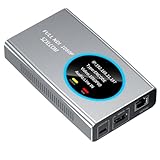
- 【Real-Time IP Workflow】1920×1080@60fps NDI encoder, enabling frame-accurate synchronization for live streaming teams, sports events, game streaming, and multi-camera production. The NDI encoder converts HDMI signals into full NDI video streams with latency below 65 milliseconds, ensuring seamless synchronization of video motion and fast-paced actions. Compatible with vMix/OBS/Wirecast integration.
- 【Flexible IP to Display】A bidirectional all-in-one device that functions as both an NDI encoder and NDI decoder. When used as an decoder, it converts NDI streams into 1080p60 HDMI signals. Decode NDI signals from the production console to HDMI large screens for real-time multi-camera monitoring, project vMix NDI video streams onto meeting room displays, or route live signals to broadcast monitors. Eliminate complex cabling—a single Ethernet cable can simultaneously transmit power and signals. (Select encoder or decoder mode via the NDI backend network interface).
- 【IP-Based Wiring Infrastructure】Using an HDMI-to-NDI converter, a single network cable can replace long-distance HDMI cabling (up to 100 meters), enabling both power supply (PoE+) and network transmission over a single cable, significantly simplifying on-site cabling. Also supports PoE+ or Type-C interface 5V power supply, reducing cabling costs. It is an ideal solution for educational live streaming and recording classrooms, as well as enterprise IT management IP-based production.
- 【Real-Time Status Monitoring】The HDMI decoder is equipped with a Tally indicator light and an LCD screen that displays real-time information, including IP address, network status, encoding/decoding status, video resolution, audio input/output status, and indicator light status. Without the need for a computer, you can monitor the latest program updates in real-time during live events.
- 【Real-Time Monitoring via Uncompressed HDMI Signal Loop-Out】The NDI live streaming encoder supports HDMI loop-out functionality, enabling near-zero latency signal pass-through. This allows for real-time video signal monitoring without interrupting NDI encoder processing and transmission. This provides a simpler setup solution for video production or live streaming.
Common problems and what to check
- The Media Source is blank or missing. Confirm the selected file path is still valid and the file is accessible from the OBS computer. Re-select the file in the source properties if it was moved or renamed.
- A clip stops when you expected it to repeat. Check whether looping is enabled. For a clip that should replay each time you enter a scene, check the restart-on-activation behavior as well.
- The NDI source is choppy or unstable. Check the local network link, the source format’s bandwidth needs, and whether other network traffic is competing for capacity. NDI’s typical 1080p60 figure is up to 150 Mbps, not a universal guarantee; consult its bandwidth guidance for your format.
- The NDI source is not visible across the network. Check that both computers and the relevant network path are configured for the intended NDI workflow. If multicast is in use, review whether the network supports the needed multicast handling and filtering.
- NDI looks fine locally but YouTube is not receiving the stream. The local NDI feed and internet output to YouTube are distinct. Check the streaming PC’s streaming-software output and internet path separately from the NDI connection.
- You want a replay but have not saved one. NDI does not create a saved highlight simply by carrying live gameplay. Configure OBS Replay Buffer to save recent content, or record and edit a clip, then play the resulting file through Media Source.
Or let it run in the cloud
If the goal is to keep a YouTube channel live with uploaded gaming videos or replay clips, StreamNeo is a different option from an OBS-and-NDI production workflow: upload the video, add your YouTube stream key, and go live. StreamNeo loops uploaded videos from the cloud, so nothing has to stay on at home. It streams the upload as made, up to 4K 60fps, at one price per slot regardless of quality, and automatically recovers if YouTube drops the stream. The first day is free with no card. The monthly option is $9.99 per month. StreamNeo is for uploaded videos on YouTube, not live camera input or NDI transport. See StreamNeo, or start your free first day.
Quick Recap
Best Value

- HDMI to SRT/RTMP(S)/RTSP Encoder:Convert HDMI video sources into SRT, RTMP, or RTSP streams for real-time online broadcasting and remote production. Stream directly from cameras, gaming consoles, or other HDMI devices to platforms such as YouTube, Twitch, Facebook Live, or private streaming servers. Ideal for live events, conferences, sports, education, and professional AV applications, delivering stable, high-quality video with low latency.
- SRT/RTMP(S)/RTSP to HDMI Decoder: Decode SRT, RTMP(S), and RTSP network streams and output them through HDMI to TVs, monitors, switchers, and other video equipment. Easily bring remote cameras, drones, action cameras, or surveillance streams to local HDMI displays for real-time monitoring and playback. Ideal for sports events, press conferences, live production, and multi-display applications, providing stable HD video output and seamless integration with devices such as ATEM switchers.
- HDMI to UVC Encoder: Use an HDMI to UVC converter to connect a professional HDMI camera to your computer for high-quality video calls in meetings. It also allows you to link HDMI devices (e.g., cameras or classroom equipment) to teaching computers or projectors for better interactivity. Enables HDMI cameras or sources to connect to computers or streaming devices for high-quality live broadcasts
- UVC to HDMI Decoder: Convert UVC cameras (e.g., USB webcams, action cameras) to HDMI signals for easy connection to conference equipment or large displays or ATEM switcher, enhancing video quality and participation. In education and training, convert UVC signals to HDMI for display on large screens
- SRT/HDMI Encoder & Decoder:SRT (Secure Reliable Transport) provides secure, low-latency video transmission with enhanced stability over challenging network conditions. ZowieBox enables bidirectional conversion between HDMI and SRT streams, allowing reliable remote production, live streaming, and video contribution workflows with high-quality transmission even across long-distance networks.
Rank #4

- 4K HDMI Encoding with Loop-Through Output – Encode HDMI video up to 4096×2160p30 while using the HDMI loop-through for local monitoring or pass-through to displays and switchers.
- Multi-Protocol & Multi-Destination Streaming – Stream simultaneously via RTMP, RTMPS, SRT, NDI|HX, HLS, and TS over UDP/RTP, supporting modern broadcast and IP workflows.
- Advanced Video Processing & Overlays – Includes de-interlacing, scaling, cropping, aspect ratio conversion, and support for text, image, and clock overlays for branded output.
- Simultaneous Streaming & Recording – Record video directly to internal storage (128 GB), external USB storage, or network locations while streaming live, with support for scheduled and loop recording.
- Flexible Network & Connectivity Options – Equipped with Gigabit Ethernet with PoE and Wi-Fi 802.11 a/b/g/n/ac, plus support for 4G/5G USB modems (not supplied) for fixed or mobile deployments.
Product prices and availability are accurate as of the date/time indicated and are subject to change. Any price and availability information displayed on Amazon at the time of purchase will apply.

