Free tools Windows power users keep installed
One-click scans. No signup required.
An advertised SSD speed is a peak result under the manufacturer’s test conditions, not a guarantee for every NAS task. Your actual result is limited by the slowest part of the path: the SSD, NAS hardware and software, cache policy, storage layout, workload, temperature, or network. A fast M.2 drive cannot overcome a 1GbE link, and an SSD cache may provide little improvement for a large sequential copy.
What an SSD speed rating actually measures
SSD boxes usually highlight a maximum sequential read or write rate. That number is useful for comparing drives tested under similar conditions, but it is conditional. Synology says its published performance specifications are single-unit results from a defined test environment; host hardware and software can change the result. The test may also use a queue depth, block size, file size, operating system, and workload that do not match a file copy from your laptop to a NAS.
As an Amazon Associate I earn from qualifying purchases.
A sequential benchmark, a large-file copy, a database transaction, and thousands of small files exercise different parts of a storage system. Random input/output is usually expressed in IOPS, while sequential work is expressed in MB/s or GB/s. A drive can post an impressive sequential figure and still feel slow when an application issues small, scattered requests.
Crashes, No Sound, or Screen Glitches?
Random freezes, missing sound and display glitches usually trace back to one bad driver. Find and replace yours safely.Free scan · under a minuteWindows Errors? Fix Them Before They Spread
Repair common Windows errors and clear accumulated junk for a smoother, more stable PC - no reinstall needed.Free scan · no reinstall- Peak versus sustained: a short benchmark can finish while the drive’s temporary write cache is still available.
- Drive versus system: the NAS controller, CPU, memory, RAID layer, filesystem, and network may become the limit before the SSD does.
- Advertised test versus your workload: the vendor’s block size and queue depth may not resemble your activity.
Use the published figure as a description of the drive’s capability in a particular test, not as the speed a NAS must show in every transfer window.
#1 Best Overall

- [High Endurance Grade] : No.1 NAS SSD choice in heavy workloads NAS systems|24/7 superior NAS Cache with reliable TBW|Data protection, Power loss protection, ECC, Easy integration, Silent operation|Sequential transfer speed up to 550 MB/s.
- [For Heavy Workloads] : Superior durability designed for creative professionals, including virtualization, collaborative editing, photo rendering, 4K/8K video editing and intensive database storage. Manage multi-tasking demand from multi-device multi-user with maximize performance, productivity and efficiency at home or office.
- [Wide Compatibility] : Rugged secure data consolidation for business NAS RAID configuration or home office setup|Verified with NAS, compatible with Synology, QNAP, Asustor models and more. Not suggested for use in server models or SAN environments.
- [TLC 3D NAND] : Advanced Technology TLC Flash with SLC cache brings out high speed performance and commits long lifespan. 2.5" (7mm) SATA III SSD for NAS business PS4 Laptop PC.
- [Manufacturer Support Guaranteed] : GIGASTONE 5-year peace-in-mind replacement warranty |Lifetime Free Technical Support.
Find the bottleneck before replacing the SSD
Start by identifying exactly what feels slow. “The NAS is slow” can mean a large video copy takes too long, a photo library takes seconds to open, a virtual machine stutters, or a cache benchmark reports low numbers. Each symptom points to a different test.
| Observed problem | First suspect | Useful comparison |
|---|---|---|
| One large file copies slowly | Network path or sequential-write limit | Compare the negotiated link and a local NAS-volume test |
| Thousands of small files are slow | Random I/O, metadata, CPU, or filesystem overhead | Compare small-file and large-file tests separately |
| Applications improve little after cache installation | Workload mismatch or cache mode | Measure the application’s read/write pattern before and after |
| Speed falls during a long write | Temporary SLC cache exhaustion, thermal throttling, or full volume | Record throughput for the entire transfer, not only the first minute |
| Performance varies between clients | Client adapter, Wi-Fi, switch, cable, or protocol path | Repeat with the same client and a wired connection |
Do not compare a random-IOPS result with a sequential file-copy rate. They answer different questions.
Network throughput can cap an otherwise fast SSD
For a remote file transfer, data must cross the client interface, cable or wireless link, switch, NAS port, and storage stack. The slowest link sets an upper bound. Theoretical Ethernet payload ceilings are approximately 125 MB/s for 1GbE, 312.5 MB/s for 2.5GbE, and 1,250 MB/s for 10GbE before protocol overhead. Real file-copy results are lower and depend on framing, TCP behavior, SMB or NFS settings, encryption, and the devices at both ends.
Review measurements illustrate why a single number cannot be generalized. A TechRadar Asustor review reported transfers limited by its 2.5GbE test network. A separate TechRadar Ugreen review measured different rates on 1GbE, 2.5GbE, and 10GbE configurations. Those are results from specific systems, not a promise for your NAS.
Rank #2
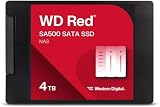
- Storage optimized for caching in NAS systems to rapidly access your most frequently used files.
- Superior endurance can handle the heavy read and write loads demanded by NAS, giving you the reliability you need in a 24/7 environment.
- Purpose-built for NAS with proven Western Digital 3D NAND to deliver maximum SATA performance to both home and business users.
- Reduces latency and improves responsiveness for OLTP databases, multi-user environments, photo rendering, 4K and 8K video editing, and more.
- Available in 2.5” and M.2 form factors to fit the slots in modern NAS systems.
Check the complete link
- On the client, verify the negotiated Ethernet speed rather than the adapter’s marketing label. A 2.5GbE adapter connected to a 1GbE switch is a 1GbE path.
- Check the switch port status and confirm that the cable and transceivers support the intended rate.
- In the NAS network settings, confirm the port’s negotiated speed and whether link aggregation or a virtual switch changes the path.
- Repeat the transfer with a wired client on the same switch. Wi-Fi adds variable radio throughput and latency.
- Test a second client or a local workload on the NAS. If local storage work is fast but remote copies are slow, investigate networking before the SSD.
Only buy a faster adapter, switch, or cabling after measurements identify the network as the limiting segment. Upgrading Ethernet cannot fix a saturated SSD, CPU, RAID array, or cache that is bypassed.
Why an SSD cache may not speed up file copies
An SSD used as cache is not the same as an SSD used as the primary storage volume. Cache software decides which data to keep and when to serve it. Its value depends on repetition and access pattern.
Synology’s SSD-cache documentation warns that large sequential reads and writes may not benefit significantly and describes bypassing cache for sequential I/O. A one-time movie upload can therefore go directly to the hard-drive array while the cache contributes little. Cache is more likely to help when frequently reused data, metadata, or random requests fit the configured policy.
QNAP also documents configurable cache behavior. The labels and available modes depend on the NAS model and software release, so check the cache settings for your device rather than assuming every cache operates identically.
Rank #3

- IronWolf internal hard drives are the ideal solution for up to 8-bay, multi-user NAS environments craving powerhouse performance.date transfer rate:6.0 gigabits_per_second
- Store more and work faster with a NAS-optimized hard drive providing 8TB and cache of up to 256MB
- Purpose built for NAS enclosures, IronWolf delivers less wear and tear, little to no noise/vibration, no lags or down time, increased file-sharing performance, and much more
- Easily monitor the health of drives using the integrated IronWolf Health Management system and enjoy long-term reliability with 1M hours MTBF
- Three-year limited product warranty protection plan and three year Rescue Data Recovery Services included
Confirm how your SSD is being used
- Identify whether the drive is assigned to an SSD cache, a storage pool, or a standalone volume.
- Open the NAS cache-management screen and record the cache mode, selected volumes, and any read/write policy.
- Check cache statistics while repeating the same workload. A low hit rate means the workload is not reusing cached data enough to benefit.
- Compare a repeated application task with a one-time large-file transfer. Improvement in one does not predict improvement in the other.
On Synology DSM, the relevant controls are under Storage Manager and its SSD-cache section; wording can vary by DSM release. On QNAP systems, look in the storage and cache-acceleration controls. Record the software version when documenting a result.
Short bursts can hide a sustained-write slowdown
Many SSDs accept an initial burst of data into a faster SLC cache. After that temporary area fills, the drive must write directly to its TLC or QLC NAND, perform housekeeping, and possibly fold data between cells. Throughput can fall during a long transfer even though a short benchmark looked excellent.
Synology’s TLC-versus-QLC discussion presents comparative results after SLC-cache exhaustion. Those figures are Synology’s vendor tests under its own conditions; they are not a universal percentage for every SSD. Treat the pattern—an early peak followed by a lower sustained rate—as something to measure on your model.
Measure the entire transfer
- Use a file set large enough to run beyond the first burst, while leaving free capacity for the NAS and drive.
- Record throughput at the beginning, middle, and end. Note whether the decline is gradual, abrupt, or cyclical.
- Repeat after the drive has cooled. A result that recovers after idle time may indicate thermal or cache effects rather than a network limit.
- Keep the workload, client, protocol, and destination volume identical for each comparison.
Do not use the fastest first-second reading as the expected speed for an hour-long backup.
Rank #4

- Entry-level NAS Personal Storage:UGREEN NAS DH2300 is your first and best NAS made easy. It is designed for beginners who want a simple, private way to store videos, photos and personal files, which is intuitive for users moving from cloud storage or external drives and move away from scattered date across devices. This entry-level NAS 2-bay perfect for personal entertainment, photo storage, and easy data backup (doesn't support Docker or virtual machines).
- Set Your Devices Free, Expand Your Digital World: This unified storage hub supports massive capacity up to 64TB.*Storage drives not included. Stop Deleting, Start Storing. You can store 22 million 3MB images, or 2 million 30MB songs, or 43K 1.5GB movies or 67 million 1MB documents! UGREEN NAS is a better way to free up storage across all your devices such as phones, computers, tablets and also does automatic backups across devices regardless of the operating system—Window, iOS, Android or macOS.
- The Smarter Long-term Way to Store: Unlike cloud storage with recurring monthly fees, a UGREEN NAS enclosure requires only a one-time purchase for long-term use. For example, you only need to pay $459.98 for a NAS, while for cloud storage, you need to pay $719.88 per year, $2,159.64 for 3 years, $3,599.40 for 5 years. You will save $6,738.82 over 10 years with UGREEN NAS! *NAS cost based on DH2300 + 12TB HDD; cloud cost based on 12TB plan (e.g. $59.99/month).
- Blazing Speed, Minimal Power: Equipped with a high-performance processor, 1GbE port, and 4GB RAM on Board, this NAS handles multiple tasks with ease. File transfers reach up to 125MB/s—a 1GB file takes only 8 seconds. Don't let slow clouds hold you back; they often need over 100 seconds for the same task. The difference is clear.
- Let AI Better Organize Your Memories: UGREEN NAS uses AI to tag faces, locations, texts, and objects—so you can effortlessly find any photo by searching for who or what's in it in seconds. It also automatically finds and deletes similar or duplicate photo, backs up live photos and allows you to share them with your friends or family with just one tap. Everything stays effortlessly organized, powered by intelligent tagging and recognition.
NAS hardware, RAID, and thermals can be the ceiling
The NAS must process filesystem metadata, RAID calculations, checksums, encryption, snapshots, and network protocols. An entry-level CPU may not feed a high-end NVMe drive fast enough, especially when several services run at once. A parity RAID write can also require reads and calculations that change the workload before data reaches the SSD.
Check whether the SSD is installed in an M.2 slot intended for cache or in a slot that supports a bootable or general-purpose volume. Some systems restrict which slots, capacities, or drive types are supported. Monitor CPU utilization, memory pressure, storage-queue activity, and system temperature during a repeatable test. If CPU usage is pinned while the SSD is idle, a faster drive is unlikely to help.
Thermal and capacity checks
- Ensure the M.2 heatsink, airflow path, and fan profile are installed as the NAS manufacturer specifies.
- Check drive health and temperature in the NAS storage dashboard.
- Leave free space on the SSD and storage pool; a nearly full drive has less room for background management.
- Look for rebuilds, scrubs, snapshots, indexing, antivirus scans, and backup jobs that compete with your test.
Pause nonessential services for one controlled run. Restore them afterward and compare results so you can distinguish a storage limit from background contention.
Do these 3 things before closing this tab:
1Repair Windows errors before they cause bigger problems2Scan for outdated or missing drivers - takes under a minute3Clear out junk files and repair common Windows errorsCompatibility policy is part of performance
NAS vendors qualify drives for more than interface speed. Synology’s 2025 policy for DSM 7.3 and later describes supported-drive requirements related to performance, endurance, and thermal management. The exact rules vary by NAS model and software release. A drive that electrically fits an M.2 slot may still be unsupported, run with warnings, or lack the behavior expected by the cache manager.
Best Value

- THE SSD ALL-STAR: The latest 870 EVO has indisputable performance, reliability and compatibility built upon Samsung's pioneering technology.Computer Platform:PC.Encryption : Class 0 (AES 256) TCG/Opal v2.0, MS eDrive (IEEE1667), Environmental Specs - Shock : 1,500 G & 0.5 ms (Half sine).
- EXCELLENCE IN PERFORMANCE: Enjoy professional level SSD performance with 870 EVO, which maximizes the SATA interface limit to 560/530 MB/s sequential speeds, Accelerates write speeds and maintains long term high performance with a larger variable buffer
- INDUSTRY DEFINING RELIABILITY: Meet the demands of every task from everyday computing to 8K video processing, with up to 2,400 TBW
- MORE COMPATIBLE THAN EVER: 870 EVO has been compatibility tested for major host systems and applications, including chipsets, motherboards, NAS, and video recording devices. Interface- SATA 6GB/s, compatible with SATA 3GB/s and SATA 1.5GB/s interfaces
Before buying or repurposing an SSD, check the compatibility list for the exact NAS model and DSM or QNAP software version. Confirm form factor, keying, capacity limits, endurance rating, firmware requirements, and whether the model is approved for cache or storage-pool use. Compatibility is a prerequisite; it is not proof that a particular workload will reach the package’s peak speed.
A repeatable diagnostic procedure
Change one variable at a time. Otherwise, replacing the SSD, changing the switch, and rebuilding the cache together leaves you unable to identify the cause.
- Define the workload. Write down whether the symptom is sequential read, sequential write, random I/O, small files, application latency, or a cache benchmark.
- Capture the baseline. Record file size, transfer duration, average and sustained rate, client, protocol, NAS model, storage layout, and software versions.
- Verify the network path. Note the negotiated speed at the client, switch, and NAS. Replace a suspect cable and repeat on a known-wired path.
- Separate cache from volume performance. Test the same workload with the cache enabled and, where the software permits a safe controlled comparison, with caching bypassed. Do not disable a production cache without understanding its protection and rebuild requirements.
- Watch system resources. During the test, observe CPU, memory, drive temperature, storage queues, RAID activity, and cache-hit information.
- Test sustained behavior. Continue long enough to pass any short burst and record the complete rate curve.
- Check compatibility and health. Confirm the drive appears as supported, has current firmware where required, reports no errors, and operates within its temperature range.
- Repeat after one change. Use the same files, client, destination, and measurement method after changing only the suspected bottleneck.
A diagnostic conclusion is credible only when the result changes predictably after the relevant component is isolated.
The Tool Desk
Outbyte Driver Updater FREEFix the driver behind crashes, sound loss and screen glitchesFind Drivers →Outbyte PC Repair FREERepair Windows errors before they cause bigger problemsFix Now →How to decide what to upgrade
| Measured limiting factor | Reasonable next action | What will not address it |
|---|---|---|
| 1GbE or another slower link is saturated | Upgrade both endpoints, the switch, and cabling to a compatible multi-gigabit path | Buying an SSD with a higher peak rating while keeping the same network |
| Sequential workload bypasses cache | Use the HDD or SSD volume suited to the job; reserve cache for workloads it can accelerate | Adding more cache capacity without changing access patterns |
| Drive slows after its burst | Choose a model with sustained-write behavior and endurance appropriate to the workload, after checking compatibility | Comparing only the first seconds of a benchmark |
| NAS CPU or RAID processing is saturated | Reduce competing services, change the storage layout where appropriate, or use a NAS platform with adequate processing headroom | Installing a faster SSD in the same constrained system |
| Thermal throttling or unsupported drive | Correct cooling or select a drive on the model’s compatibility list | Ignoring temperature warnings or relying on interface compatibility alone |
Purchase an SSD only when measurements show that drive performance, endurance, or compatibility is the limiting factor. Purchase networking hardware only when the measured path is the bottleneck. In many NAS setups, a correctly configured workload and a verified network path deliver more benefit than a higher advertised SSD number.
Common misleading comparisons
- Internal benchmark versus remote copy: the former may exclude the network; the latter includes every link and protocol layer.
- Empty drive versus nearly full drive: free space changes background housekeeping and burst behavior.
- One client versus several clients: aggregate throughput and per-client latency can differ under contention.
- Read result versus write result: write amplification, parity, and SLC exhaustion make the two directions behave differently.
- Cache hit versus cache miss: a cached repeat access says little about a first-time sequential transfer.
Keep a simple test log with date, software version, link speed, workload, and sustained result. That record makes later upgrades measurable instead of anecdotal.
Quick Recap
Product prices and availability are accurate as of the date/time indicated and are subject to change. Any price and availability information displayed on Amazon at the time of purchase will apply.

