Do these 3 things before closing this tab:
1Repair Windows errors before they cause bigger problems2Fix the driver behind crashes, sound loss and screen glitches3Clear out junk files and repair common Windows errorsIf a PS5 emulator is slow or crashes on your PC, the most likely explanation is not one missing “magic” setting. Current PS5 emulator projects are experimental: compatibility, graphics emulation, drivers and game-specific code are still changing. KytyPS5’s own documentation warns users to expect crashes, graphical glitches, low compatibility and poor performance, while noting that booting some 2D and 3D games does not represent broad compatibility.
Start by identifying the exact emulator and game, then verify that project’s graphics requirements, record a reproducible baseline and follow its own diagnostic instructions. A faster graphics card can help only when the existing hardware fails a documented prerequisite; it cannot be assumed to repair an incomplete game implementation or a driver-specific bug.
As an Amazon Associate I earn from qualifying purchases.
What slow performance or crashes usually mean
A PS5 emulator has to reproduce console CPU, GPU, memory, operating-system and game behavior on a different platform. Early projects may have only partial implementations of those systems. A game can therefore boot but render incorrectly, reach a menu but fail when a particular shader is compiled, or run briefly before hitting an unimplemented feature. Those outcomes are compatibility boundaries, not automatically evidence that your PC is underpowered.
What’s actually slowing this PC down?
Pick the symptom - the matching free tool is one click away.
The KytyPS5 project README states: “Expect crashes, graphical glitches, low compatibility, and poor performance.” That warning applies to KytyPS5’s development stage, not as a measured percentage for every PS5 emulator. Its documentation says the project can boot 2D games and a selection of 3D games; neither statement means that most commercial titles are playable. SharpEmu likewise describes results as varying by game, operating system and graphics driver. Read the status of the exact project and title before changing settings or buying hardware.
#1 Best Overall

- Enjoy precise, comfortable control over 10,000+ supported Steam games.
- Easily pair the controller directly to your Windows PC via Bluetooth or play as you charge with the included USB Type-C cable
- Stay paired with up to four different Bluetooth devices, making it easy to enjoy the controller across Windows PC, Mac, PS5 consoles and smartphones. Discover more connection tips and tricks at playstation.com/pair-dualsense
- Access the latest available controller firmware directly from your PC with the free-todownload PlayStation Accessories app
- Play games streamed from your PS5 or PS4 console to your PC via the PS Remote Play App
Separate the failure type
- Slow from the first frame: the emulator may be doing expensive translation, shader compilation or synchronization, or the title may simply be beyond the implementation’s current performance.
- Stutter that improves after repeated runs: compilation or cache-building may be occurring, but do not assume every project uses a persistent cache or that stutter will disappear.
- Crash at launch: the executable, game format, operating-system support, required graphics API or driver may not meet the project’s expectations.
- Crash at a repeatable scene: a title-specific emulation defect is more likely than a general lack of PC speed, especially when other supported titles run.
- A black screen, missing effects or corrupted geometry: these are rendering or compatibility symptoms even if the process remains open.
- Device loss or a driver reset: treat this as a graphics-device failure and use the emulator’s project-specific diagnostic procedure rather than applying a generic tweak.
1. Identify the emulator, game and build
“PS5 emulator” is not a single product. Different projects have different graphics back ends, supported operating systems, release maturity and issue trackers. A guide for one project can be wrong for another, so begin with the exact executable and source.
- Open the emulator’s About, Help or title-bar information and copy its full version or build identifier.
- Record the exact game title, game version or update number if shown, and the point at which it fails.
- Check that the download came from the project’s official repository or site. Avoid similarly named mirrors that may package an old or modified build.
- Read the project’s current README, release notes and compatibility information for that build. For KytyPS5, use the official KytyPS5 project documentation; for SharpEmu, consult its official project documentation.
Keep the build identifier in every report. “It crashes” is not reproducible when two users are running different commits or nightly packages.
2. Check the exact game’s compatibility status
Before tuning frame-rate settings, establish what the project has actually reported for that title. Look for a status such as booting, menu, in-game, graphical issues or untested in the project’s own compatibility notes and issue tracker. A game that has never reached an in-game state is a poor candidate for performance optimization.
Test whether the failure is repeatable at the same point. Note whether it happens before a window appears, while loading a save, when a menu opens, during a shader-heavy scene or after a consistent number of seconds. That distinction gives maintainers a useful starting point and separates a title-specific defect from a machine-wide problem.
Use a control title carefully
If the project provides a known-to-boot sample or another title with a documented status, you can use it as a control. A control that launches does not prove that your target game should work; it only shows that the emulator can execute at least one workload on your configuration. Conversely, one failing title does not prove that the entire emulator is broken.
Rank #2

- 👉️【Usage Notes】When using the gamepad for the first time, it needs to be connected to the PS5 console via a USB-C cable(It must be the data cable included in the package or the original data cable), and then press the Home button to activate it. If your controller has any functional issues, please use this url to update the firmware: we.tl/t-yAwofXJL9YOyyq3K !!! The gamepad is only compatible with PS5 series consoles and Windows PCs, and it is not compatible with PS4.
- 👋【Quick Connection & One - click Wake - up】 You can connect to the PS5 console by pressing the HOME button on the controller. When connecting to the console for the first time, you need to use a data cable. It also supports use on computers with Windows operating systems.
- 🎮️【Controller with Sound】 The controller is capable of producing sound, providing an immersive gaming experience. Please note that the controller is only equipped with a speaker and has no microphone. If you want to use the microphone fuacnction, please use an external headset. It is equipped with a 3.5mm TRRS headphone jack(not compatible with Apple headphones.)
- 🌈【Customizable Colors】Press the Lighting button to switch colors and light effect modes with one click. It features a color memory function, ensuring that the next time you use it, it will still be the color you prefer.
- 🕹️【High - Precision Joysticks】Equipped with upgraded joysticks, these effectively reduce the joystick dead zone and extend the controller's service life.
3. Verify the graphics API and driver prerequisite
Check the requirement published by the emulator you actually identified. KytyPS5 documents a GPU capable of Vulkan 1.3 with current drivers. SharpEmu also requires a Vulkan-capable GPU and a current graphics driver. These are separate project statements; do not transfer a version number or hardware assumption from one emulator to another.
| Project | Documented graphics prerequisite | What the requirement does not promise |
|---|---|---|
| KytyPS5 | Vulkan 1.3-capable GPU and current drivers | It does not guarantee that a particular game will boot, render correctly or run at a playable speed. |
| SharpEmu | Vulkan-capable GPU and a current graphics driver | Results still vary with the game, operating system and driver. |
Confirm the GPU that the emulator is using
- Identify the physical GPU model in your operating system’s hardware information or graphics control panel.
- Check the installed driver version and release date from the vendor’s official driver utility or operating-system device details.
- Verify that the emulator is not running on an integrated adapter when a discrete GPU is installed. Laptop hybrid-graphics settings can select a different adapter than the one you expect.
- Use a Vulkan capability or diagnostic tool supplied by your graphics vendor to confirm that the selected adapter exposes the required API level. The emulator’s own log may also name the adapter and API version.
- After a driver change, retest with the same emulator build and game, keeping the old log so you can distinguish a driver regression from a configuration change.
Meeting Vulkan 1.3, or merely having Vulkan support, is a prerequisite check—not a performance guarantee. Speed and stability can still vary by title, operating system, driver and emulator implementation.
When a hardware upgrade is relevant
If the existing adapter does not expose the API level the project requires, a GPU that does meet that documented prerequisite is a legitimate conditional fix. Purchase decisions should stop there: no particular model, price or upgrade can be presented as a guaranteed solution to incomplete compatibility, crashes in a specific game or a driver bug.
4. Record a clean baseline before changing settings
Changing several options at once makes a regression impossible to diagnose. Capture one baseline run and preserve its original log.
- Write down the emulator name, exact version or build, game title and game version.
- Record the operating system edition and version, GPU model, driver version and whether the system is a laptop or desktop with switchable graphics.
- Describe the symptom in observable terms: frame-rate range if the emulator displays one, stutter pattern, error text, black screen, freeze or process exit.
- Record where it occurs: launch, loading screen, menu, shader or rendering activity, a named scene, or a repeatable in-game action.
- Save the complete emulator log from the failing run. Include the timestamp and any crash report or operating-system event entry.
- Repeat the run once without changing anything. If the result differs, note that variability instead of averaging it away.
A useful report says, for example: “KytyPS5 build [exact identifier], [game and version], Windows [version], [GPU], driver [version]; reaches the title menu, freezes when the first 3D scene loads, repeats on two runs; log attached.” It does not claim that a faster GPU is the cause unless the evidence establishes that.
Rank #3

- Bring gaming worlds to life - Feel your in-game actions and environment simulated through haptic feedback*. Experience varying force and tension at your fingertips with adaptive triggers*
- Find your voice, share your passion - Chat online through the built-in microphone. Connect a headset directly via the 3.5mm jack. Record and broadcast your epic gaming moments with the create button
- A gaming icon in your hands - Enjoy a comfortable, evolved design with an iconic layout and enhanced sticks. Hear higher-fidelity** sound effects through the built-in speaker in supported games
- Multi-device connectivity - Connect using a USB Type-C cable or Bluetooth technology and easily play on more devices including Windows PC and Mac computers.
- Elevate PC gaming with advanced features like haptic feedback and adaptive triggers in a range of blockbuster PC titles.
5. Change one variable at a time
Use a controlled sequence rather than a collection of internet tweaks. First restore the project’s documented defaults if you have already changed options. Then make one change, reproduce the same step in the game and record the result.
Crashes, No Sound, or Screen Glitches?
Random freezes, missing sound and display glitches usually trace back to one bad driver. Find and replace yours safely.Free scan · under a minutePC Slower Than It Used to Be?
A free scan shows the junk files, broken settings and background clutter dragging Windows down - then fixes them in one click.Free scan · Windows 10 & 11- Driver test: update to the current driver recommended for your GPU, or—if the problem began immediately after an update—test the previously working driver according to the vendor’s supported rollback process.
- Adapter test: on a laptop, explicitly select the intended GPU in the operating system’s per-application graphics settings, then confirm the selected adapter in the emulator log.
- Resolution or quality test: lower an option only when the emulator documents that it affects rendering load. A lower resolution cannot fix an unimplemented instruction or a title that fails before rendering.
- Cache or shader test: if the project documents cache management, follow its exact instructions and note whether the first run differs from later runs. Do not delete files blindly; retain a copy of logs and saves.
- Version test: compare the current release with a project-recommended build only when the project provides that build. Record both results, because a change can expose a regression rather than solve the underlying compatibility gap.
Do not combine a driver update, configuration reset, emulator upgrade and operating-system change in a single test. You will not know which change affected the outcome.
Independent reader supportYour contribution helps us test, update, and keep practical guides available for everyone.6. Follow project-specific device-loss diagnostics
Some failures need information that ordinary performance monitoring cannot provide. KytyPS5’s experimental notes describe a particular GPU freeze and device-loss reporting procedure, including fault diagnostics and collection of the console output and any generated dump. Those instructions are specific to that project and issue; they are not universal advice for every GPU, emulator or crash.
For a KytyPS5 device-loss case, consult the KytyPS5 experimental documentation and follow its current toggle names and collection steps exactly. The notes identify the useful evidence as the device-loss console block, any .nv-gpudmp file that is generated, the GPU model and the driver version. Do not publish or submit a dump from a different failure as though it were the same diagnostic.
What to include in an issue report
- Exact emulator build and operating-system version.
- Game title and version, plus the smallest repeatable sequence that triggers the failure.
- GPU model, driver version and the adapter selected by the emulator.
- Full log or the project-requested excerpt, with timestamps intact.
- Whether the issue survives a clean configuration and whether another documented title behaves differently.
- For a documented KytyPS5 device-loss report, the requested console block and any
.nv-gpudmpfile.
Remove personal paths, account names and unrelated files before posting logs publicly. Do not edit the error text itself; explain any redactions separately.
Rank #4
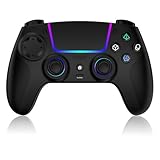
- Seamless Compatibility:This game controller is compatible with PS5, Pro, Slim, PC, and Steam Deck. Enjoy seamlesg integration with your console and all your PS5 games without any complicated setup
- Adjustable RGB Lighting: Personalize your setup with vibrant, 7-color adjustable RGB lighting. Choose from 4 distinct lighting modes (Steady, Breathing, Color Cycle, and Reactive) to match your mood, game, or gaming environment
- 3-Speed Turbo: Gain a competitive edge with the 3-speed adjustable TURBO function. Simply map any action button to turbo for rapid, continuous firing—perfect for shooting games or actions requiring high-speed input
- Programmable Back Buttons: Take command with fully programmable rear buttons M1 & M2. Map complex in-game commands or macros to these buttons, saving your configurations for instant access to advanced maneuvers and shortcuts
- Ergonomic Design: Its form-fitting shape, balanced weight, and soft-touch materials offer superior comfort. This non-slip design ensures stable control and prevents slippage, even with sweaty hands
7. Diagnose by symptom
It crashes before the emulator window or game appears
Confirm that the build supports your operating system and that the required Vulkan capability is exposed by the selected GPU. Recheck the project’s installation and launch instructions, then capture the first error lines from the log. If the executable itself exits before a game is loaded, changing in-game resolution or frame-rate options is unlikely to help.
It reaches a menu but crashes when 3D rendering begins
Record the exact transition and inspect the log for adapter, Vulkan initialization, shader or device-loss messages. Verify the driver and selected GPU. If the same title fails at the same rendering transition after a clean configuration, report it as a reproducible compatibility problem rather than assuming the PC needs more performance.
It is extremely slow but does not crash
First determine whether the slowness is constant or concentrated during loading and shader activity. Check GPU usage, CPU usage and memory pressure only as observations; high utilization does not identify the missing emulator feature. Test a documented resolution or rendering option one at a time. If the title remains slow while the requirements are satisfied, the project’s current implementation may simply not optimize that workload.
The screen is corrupted or effects are missing
Capture screenshots or a short recording, note the scene and preserve the log. Graphical glitches can be expected in an experimental renderer and may be title-specific. A cleaner image after a setting change is useful evidence, but it does not establish full compatibility.
Quick wins for a faster PC:
Clear out junk files and repair common Windows errorsFree Scan →Scan for outdated or missing drivers - takes under a minuteDriver Scan →The problem began after changing drivers or builds
Reproduce the issue on the prior known configuration if it is still available and supported. Compare logs, not just frame rate. If only the newer driver or emulator build fails, report the change as a possible regression with both version identifiers.
Operating-system differences matter
KytyPS5 states that Windows receives the most testing and that macOS support is experimental. SharpEmu also cautions that results vary by operating system. Therefore, a result on one OS should not be generalized to another, even with the same GPU model. Include the OS in every comparison and prefer the platform the project actively tests when you are choosing a troubleshooting baseline.
What not to conclude
- A game that boots is not necessarily playable; it may fail later in a different subsystem.
- A game that crashes is not proof that your GPU is too slow.
- Meeting a Vulkan requirement does not guarantee speed, stability or broad game support.
- Another user’s settings are not a substitute for the project’s current requirements and build-specific guidance.
- A single successful run does not prove that a title is generally compatible; record the scene, build and conditions.
- No cross-game percentage, benchmark or universal cause ranking is established by the project documentation cited here.
A compact troubleshooting checklist
- Name the exact emulator and copy its version or build.
- Name the game and version, then check its project-specific compatibility status.
- Confirm the project’s stated Vulkan and driver prerequisite for your selected GPU.
- Record OS, GPU, driver, error text and the repeatable failure point.
- Run an unchanged baseline twice and keep the original log.
- Reset unsupported tweaks and change only one documented variable at a time.
- Use the project’s own diagnostic notes for device-loss or dump collection.
- Report a reproducible compatibility issue when requirements are met but the same title still fails.
Bottom line
Slow performance and crashes are normal possibilities while PS5 emulation remains experimental. The reliable path is evidence-led: identify the project, check the exact game’s status, verify the documented Vulkan and driver prerequisites, isolate one change at a time and provide complete logs. Upgrade hardware only to satisfy a stated requirement; do not treat a purchase or a generic settings tweak as a guaranteed cure for a game-specific emulation defect.
Quick Recap
Product prices and availability are accurate as of the date/time indicated and are subject to change. Any price and availability information displayed on Amazon at the time of purchase will apply.
The Tool Desk
Outbyte Driver Updater FREEScan for outdated or missing drivers - takes under a minuteDriver Scan →Outbyte PC Repair FREERepair Windows errors before they cause bigger problemsFix Now →
