GoPro photos or video can look blurry for different reasons, so first identify whether the blur is in a still photo or moving footage. In low light, a long exposure can smear moving subjects; electronic stabilization may make that blur look unnatural without removing it. A dirty or damaged lens cover, camera movement during a still exposure, or impact-related damage can also soften an image. Check the optics and original file before changing settings.
Identify what kind of blur you’re seeing
Notice whether the blur appears only when the subject or camera moves, whether the whole frame stays soft on a stationary scene, or whether the problem began after a drop. Also note the camera model and firmware, the light level, and whether a lens cover or protector is fitted. These details matter: stabilization controls discussed below apply to video, while still photos have different exposure and processing behavior.
As an Amazon Associate I earn from qualifying purchases.
- Moving streaks in dim light: Long exposure times are a likely cause of motion blur.
- Persistent softness in a stationary, well-lit scene: Check the optical surface and compare the original file before assuming a setting is responsible.
- Softness after an impact: The camera may have a damaged lens, focus system, or stabilization system.
Check the lens cover and compare an original file
Inspect the lens and any fitted cover for fingerprints, condensation, scratches, cracks, or other residue. Clean them according to the care guidance for your specific camera model. In bright light, hold or mount the camera still and capture a detailed stationary subject. View the original file at full size, then compare it with the app preview or exported copy. This controlled comparison can help distinguish an optical or camera issue from softness introduced by preview or export; it is a practical diagnostic approach, not a sequence GoPro prescribes.
If the image remains soft in bright light after the optical surface is clean, particularly if the problem followed a drop, contact GoPro support or a qualified repair provider. GoPro says a hard impact can cause permanent focus or stabilization problems, so a settings change may not resolve impact-related damage. A replacement cover is worth considering only if inspection shows that the cover itself is damaged and the exact model supports a compatible replacement; replacing a cover is not evidence that internal damage has been fixed.
#1 Best Overall
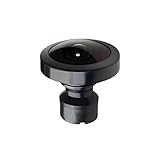
- Compatible with MAX Action Camera: Designed for compatibility with MAX action cameras, providing stable performance and secure installation.
- Easy Installation:Simply remove the old lens with pliers and twist the new lens into place. Quick and convenient replacement without complicated tools.
- Premium Optical Glass Quality:Made with high-quality optical glass to deliver clear images, accurate colors, and wide-angle performance for immersive 360° footage
- Cost-Effective Repair Solution: Restore your camera without paying for expensive repairs or replacing the entire device. A practical and affordable replacement option.
- Secure Packaging & Reliable Support: Each lens is carefully packaged to help prevent damage during shipping. Our support team is available to assist with installation and compatibility questions.
For low-light video, address motion blur and stabilization separately
GoPro’s 2018 HERO7 Black low-light guidance explains that long shutter times can blur motion. Electronic image stabilization (EIS) compensates for camera movement, but it cannot remove blur already recorded during the exposure. The stabilized result can therefore look strange or smeared. GoPro describes disabling EIS as a possible low-light remedy, but controls and behavior differ by camera model and firmware.
For HERO7 Black, GoPro’s guidance lists several advanced exposure options. They are specific to that model’s advice, not universal menu instructions:
Rank #2

- Perfect Fit: Compatible with Gopro Hero 9/10/11/12/13 Black. Ideal replacement to repair your broken or scratched protective lens cover
- Durable Tempered Glass: Protect the lens by Preventing dust, dirt and scratches. With silicone gasket on the inside, same waterproof function as the original ones
- Improve Clarity and Color: UV protective lens is a high transparency glass that does not affect any imaging effect. Ensures undistorted underwater capture and color saturation
- Easy to Use: 1:1 design, lightweight and compact, easy to carry. Simple removal and installation by twisting the les, and no tools required
- Package Includes: 1 x Replacement Protective Lens Cover for Hero 13/12/11/10/9 Black
- Increase the maximum ISO above the HERO7 guidance’s default of ISO 1600; higher ISO can add visible noise.
- Use a shorter shutter time; this may require more light or a higher ISO to avoid a dark image.
- Disable Auto Low Light and/or raise the frame rate, as described in that HERO7 guidance.
- Lower EV compensation, which can darken the exposure.
- Try EIS off in low light and compare the result, changing one setting at a time.
GoPro’s own guidance cautions that these approaches can produce more noise or darker exposures. The right balance depends on available light and the movement you need to capture. Do not assume a HERO7 menu path or firmware behavior applies to another GoPro.
Recommended Free Tools
Know what video stabilization does on your model
HyperSmooth is video stabilization, not a general still-photo sharpness control. In the HERO10 Black manual, GoPro describes HyperSmooth as correcting camera shake by cropping video. That manual lists four settings:
Rank #3

- [Compatible models] This lens replacement is for GoPro MAX camera.
- [High quality and durable] - High quality glass lens ensure long lifetime and better work performance for professional use.
- 【Description】 Commodity No Installation Instruction manual, Pls make sure that you know how to install it
- [Warm Tips] - We suggest you replace it at your local repair store if you do not have any repair tools, so to gain professional installation results. There may be slight variations in the diameter of the lenses, but this does not affect fitting. We have tested with the models mentione
| HERO10 Black setting | Manual description |
|---|---|
| Boost | Maximum stabilization with tight cropping |
| High | Maximum stabilization |
| Standard | Reduced stabilization |
| Off | No stabilization or crop |
These descriptions are for HERO10 Black video. If footage looks unnaturally smeared in dim light, compare a clip with stabilization reduced or off, but remember that doing so also removes the shake correction. Exact options and labels vary by model.
For blurry still photos, don’t treat video stabilization as the fix
A still photo can blur if the camera moves during its exposure or the subject moves, especially in low light. Check that the camera is steady and that there is enough light, then compare another photo of a stationary subject. HyperSmooth settings are not a universal way to sharpen still images.
Rank #4

- [Compatible models] This lens replacement is for GoPro MAX camera.
- [High quality and durable] - High quality glass lens ensure long lifetime and better work performance for professional use
- 【Description】 Commodity No Installation Instruction manual, Pls make sure that you know how to install it
- [Warm Tips] - We suggest you replace it at your local repair store if you do not have any repair tools, so to gain professional installation results. There may be slight variations in the diameter of the lenses, but this does not affect fitting. We have tested with the models mentione
- 【Quality Service】We have a professional after-sales team to provide you with quality service, you can rest assured that the purchase.
GoPro’s HERO10 Black manual says SuperPhoto analyzes a scene and may apply HDR, multi-frame noise reduction, or standard processing. It recommends HDR for high-contrast scenes with minimal movement and notes that SuperPhoto processing can take longer. These are HERO10-specific processing details, not a guarantee that SuperPhoto will correct blur; HDR’s multiple-photo combination is best suited to scenes where movement is limited.
Quick wins for a faster PC:
Fix the driver behind crashes, sound loss and screen glitchesFind Drivers →Repair Windows errors before they cause bigger problemsFix Now →Use advanced controls only when your model supports them
GoPro Labs’ settings-command reference documents model-dependent controls for shutter, ISO, EIS, and sharpness. These are advanced options: confirm that your camera model supports a command and understand its exposure effects before using it. GoPro Labs notes that higher shutter speeds need adequate light and/or higher ISO, so a shorter exposure is not a cost-free fix.
Best Value

- Replaceable 360 lenses offer an easy and affordable solution for swapping out damaged lenses instead of having to replace the entire camera
- Strong optical glass with water-repellent coating ensures optimal image quality
- Included lens replacement tool makes it easy to remove the damaged lens and install the replacement
- What's Included: 2 Replacement Lenses, Lens Replacement Tool, Microfiber Lens Cloth
Focus behavior also depends on the specific camera. The MISSION 1 PRO ILS field guide, published in 2026, describes that interchangeable-lens model as manual focus with no autofocus. That statement applies to the MISSION 1 PRO ILS, not to GoPro cameras generally; the cited guidance does not establish one universal focus-distance specification for all models.
Quick Recap
Product prices and availability are accurate as of the date/time indicated and are subject to change. Any price and availability information displayed on Amazon at the time of purchase will apply.

