A Thunderbolt add-in card is not a universal PCIe upgrade: it works only when the motherboard supports that specific card and the required slot, header, power, firmware, and BIOS settings are in place. Start by checking the exact motherboard model and revision against the card’s compatibility list. If the controller is detected but a device or display is not, troubleshoot that separate connection instead of replacing the card immediately.
Why a Thunderbolt add-in card may not work
The most common source of confusion is treating a free PCIe slot or USB-C port as proof of Thunderbolt support. An add-in card can depend on motherboard circuitry, a dedicated Thunderbolt header, a particular PCIe slot, auxiliary power, firmware, and BIOS/UEFI settings. PreSonus says its Thunderbolt add-on card requires native motherboard Thunderbolt support, and ASUS directs users to check its model compatibility list. PreSonus compatibility guidance · ASUS ThunderboltEX 4 compatibility list
As an Amazon Associate I earn from qualifying purchases.
ASRock likewise cautions that motherboard BIOS and hardware design can affect whether its Thunderbolt 3 AIC functions. Its Thunderbolt 3 AIC manual recommends supported motherboard models. Compatibility is specific to the board, card generation, and firmware; a header that looks similar is not enough to establish support.
Check compatibility before changing Windows settings
- Find the exact motherboard model and revision printed on the board or shown in its system information.
- Check the add-in card maker’s compatibility list for that model. If the board maker also publishes a supported-card list, confirm the card appears there.
- Consult the motherboard manual for the required Thunderbolt header, supported PCIe slot, and any slot or CPU configuration restrictions.
- Confirm that the card’s Thunderbolt generation and required connections suit the peripheral you want to use.
A USB-C port does not establish that the motherboard supports a Thunderbolt AIC, and a card’s PCIe connector alone does not establish compatibility. Use the manufacturer’s exact model-specific documentation rather than relying on appearance or a menu path for a different board.
#1 Best Overall
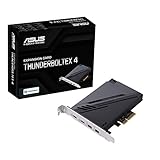
- 1. Intel Thunderbolt 4 JHL 8540 controller
- 2. Ultrafast connectivity: Two Type-C ports with USB 4 support, up to 40Gb/s bi-directional bandwidth, per port allows you to connect up to five Thunderbolt-enabled devices in a daisy-chain configuration using Thunderbolt cables.
- DisplayPort 1.4: support up to 8K resolution monitors
- Quick charge solution: up to 100W quick charge
Reseat the card and verify its connections
Shut down the computer and disconnect power before opening the case. Follow the card and motherboard manuals; depending on the model, the installation may require all of the connections below.
- PCIe slot: Use the slot specified by the motherboard and card documentation, and make sure the card is fully seated.
- Thunderbolt header: Connect the supplied or specified header cable at both ends. The header is a required link on supported designs, not an optional extra.
- USB header and auxiliary power: Connect these only as directed for the particular card. Some models require a USB 2.0 header or six-pin PCIe power connection.
- DisplayPort input: If you need video through the Thunderbolt card, connect its DisplayPort input to the intended motherboard or discrete-GPU output. This video link is separate from the card’s PCIe connection.
ASUS’s ThunderboltEX 4 quick-start guide specifies these installation connections for that card, including a DisplayPort input when using video. ASRock’s AIC manual also calls for its specified PCIe slot, Thunderbolt header, and DisplayPort connection. Requirements differ, so do not assume that another card uses the same wiring.
Rank #2

- Intel certified Thunderbolt 5 add-on card
- Dual USB Type-C ports support up to 130 watts total of fast charging, and up to 96W for one device
- Up to five Thunderbolt devices can be daisy-chained
- Up to 120 Gbps of bandwidth for superfast data transfers and video output
- DisplayPort 2.1 port supports up to three 8K 60 Hz displays with DSC
Enable Thunderbolt in BIOS or UEFI
Once the hardware is connected, enter BIOS/UEFI and look for the board’s Thunderbolt, discrete Thunderbolt, or Thunderbolt/USB4 support setting. Enable the setting the manual specifies, save changes, and restart. Menu names and locations vary by board and firmware generation, so do not copy another manufacturer’s menu path without checking your manual.
Quick wins for a faster PC:
Fix the driver behind crashes, sound loss and screen glitchesFind Drivers →Repair Windows errors before they cause bigger problemsFix Now →- ASUS documents “Thunderbolt/USB4 Support” under Advanced-AMD PBS for its example setup; that path is not universal. ASUS ThunderboltEX 4 setup guidance
- ASRock documents different BIOS menu paths for X570 boards and other models in its AIC manual.
- MSI’s 2019 instructions describe discrete Thunderbolt and Windows Thunderbolt support settings for specified Z390 motherboards. They should not be treated as instructions for every MSI board.
Check PCIe slot and lane constraints
A board’s available PCIe slots can depend on CPU lane count and how other slots are populated. For example, ASRock’s X299 FAQ, dated 2017-10-01, lists different available slots for processors with 44, 28, or 16 lanes. That is a platform-specific example, not a general rule for other boards. Use your motherboard manual’s lane table and the AIC’s slot requirements to choose the correct slot.
Rank #3

- Ports: 2 x Thunderbolt 3 (USB Type-C)
- PCIe and Lanes: PCIe Gen3 x 4
- Bracket: Low-profile pre-installed; full-height
- Form factor: Low-profile
Separate controller detection from peripheral detection
First determine what Windows detects. If the Thunderbolt controller is absent, revisit compatibility, slot seating, header and power connections, BIOS settings, and the correct controller driver. If the controller is present but an attached Thunderbolt device is missing, focus on device approval, the cable or adapter, and the peripheral’s compatibility.
- Install the BIOS, Thunderbolt firmware, controller driver, and any required Intel Management Engine driver specified by the motherboard or card maker. There is no single current driver package established for all AIC models and Windows versions.
- Check the vendor’s Thunderbolt software for a device authorization prompt or approval setting. Antelope advises allowing a device through Thunderbolt software if the software recognizes it but Device Manager does not. Antelope Thunderbolt connection troubleshooting
- If Device Manager shows an unknown PCI device, reinstall the correct vendor driver for the board and card. Avoid generic or cross-generation firmware and driver packages unless the manufacturer specifically directs you to use them.
- Change one setting at a time and note the result. Antelope also suggests temporarily disabling BIOS USB power-saving features as a diagnostic test; restore the original setting if it makes no difference.
Check the cable and peripheral
A USB-C connector describes its shape, not whether a cable supports Thunderbolt. ASUS specifies a Thunderbolt cable for its Thunderbolt device connection and says not to substitute an ordinary Type-C cable. Use a Thunderbolt-rated cable appropriate to the host and peripheral.
Rank #4

- User-installable Thunderbolt 3 Option card for Apollo rackmount interfaces
- Two Thunderbolt 3 USB-C ports for daisy-chaining Apollos or peripherals
- Thunderbolt 3 delivers up to 40 Gbps for high bandwidth peripherals such as dual 4K displays and hard drives
- Provides 15W bus power to downstream Thunderbolt peripherals
- Requires macOS Sierra/High Sierra or Windows 10 w/Anniversary (64-bit Edition)
For an older Thunderbolt 2 device connected to a Thunderbolt 3 host, the adapter and its revision can affect communication. Antelope reports adapter-related problems in some configurations and recommends trying another adapter when a device works only after startup. Its guidance is specific to those configurations; it does not mean every Thunderbolt 2-to-3 connection will fail.
What’s actually slowing this PC down?
Pick the symptom - the matching free tool is one click away.
If Thunderbolt works but video does not
Data recognition and DisplayPort video routing are separate checks. If the controller and peripheral are detected but a monitor or video-capable device has no image, verify that the DisplayPort input on the AIC is connected to the intended source. When using a motherboard video output, the system must have the relevant integrated graphics available; when using a discrete GPU, ASUS says its graphics driver must be installed. Also check the monitor or peripheral’s own supported resolution and speed. ASUS ThunderboltEX 4 setup guidance
Best Value

- 1.The USB PCIE card can be easily upgraded to 2x USB C and 2x USB A ports by inserting it into the PCIE x1 slot of your computer.The card also comes with an external 19-pin connector and a USB 20-pin Type E port inside that can be flexibly extended to the front panel of the computer as needed without the need for an additional power supply, thus solving the problem of fewer USB ports on the host computer.To help address your unique requirements and enable hassle-free setup on any computer, we additionally equip a standard PC chassis 12 cm bracket (installed) and a small tower chassis 8 cm short bracket
- 2.The card offers theoretical data transfer speeds of up to 5Gbps bandwidth,which is 10x faster than USB 2.0.Ideal for file backup,video editing and data recovery. Note: Actual transfer speeds may be limited by the connected device - USB-C ports aren't compatible with the Thunderbolt protocol
- 3.Compatible with PCIe 3.0 and PCIe 2.0 motherboards for PCI Express x1, x4, x8, x16 slots. Operating system support for Windows XP/Vista/2008 Server/7/8/10 and Linux Mint, Ubuntu 20.04. (Mac isn't supported.) Note: Driver installation is required for Windows XP,Vista/7, Server,not required for Windows 10 .If there are compatibility issues/not working, let me konw
- 4.The internal circuitry has four power supply modules,which eliminate the need for an additional power adapter for installation.the PCIe USB card draws power directly from the PCI-E slots inside the motherboard. Each connector is individually fused with intelligent overcurrent and short-circuit protection to protect your computer equipment
- 5.When installing,note that since the pcie card USB port is vertical, first insert the USB flash drive/USB cable into the card's USB slot to seat it.Then tighten the screws,close the PC case cover, turn on the PC and install the driver. For the narrow slot area at the rear of the PC mainframe, simply cut one of the slot's crossbars with small sheet metal hand pliers
Choosing a replacement or upgrade card
Compare the card and motherboard documentation on these points before buying. For example, ASUS publishes a ThunderboltEX 4 compatibility list; that card is a possible upgrade only for a compatible motherboard, not a fix for an unsupported board.
Quick Recap
| What to compare | Why it matters |
|---|---|
| Exact motherboard model and revision | The board maker must support the specific card; a PCIe slot or USB-C port alone is not evidence of support. |
| Thunderbolt generation and peripheral | The card, cable, and any required adapter must suit the device you intend to connect. |
| PCIe slot and lane requirements | Slot availability can depend on the motherboard layout, CPU, and other installed devices. |
| Header type and cable | The card may require a model-specific motherboard Thunderbolt header and cable. |
| Auxiliary power and USB header | Some cards require additional connections beyond the PCIe slot. |
| Display input and GPU routing | Video through the card may require a DisplayPort connection from integrated or discrete graphics. |
Product prices and availability are accurate as of the date/time indicated and are subject to change. Any price and availability information displayed on Amazon at the time of purchase will apply.

