A loud fan usually means a fan-equipped tablet is working hard or is surrounded by too much heat. Many tablets have no internal fan at all, so first identify your exact model before treating warmth or a faint hum as a cooling fault. Reduce the workload, improve airflow, stop charging if the device is hot, and obey any cooling warning. If abnormal heat or mechanical noise continues after those steps, use the manufacturer’s service process rather than opening a sealed tablet.
First find out whether your tablet has a fan
“Tablet fan” can describe two very different situations. A Windows tablet or convertible may contain a small blower and exhaust vents. Its speed can rise and fall audibly. Many Android and iPad-style tablets instead cool passively through the chassis, with no fan, motor or user-replaceable cooling part. ASUS specifically documents convertible devices that use passive cooling without a fan or exhaust vent.
As an Amazon Associate I earn from qualifying purchases.
On a fanless model, a warm back panel, heat near the processor, or a soft electrical buzz is not proof that a fan is failing. The sensible diagnosis is workload, charging heat, ambient temperature, a battery or software problem, or a sound from another component. Do not insert objects into speaker openings or try to create a vent.
Crashes, No Sound, or Screen Glitches?
Random freezes, missing sound and display glitches usually trace back to one bad driver. Find and replace yours safely.Free scan · under a minutePC Slower Than It Used to Be?
A free scan shows the junk files, broken settings and background clutter dragging Windows down - then fixes them in one click.Free scan · Windows 10 & 11How to check the exact model
- Open Settings and look for About, About tablet or System information. Record the full model name and model number, not just the product family.
- Check the manufacturer’s specifications and support page for that model. Look for terms such as “active cooling,” “fan,” “blower,” “heat pipe,” “vent” or “passive cooling.”
- Inspect the edges without blocking them. A fan-equipped tablet normally has an intake or exhaust grille; a grille alone does not prove that a fan is present.
- Search the model’s service documentation for a fan-replacement procedure. If the documentation treats the chassis as sealed, do not follow generic laptop-fan instructions.
Model-specific documentation takes priority over general advice. Microsoft’s Surface guidance, for example, applies to Surface products and should not be interpreted as a temperature rule for every tablet.
#1 Best Overall

- ❄ 【COOL DESIGN】ACEDAYS ipad cooler is new design,designed for tablets,laptops,steam deck,switch and others who use devices for extended periods.The fuselage was made of alloy,PC,magnet.It gives off colorful lights and LED temperature display when connected to the power.and there are two-stage refrigeration adjustment.
- ❄ 【SIMPLE CONTROL】Need to plugged in. there are Two-stage refrigeration adjustment,including Icebound mode and Freezing mode.Built-in type-c port, plug-and-play. (The package include a Charging cable and Magnetic disk.)
- ❄ 【RAPID COOLING DOWN】The ipad cooling case breaking through the power limit of traditional mobile phone radiators, the maximum power of laptop cooling slim reaches 20W.With the semiconductor technology, it's the same refrigeration principle as the refrigerator, not the ordinary fan cooling.Built-in 40×40mm chilling plate,instant cooling when connect the power,no need waiting to avoid overheat and ensure stabilize your live streaming or gaming experience.
- ❄ 【MAGNETIC SUCTION DESIGN】 The magnetic suction sheet consists of a highly thermally conductive steel plate and a strong adhesive, which can be used for a long time after a single installation. The heatsink will automatically absorb when it is close to it and will not fall off during use.
- ❄ 【UNIVERSAL COMPATIBILITY】The tablet Radiator Perfectly supports tablets/ipad (up to 13 inches), and laptops (suggest in 13 inches). Such as 12.9-inch iPad Pro, 9.7-inch iPad,iPad mini 1-4, iPad Air, Microsoft Surface Pro3 4, Surface Pro 5, Surface Pro 6, Surface Pro 7, Surface Pro X, Surface Go 1 2, MacBook Air 13'' 2017 2020 MacBook Pro 13'',Dell XPS 13, Steam Deck,Switch,etc.
Why a real fan becomes loud or the chassis becomes hot
Heavy processor or graphics work
Fan speed follows heat generation. Microsoft says Surface fan speed changes with workload: when the device performs many tasks or is heavily used for one task, it can become warmer and the fan can spin faster. ASUS gives the same general explanation for applicable Windows computers and handhelds during intensive CPU or GPU work.
Typical triggers include a demanding game, video editing or export, 3D rendering, a high-resolution video call, a large file transfer, virtualization, or many browser tabs with active content. A short burst after launching an application is usually different from a fan that stays at maximum speed while the tablet is idle.
Warm surroundings and restricted ventilation
Ambient heat leaves less capacity for the tablet to shed its own heat. Microsoft notes that a Surface used in surroundings warmer than 25° C (77° F) may need its fan more often or at a higher speed; that figure is Surface-specific guidance, not a universal safe-temperature threshold for tablets.
Recommended Free Tools
Direct sunlight, a hot car, a window ledge, bedding, a blanket, or a tightly enclosed case can trap heat. Huawei advises avoiding direct sunlight and poorly ventilated places. A soft surface can also cover an intake or exhaust grille, forcing a fan to work harder.
Charging and first-use activity
Charging adds heat while the operating system may be doing other work. Microsoft notes that additional cooling may be needed before charging completes and that background setup activity can temporarily increase fan activity. Xiaomi’s REDMI Pad 2 Pro guidance attributes warmth during first use to data recovery, updates and app synchronization, and recommends avoiding heavy workloads while charging during setup.
Rank #2

- ✅【Perfect Ergonomic Viewing】- Our tablet/laptop stand is designed to provide the perfect ergonomic viewing. By elevating the screen to an appropriate height, our laptop cooling stand can help you avoid discomfort in the neck caused by looking down and reduce strain on your eyes from being too close to the screen.
- ✅【Super Cooling】 - The tablet/laptop cooling pad features an enlarged big fan that effectively dissipates heat and prevents your laptop from getting too hot.
- ✅【Height and Angle Adjustable】- Working in your most comfortable position can boost your productivity and creativity. This stand allows you to adjust freely the height to 11.8 inches adjust angle from 0 to 360 degrees, so you can comfortably work in sitting positions.
- ✅【Graphene Carbon Steel Support】-This Graphene Carbon Steel stand features a strong bearing force and can support as much as 22 pounds (10 kilograms). The solid base prevents your laptop from tipping over while you're using it, even if you are typing or drawing. Note: We suggest using an external keyboard and mouse so you can type efficiently without the laptop keyboard being wobbly.
- ✅【360° of Smooth Rotation】 Tri-fold adjustable cute desk accessories: Adjust your view to perfection with this new 360° rotatable tablet holder stand for desk. Whether it's for work, streaming, or video calls desk organizers and accessories, achieve the perfect angle every time. Its innovative adjustment locking mechanism ensures your tablet always stays in place, securely and comfortably iPad holder stand.
Heat during a long gaming session while connected to power is therefore not automatically a failed fan. The combination of charging, a bright display, radios, downloads and high processor load can be enough to raise temperatures. It becomes more concerning when the device remains abnormally hot after charging is disconnected and demanding work has stopped.
Blocked vents, dust or a mechanical fault
On fan-equipped devices, ASUS lists blocked vents, dust, abnormal resource use, environmental conditions and fan wear as possible causes of excess noise or heat. These are general possibilities, not a diagnosis of your particular tablet.
A healthy fan normally produces a smooth rush of air that changes with workload. A rattle, grinding sound, scraping noise, repeated clicking, or a fan that never turns when the device is clearly overheating points toward a mechanical or control problem. A loose case, stand or accessory can also vibrate and imitate a failed bearing.
Use this safe troubleshooting sequence
1. Stop and read any warning
If the tablet displays a thermal or cooling warning, treat it as a safety instruction rather than an annoyance. Samsung says that when a Galaxy phone or tablet shows “Device cooling down,” you should stop using it and let it cool. During that protection state, the device may reduce performance, stop charging or limit other functions.
Save work if the interface still responds, disconnect accessories, move the tablet to a cool, dry and ventilated place, and leave the screen off. Do not place it in a refrigerator or freezer; condensation can damage electronics.
Rank #3
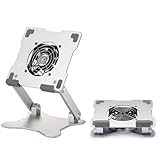
- 【 More Durable】 Made of high-quality aluminum and super high strengthened alloy steel material - More durable & Long useful life.
- 【 COMPATIBILITY 】 Applies to 4 - 15 inches tablets and cellphones, such as new 2024 / 2022 / 2021 iPad Pro 11 / 12.9 / 13'', iPad 10.9, iPad Air 5 / 6, iPad mini 1-6, iPad Pro 9.7 / 10.5, Kindle, Microsoft Surface Pro 10 9 8 7+ X 7 6 5 4 3, Surface Go,Galaxy Tabs, MacBook Air 13'' 2017 2020 MacBook Pro 13'',Dell XPS 13 and more.
- 【 DOUBLE-AXIS DESIGN】It can be easily adjusted to the required angle to obtain the best view with a sturdy state.-A solid structure & Multi-Angle. Supporting both vertical and horizontal viewing. The ergonomic design is suitable for typing, zoom meeting, watching videos, gaming,working,drawing etc.
- 【 Tablet stand with cooling fan】 Equipped with a USB ultra-quiet fan. It will provide excellent airflow over the back of your device. Keep your device from overheating.
- 【100% custome service in 24 hours】Please give us a chance to serve you first if you have any problem with our product.
2. Reduce the workload
- Close games, editors, video calls and other demanding apps that are not needed.
- Pause downloads, cloud synchronization and large file transfers.
- Reduce display brightness and disable radios you are not using if the manufacturer recommends those measures.
- On a Windows tablet, press Ctrl+Shift+Esc to open Task Manager, sort the Processes list by CPU or GPU, and close only applications you recognize and no longer need. Do not terminate system processes at random.
- On Android, use the installed battery, device-care or battery-usage screen to identify an app consuming unusual power. Menu names differ by manufacturer and Android version.
If the fan quiets within several minutes after the workload falls, the behavior is consistent with ordinary active cooling. If it stays loud while processor use is low, continue with the checks below.
Do these 3 things before closing this tab:
1Repair Windows errors before they cause bigger problems2Fix the driver behind crashes, sound loss and screen glitches3Clear out junk files and repair common Windows errors3. Improve airflow
- Move the tablet out of direct sunlight and away from radiators, cooking appliances and hot vehicles.
- Place it on a hard, flat surface that leaves every grille unobstructed.
- Remove a thick case temporarily if it covers vents or noticeably traps heat.
- Keep space around the intake and exhaust sides; do not use the tablet on a bed, blanket or cushion during demanding work.
- Let the device cool naturally. Do not aim a very cold air stream at a hot tablet, because condensation is a risk.
Huawei’s support guidance specifically recommends avoiding direct sunlight and poorly ventilated locations. Better airflow helps a fan-equipped design, but it cannot repair a worn bearing, failed sensor or damaged battery.
4. Handle charging heat safely
If the tablet is hot while charging, disconnect the charger and allow the device to cool before reconnecting it. Huawei advises against using a device while charging as a heat-reduction measure. Use the charger, cable and charging mode specified by the manufacturer; a damaged cable, loose connector or incompatible high-power accessory should not be treated as a cooling solution.
During first-time setup, allow updates, data recovery and app synchronization to finish with the tablet in a ventilated place. Xiaomi’s REDMI Pad 2 Pro instructions recommend avoiding heavy workloads while charging during setup. If charging repeatedly stops, resumes, or produces a warning, arrange model-specific support rather than repeatedly forcing the connection.
5. Restart after the tablet has cooled
A restart clears a process that may be stuck at high usage and reloads thermal-control services. Do it only after the tablet is at a normal, comfortable temperature. Recheck behavior before reinstalling apps or changing system settings. If the fan immediately races at the idle screen after a restart, note the exact model, software version, charger state and any error message for support.
The Tool Desk
Outbyte PC Repair FREERepair Windows errors before they cause bigger problemsFix Now →Outbyte Driver Updater FREEScan for outdated or missing drivers - takes under a minuteDriver Scan →Rank #4

- 【40W Ultra-Fast Cooling】 The wired magnetic tablet cooler features Black Shark’s proprietary ICECOLD 2.0 cooling system, capable of reducing the device’s temperature by approximately 113℉. With a powerful 14N magnetic force, it securely attaches to your tablet to prevent it from falling. NOTE: Connection to power supply required for use. Power must exceed 40W for optimal performance. Data cable not included in packag.
- 【Simple Control】The cell phone cooling fan features a built-in Type-C interface, so you can start using it right away by simply connecting the power cable. Click the button to switch between Overclock Mode, Smart Mode, Silent Mode, and Custom Mode.
- 【Compact & Lightweight Design】At just 0.33 lbs, this magnetic tablet cooler adds virtually no extra weight to your device. Its thoughtful design leaves your hands free for full-screen gaming without feeling bulky or getting in the way.
- 【In-APP Control】Take full command via the "Shark Arsenal" APP. Effortlessly switch between power modes, fine-tune fan speeds, and personalize RGB lighting effects and colors — all from your phone, no need to reach for the cooler.
- 【Ultra-Silent Cooling】Thanks to its optimized fan blade design and noise-dampening structure, the cooler operates at a mere 30dB in silent mode. Whether you're grinding in ranked matches, streaming videos, or in a shared space, it delivers powerful cooling without disturbing your focus or those around you.
6. Check for a repeatable trigger
Use the tablet normally and record what happens just before the noise or heat: a particular game, a video export, charging, a case, sunlight, a wireless accessory or an update. A repeatable trigger helps distinguish normal workload response from a fault. Compare idle behavior on battery power with behavior while charging, but stop the test if the tablet becomes uncomfortably hot or shows a warning.
How to tell normal active cooling from a fault
| What you observe | Most useful interpretation | Next action |
|---|---|---|
| Fan gets louder during a game or export and quiets afterward | Workload-related cooling response is likely | Reduce load, improve airflow and allow a cool-down period |
| Warmth appears during first setup, updates or synchronization | Background activity may be temporary | Keep the tablet ventilated and avoid heavy use while charging |
| Heat rises mainly in sunlight, bedding or a tight case | Ambient heat or blocked airflow is contributing | Move it to a hard, open surface and remove the obstruction |
| Rattle, grinding, scraping or repeated clicking | Mechanical fan wear or vibration is possible | Stop stressing the device and contact the manufacturer |
| Fan stays at high speed while idle after a cool restart | Abnormal background use, sensor or cooling-control issue is possible | Check resource usage, install only manufacturer-approved updates, then seek support if it persists |
| “Device cooling down” or a similar warning | The protection system has detected excessive heat | Stop using it, disconnect power and let it cool |
| Unusual heat continues after shutdown or the case changes shape | Possible battery or hardware safety problem | Do not charge or use it; follow the manufacturer’s urgent service guidance |
There is no universal tablet temperature at which every model becomes unsafe. Sensors, chassis materials, charging systems and software limits differ. Avoid online “safe temperature” charts that present one number as valid for all tablets.
Independent reader supportYour contribution helps us test, update, and keep practical guides available for everyone.Warnings, charging problems and battery symptoms
Cooling warnings
A cooling warning is more significant than ordinary warmth because the operating system has entered a protective state. Follow the on-screen instruction, stop active use and let the tablet cool in ventilation. Repeated warnings during light use, or warnings that appear immediately after a cold start, warrant manufacturer diagnostics.
Heat concentrated near the battery or connector
If one small area becomes sharply hot, especially around the charging port or battery rather than the processor area, stop charging and disconnect power. Do not bend, press, puncture or remove a swollen battery. Keep the tablet away from flammable materials and use the maker’s support channel for safe handling instructions.
Free tools Windows power users keep installed
One-click scans. No signup required.
Charging stops or performance is limited
Thermal protection can intentionally reduce performance, stop charging or limit functions. Samsung documents these behaviors for its “Device cooling down” state. They do not prove that the charger is defective. Once the tablet is cool, check the approved charger and cable and look for model-specific messages before trying another accessory.
Best Value

- Dual USB Hub: With a built-in dual USB hub, the laptop fan enables you to connect additional USB devices to your laptop, providing extra connectivity options for your peripherals. Warm tips: The packaged cable is a USB-to-USB connection. Type C connection devices require a Type C to USB adapter. Please plug the cooling pad's USB cable into a 5V 1A adapter for best performance; otherwise, the fans may fail to spin or run at very low speed.
- Whisper-Quiet Operation: Enjoy a noise-free and interference-free environment with super quiet fans, allowing you to focus on your work or entertainment without distractions.
- Enhanced Cooling Performance: The laptop cooling pad features 5 built-in fans (big fan: 4.72-inch, small fans: 2.76-inch), all with blue LEDs. 2 On/Off switches enable simultaneous control of all 5 fans and LEDs. Simply press the switch to select 1 fan working, 4 fans working, or all 5 working together.
- Ergonomic Design: The laptop cooling stand also serves as an ergonomic stand, offering 6 adjustable height settings that enable you to customize the angle for optimal comfort during gaming, movie watching, or working for extended periods. Ideal gift for both the back-to-school season and Father's Day.
- Secure and Universal Compatibility: Designed with 2 stoppers on the front surface, this laptop cooler prevents laptops from slipping and keeps 12-17 inch laptops—including Apple Macbook Pro Air, HP, Alienware, Dell, ASUS, and more—cool and secure during use.
Should you buy an external tablet cooling fan?
A clip-on or stand-mounted cooler can be a limited accessory for a compatible tablet used for sustained high-intensity gaming. Huawei says that playing demanding games with a fan or air conditioner can accelerate heat dissipation. That statement does not establish a particular accessory’s cooling performance, noise level or compatibility.
Check compatibility before purchase
- Measure the tablet’s width, thickness and usable attachment area, including its case.
- Confirm that the clip, magnet or pad will not press buttons, cover speakers, block cameras or obstruct built-in vents.
- Check the cooler’s power connection and whether it needs a separate adapter or occupies the tablet’s only port.
- Look for a stated operating-noise specification if quiet use matters; do not assume a smaller fan is silent.
- Verify that the manufacturer lists your tablet’s dimensions or model family. A generic “universal” label is not proof of fit.
Use an external cooler only after basic troubleshooting. It is not a remedy for a failed internal fan, a swollen or damaged battery, repeated thermal warnings, blocked vents or a tablet that remains abnormally hot at idle. If an accessory makes the case colder but the warning persists, disconnect it and seek service.
When to contact the manufacturer
Use the manufacturer’s support process when the tablet remains abnormally hot after it has cooled and heavy work has stopped, or when a real fan rattles, grinds, fails to turn or runs at full speed at idle. Sony advises repair or support if its tablet becomes abnormally hot. ASUS similarly directs users toward model-specific checks when airflow, dust, resource use or fan wear may be involved.
Before contacting support, collect:
- Exact model number, operating-system version and country or region.
- The warning text, if any, and when it appears.
- Whether the tablet is charging, which charger and cable are connected, and whether a case is fitted.
- The application or activity that triggers the heat, plus what happens at the idle screen.
- A short description of the sound: airflow, whine, rattle, grind, click or vibration.
- Any recent drop, liquid exposure, repair, battery swelling or unusual odor.
Do not open a sealed tablet because a generic guide says to clean or replace its fan. Opening the chassis can damage waterproofing, cables or the battery and may affect warranty coverage. A service technician can determine whether the problem is software load, a blocked cooling path, a fan assembly, a sensor or the battery.
A practical decision path
- No fan listed for the model: investigate workload, charging, ventilation and battery symptoms rather than searching for a replacement fan.
- Fan present and noise follows heavy work: lower the workload, improve airflow and observe whether it quiets as temperatures fall.
- Fan present but noise is mechanical: stop demanding use and arrange manufacturer service.
- Any cooling warning: stop using the tablet, disconnect power and let it cool before further testing.
- Heat persists at idle or returns during light use: record the conditions and escalate to model-specific support.
The goal is not to force a tablet to run silently. A fan-equipped design may be doing exactly what it was built to do. The safety boundary is persistent abnormal heat, a warning, battery damage or a mechanical fan symptom that does not resolve when the workload and surroundings are normal.
Quick Recap
Product prices and availability are accurate as of the date/time indicated and are subject to change. Any price and availability information displayed on Amazon at the time of purchase will apply.

