A laptop advertised as “4K 120Hz” is not automatically capable of 3840×2160 at 120Hz in every configuration. Resolution and refresh rate are a combined display mode. The panel, graphics path, connector, monitor input, cable, dock and operating-system settings must all support that exact combination. A system may therefore offer 4K only at 60Hz, or 120Hz only at a lower resolution.
Start by identifying whether the limitation affects the built-in panel or an external monitor, then inspect the modes Windows actually exposes. If 120Hz is missing, verify the exact laptop model and connection path before changing cables or settings; no software toggle can create a mode that the hardware does not support.
As an Amazon Associate I earn from qualifying purchases.
What “4K 120Hz” actually promises
“4K” normally means 3840×2160 pixels on a laptop or computer monitor. “120Hz” means the display can refresh up to 120 times per second. Those specifications describe different capabilities, but the useful question is whether they are supported together at the same time.
Recommended Free Tools
A specification sheet can list a maximum resolution and a maximum refresh rate separately. That does not prove the device can run 3840×2160 at 120Hz. Bandwidth, panel electronics, GPU output, connector standards and firmware determine which combinations are available.
#1 Best Overall

- Improved ComfortView Plus: Reduces harmful blue light emissions to ≤35%, for all-day comfort without sacrificing color accuracy.
- Refresh rate: A smooth, tear-free experience with AMD FreeSync Premium (refresh rate up to 120Hz) and an ultra-low 0.03ms response time create a captivating experience for work and play.
- Vivid colors: Immerse yourself in breathtaking 4K visuals with in-plane switching technology. Enjoy vibrant colors with 99% sRGB. The 1500:1 contrast ratio and HDR readiness deliver excellent depth and detail.
- Re-engineered sound quality: Enjoy more detailed sound with spacious audio featuring greater output power, deeper frequency response and more decibel range than the previous generation.
- Ultra-thin bezel: Designed with a sleek, modern aesthetic and an ash white finish, this display features ultra-thin bezels for a refined, minimalist design.
| What a specification may say | What you still need to confirm |
|---|---|
| Maximum resolution: 3840×2160 | Whether 3840×2160 is available at 120Hz |
| Maximum refresh rate: 120Hz | Which resolution, color format and port support 120Hz |
| “4K 120Hz” in general product material | Whether the exact laptop model, display input and connection path support that mode |
For an external screen, the target mode should be written explicitly as 3840×2160 at 120Hz. Check the laptop maker’s specification for the complete model number and the monitor maker’s specification for the particular input you are using. A different regional SKU, GPU, panel or port can have different limits.
Also read the fine print for the simultaneous mode, not just the headline numbers. A manual may describe a maximum resolution, maximum refresh rate, or supported input separately. You need the entry that pairs the target resolution and refresh rate for the port actually in use. If the table lists restrictions for color depth, HDR or chroma at 4K/120Hz, those restrictions are part of the supported mode and can affect what Windows offers.
First determine which screen is limited
The built-in laptop panel
If the laptop’s own screen is stuck at 60Hz, the relevant limits are the panel installed in that exact model, the internal graphics connection and the modes supported by the manufacturer’s graphics configuration. An HDMI cable cannot change an internal panel’s capability. A laptop sold with a 60Hz panel cannot be turned into a 120Hz panel through Windows settings.
Windows Errors? Fix Them Before They Spread
Repair common Windows errors and clear accumulated junk for a smoother, more stable PC - no reinstall needed.Free scan · no reinstallOutdated Drivers Are Slowing You Down
One free scan finds every outdated or missing driver and matches the right update for your exact hardware.Free scan · exact hardware matchUse the complete product number rather than the family name when checking this. Two configurations sold under one series name can have different panels, GPUs or firmware. The manufacturer’s support page and system information are more useful than a retailer headline. If the model documentation specifies 120Hz only at a lower resolution, Windows is behaving correctly when it omits 4K/120Hz.
An external monitor or television
An external display has a longer signal chain: the laptop GPU and output, the port, cable, adapter or dock, the monitor input and sometimes a switch, KVM or another connected device. Any one of those components can remove 4K/120Hz from Windows’ available list. Troubleshooting must therefore include every link, not just the monitor’s headline specification.
Do not apply an external-monitor cable fix to an internal-panel problem. Conversely, do not assume the built-in panel’s refresh-rate limit predicts what an external output can deliver. The two screens can be driven by different graphics paths and have different supported modes.
Inspect the refresh-rate list in Windows
Windows shows the modes it believes are available for the selected display. Use this list before changing hardware.
- Open Settings.
- Choose System, then Display.
- If more than one screen is connected, select the display you are troubleshooting.
- Open Advanced display.
- Review the displayed resolution and the Choose a refresh rate list.
- Select 120Hz only when it appears alongside the desired 3840×2160 resolution, then apply the change.
The list is display-specific. Selecting the wrong screen can make it appear that 120Hz is unavailable when it is offered by another monitor. Microsoft also notes that a refresh-rate entry marked with an asterisk does not support the current resolution. Choosing that entry changes the resolution to obtain the listed rate, so verify both values after applying it.
If 120Hz does not appear for 3840×2160, do not assume it is hidden behind an undocumented registry setting. Treat the missing mode as evidence that Windows is not receiving support for that combination from the current hardware and connection, then check the causes below.
Record the complete list before experimenting. Note the selected display, current resolution, every listed refresh rate and any asterisk. That record makes it easier to tell whether a cable, dock or display change actually added the desired mode rather than merely switching to a lower-resolution 120Hz entry.
Rank #2
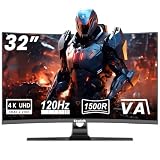
- WRAP-AROUND 1500R CURVED VIEWING EXPERIENCE: This 4K curved monitor features a 32-inch 16:9 VA curved screen with 1500R deep curvature, bringing natural panoramic visual wrapping without edge distortion. As a premium 32 inch monitor 4K, its large UHD screen eliminates flat screen visual fatigue, perfectly matching home theater viewing.
- NATIVE 120HZ UHD 4K RESOLUTION & 1MS ULTRA-FAST RESPONSE: This 4k 120hz monitor delivers crisp 3840*2160 4K ultra-high definition image detail, paired with 1ms rapid response time to wipe out motion blur and ghosting in fast action scenes. Whether you play AAA games or edit 4K video materials, this 4k gaming monitor renders every moving frame seamlessly for lag-free visual feedback.
- PROFESSIONAL VA PANEL WITH STUNNING COLOR PERFORMANCE: The core of this monitor 4k adopts high-performance VA panel with industry-leading 3000:1 typical static contrast ratio, far superior to IPS panels on dark scene layering. Equipped with 8bit+FRC color depth for 16.7M rich display colors, it covers 85% NTSC1931 wide gamut and adopts factory-calibrated 6500K default color temperature, restoring authentic color for gaming, photography and movie playback.
- DUAL COMPATIBLE G-SYNC & FREESYNC ADAPTIVE SYNC TECHNOLOGY: This 4k monitor supports both G-Sync and FreeSync adaptive sync functions simultaneously, automatically matching GPU frame output with screen refresh rate.
- VESA 100X100MM WALL MOUNT SUPPORT: This 32 inch monitor reserves standard 100x100mm VESA mounting holes, compatible with most monitor arms, wall brackets and desk stands on the market.
Verify the exact laptop and display specifications
Search the laptop manufacturer’s support page using the complete model or product number printed on the chassis, original invoice or system information screen. Do not rely on a family name alone: two configurations with the same commercial name can use different GPUs, panels or ports.
What’s actually slowing this PC down?
Pick the symptom - the matching free tool is one click away.
For the built-in screen, look for the panel’s native resolution and maximum refresh rate. For an external monitor, inspect the manual or specification table for the specific input—HDMI, DisplayPort or USB-C—not merely the monitor’s overall maximum. Confirm that the intended mode is listed as one simultaneous mode:
- Resolution: 3840×2160.
- Refresh rate: 120Hz.
- Input used: the exact HDMI, DisplayPort or USB-C input.
- Any stated color-depth, HDR or chroma restrictions that apply at 4K/120Hz.
MSI advises checking the maximum refresh rate supported by the particular laptop model when the available rate falls short. That check is especially important when a product page advertises a high refresh rate without specifying the resolution at which it applies.
Check both ends independently. A monitor can support 4K/120Hz on one HDMI input while another input has a lower limit. A laptop can have multiple video outputs with different wiring or capabilities. The correct answer is the documented combination of laptop model, physical output, monitor input and any intervening equipment.
Simplify an external connection
When the affected display is external, temporarily remove intermediate hardware. This isolates whether the limitation belongs to the laptop, monitor or signal path.
Free tools Windows power users keep installed
One-click scans. No signup required.
- Disconnect the dock, hub, KVM switch and adapters.
- Connect the monitor directly to a documented video output on the laptop.
- Select the monitor’s input that corresponds to that physical connection.
- Use a cable rated for the required mode and supported by both endpoints.
- Return to Settings > System > Display > Advanced display and check the list again.
If 4K/120Hz appears on a direct connection but disappears through the dock, the dock or its port combination is the bottleneck. If it remains absent, test another documented video output or monitor input before concluding that the panel or GPU is limited.
USB-C is a connector shape, not a guaranteed display standard
A USB-C socket may support charging and data without carrying video. For display output, the laptop port must support DisplayPort Alternate Mode or the applicable USB4 or Thunderbolt video features, and the dock or adapter must preserve the required bandwidth. Microsoft identifies the PC, display, cable, port and dock as possible causes of limited USB-C display functionality.
Check the symbols beside the port and the laptop manual, but treat the manual as authoritative. A USB-C cable that fits physically may not support the required video mode. Test the video-capable port, a direct connection and a different cable when the documentation indicates those options.
A USB-C connection that works for charging is therefore not proof that it can carry 4K/120Hz. Confirm video support at the laptop port, the adapter or dock and the display input. If any link lacks the applicable alternate-mode or USB4/Thunderbolt video support, Windows may show only lower-rate modes or no external image.
Do these 3 things before closing this tab:
1Clear out junk files and repair common Windows errors2Fix the driver behind crashes, sound loss and screen glitches3Repair Windows errors before they cause bigger problemsHDMI cable guidance
For an HDMI connection, ASUS recommends certified Premium High Speed or Ultra High Speed HDMI cables according to the target video mode, identifying Ultra High Speed for 4K/120Hz use. A certified cable is a sensible replacement only when the laptop HDMI output and monitor HDMI input also support 4K/120Hz. A new cable cannot overcome a 60Hz-only port, an incompatible adapter or a lower-rate panel.
Rank #3

- Low blue light: The improved ComfortView Plus reduces harmful blue light emissions to ≤35%, for all-day comfort without sacrificing color accuracy.
- Refresh rate: A smooth, tear-free experience with AMD FreeSync Premium (refresh rate up to 120Hz) and an ultra-low 0.03ms response time create a captivating experience for work and play.
- Vivid colors: Immerse yourself in breathtaking 4K visuals with in-plane switching technology. Enjoy vibrant colors with 99% sRGB. The 1500:1 contrast ratio and HDR readiness deliver excellent depth and detail.
- Re-engineered sound quality: Enjoy more detailed sound with spacious audio featuring greater output power, deeper frequency response and more decibel range than the previous generation.
- Easy connectivity: Keep your desk organized and clutter-free with a single USB-C cable (up to 65W power delivery).
Replace one component at a time and recheck Advanced display after each change. Otherwise, it is easy to attribute the improvement to the cable when the actual change was bypassing an adapter or selecting a different monitor input.
Docks, adapters and simultaneous-display limits
Docks often divide a finite bandwidth budget among several outputs and USB devices. A dock may support 4K/120Hz on one output in isolation but fall back to 60Hz when another monitor is connected, when a particular port is used or when the dock’s chipset has a lower limit.
HP documents a 4K/120Hz limitation through a particular dock connection and port on specified commercial notebooks, and its dock documentation describes bandwidth limits for some simultaneous display and port combinations. These are model-specific examples, not a universal rule for every laptop or dock. Look up the exact notebook, dock model and port combination rather than assuming that a dock’s headline resolution applies to every arrangement.
For testing, disconnect all other displays and USB-C accessories, bypass the dock and try the monitor directly. If the direct path works, reconnect devices one at a time until the mode disappears. The last change identifies the component or combination that needs a different port, cable, dock or display arrangement.
Keep a note of which dock output was tested and how many displays were active. “The dock supports 4K” is incomplete unless its documentation also covers the specific output and simultaneous-display arrangement you need. A different port on the same dock can have a different result.
Check graphics routing on hybrid-graphics laptops
Laptops with integrated and discrete graphics can wire their outputs differently. NVIDIA’s Optimus example connects the internal LCD to Intel integrated graphics while HDMI is often connected to NVIDIA graphics. That example demonstrates why port behavior can differ; it does not establish the wiring of every laptop.
Consult the laptop manual for the actual routing of each output. A port connected through integrated graphics may have a different maximum mode from one wired directly to the discrete GPU. Some models also expose a manufacturer-supported graphics mode that changes which GPU drives an output. Use only settings documented for the exact model, and restart after changing a graphics mode if the manufacturer requires it.
The Tool Desk
Outbyte PC Repair FREERepair Windows errors before they cause bigger problemsFix Now →Outbyte Driver Updater FREEFix the driver behind crashes, sound loss and screen glitchesFind Drivers →Do not infer that an external monitor should match the built-in panel’s limits, or that an HDMI result predicts what DisplayPort or USB-C will provide. The physical wiring and supported standards can be different for every output.
Graphics routing is a reason to ask support a precise question: “Does this laptop’s particular output, with this GPU configuration, support 3840×2160 at 120Hz?” It is more useful than asking whether the product line is generally advertised as 4K or 120Hz.
Understand Windows 11 Dynamic Refresh Rate
Windows 11 Dynamic Refresh Rate (DRR) can vary refresh behavior on compatible hardware to balance responsiveness and battery use. Microsoft says DRR requires variable-refresh-rate (VRR) support and a display refresh rate of at least 120Hz. Windows 10 does not include DRR.
Rank #4

- Improved ComfortView Plus: Reduces harmful blue light emissions to ≤35%, for all-day comfort without sacrificing color accuracy.
- Refresh rate: A smooth, tear-free experience with AMD FreeSync Premium (refresh rate up to 120Hz) and an ultra-low 0.03ms response time create a captivating experience for work and play.
- Vivid colors: Immerse yourself in 4K visuals with a VA panel. Enjoy true-to-life colors with 99% sRGB and 95% DCI-P3 coverage. The 1500:1 contrast ratio and HDR readiness deliver excellent depth and detail.
- Re-engineered sound quality: Enjoy more detailed sound with spacious audio featuring greater output power, deeper frequency response and more decibel range than the previous generation.
- Ultra-thin bezel: Designed with a sleek, modern aesthetic and an ash white finish, this display features ultra-thin bezels for a refined, minimalist design.
DRR can change how a supported 120Hz display behaves; it cannot add 120Hz to a mode that is missing from Advanced display. If Windows lists only 60Hz at 3840×2160, first resolve the hardware or connection limitation. If 120Hz is listed and you want a fixed rate for a particular application, select the explicit 120Hz option where available instead of treating DRR as an upgrade.
DRR is therefore a behavior setting, not a bandwidth solution. It cannot make an unsupported panel, port, cable or dock meet the 120Hz requirement, and it is not available as a workaround on Windows 10.
Set 120Hz when the mode is available
Once the correct display is selected and Windows lists the target combination, choose it directly:
- Go to Settings > System > Display.
- Select the built-in panel or external monitor that should run faster.
- Open Advanced display.
- Confirm that the current resolution is 3840×2160.
- Choose 120Hz from the refresh-rate menu.
- Accept the prompt and verify that both the resolution and refresh rate remain correct.
If the screen goes black after applying a mode, wait for Windows’ automatic rollback or reconnect using the previous known-good setting. Do not keep a mode that the display cannot show reliably.
After applying the setting, reopen Advanced display and check the active mode rather than relying on a product label or a game’s reported setting. Confirm that Windows still shows 3840×2160 and 120Hz for the intended screen.
Quick wins for a faster PC:
Repair Windows errors before they cause bigger problemsFix Now →Fix the driver behind crashes, sound loss and screen glitchesFind Drivers →Clear out junk files and repair common Windows errorsFree Scan →Use the symptom to narrow the cause
| What you observe | Most useful next check |
|---|---|
| 120Hz is listed, but selecting it lowers the resolution | The entry is marked with an asterisk or otherwise does not support the current resolution; select a mode that explicitly pairs 120Hz with 3840×2160. |
| 120Hz is absent on the built-in panel | Check the exact laptop panel specification and manufacturer-supported graphics configuration. |
| 120Hz is absent only through a dock | Bypass the dock and test a direct, documented video output; then review the dock’s port and simultaneous-display limits. |
| 120Hz appears on one external input but not another | Check the monitor’s specification for each input and use the input documented for 4K/120Hz. |
| USB-C works for charging but not 4K/120Hz video | Verify DisplayPort Alternate Mode or USB4/Thunderbolt video support on the laptop, adapter and dock. |
| A different cable changes the available rates | The original cable was not suitable for the required mode; keep a cable rated for the target resolution and refresh rate. |
| The direct connection still offers only 60Hz | Confirm the laptop output, GPU routing, monitor input and exact model specifications support 3840×2160 at 120Hz together. |
A quick isolation checklist
Work from the least ambiguous setup to the most complex. First identify the affected screen and record its current mode. Next select that screen in Advanced display and note whether 120Hz is listed at 3840×2160. Then compare those observations with the exact laptop and display specifications.
- For an external screen, disconnect every dock, hub, KVM, adapter, second monitor and unnecessary USB-C accessory.
- Use the laptop output and monitor input explicitly documented for the target mode.
- Use a cable rated for the target mode; for HDMI 4K/120Hz, ASUS identifies Ultra High Speed certification.
- Recheck the Windows list after each single change.
- If the direct path works, add the dock, other displays and accessories back one at a time.
- If it never works directly, compare another documented output or input and verify the model-specific GPU routing.
This sequence separates a missing capability from a configuration conflict. It also prevents a common mistake: changing several parts at once and then not knowing which part affected the available mode.
Independent reader supportYour contribution helps us test, update, and keep practical guides available for everyone.When the mode still does not appear
At this point, avoid random driver utilities, registry edits or unsupported adapters. A missing entry generally means that Windows cannot establish the requested mode through the current hardware path. Gather the information a manufacturer’s support team needs:
- Full laptop model and configuration, including GPU.
- External display model, if applicable.
- Selected resolution and the complete refresh-rate list shown in Advanced display.
- Physical port used on the laptop and input used on the display.
- Exact cable, adapter, dock or KVM model numbers.
- Whether a direct connection changes the available modes.
- Whether disconnecting other displays or USB devices changes the result.
Ask the laptop or monitor manufacturer to confirm the particular port/input combination for 3840×2160 at 120Hz. Microsoft’s external-monitor guidance also recommends checking the physical connection and display setup, but its generic steps cannot establish the maximum mode of an unspecified laptop.
Include the result of the simplest direct test in your support request. State whether 120Hz is absent, whether it appears only at another resolution, and whether a different input or cable changes the list. Those details let support distinguish a panel specification, port-routing issue, dock bandwidth limit or unsuitable cable.
Best Value

- Smooth 4K 120Hz 1ms IPS Screen:Immerse yourself in ultra-smooth gaming with this 27-inch 4K UHD IPS gaming monitor featuring a 120Hz high refresh rate and rapid 1ms response time. The IPS panel delivers consistent vivid visuals with wide viewing angles, while 1ms eliminates motion blur and ghosting during fast-paced FPS, racing and action games. Every enemy movement and racing track detail renders sharply without lag, bringing you competitive advantages in all types of video games
- 99% sRGB & HDR400 True-to-Life Color:Boasting 99% sRGB color gamut and HDR400, this white gaming monitor reproduces rich, lifelike colors for gaming, video editing and streaming. HDR400 boosts peak brightness to reveal deep dark shadows and bright highlights, making game scenes more layered and immersive. Whether you explore open-world games or edit creative artwork, you get accurate, saturated color performance far better than ordinary office displays.
- HDMI2.1+DP1.4 Dual Sync Game Tech:Equipped with HDMI 2.1 and DP 1.4 ports, this monitor fully supports 4K@120Hz signal transmission for PS5, Xbox Series X and gaming PCs. It works seamlessly with AMD FreeSync and NVIDIA G-Sync compatible technology to eliminate screen tearing, stutter and input lag. Switch between console and computer effortlessly without sacrificing high resolution and high refresh rate gaming performance.
- Built-in Speakers & 100x100 VESA Mount:Built-in dual stereo speakers deliver clear game audio and background music, no extra external speakers required for daily gaming and video watching. The sleek minimalist white frame fits modern gaming setups and bedroom aesthetics. Standard 100×100 VESA mounting holes allow you to hang the monitor on wall brackets or monitor arms, saving desktop space and adjusting viewing height freely for long-hour gaming comfort.
- Flicker-Free Low Blue Light Eye Protection:Designed for long gaming sessions, the flicker-free backlight and low blue light filter reduce eye strain and fatigue after hours of gameplay. This all-in-one white gaming monitor works perfectly for competitive gaming, content creation, live streaming and daily office work. Stable panel performance plus complete gaming specs make it an ideal upgrade for gamers, streamers and graphic designers.
The practical answer
A 4K laptop display can be advertised with 120Hz while operating at 60Hz because 4K and 120Hz are not independent guarantees; they are a single mode that must be supported by the exact panel or by every component in an external connection. The reliable fix is to identify the affected screen, inspect Windows’ display-specific mode list, verify the exact model specifications, simplify the signal path and confirm port wiring and cable capability. If 3840×2160 at 120Hz is not listed after those checks, the limitation is likely hardware or connection-specific rather than a setting that Windows can unlock.
Frequently Asked Questions
Why is my 4K 120Hz laptop screen stuck at 60Hz?
Because 3840×2160 at 120Hz may not be a supported combined mode for the exact panel, GPU path or connection. Check Advanced display, then verify the complete laptop model and, for an external screen, every port, cable, adapter and dock in the path.
How do I set my laptop display to 120Hz?
Open Settings > System > Display > Advanced display, select the intended screen, confirm that 3840×2160 is selected, and choose 120Hz if Windows lists that combination. If 120Hz is absent, settings cannot create it; verify hardware and connection support.
Does a USB-C port guarantee 4K at 120Hz?
No. USB-C is only the connector shape. The laptop port, cable, adapter or dock and display must support DisplayPort Alternate Mode or the applicable USB4/Thunderbolt video features and the required mode.
Will buying a new HDMI cable fix 60Hz?
Only if the original cable is the limiting component and the laptop HDMI output and monitor HDMI input already support 3840×2160 at 120Hz. ASUS identifies certified Ultra High Speed HDMI cable for HDMI 4K/120Hz use; a cable cannot upgrade a lower-capability port, adapter or panel.
Why does 120Hz appear only when I lower the resolution?
That indicates the available mode pairs 120Hz with a lower resolution. In Windows, an asterisk can mark a rate that does not support the current resolution. Look for an entry that explicitly pairs 3840×2160 with 120Hz and check the model specifications.
Can Windows 11 Dynamic Refresh Rate unlock 120Hz?
No. DRR adjusts refresh behavior on compatible hardware. Microsoft requires VRR support and a display refresh rate of at least 120Hz, and Windows 10 does not include DRR. It cannot add a missing mode.
Recommended Free Tools
Why does my monitor run at 120Hz directly but only 60Hz through my dock?
The dock, its selected output, or the simultaneous-display arrangement may impose a bandwidth limit. Bypass the dock, disconnect other displays, test directly, then consult the exact dock and notebook documentation for that port combination.
What information should I send to support?
Provide the full laptop model and GPU, monitor model, selected resolution, complete Windows refresh-rate list, laptop output, monitor input, cable and adapter or dock models, and whether a direct connection or disconnecting other displays changes the result.
The Bottom Line
4K and 120Hz must be supported together by the exact panel or complete external signal path. Check Windows’ display-specific list, confirm the model and port specifications, bypass docks, use an appropriate cable and verify graphics routing before seeking manufacturer support.
Quick Recap
Product prices and availability are accurate as of the date/time indicated and are subject to change. Any price and availability information displayed on Amazon at the time of purchase will apply.

