Recommended Free Tools
The best first-day changes on a new Dell XPS 13 are practical rather than cosmetic: finish Windows Update, identify the exact XPS 13 generation, review privacy and recommendation controls, set screen and sleep behavior, configure Windows Backup, and secure the BitLocker recovery key. Presence Sensing, Dynamic Refresh Rate and some Dell firmware options are conditional, so do not assume that another XPS 13 has the same switches.
Use the checklist below in order. It separates settings that every owner should review from options that appear only on particular displays, sensors, Windows builds or XPS 13 generations.
As an Amazon Associate I earn from qualifying purchases.
1. Identify the exact XPS 13 before changing drivers or BIOS
“XPS 13” is a product family, not one fixed hardware configuration. Dell’s support material distinguishes generations such as the XPS 13 9315 and XPS 13 9340, and their firmware, drivers and available Windows controls can differ. Find the Service Tag on the laptop’s underside, packaging or Dell support application, then enter it on Dell Support and select the installed Windows edition. The matching support page is the authority for that machine’s drivers and BIOS instructions.
For model-specific examples, see Dell’s XPS 13 9315 usage and troubleshooting guide and XPS 13 9340 usage and troubleshooting guide. Do not install a BIOS package intended for a different XPS 13 generation.
#1 Best Overall

- PREMIUM ULTRA-PORTABLE DESIGN – The Dell XPS 13 9350 designed for users who value performance, mobility, and premium craftsmanship. With its ultra-slim, lightweight design and refined finish, it delivers a high-end portable experience for work and daily use. Built for all-day productivity, up to 26 hours battery life keeps you powered without interruption
- INTUITIVE CONTROL & PREMIUM INTERACTION – Engineered for modern workflows, it features a precision haptic glass touchpad with smooth, responsive feedback and a streamlined touch function row for effortless control between media and function keys. Combined with its minimalist design, it delivers a clean, premium, and distraction-free experience for everyday productivity. Backlit keyboard ensures comfortable typing in low-light environments
- POWERFUL PERFORMANCE - Powered by Intel Ultra 7 256V Processor (8 cores, up to 4.8 GHz) and Intel Arc Graphics, this PC delivers efficient performance for multitasking, data analysis, and content creation. Equipped with 16GB DDR5 and 1TB PCIe SSD, it ensures swift application loading and ample storage for professional workloads
- IMMERSIVE DISPLAY - Features a 13.4-inch WUXGA (1920x1200) display with narrow borders, 500-nit brightness, and 120Hz refresh rate for smooth visuals and reduced eye strain. Supports up to 2 external displays via Thunderbolt 4, with up to 4K@60Hz output. The FHD RGB camera with dual-array microphones delivers clear video calls
- ADVANCED CONNECTIVITY - With 2x Thunderbolt 4, you can easily connect external displays, storage devices and essential peripherals. Stay fast and reliable on the go with Wi-Fi 7 and Bluetooth 5.4, perfect for video calls, cloud work, and wireless devices without lag
Finish Windows Update first
Connect to power, open Settings > Windows Update, install all offered updates, restart when requested, and check again until no further updates are offered. Windows updates can change the settings interface, device support and security baseline, so taking this step first prevents you from tuning an obsolete configuration.
Use Dell’s model-specific update instructions
After Windows Update, check the Service-Tag support page for Dell driver and BIOS updates. Install an update only when Dell lists it for your exact model and operating system, and follow the instructions on that page. Dell’s BIOS and UEFI Update Download and Installation Guide explains the supported process.
Before a BIOS update or other firmware operation, make sure you can retrieve the BitLocker recovery key and temporarily suspend BitLocker protection when Dell’s instructions require it. A firmware change can trigger a recovery-key prompt even when the update itself succeeds. Never begin that operation while the key is unknown.
What’s actually slowing this PC down?
Pick the symptom - the matching free tool is one click away.
2. Review Windows privacy controls one area at a time
Open Settings > Privacy & security. Windows divides privacy into separate areas rather than one master “privacy” switch. Review the controls that match how you use the laptop: device access, diagnostics, activity-related permissions, location, camera, microphone, notifications and account information. Microsoft’s Change privacy settings in Windows documentation describes the available categories.
Rank #2

- ULTIMATE AI MOBILITY - Meet the first XPS CoPilot+ PC - the Snapdragon-powered XPS 13 with revolutionary on-device AI for lightning-fast performance. Enjoy desktop-class power without needing a charger, thanks to its industry-leading 27-hour battery life. Our thinnest, lightest XPS yet delivers instant AI acceleration, making professional-grade content creation possible anywhere
- POWERFUL PERFORMANCE - Powered by a Snapdragon X Elite (12 Core Dual-Core Boost up to 4GHz, NPU up to 45 TOPS) X1E-80-100 Processor for superior efficiency and speed, 32GB of 8448MT/s DDR5 RAM for seamless multitasking, and a 1TB PCIe NVMe M.2 SSD for fast storage and reduced load times, ensuring smooth and responsive performance for all your tasks
- CRISP DISPLAY & PRIVACY - Features a FHD IR webcam for crystal-clear video calls and enhanced security, while the 13.4" 3K (2880 x 1800) OLED 400nits Anti-reflective touchscreen display with Qualcomm Adreno graphics delivers crisp visuals, supported by the ability to connect 2 external monitors via Type-C ports at 4K (3840x2160) @60Hz (without docking station)
- VERSATILE CONNECTIVITY - Features a backlit keyboard and fingerprint reader for enhanced productivity. Equipped with 2 x USB4 40Gbps USB Type-C with DisplayPort and Power Delivery for versatile connectivity. Includes Wi-Fi 7 and Bluetooth 5.4 for fast, reliable wireless performance
- OPERATING SYSTEM - Preinstalled with Windows 11 Pro 64-bit and AI-powered Copilot, including enterprise features such as BitLocker encryption, Remote Desktop, Hyper-V virtualization, and Group Policy management. It enhances productivity with intelligent assistance for tasks such as document creation, data analysis, email drafting, and virtual meetings
Choose the trade-off, not a universal preset
Turning a permission off can reduce data access but may also remove a feature you expect. For example, blocking microphone access globally can break conference calls; blocking camera access can prevent video meetings; restricting location can affect location-aware applications. A sensible setup is to leave a capability available only where you use it and disable access for apps that have no clear reason to need it.
- Camera and microphone: keep access for trusted meeting or recording apps, then remove individual apps you do not recognize.
- Location: allow it only if maps, local search or another location-dependent function is useful to you.
- Diagnostics and activity permissions: read each description and select the least data-sharing option that still supports the features you want.
- App permissions: inspect the list after installing software; permissions often change when new apps arrive.
These are preference decisions. Windows does not provide one setting that is correct for every owner, and the controls can vary with the Windows edition and build installed on your XPS 13.
3. Turn off unwanted recommendations and personalization
For fewer tailored prompts, open Settings > Privacy & security > Recommendations & offers. Microsoft documents four related controls in Privacy settings for Recommendations & offers in Windows 11.
Do these 3 things before closing this tab:
1Repair Windows errors before they cause bigger problems2Scan for outdated or missing drivers - takes under a minute3Clear out junk files and repair common Windows errorsWhat the controls affect
- Personalized offers: Windows can use device and usage information together with account information and data from other Microsoft products and services to tailor offers.
- App launch tracking: this can influence suggestions based on the applications you open.
- Website access to the language list: websites may use your preferred language list to provide localized content.
- Suggested content in Settings: this controls recommendations shown inside the Settings application.
If you prefer a quieter interface and less personalization, disable the relevant options individually. Leaving them on can make recommendations more relevant, but it does not improve the laptop’s processing performance. Revisit the page after a major Windows update because Microsoft can add or relocate controls.
Rank #3
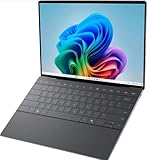
- 13.4 inch FHD+ (1920 x 1200) Anti-Glare 30-120Hz 500-nits InfinityEdge Eye Safe Non-Touch Display
- Snapdragon X Elite, X1E-80-100 (12 cores up to 3.4 GHz Dual-Core Boost up to 4.0 GHz, NPU Upto 45 TOPS)
- 16GB RAM | 512GB SSD
- Qualcomm Adreno GPU | Two USB4 40 Gbps USB Type-C ports with DisplayPort and Power Delivery
- Windows 11 PRO | Fingerprint Reader
4. Set screen, sleep and power behavior for real usage
Open Settings > System > Power & battery. Set separate values for when the XPS 13 is running on battery and when it is plugged in. Microsoft’s Power settings in Windows 11 explains the available controls.
Choose screen-off and sleep timers
Screen-off controls determine when the display goes dark; sleep controls determine when Windows puts the system into a low-power state. Short timers save energy and reduce the time an unattended laptop remains visible, while long timers are more convenient for reading, presentations, video calls and downloads. A practical starting point is a shorter battery timeout and a longer plugged-in timeout, then adjust after a day of normal work.
| Use case | Battery setting | Plugged-in setting | Reason |
|---|---|---|---|
| Travel and commuting | Short screen-off and sleep periods | Not applicable while unplugged | Limits idle drain and reduces exposure when you walk away. |
| Desk work | Moderate screen-off; sleep after a longer idle period | Longer screen-off and sleep periods | Keeps documents and tools ready without wasting as much battery. |
| Long downloads or presentations | Use a plugged-in profile when possible | Prevent sleep only when needed | Sleep can interrupt a presentation or a task that depends on an active connection. |
Pick a power mode deliberately
Power mode trades responsiveness and background activity against battery duration. A more efficient mode can limit background work; a performance-oriented mode may respond better under sustained load but uses more energy. Select the mode that matches the current task rather than leaving a high-performance profile active on battery all day. Windows also provides Energy saver; enable or schedule it when extending battery life matters more than maximum responsiveness.
5. Check advanced display options only when your hardware supports them
Dynamic Refresh Rate
Look under Settings > System > Display > Advanced display. If Dynamic refresh rate appears, Windows can lower the refresh rate during static tasks and raise it when motion benefits from a faster rate, reducing power use in supported configurations. Microsoft lists this behavior in its Power settings in Windows 11 guidance.
Rank #4

- ULTIMATE AI MOBILITY - Meet the first XPS CoPilot+ PC - the Snapdragon-powered XPS 13 with revolutionary on-device AI for lightning-fast performance. Enjoy desktop-class power without needing a charger, thanks to its industry-leading 27-hour battery life. Our thinnest, lightest XPS yet delivers instant AI acceleration, making professional-grade content creation possible anywhere
- POWERFUL PERFORMANCE - Powered by a Snapdragon X Elite (12 Core Dual-Core Boost up to 4GHz, NPU up to 45 TOPS) X1E-80-100 Processor for superior efficiency and speed, 32GB of 8448MT/s LPDDR5x RAM for seamless multitasking, and a 1TB PCIe NVMe M.2 SSD for fast storage and reduced load times, ensuring smooth and responsive performance for all your tasks
- CRISP DISPLAY & PRIVACY - Features a FHD RGB webcam for crystal-clear video calls, while the 13.4" FHD+ (1920x1200) 500nits Anti-reflective display with Qualcomm Adreno graphics delivers crisp visuals, supported by the ability to connect 2 external monitors via Type-C ports at 4K (3840x2160) @60Hz (without docking station)
- VERSATILE CONNECTIVITY - Features a backlit keyboard and fingerprint reader for enhanced productivity. Equipped with 2 x USB4 40Gbps USB Type-C with DisplayPort and Power Delivery for versatile connectivity. Includes Wi-Fi 7(802.11be) and Bluetooth 5.4 for fast, reliable wireless performance
- COPILOT+ PC AI POWERHOUSE - The dedicated NPU delivers 45 TOPS for local AI processing without relying on the cloud. Enables Recall (instant content retrieval), Cocreate (AI image tools), Windows Studio Effects (auto-framing/background blur for video calls), and Live Captions (real-time translation). Redefines productivity and creativity with seamless, offline AI acceleration
If the option is absent, do not try to force it with a registry edit or an unrelated driver. The display panel, graphics driver, Windows build or XPS 13 generation may not support it.
Dark mode and OLED expectations
Choose Settings > Personalization > Colors if you prefer dark mode. Dark pixels can use less power on an OLED panel, but the benefit depends on the panel technology and how bright the screen is. Not every XPS 13 has an OLED display, so treat dark mode primarily as a readability and appearance choice rather than a guaranteed battery-saving setting.
Independent reader supportYour contribution helps us test, update, and keep practical guides available for everyone.6. Configure Windows Backup, then plan recovery separately
Open Settings > Accounts > Windows Backup. Choose which settings, apps and account information you want associated with your Microsoft account. Microsoft’s Windows Backup Settings Catalog lists the categories Windows can sync across devices signed in with that account.
Quick wins for a faster PC:
Fix the driver behind crashes, sound loss and screen glitchesFind Drivers →Clear out junk files and repair common Windows errorsFree Scan →Understand what Windows Backup does
Windows Backup is useful when moving to another Windows device: selected settings and supported app information can follow the account. It is not a blanket copy of every personal file, desktop folder or application installation. Review the catalog and confirm which items are actually selected instead of assuming that “backup” means a complete disk image.
Best Value

- STUNNING 3K OLED TOUCH DISPLAY – Experience incredible detail and vibrant color on the 13.4-inch 3K (2880 x 1800) OLED InfinityEdge touchscreen. With deep blacks, sharp contrast, and touch functionality, it's ideal for productivity, streaming, and creative work.
- SNAPDRAGON X ELITE X1E-80-100 PROCESSOR – Features a 12-core Qualcomm Oryon CPU with boost speeds up to 4.0GHz, 42MB total cache, integrated Qualcomm Adreno graphics, and a dedicated 45 TOPS NPU for accelerated AI workloads, multitasking, content creation, and everyday productivity.
- COPILOT+ AI PC EXPERIENCE – Built with a dedicated NPU capable of up to 45 TOPS, enabling advanced AI-powered features, faster on-device processing, enhanced video conferencing effects, and next-generation Windows Copilot+ experiences.
- FAST MEMORY & STORAGE – Equipped with 16GB LPDDR5X memory for seamless multitasking and a 512GB PCIe NVMe SSD that provides fast boot times, quick application launches, and ample room for files, photos, and software.
- PREMIUM ULTRAPORTABLE DESIGN – Crafted from premium materials in Graphite, the XPS 13 combines a compact, lightweight form factor with modern connectivity, including Wi-Fi 7 and Bluetooth, making it an excellent companion for work, travel, and everyday use.
Keep an independent copy of important files
Use a separate backup location that matches your needs for documents, photos and project files. Windows Backup’s account synchronization should complement, not replace, a deliberate file-backup plan. Before resetting or recovering Windows, Microsoft recommends backing up important files; its Recovery options in Windows guidance also explains that some recovery operations require the BitLocker recovery key.
Store the BitLocker recovery key where you can reach it
Confirm that the recovery key is available through the account or storage method you chose, and keep an additional offline record if your threat model justifies it. Test that you know where to find it before a BIOS update, motherboard service or recovery reset. A key that exists but cannot be located at the moment of failure is functionally unavailable.
7. Leave User Account Control enabled
User Account Control (UAC) prompts when an action needs administrator-level access. Microsoft states: “User Account Control (UAC) is designed to prevent unauthorized changes to Windows.” — Microsoft Support, User Account Control settings.
Free tools Windows power users keep installed
One-click scans. No signup required.
Keep UAC protection active. You can change the notification level if you have a specific workflow that requires it, but lowering prompts for convenience also reduces the warning you receive when software or a script attempts an elevated change. If a legitimate installer needs administrator approval, approve that individual request rather than disabling UAC globally.
8. Check Presence Sensing, but treat it as optional
Some Windows 11 installations expose Presence Sensing controls at Settings > System > Power & battery. Depending on the laptop’s sensors and organizational policy, you may see options to turn off the screen when you leave and wake the device when you approach. Microsoft describes the capability in Managing Presence Sensing settings in Windows 11.
Enable these options only if their behavior suits you. Automatic screen changes can be useful in a shared office, but they may interrupt a long read or fail to trigger in poor sensor conditions. If Presence Sensing is not listed, that is expected on hardware or Windows configurations without the required capability; there is no universal XPS 13 switch to add it.
Quick Recap
9. A safe first-day order of operations
- Find the XPS 13 Service Tag and identify the exact generation and Windows edition.
- Install Windows updates, restart, and check again.
- Use the matching Dell support page for model-specific drivers and BIOS guidance.
- Before firmware work, locate the BitLocker recovery key and suspend protection if Dell instructs you to do so.
- Review Privacy & security permissions individually.
- Open Privacy & security > Recommendations & offers and disable personalization controls you do not want.
- Set battery and plugged-in screen-off, sleep, power-mode and Energy saver behavior under System > Power & battery.
- Inspect Advanced display for Dynamic Refresh Rate only if the option is present, and choose dark mode according to preference.
- Configure Accounts > Windows Backup, then make a separate plan for important files.
- Confirm UAC remains enabled and review Presence Sensing if Windows exposes it.
10. What to do when a setting is missing or behaves unexpectedly
- No Dynamic Refresh Rate: verify the display and graphics driver on the exact Dell support page; if the option still does not appear, the panel or configuration may not support it.
- No Presence Sensing: check whether the model has the required sensor and whether an organization manages the setting. Missing controls are not evidence of a fault by themselves.
- BIOS update requests a recovery key: stop and retrieve the key before proceeding. Do not guess or bypass the BitLocker prompt.
- Battery drains faster after setup: review screen brightness, screen-off and sleep timers, power mode, Energy saver and background activity before changing firmware.
- An app stops working after privacy changes: return to the relevant permission page and grant access only to that app and capability, rather than restoring every global permission.
Product prices and availability are accurate as of the date/time indicated and are subject to change. Any price and availability information displayed on Amazon at the time of purchase will apply.

