Start by restarting the phone and testing Wi‑Fi and cellular data separately. Turn Wi‑Fi off to test the mobile network, then turn mobile data off to test Wi‑Fi. This split tells you whether the problem is the phone, a SIM or carrier activation, your router, or the internet service behind the router.
Start with a five-minute isolation test
A new phone can fail to get online because a setting, SIM or eSIM transfer, carrier activation, router, sign-in page, or local coverage is incomplete. Do the least disruptive checks first, and change only one thing at a time so you can identify what fixed the connection.
As an Amazon Associate I earn from qualifying purchases.
1. Restart, then test each connection by itself
- Restart the phone using its power menu. A restart clears temporary radio, authentication, and background-process errors. Google Android Help specifically recommends restarting because it can fix a bad connection.
- After the phone starts, turn Wi‑Fi off from Quick Settings or Settings. Open a webpage or another service that needs the internet. Note whether a cellular signal and a data indicator such as 4G, LTE, 5G, or another carrier label appear.
- Turn mobile data off, turn Wi‑Fi on, and connect to the intended network. Test the same webpage again.
- Record the result: Wi‑Fi only fails, mobile data only fails, or both fail. That result determines which section to follow.
Menu names differ among Android versions and manufacturers. Look for Network & internet, Connections, SIMs, Mobile network, or Wi‑Fi rather than assuming your phone uses the same wording as another model.
Recommended Free Tools
2. Check whether the phone is connected but the internet is not
A Wi‑Fi icon normally means the phone has joined the local wireless network; it does not guarantee that the router has working internet service. A message such as Connected without internet points toward the router, provider, captive portal, or DNS path rather than the phone’s Wi‑Fi radio.
#1 Best Overall

- 𝐒𝐭𝐫𝐨𝐧𝐠𝐞𝐫 𝐖𝐢-𝐅𝐢 𝐢𝐧 𝐄𝐯𝐞𝐫𝐲 𝐂𝐨𝐫𝐧𝐞𝐫 - Enjoy extended coverage with strong performance powered by Adaptive Path Selection and simple setup using One-Touch Connection. Perfect for everyday users looking to eliminate dead zones.
- 𝐃𝐮𝐚𝐥-𝐁𝐚𝐧𝐝 𝐖𝐢𝐅𝐢 𝐄𝐱𝐭𝐞𝐧𝐝𝐞𝐫 𝐰𝐢𝐭𝐡 𝟏.𝟐 𝐆𝐛𝐩𝐬 𝐓𝐨𝐭𝐚𝐥 𝐁𝐚𝐧𝐝𝐰𝐢𝐝𝐭𝐡 - Extend your home network with full speeds of 867 Mbps (5 GHz) and 300 Mbps (2.4 GHz).
- 𝐌𝐚𝐱𝐢𝐦𝐢𝐳𝐞𝐝 𝐂𝐨𝐯𝐞𝐫𝐚𝐠𝐞 𝐮𝐩 𝐭𝐨 𝟏𝟓𝟎𝟎 𝐒𝐪. 𝐅𝐭 - Two adjustable external antennas provide optimal Wi-Fi coverage and reliable connections and eliminating dead zones for up to 32 devices.
- 𝐎𝐮𝐫 𝐂𝐲𝐛𝐞𝐫𝐬𝐞𝐜𝐮𝐫𝐢𝐭𝐲 𝐂𝐨𝐦𝐦𝐢𝐭𝐦𝐞𝐧𝐭 - TP-Link is a signatory of the U.S. Cybersecurity and Infrastructure Security Agency’s (CISA) Secure-by-Design pledge. This device is designed, built, and maintained, with advanced security as a core requirement.
- 𝐖𝐢𝐅𝐢 𝐄𝐱𝐭𝐞𝐧𝐝𝐞𝐫 𝐰𝐢𝐭𝐡 𝐅𝐚𝐬𝐭 𝐄𝐭𝐡𝐞𝐫𝐧𝐞𝐭 𝐏𝐨𝐫𝐭 - Experience wired speed and reliability anywhere in your home by connecting your favorite device to the fast ethernet port.
Fix Wi‑Fi in the order that reveals the cause
Check the network, password, and signal
- Confirm Wi‑Fi is enabled and that you selected the intended network name. New phones often see several nearby networks with similar names.
- Re-enter the password carefully. Passwords are case-sensitive, and an extra space or an old password can leave the phone apparently connected but unable to authenticate correctly.
- Move close to the router and test again. Thick walls, metal appliances, and distance can reduce signal enough to cause repeated disconnects.
- If the network is public, open a browser after connecting. Airports, hotels, schools, cafés, and workplaces may require a sign-in, acceptance of terms, or room number before allowing internet access. The login page may not appear in an app automatically.
Compare another device on the same network
Connect another known-working phone or computer to the same Wi‑Fi. If that device also cannot load websites, the likely fault is the router, broadband service, or network host. Restart an owned router according to its manual, allowing it time to reconnect to the provider. If every device remains offline, contact the internet provider or the organization that operates the network.
If other devices work normally on that Wi‑Fi, test the new phone on a second known-working network, such as a trusted hotspot or another household network. A phone that works elsewhere is probably facing a password, router-compatibility, captive-portal, or configuration issue on the first network. A phone that fails on several working networks is more likely to have a device-side problem.
Forget and rejoin the saved network
- Open Settings and the Wi‑Fi or Internet section.
- Open the details for the problem network and choose Forget, Remove, or a similarly named option.
- Select the network again, enter its password, and wait for an IP address and internet status.
- Retest a webpage before changing additional settings.
Forgetting a network removes its saved password and connection details from this phone only. It does not change the router or disconnect other household devices.
What’s actually slowing this PC down?
Pick the symptom - the matching free tool is one click away.
Use the built-in internet reset only after basic checks
Some Android versions offer a reset command from the Internet panel in Quick Settings. It can restart the phone’s wireless and cellular connection handling, but Google warns that resetting the internet connection during a phone or video call ends that call. End calls first and use the command only after checking the network and password.
Pixel phones also provide a Bluetooth & Wi‑Fi reset under their network reset options. That reset removes saved Wi‑Fi connections, so you will need to enter passwords again. The exact path and reset names vary by model; do not assume a Pixel path applies to another manufacturer’s phone.
Restore mobile data on the new phone
Confirm the line is active and the correct SIM is selected
Mobile data needs more than a signal icon. The phone must have an active physical SIM or eSIM, an enabled line and a plan that includes data. On a dual-SIM phone, one line must be assigned as the data SIM.
Rank #2

- - Tired of weak signal and video buffering in remote rooms? This WiFi repeater amplifies and extends your home network to cover hard‑to‑reach corners around your house.
- - Flexible working modes including Repeater Mode and Access Point Mode, meet different household network renovation demands without replacing your original router.
- - Simple plug‑and‑play installation. WPS button enables fast connection with your router; clear indicator lights help you find the best placement position quickly.
- - Equipped with LAN port for wired output, you can connect wired‑only devices to enjoy steady network performance for work and entertainment.
- - Compact wall‑mounted structure with optimized heat dissipation, supports long‑hours continuous operation; secure wireless encryption protects your private home network.
On a Pixel, the relevant checks are in Settings > Network & internet > SIMs. Verify Mobile data is on, Use SIM is enabled for the intended line, and the preferred data SIM is the one you want. Other Android phones may place these controls under Settings > Connections or Mobile network.
Windows Errors? Fix Them Before They Spread
Repair common Windows errors and clear accumulated junk for a smoother, more stable PC - no reinstall needed.Free scan · no reinstallCrashes, No Sound, or Screen Glitches?
Random freezes, missing sound and display glitches usually trace back to one bad driver. Find and replace yours safely.Free scan · under a minuteIf the status says “No SIM,” shows an inactive line, or does not display the transferred number, the problem is activation rather than an ordinary data toggle. For a physical SIM, power the phone off, check that the card is present and seated in the tray, then restart. Use the ejector tool supplied with the phone, or a small paperclip, only if the tray requires it; opening the tray cannot activate a line or fix a carrier outage.
Finish an eSIM transfer or activation
eSIM setup depends on the carrier, the old and new devices, and regional support. Follow the activation prompt supplied by the carrier or phone setup process. If the phone does not detect the transferred eSIM, the line remains inactive, or the number did not move, contact the carrier and ask it to verify provisioning. Repeating resets will not substitute for a carrier-side activation.
Automatic transfer is not universal. It can depend on the operator and device combination, so a transfer that worked on one phone may require a carrier QR code, app, or support-assisted activation on another.
Check signal, coverage, and temporary radio states
- Turn Wi‑Fi off so the cellular indicator is visible. If there is little or no signal, move outdoors or to another location and test again.
- Toggle Mobile data off, wait several seconds, and turn it on again.
- Turn Airplane mode on, wait briefly, and turn it off. This forces the phone to renegotiate with nearby cellular networks.
- Try a webpage or another small data request. A data indicator may not appear until an app actually uses the network.
If data works in one location but not another, coverage or a local outage is more likely than a damaged phone. If it fails everywhere while the line is active and the phone shows signal, continue with the carrier checks below.
The Tool Desk
Outbyte PC Repair FREERepair Windows errors before they cause bigger problemsFix Now →Outbyte Driver Updater FREEScan for outdated or missing drivers - takes under a minuteDriver Scan →Check lock, compatibility, plan, and outage conditions
A SIM-locked phone may reject another provider’s service. Compatibility also depends on the exact phone model, supported network bands and technologies, the carrier, and the country or region where the phone is used. A phone purchased for one market may not support all frequencies or activation rules in another.
Rank #3
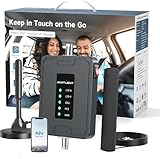
- 【5G COMPATIBILITY】Boosts 4G LTE & 5G signals on Band 2, 4, 5, 12, 13 and 17 for multiple users & devices simultaneously, so everyone in your vehicle will enjoy clear calls, better voice quality, faster data speed and smooth stream videos. Please CHECK YOUR BAND BEFORE PURCHASE and make sure that the frequency band of your phone is the same with that of the booster.
- 【ADVANCED FEATURES KEEP STABLE SIGNAL】The booster is built in ALC detecting the existing signal strength and automatically adjusting itself for best performance, it prevents inconvenient shutdowns and downtime that keep you from doing what you need to do.
- 【 EASY TO INSTALL & SETUP】The outside magnetic antenna can be attached to the roof of your car easily without drilling, zero damage to your vehicle.
- 【APP HELP YOU INSTALL & TROUBLESHOOT】ANNTLENT "Signal Advisor" APP help you find the nearest tower, watch installation videos, see your signal strength before and after installation, and get online support quickly.
- 【RELIABLE SERVICE GUARANTEE】The ANNTLENT cell phone signal booster is FCC Certified and comes with a 30-day money-back guarantee, 3-month free replacement, and 3-year manufacturer repair. Invest in a quality-guaranteed and cutting-edge booster at a lower cost without the risk of wasting money.
Ask the carrier to confirm all of the following:
- the account and line are active;
- the SIM or eSIM is correctly provisioned;
- the phone model is supported on its network;
- the device is unlocked if you are using a different provider;
- the plan allows mobile data and has not reached a restriction;
- there is no local outage or maintenance event.
Do not enter a generic access-point-name value copied from another phone. APN settings are carrier- and region-specific. If the carrier says an APN change is required, use the exact values it supplies for your model, country, and plan.
Independent reader supportYour contribution helps us test, update, and keep practical guides available for everyone.Use comparisons to identify the failing layer
| Test | What it compares | What the result suggests |
|---|---|---|
| This phone versus another device on the same Wi‑Fi | Phone Wi‑Fi behavior against the shared router and internet service | If both fail, investigate the router or provider. If only the new phone fails, investigate its saved network, software, or hardware. |
| This phone on two Wi‑Fi networks | One router against a known-working alternative | Failure everywhere points toward the phone; failure on one network points toward that network’s password, portal, or configuration. |
| Wi‑Fi off versus Wi‑Fi on | Cellular data against wireless internet | Only cellular failure points toward SIM, plan, coverage, compatibility, or carrier activation. Only Wi‑Fi failure points toward the router or phone Wi‑Fi settings. |
| Physical SIM or eSIM status | Hardware insertion or digital provisioning | “No SIM” or inactive status requires a seating or carrier-activation check before ordinary data troubleshooting. |
| Different locations | Local coverage against device and account behavior | Service that returns elsewhere suggests coverage or a localized outage. |
Know what each reset removes
Resetting network settings can be useful, but it should follow the reversible checks above. Read the confirmation screen because the scope differs by phone.
| Action | Typical effect | Use it when |
|---|---|---|
| Toggle Wi‑Fi, Mobile data, or Airplane mode | Temporarily restarts a radio connection; normally keeps saved networks and personal data | A connection is stuck or the status indicator is stale |
| Forget one Wi‑Fi network | Deletes that network’s saved password and settings | Authentication or a stale saved configuration is suspected |
| Internet or network reset | Reinitializes connection settings; the phone may disconnect active calls, and some versions remove saved network details | Basic checks fail and you can reconnect accounts and networks afterward |
| Pixel Bluetooth & Wi‑Fi reset | Deletes saved Wi‑Fi connections and resets Bluetooth and Wi‑Fi settings | Pixel-specific wireless configuration appears corrupted |
| Factory reset | Erases phone data, accounts, apps, and settings | Only after backups and other solutions, usually with manufacturer support guidance |
A factory reset is not an early fix for activation, coverage, a router outage, or an unsupported device. Google advises trying other solutions first because the reset erases personal data.
When to contact support
Contact the mobile carrier when
- an eSIM transfer or physical SIM activation fails;
- the line is inactive, unsupported, or reported as having no SIM;
- the phone may be locked, incompatible, or assigned to the wrong data SIM;
- your plan, allowance, or account status is uncertain;
- cellular data fails in multiple locations after the settings and signal checks; or
- an outage is possible.
Have the phone model, phone number or account details, SIM type, approximate location, and the exact status message ready. Do not share an activation code publicly.
Contact the Wi‑Fi provider or network host when
Several devices cannot use the same network, the router cannot regain service after its documented restart, or a public network’s sign-in page never completes. The provider can check the line, outage status, router registration, and any access policy that blocks a new device.
Contact the phone manufacturer when
The phone fails on several known-working Wi‑Fi networks and a properly activated cellular line, while other devices work normally. The manufacturer can provide model- and Android-version-specific menus, hardware diagnostics, warranty options, and repair guidance. Current help pages may include features limited to particular models or countries, so a diagnostic option shown for a US Pixel phone should not be treated as a universal Android feature.
Before you finish setup on a replacement phone
- Complete the carrier’s SIM or eSIM activation before disposing of the old phone.
- Confirm which SIM is assigned to mobile data on dual-SIM devices.
- Connect to a trusted Wi‑Fi network and complete any captive-portal sign-in.
- Install system updates over a working connection, then restart once more.
- Keep the old phone or a second device available for testing the same Wi‑Fi and cellular account.
- Save important Wi‑Fi passwords securely before using a network reset.
The fastest reliable path is isolation: prove whether another device fails on the same Wi‑Fi, prove whether this phone works on a different Wi‑Fi, and verify that the SIM or eSIM is active. Those three comparisons prevent a router problem from being mistaken for a phone defect and prevent a carrier activation problem from being treated as a software reset.
Quick Recap
Product prices and availability are accurate as of the date/time indicated and are subject to change. Any price and availability information displayed on Amazon at the time of purchase will apply.

