The first buying check is not the glasses’ connector; it is the device on the other end of the cable. A USB-C socket can carry charging and data yet provide no video. For a direct connection, your host normally needs USB-C DisplayPort output (often called DP Alt Mode) and enough power. XREAL states that spatial large-screen use requires DP video output and a 5V/1A supply; ASUS gives the same practical warning for the ROG XREAL R1, which requires a compatible DP Alt Mode or Thunderbolt 4 port for direct use. Verify the exact phone, PC, handheld or console model before comparing display specifications.
Then check the complete system: supported resolution and refresh rate, adapters for HDMI devices, how the glasses are powered while you play, fit and prescription options, and whether you want a simple mirrored screen or a spatial display that stays anchored as you move. The maximum number on a product page is only one part of that chain.
As an Amazon Associate I earn from qualifying purchases.
Start with the exact gaming device and connection path
Write down the precise model of the host you will use most. “USB-C” is not a compatibility specification by itself. Look in the host maker’s technical specifications or support pages for DisplayPort over USB-C, DP Alt Mode, or a Thunderbolt 4 video-output statement. Also check the port’s power capability. XREAL’s connection guide says its glasses need DP video output and 5V/1A power for spatial large-screen use (XREAL device connection guidance).
If the host documentation does not state video output, treat the port as unverified rather than assuming it works. XREAL specifically advises checking with the device manufacturer when support is uncertain. A cable that fits can still deliver charging only, USB data only, or no usable signal.
#1 Best Overall

- 【ULTRACLARITY 3.0 - THE CLASSIC, EVOLVED, SHARPER FROM EDGE TO EDGE】 UltraClarity 3.0 takes birdbath optics further for crisp text, clean subtitles, and high-fidelity detail across the whole view - not just the center, but every corner. Horizontal and vertical resolve equally, straight lines stay straight at any prescription, and the image holds wherever your eyes go. From spreadsheets and documents to HUDs in open-world games, fuzzy corners do not pull you out of the moment.
- 【A 146-INCH XR SCREEN FOR GAMING, TRAVEL & WORK】 Turn compatible USB-C video-output devices into a private 146-inch 120Hz 1080p XR display for gaming, streaming, studying, and working. Whether you are on a flight, in a dorm, at a hotel, or gaming from the couch, VITURE Pro 2 gives your phone, laptop, or handheld console a bigger, better personal screen.
- 【THE THINNEST—YET STILL WITH BUILT-IN ADJUSTMENT】 Twin dials, two eyes: built-in 0 to -5.00D myopia adjustment focuses each eye independently, so many nearsighted users can skip prescription inserts and contact lenses entirely. Dial in, snap to focus. VITURE Pro 2 is SGS A+ Eye Care Certified for low blue light, flicker-free operation, and low visual fatigue, and the optics let focus shift naturally from center to edge so your eyes micro-adjust the way they do in the real world.
- 【THE NEXT BIG THING IS COMFORT - ULTRA THIN, ULTRA LIGHT & EYE COMFORT ENGINEERED FOR LONG SESSIONS】 At just 63g, VITURE Pro 2 is 20% lighter than VITURE Pro, with a 16% thinner frame and 39% thinner hinge for a sleeker, more sunglasses-like profile. An upgraded temple material spreads pressure more evenly and 7 nose-pad sizes ship in the box, so more face shapes find a stable fit for commuting, movie nights, study sessions, and long viewing. A free lens shade is included - snap it on for full immersion, off to stay present.
- 【SONY MICRO-OLED COLOR, TUNED AT THE SOURCE】 Sony Micro-OLED panels bring streaming, videos, movies, and compatible 3D content to life with 1600 nits peak brightness and a wide 50 degree field of view. Color is calibrated in the Micro-OLED itself rather than through an extra color-management chip, so what you see stays true. Whether you are in a bedroom, dorm, hotel room, or shared apartment, VITURE Pro 2 creates a vivid personal display without needing a TV.
Will these glasses work with a Steam Deck or another handheld?
Handhelds are often the simplest gaming use case because many expose a video-capable USB-C port. XREAL lists Steam Deck and ROG handhelds among devices that can connect directly. VITURE’s Steam Deck instructions provide a concrete setup target for its Pro glasses: 1920×1080 at 120Hz as the external-display setting (VITURE Pro and One Series documentation). That recommendation describes one product and setup, not a universal requirement for every pair of glasses.
Check the exact handheld revision, operating-system display settings and game resolution. A dock, hub or USB-C cable can change the available modes. If the handheld has only one USB-C port, decide how you will charge during a long session before ordering.
Can a phone or laptop use the glasses directly?
Only when its USB-C port supports DisplayPort video and supplies the required power. Some laptops have multiple USB-C ports with different capabilities, so identify the video-capable port rather than choosing by position or connector shape. On a phone, support may be limited to particular models or software versions; confirm it in the manufacturer’s specifications.
Quick wins for a faster PC:
Fix the driver behind crashes, sound loss and screen glitchesFind Drivers →Repair Windows errors before they cause bigger problemsFix Now →What if the host has HDMI instead of USB-C video?
HDMI hosts need a conversion path that is designed for video output to USB-C glasses. XREAL describes an HDMI-to-USB-C adapter route for PlayStation and Xbox. ASUS documents an alternative for the ROG XREAL R1: if the main device lacks compatible USB-C DP Alt Mode or Thunderbolt 4, use the included ASUS control base, which accepts DisplayPort and HDMI video input (ASUS ROG XREAL R1 support information).
Do not assume any passive USB-C-to-HDMI lead will work in reverse. Confirm the adapter’s direction, power input, HDCP behavior, resolution and refresh support, and whether it is approved for the exact glasses model.
Console compatibility is an adapter question
PlayStation and Xbox
PlayStation and Xbox consoles generally expose HDMI rather than USB-C video. Plan on the manufacturer-supported HDMI-to-USB-C adapter or a compatible dock/base. XREAL documents this adapter path; ASUS’s control base provides HDMI and DisplayPort inputs for hosts without a suitable USB-C video port. The console’s HDMI output mode still determines the resolution and refresh rate available to the glasses.
Rank #2

- 【Biggest. Boldest. Smartest. — A Viewing Experience Like Never Before】This isn't just another pair of XR glasses — it's The Beast. The BIGGEST screen in XR (174″, 58° FOV). The BOLDEST display ever (1250 nits, Powerd by Latest Sony Micro-OLED). And the SMARTEST glasses on the planet — Your Screen, You Rules. Built-in 3DoF, screen customizations, Auto Transparency, and Smart Re-Centering that just work. No software needed. One glance and you'll never go back.
- 【SMARTEST: YOUR SCREEN, YOU RULES — No Software Needed】 Your Screen. You Rules! Built-in VisionPair 3DoF lets you pin, resize, and lock a 174″ screen in mid-air — no software, no dongles, no drift. Full screen customizations built right into the glasses: Anchor, Smooth Follow, 32:9 UltraWide, Side Mode. Auto Transparency switches between immersion and the real world with one tap. Smart Re-Centering snaps your view back instantly.
- 【BIGGEST: THE ULTIMATE IMMERSIVE GIANT — 174″ Screen, 58° FOV, 1200p】The largest virtual display in consumer XR. Period. A 174″ screen powered by Sony's latest-generation Micro-OLED panel pushes 1200p per eye at a class-leading 58° field of view with a 120 Hz refresh rate. Every frame is edge-to-edge sharp, silky-smooth, and jaw-droppingly vivid. It's like strapping an IMAX to your face.
- 【SMARTEST: 9-LEVEL DIMMING + AUTO TRANSPARENCY — No Software Needed】 Another reason The Beast is the smartest XR glasses ever made. One tap shifts between crystal-clear AR and full cinematic blackout across 9+ electrochromic levels — no app, no software, just hardware intelligence. Auto Transparency adapts between immersion and awareness on its own. Bright office, dim plane, pitch-dark bedroom — The Beast reads the moment for you. No glare. No reflections. Just pure immersion.
- 【BOLDEST: NEXT-LEVEL CLARITY & AUDIO — 1250 Nits + HARMAN AudioEFX】1250 nits of peak brightness — over 2× brighter than the competition — means you can actually see your screen outdoors, in sunlight, no squinting required. Pair that with HARMAN AudioEFX: deeper bass, wider soundstage, and crystal-clear highs tuned by the world's leading audio engineers. Other XR glasses make you choose between picture and sound. The Beast gives you both — cranked to eleven.
Nintendo Switch
Switch connection paths vary by model and generation. Verify whether your console is a docked model, a handheld-only variant, or a newer revision, and check the exact adapter or dock instructions for that hardware. XREAL notes Switch-specific feature limitations in its older-device guidance, while its compatibility material describes adapters for Switch models. Do not buy on the assumption that a single Switch accessory works across every generation.
What’s actually slowing this PC down?
Pick the symptom - the matching free tool is one click away.
Build a compatibility table before purchase
| Host | Likely video path | Checks to complete |
|---|---|---|
| Steam Deck or ROG handheld | Direct USB-C when the port supports DP Alt Mode | Exact model, external-display modes, charging arrangement and cable |
| Laptop or desktop | USB-C DP Alt Mode/Thunderbolt 4, or HDMI through an active adapter | Which port carries video, GPU output, adapter direction and power |
| PlayStation or Xbox | HDMI-to-USB-C adapter or a compatible control base/dock | Adapter support, console HDMI mode, external power and HDCP |
| Nintendo Switch | Model-specific dock or adapter | Console generation, dock requirement and supported spatial features |
| Phone or tablet | USB-C DP Alt Mode on a supported model | Manufacturer confirmation, power draw and software compatibility |
For every row, save the host specification and the glasses’ connection instructions. That record prevents a return caused by an almost-compatible cable or dock.
Compare resolution and refresh rate as a system
Glasses advertise an input ceiling; your host, game and adapter determine what you actually see. The ROG XREAL R1 specification page lists 1920×1080 and up to 240Hz, plus a manufacturer-stated 3ms M2P latency (ROG XREAL R1 specifications). VITURE recommends 1920×1080 at 120Hz for Pro glasses on Steam Deck (VITURE Steam Deck setup). These figures describe different products and setup contexts; they are not an independent head-to-head test.
Ask three separate refresh-rate questions
- What can the host output? Check its GPU, operating-system display menu and the selected port. A handheld may offer 120Hz at one resolution but fall back to 60Hz at another.
- What can the glasses accept? Use the model’s specification and setup guide. A “240Hz” maximum does not mean every input or game runs at 240 frames per second.
- What does the game render? Frame rate depends on the game’s settings and the host’s performance. A high-refresh display cannot create frames the game does not produce.
Adapters and docks can add another limit. Confirm that the entire path—host, cable, adapter, dock and glasses—supports the mode you want. Treat manufacturer latency and refresh numbers as specifications, not as independent measurements of end-to-end controller response.
Set a realistic target
For a handheld, 1080p at 120Hz may be a practical starting point when the game and device can sustain it. For a console, use the console’s own supported output modes and then check the adapter. If a mode is unavailable, test a lower refresh rate before concluding that the glasses are defective.
Check field of view, fit and eye alignment
AR glasses are worn on your face, so optical fit can matter more than a headline resolution. The ROG XREAL R1 lists a 57° field of view and compatibility with interpupillary distances from 57 to 75mm. ASUS lists no built-in diopter adjustment, but its support material describes a detachable mount for custom corrective lenses (ASUS ROG XREAL R1 support information).
Rank #3
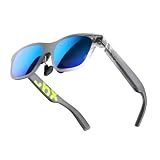
- YOUR PRIVATE 147” BIG SCREEN, ANYWHERE — Plug the a01+ into your phone, tablet, handheld, or laptop and a giant 147” screen appears in front of you—for movies, gaming, or getting work done on the couch, on a flight, or in bed. A true portable display you wear, in a soda-can-sized 210g case that drops in your pocket.
- ALWAYS RIGHT IN FRONT OF YOU — The screen follows your view with smooth, stabilized tracking and stays centered as you look around—nothing to anchor or set up, and no drift to reset. Press play and your big screen is simply there.
- 62G — LIGHT ENOUGH TO FORGET — At just 62g, with three nose-pad sizes and flexible temples, the a01+ stays comfortable through a long movie or flight, even lying down.
- LOOKS LIKE SUNGLASSES, NOT A GADGET — A slim, sunglasses-style frame with a signature semi-transparent chassis and neon logo—light and low-profile enough to actually wear out.
- WORKS WITH YOUR USB-C GEAR — No Battery to Charge — Connects and powers over a single USB-C DisplayPort cable: iPhone 15/16/17, iPad, DP-capable Android phones, Steam Deck, ROG Ally, Mac and PC. Nintendo Switch/Switch 2 and older (Lightning) iPhones need an adapter. For long phone sessions, add the XREAL Hub to charge and watch at once.
Measure IPD and assess the viewing area
Use your optometrist’s IPD measurement or a reliable measurement method, then compare it with the model’s stated range. IPD outside the range can produce blur, doubled edges or eye strain even when the display itself is sharp. Field of view is the apparent size of the virtual screen: a wider value can feel more immersive, while a narrower one may make edge-to-edge game interfaces less expansive. Because manufacturers specify FOV differently, use the number as a model-specific guide rather than a standardized cross-brand measurement.
Prescription and diopter support
Separate “focus adjustment” from prescription compatibility. A model with no diopter wheel may still accept a prescription insert, but the insert must match that model’s mount. VITURE documents four nose-pad sizes and prescription accessories for certain Pro and One series models, including up to -5.0D myopia adjustment for specified models (VITURE vision-accessory information). Those options should not be generalized to other glasses.
Before buying, confirm whether your prescription needs single-vision or progressive lenses, whether astigmatism is supported, and whether the accessory is included or sold separately. If possible, use an in-store trial or a return period long enough to assess clarity, nose pressure and whether you can read game text comfortably.
Crashes, No Sound, or Screen Glitches?
Random freezes, missing sound and display glitches usually trace back to one bad driver. Find and replace yours safely.Free scan · under a minuteWindows Errors? Fix Them Before They Spread
Repair common Windows errors and clear accumulated junk for a smoother, more stable PC - no reinstall needed.Free scan · no reinstallInspect the physical fit
- Check the included nose pads and whether replacements are available.
- Make sure the frame leaves room for your existing glasses if you intend to wear them underneath; many designs require an insert instead.
- Look for adjustable temples and a secure cable exit so the wire does not pull the frame during handheld play.
- Test the fit while seated in your normal gaming posture, not only while standing.
Plan power, charging and cable management
Some glasses have no internal battery. XREAL’s cited connection documentation says the glasses are powered by the connected device and turn off when unplugged (XREAL device connection guidance). That makes the host’s battery life and port arrangement part of the purchase decision.
Can I charge the handheld while using the glasses?
Possibly, but not through every cable or adapter. If the handheld has one USB-C port, you need a hub, dock or charging adapter that can pass video to the glasses while delivering power to the handheld. VITURE documents a charging adapter intended to let a supported connected device charge while the glasses are in use (VITURE charging documentation). Verify support for your exact glasses and host before purchasing.
Check the charger’s USB Power Delivery rating, the hub’s video bandwidth and the cable’s data/video specification. A power-only splitter will not solve a video problem, and a video dock that lacks adequate power delivery may slowly drain the handheld during play.
Rank #4

- Giant Virtual Screen – Immersive Theater Anywhere: Step into a breathtaking virtual screen up to 500 inches, transforming movies, games, and apps into larger‑than‑life experiences. Whether you’re commuting, flying, or unwinding at home, your personal cinema travels with you—bringing immersive entertainment wherever life goes.
- Premium Display Quality – Smooth, Sharp, and True-to-Life: XREAL 1S delivers ultra‑smooth viewing with a 120Hz refresh rate in 3DoF mode and a 90Hz global refresh that eliminates flicker and blur. Every unit is individually color‑tuned for precise, natural hues. The redesigned optical engine boosts clarity by 9%, delivering crisp detail from center to edge. Advanced optical alignment ensures each image point locks perfectly to your eye, keeping visuals sharp, vivid, and lifelike.
- Spatial Viewing Modes – Work, Watch, and Play on Your Terms: Shape your environment with XREAL 1S. Effortlessly switch between 0DoF follow mode, 3DoF anchor mode, Ultrawide Mode (32:9 or 21:9), Real 3D Mode, and Side-View Mode — ideal for both deep focus and entertainment. Pair with XREAL Eye to unlock 6DoF spatial anchoring, allowing for total freedom of movement while your screen stays pinned.
- Native 3DoF Spatial Screen – Plug & Play Freedom: XREAL 1S brings your AR experience to life with native 3DoF spatial viewing powered by the X1 chip. No apps, no setup — simply connect to any USB‑C DP‑enabled device and step straight into expansive spatial content. With rock‑solid stability and smooth head tracking, every session feels natural and comfortable, free from motion sickness and distractions, keeping you fully immersed.
- REAL 3D – Instant Spatial Depth for Everything You Watch: XREAL 1S debuts the world’s first on‑glasses REAL 3D spatial technology, instantly transforming all your content—from games and movies to apps and photos—into true 3D with a single switch. Experience richer depth and lifelike visuals across everything you watch or play, supported at up to 30fps with just 90–100ms latency for smooth, natural viewing.
Budget for the complete session setup
- Video cable of the required direction and length.
- HDMI-to-USB-C adapter or control base for HDMI consoles.
- USB-C charger and a power-capable hub when the host has one port.
- Prescription insert or corrective-lens mount if needed.
- Spare nose pads and a protective case for travel.
Keep the glasses’ cable clear of controls and ventilation. A short cable may tug when you recline; an excessively long one can snag on a chair or handheld.
The Tool Desk
Outbyte PC Repair FREERepair Windows errors before they cause bigger problemsFix Now →Outbyte Driver Updater FREEFix the driver behind crashes, sound loss and screen glitchesFind Drivers →Decide whether you need mirroring or spatial features
There is a major difference between a large screen fixed in the center of your view and a virtual screen that remains anchored as you turn your head. Ask which behavior your games require.
Mirrored display
Mirroring sends the host’s ordinary display to the glasses. It is the least demanding feature: compatibility depends mainly on video output, power and the glasses’ supported modes. It is usually the right target if you want a private, large screen for a handheld or console.
Anchored or “follow” display
Spatial modes add tracking and software requirements. XREAL’s One-series compatibility table lists Anchor & Follow Mode for supported combinations, but feature availability can differ by host and older devices. VITURE describes optional Decky Loader and XR Gaming plugin installation on Steam Deck for a fixed virtual display (VITURE Steam Deck software setup). This is an additional software setup, not an automatic result of plugging in the glasses.
3D and other special modes
Check the exact model’s supported 3D formats, tracking hardware and operating-system requirements. A console adapter that successfully mirrors a 2D image may not carry the metadata or software control needed for a spatial mode. Write down the feature you actually want—large mirrored screen, anchored screen, 3D playback or head tracking—and verify it against the host-specific compatibility table.
Use this pre-purchase procedure
- Identify the primary host. Record its exact model, operating system and the port you will use.
- Verify video output. Find an official statement for USB-C DP Alt Mode/DisplayPort or document the HDMI adapter route. If no official statement exists, contact the host maker.
- Confirm power. Check the glasses’ power requirement and whether the host can supply it while gaming. XREAL specifies 5V/1A for spatial large-screen use.
- Choose your target mode. Note the desired resolution, refresh rate and whether you need mirroring or anchoring.
- Validate the complete path. Check the adapter, dock, cable direction, bandwidth, HDCP and power delivery as one system.
- Measure fit needs. Compare your IPD, prescription and nose-pad requirements with the model’s published range and accessories.
- Plan charging. Decide whether the host can be charged during use and select a compatible charging adapter or dock if necessary.
- Check return and support terms. Optical comfort is personal; a return window or trial is valuable when you cannot test the glasses beforehand.
Troubleshoot the common failures before returning the glasses
No image or “no signal”
- Move the cable to the host’s confirmed DP Alt Mode/Thunderbolt port.
- Remove the dock and test a direct connection to isolate an adapter problem.
- Check that an HDMI-to-USB-C adapter is an active, correctly directed video converter and has its required power.
- Restart the host with the glasses connected, then select the external display in the operating system or console menu.
The image works but the battery drains quickly
The glasses may be drawing power from the host as designed. Use a power-capable hub or the model’s supported charging adapter, and confirm that the charger meets the dock’s power-delivery requirements. Do not substitute a power-only splitter for a video-capable hub.
Best Value

- HDR10 AR Glasses with 201” Virtual Screen – Experience over 10 billion colors and ultra-deep contrast on a massive 201-inch virtual display. Compared to standard LCD screens, HDR10 delivers brighter highlights and richer blacks, making movies, Netflix streaming, and gaming more immersive at home, in bed, or on flights.
- Vision 4000 Chip with AI SDR-to-HDR Upscaling – Co-developed with Pixelworks, this processor enhances color, sharpness, and motion clarity in real time. Enjoy smooth 120Hz visuals for PS5, Steam Deck, Switch 2, and mobile gaming without lag or motion blur.
- 3D Movie Glasses for Immersive Viewing – Watch native 3D films or convert 2D videos into 3D with AI depth enhancement. Transform any room into a private cinema experience with theater-like depth and realism—perfect for movie nights or travel entertainment.
- Audio by Bang & Olufsen – Four precision speakers deliver immersive 360° spatial sound for movies and gaming. Use whisper mode for private listening in public spaces. Optional Sound Tube accessory boosts volume up to 15dB (sold separately).
- Universal USB-C Compatibility – No WiFi or Apps Required. Connect directly to iPhone 17/16/15 (USB-C models), Android phones, MacBook, iPad, Steam Deck, and PlayStation consoles. No battery inside—lighter weight and instant setup wherever you go.
The refresh rate is lower than expected
Check the host’s current resolution, game settings and adapter specification. Select a supported mode such as 1920×1080 at 120Hz where the host and glasses allow it, then test the game’s actual frame-rate limit. A product’s maximum refresh specification is not a guarantee for every input path.
The picture is blurry or uncomfortable
Re-seat the glasses, try the supplied nose pads, and verify that your IPD falls within the model’s range. If the model has no diopter adjustment, use the correct prescription insert rather than forcing focus with position changes. Persistent discomfort is a fit or prescription issue, not something to solve by increasing brightness indefinitely.
Compare models on the criteria that affect gaming
| Criterion | What to compare | Why it matters |
|---|---|---|
| Direct compatibility | DP Alt Mode/Thunderbolt support and host list | Determines whether you can connect without extra hardware |
| Adapter ecosystem | HDMI converter, control base, dock and Switch support | Determines console use and total cost |
| Display modes | Supported resolution and refresh for your host | Sets image sharpness and motion response in actual games |
| Optics | FOV, IPD range, nose pads and diopter or prescription options | Determines clarity and comfort over a full session |
| Power | Host draw, pass-through charging and required accessories | Determines session length and cable complexity |
| Spatial software | Anchoring, follow mode, 3D and host-specific plugins | Separates simple mirroring from tracked virtual screens |
Label each entry as a manufacturer specification or a host-dependent setting. The available official material does not establish standardized independent rankings for gaming latency, comfort or image quality, so avoid treating a specification sheet as a comparative test.
Recommended Free Tools
What the published specifications tell you—and what they do not
The ROG XREAL R1’s published figures—57° field of view, 57–75mm IPD compatibility, up to 240Hz and 3ms M2P latency—are useful for checking whether the model fits your requirements (ROG XREAL R1 specifications). They do not promise that a Steam Deck, console or game will output 240Hz, nor do they replace a comfort trial.
XREAL’s 5V/1A requirement tells you to verify host power, while VITURE’s 1920×1080-at-120Hz Steam Deck recommendation gives a concrete starting setting for its Pro glasses. Treat both as setup guidance for their respective products, not as universal standards. The safest purchase is the one whose documented connection, fit and charging path match your exact gaming routine before you place the order.
Quick Recap
Product prices and availability are accurate as of the date/time indicated and are subject to change. Any price and availability information displayed on Amazon at the time of purchase will apply.

