Recommended Free Tools
A modular video conferencing room needs five connected functions: room compute or a participant laptop, camera, microphones, speakers, and one or more displays. Add content-sharing connections, meeting controls, cabling, power, and a reliable network. Small rooms can package several of these in one video bar; larger or acoustically difficult rooms usually need separate cameras, microphones, speakers, a digital signal processor (DSP), and professional installation.
The right bill of materials is determined by room dimensions, seating layout, participant distance, meeting platform, and whether the room runs as a dedicated system or in bring-your-own-device (BYOD) mode. Inventory the room and choose that operating model before buying hardware.
As an Amazon Associate I earn from qualifying purchases.
Start with a room and operating-model inventory
Do not begin with a camera or a display. First document how the room will be used and what is already installed. Microsoft’s room-planning guidance puts this inventory step first because equipment coverage depends on the physical space and the meeting workflow.
Free tools Windows power users keep installed
One-click scans. No signup required.
Record the room conditions
- Measure room length, width, ceiling height, and the distance between the usual seats and the front wall.
- Draw the table shape and seating positions. A long boardroom table, a classroom layout, and movable tables create different camera and microphone coverage needs.
- Note windows, hard reflective surfaces, HVAC noise, doors, and other sources of glare or reverberation.
- List existing displays, wall mounts, speakers, microphones, network outlets, power outlets, and cable pathways.
- Decide whether the room is permanent, reconfigurable, or frequently moved. Modular rooms need quick-connect points and equipment that can be relocated without rewiring the building.
Define the meeting workflow
Choose whether meetings launch from a dedicated room computer and touch console or from a participant’s laptop. A dedicated system offers a consistent sign-in, one-touch join, and room controls. BYOD lets a guest use the meeting application on a laptop while using the installed camera, microphones, speakers, and display. The choice determines which USB, video, and control connections must be exposed at the table.
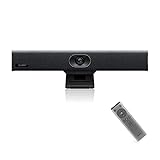
#1 Best Overall

- 【Built for Small Conference Rooms】Designed specifically for small meeting spaces, this conference room camera system ensures every participant is clearly visible without crowding.
- 【AI Auto Framing for Group Meetings】Automatically detects and frames all attendees, making it ideal for team meetings, boardroom discussions, and hybrid collaboration.
- 【Presenter Tracking for Business Presentations】Smart AI tracking follows the active speaker, perfect for training sessions, client presentations, and interactive meetings.
- 【120° Wide Angle Covers the Entire Room】Capture the full meeting space without repositioning the camera—no more squeezing into the frame.
- 【Clear Audio Across the Table (Up to 5m)】Dual AI noise-canceling microphones reduce background noise and capture voices clearly across the room.
The core equipment in every modular room
Room compute and meeting control
A dedicated room configuration normally contains a compute module that runs the meeting application and a touchscreen console for joining, muting, changing layouts, and ending calls. The compute unit may be mounted behind a display, under a table, or in a nearby equipment location, depending on the certified system.
In BYOD mode, the participant laptop supplies the compute and software. The room still needs a hub or USB path that presents the installed camera, microphones, and speakers to that laptop, plus a display connection for shared content or remote participants. Label the connection clearly and provide a short, accessible cable at the table; an otherwise capable room fails if users cannot identify the correct port.
Camera
Select the camera after mapping the seats and the desired shot. The lens must include all expected participants without making people at the ends of a table tiny or forcing the camera so wide that faces become indistinct. Placement can be above or below the front display, on a wall, or on a movable stand in a reconfigurable room.
Quick wins for a faster PC:
Clear out junk files and repair common Windows errorsFree Scan →Fix the driver behind crashes, sound loss and screen glitchesFind Drivers →Repair Windows errors before they cause bigger problemsFix Now →An all-in-one video bar can combine camera, microphones, speakers, and basic processing in a small room. A separate camera is more adaptable when the room is wide, deep, irregularly shaped, or expected to change layout. Features to check include field of view, digital or optical framing, tracking behavior, low-light performance, mounting options, and whether the device is certified for the chosen meeting platform.
Microsoft’s device-selection guidance names specific all-in-one and standalone camera models for particular Teams room categories. Those examples illustrate device classes, not a universal shopping list. Confirm current certification and supported features for the exact room software before procurement.
Microphones
Microphone coverage must reach every speaking position, not merely the nearest seat. An integrated bar can work when participants sit close to the front wall. A larger room may need table microphones, ceiling microphone arrays, or a combination.
Rank #2

- 360° video conferencing camera with built in ominidirectional microphone
- Six display modes deliver exceptional viewing angles with flexibility and versatility
- Full HD 1080p video playback @ 30 Hz
- USB UVC/UAC plug-and-play with touch bar to specify participants’ location. *Note: App permissions may need to be authorized in order to use the camera. An upgrade of the firmware to the latest version may be required in order to optimize the webcam's functionality and resolution.
- Supports your favorite video conferencing apps: Compatible with Skype, Microsoft Teams, Google Meet, Cisco, Zoom, BlueJeans, Amazon Chime, GoToMeeting, Slack
Ceiling arrays keep the table clear and can cover changing seating, but they require suitable ceiling mounting, cable routes, and careful acoustic tuning. Table microphones can provide strong pickup at fixed positions but become inconvenient when tables move. Check pickup pattern, mute controls, expansion limits, and whether multiple units can be linked.
Speakers and audio processing
Remote voices must be intelligible at every seat without excessive volume near the speaker. A compact sound bar may be sufficient for a small room. Larger rooms often use distributed speakers so that sound is even rather than loud at the front and faint at the back.
Echo cancellation, automatic gain, noise reduction, and equalization are handled by integrated processing in some products. In a more complex installation, a separate DSP connects microphones, speakers, and the room computer. Microsoft’s meeting-room guidance specifically identifies ceiling microphone arrays with DSP as an option for voice pickup and echo cancellation. Confirm that the selected microphone, DSP, and platform can work together; incompatible USB audio paths can create double processing, echo, or unstable mute states.
Displays and content sharing
Front-of-room displays
Choose a screen size and mounting height that make faces, shared documents, and captions readable from every seat. One display can show the meeting and shared content in a small room. Two front-of-room screens are useful when participants need persistent people views on one screen and content on the other; dedicated room systems can support up to two front displays when the certified hardware allows it.
Display input is a platform requirement, not just a preference. Google Meet hardware guidance specifies HDMI, DVI, or DisplayPort input, a minimum 1280 × 720 resolution, and 1920 × 1080 as the recommended resolution for best video quality. These figures apply to that platform’s published requirements; verify the current specification for the system you deploy.
Presenting local content
Provide a defined path for a laptop or room computer to share slides. That may be an HDMI input, a USB-C adapter, or a supported wireless-sharing method. Document which input is used, where the adapter is stored, and how the presenter switches between local content and the meeting layout.
Rank #3

- [Full HD 1080P Camera + 2 Speakers + 4 Mics] - HD webcam combine high definition video camera, 4 omnidirectional microphones arrays and 2 speakers for online conference. USB webcam with microphones and speakers meets all your needs. Premium video quality that ensures you moulding a more professional business image. NO need to equip with other audios to enjoy the sonorous sound, like your favorite music. Streaming camera is a great choice for home office.
- [Active Noise Cancelling & Auto Echo Cancellation] - EMEET C980 pro web cam adopts 4 omnidirectional microphones arrays which have effective built-in noise reduction technology, keeping pesky background noise out of your videos. Whether you are in an open office or a noisy cafe, you can easily start your video calls with this computer camera for your work.
- [60°-98° Adjustable Angle of View & Low-light Correction] - The adjustable degree field of view EMEET streaming camera with microphone has is wide enough to capture teams and whiteboards with ease. Ideal for online team business meetings, family group meetings. Superior automatic low-light correction reduces graininess and brings out details in darker environments, adjusting according to the conditions to provide a consistently high definition.
- [Fixed-Focus for More Clearer Picture] - The system of EMEET laptop camera is also effectively smart. Constant, ultra-wide focus everything between 1.97-197 inches. There is no need to worry about the instability and fuzziness of the C980 Pro streaming camera. Comes with a snugly fitting webcam cover to protect the lens.
- [Plug and Play & High Compatibility] - No driver required. PC camera for streaming compatible with Windows (Win10,11), MacOS (10.14 and above), and most video calling applications like ZOOM and Google Hangouts. Universal clip fits all laptops, LCD or monitors, EMEET usb webcam also can be used with a tripod. Please don’t use this conference room camera system with USB hub because of insufficient current.
Do not assume a USB-C port carries video merely because it fits the cable. Check that the laptop, adapter, display, and room compute support the same video mode and resolution. If the room is BYOD, test the path with the operating systems and laptop types used by visitors.
Compare room configurations by use case
| Configuration | Typical equipment pattern | Advantages | Trade-offs and checks |
|---|---|---|---|
| Small, fixed room | All-in-one video bar, one display, dedicated compute or a single BYOD hub, and a short presentation cable | Fast installation, few cables, simple support | Limited pickup and framing range; verify that the farthest seats are inside the camera and microphone coverage |
| Medium room with a fixed table | Separate or higher-capability camera, table microphones, speakers or a sound bar, one or two displays, room compute, and a touch console | Better framing and microphone placement; supports more seats | More USB and signal paths; check echo control, cable lengths, and expansion limits |
| Large, irregular, or reconfigurable room | Multiple cameras or a wide-coverage camera, ceiling or distributed microphones, distributed speakers, DSP, one or two displays, dedicated compute, and professional mounting | Coverage can be tuned to the layout and acoustics | Higher installation and support complexity; requires commissioning, network planning, and documented control behavior |
| BYOD-focused room | Room camera, microphones, speakers, display, USB hub or room interface, laptop video connection, and clearly labeled table cables | Visitors can use their own meeting application and account | Workflow varies by laptop and platform; test connection, device selection, mute control, and handoff back to the room system |
Cabling, power, network, and physical installation
Signal and USB cabling
Draw every connection before ordering equipment: camera to compute, microphones to DSP or compute, DSP to speakers, compute to display, and table ports to the BYOD laptop. Measure the actual installed route rather than relying on a package’s nominal cable length.
USB extension has compatibility limits. Long runs may require an active extension, a certified hub, or a different architecture. Test the complete chain at the required resolution and with all peripherals connected. A passive cable that works on a desk can fail when routed through a wall or under a large table.
Do these 3 things before closing this tab:
1Scan for outdated or missing drivers - takes under a minute2Clear out junk files and repair common Windows errors3Fix the driver behind crashes, sound loss and screen glitchesPower and mounting
Provide electrical power at the equipment location and, where needed, at the table. Account for displays, compute modules, DSPs, hubs, chargers, and any powered USB or network equipment. Use appropriate mounting hardware, strain relief, and cable concealment so that movable modules can be disconnected without pulling on signal cables.
Keep the camera and display away from direct window glare. Microsoft’s room guidance warns that window light can produce shadows and reflections that make faces and screens harder to see. If the room’s daylight changes substantially, plan blinds or controllable lighting rather than relying on camera exposure to solve the problem.
Network readiness
Confirm wired network access where the room computer or control system will be installed. Check the platform’s bandwidth, firewall, DNS, authentication, update, and quality-of-service requirements with the network team. A room can pass a local camera test and still fail to join meetings if sign-in services or media traffic are blocked.
Rank #4
- PLUG-AND-PLAY & BROAD PLATFORM CERTIFICATION: Equipped with an extra-long 7m USB-B to USB-A cable for hassle-free, flexible connectivity across Windows and macOS systems. Officially certified for Microsoft Teams and Zoom, this versatile conference room camera system is also universally compatible with leading video conferencing platforms for instant meeting deployment.
- AUTOMATIC ELECTRIC PRIVACY SHUTTER: Designed with enterprise-grade privacy protection, the built-in electric privacy shutter automatically opens when video calls start and closes instantly when meetings end. Ensure your workspace confidentiality and protect sensitive conversations with reliable hardware-level visual privacy.
- 8-MIC ARRAY & 5-METER FAR-FIELD VOICE PICKUP: Functions as an all-in-one conference room camera and microphone solution. Integrated with an advanced 8-microphone array featuring a 5-meter (16.4 ft) pickup range and intelligent audio processing, ensuring clear, distortion-free voice capture across the entire meeting room.
- ULTRA HD 4K OPTICS & 120° SUPER-WIDE FOV: Deliver crisp visual quality with an 8MP camera driven by a 1/2.8-inch CMOS sensor. This premium video conference camera features Ultra HD 4K resolution paired with a super-wide 120° field of view, seamlessly capturing every participant without edge distortion.
- AI AUTO FRAMING & SPEAKER TRACKING: Elevate remote collaboration using smart AI features, including Auto Framing, Speaker Tracking, and AI Face Enhancement. The conference room camera dynamically adjusts the frame to highlight active speakers while optimizing lighting and image clarity for a natural, face-to-face meeting experience.
Platform compatibility and certification
Compatibility is a procurement requirement, not a post-installation detail. Review the current certified-device list for the chosen meeting platform and edition. Certification can cover camera controls, microphone behavior, speaker processing, console functions, firmware, and automatic updates; a device that works as a generic USB peripheral may not support room-management features.
What’s actually slowing this PC down?
Pick the symptom - the matching free tool is one click away.
Google Meet, Microsoft Teams Rooms, and other platforms publish different display, peripheral, operating-system, and network requirements. Treat published minimums as platform-specific. Recheck them before purchase because labels, supported operating systems, and certification programs change.
ISO 22259:2019, “Conference systems — Equipment — Requirements,” defines a scope for conference-system equipment. It is a standards reference, not a substitute for the chosen platform’s deployment documentation or for testing the actual room.
BYOD: design the handoff deliberately
In a BYOD room, users need an obvious sequence: connect the laptop, select the room camera and microphone in the meeting application, select the room speakers for output, and choose the room display for presentation. Post those steps at the table and include a fallback for a laptop that cannot drive the installed display.
Some room systems use a dedicated USB connection to expose room peripherals to the laptop. A leading platform’s BYOD guidance documents returning to the room application by disconnecting the USB-A connection; the exact action depends on the hardware and software selected. Test both directions: entering BYOD should not leave the room computer in a microphone-open state, and leaving BYOD should restore the room’s normal controls.
Windows Errors? Fix Them Before They Spread
Repair common Windows errors and clear accumulated junk for a smoother, more stable PC - no reinstall needed.Free scan · no reinstallOutdated Drivers Are Slowing You Down
One free scan finds every outdated or missing driver and matches the right update for your exact hardware.Free scan · exact hardware matchCommissioning checklist before handover
- Verify that every seat appears in the camera’s intended framing and that faces remain visible when participants lean or turn.
- Speak from each seat while monitoring the far end for level, clarity, background noise, and echo.
- Play remote audio from each seat and confirm consistent volume without rattling, distortion, or dead zones.
- Join a meeting on the dedicated room system and test the console, mute, camera controls, captions, and content layout.
- Run the complete BYOD workflow with representative laptops, including presentation, device selection, and return to the room system.
- Test the display at its intended resolution and confirm that HDMI, DVI, DisplayPort, or adapters negotiate reliably.
- Unplug and reconnect each user-facing cable to check labeling, strain relief, and recovery after a temporary disconnect.
- Confirm firmware, room-account authentication, automatic updates, and network access with the administrator.
- Record cable paths, device serial numbers, mounting points, reset procedures, and the supported room configuration for future service.
Common failure modes and fixes
People at the ends of the table are missing
Recheck camera field of view and mounting height before adding microphones. A wider lens, a different camera position, or a second camera may solve framing; avoid compensating with excessive digital zoom, which reduces useful detail.
Best Value
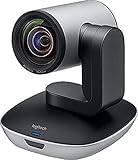
- Ideal for conference rooms, training environments, large events and other Professional video applications
- Delivers Brilliantly sharp image resolution, outstanding color reproduction, and exceptional Optical accuracy
- Enhanced pan/tilt and zoom motor performance make moving from preset to preset smoother. The wide field of view make it Easy to see everyone clearly
- Zoom wide or Zero in on close-ups to clearly view objects, whiteboard content, and other details
- Advanced Camera technology frees up bandwidth by processing video within the PTZ Camera, resulting in a smoother video stream in applications like Microsoft Skype for business
Remote participants hear an echo
Identify whether the echo comes from an open laptop microphone, duplicated audio devices, or incorrect DSP routing. Select one microphone path, one speaker path, and one echo-cancellation stage. Do not stack independent automatic-processing systems without confirming that the platform supports it.
The laptop cannot see the room peripherals
Check USB power, hub compatibility, cable length, operating-system permissions, and whether the room system is still holding the devices. Try the certified connection path rather than an unpowered extension, then retest with the exact laptop models used by visitors.
The image is dark or difficult to read
Control window light and reflections first. Then verify camera exposure, display brightness, mounting angle, and the selected video resolution. A higher-resolution display cannot fix glare or a camera pointed toward a bright window.
Content sharing is unreliable
Test the entire chain—laptop output, adapter, table input, room compute, and display—at the required resolution. Replace unsupported adapters and document the input-selection step where presenters can see it.
When to use professional AV integration
Bring in an AV integrator when the room needs ceiling microphones, multiple cameras, distributed speakers, a separate DSP, concealed cabling, structural mounting, acoustic treatment, or integration with building controls. Specialist commissioning is particularly valuable in rooms that change layout or have significant reverberation, because placement and DSP tuning affect intelligibility more than a specification sheet alone.
For a small, fixed room with short cable runs and a certified all-in-one bar, internal IT may be able to install and support the system. In either case, require a documented signal diagram, measured coverage test, user instructions, and a recovery procedure rather than accepting a powered-on demonstration as proof of readiness.
Quick Recap
Product prices and availability are accurate as of the date/time indicated and are subject to change. Any price and availability information displayed on Amazon at the time of purchase will apply.
The Tool Desk
Outbyte Driver Updater FREEFix the driver behind crashes, sound loss and screen glitchesFind Drivers →Outbyte PC Repair FREERepair Windows errors before they cause bigger problemsFix Now →
