Start with Modern Controls if you want camera-relative movement and full right-stick camera control. Choose Tank Controls if you prefer the original, deliberate directional system. Then adjust inversion, brightness and pickup highlighting in that order. Use the in-game graphics toggle to compare HD and Classic presentation without leaving a level.
The best setup depends on whether you value modern camera handling, classic precision, brighter exploration or a minimal HUD. The settings below explain what each option changes, which recent patches affect it and how to build a setup that remains comfortable across all three games.
As an Amazon Associate I earn from qualifying purchases.
The settings that matter most
These are the practical changes to make before a serious playthrough:
Do these 3 things before closing this tab:
1Clear out junk files and repair common Windows errors2Scan for outdated or missing drivers - takes under a minute3Repair Windows errors before they cause bigger problems| Priority | Setting | Recommended starting point | Why it matters |
|---|---|---|---|
| 1 | Control scheme | Modern Controls for camera-relative movement; Tank Controls for the original directional model | It changes how Lara moves, turns and interacts with the camera. |
| 2 | Look inversion | Test your preferred direction in a safe area immediately after selecting controls | Inversion can feel correct in one control mode and wrong in another. |
| 3 | Graphics mode | HD/Modern for updated lighting and models; Classic for the original visual style | The presentation changes substantially, and you can switch during play. |
| 4 | Brightness | Raise it only until dark rooms reveal geometry without washing out contrast | The August 20, 2026 Challenge Mode Patch 3 added a brightness slider for all three games. |
| 5 | Pickup highlighting | On when exploration readability is more important than a clean image | Patch 3 added highlighting in HD Graphics Mode. |
| 6 | Boss health bars | On for a first run, off for a more minimal classic-style HUD | Update 4 made boss health bars optional. |
Option names and menu placement can differ slightly by platform and may continue to change as later patches arrive. The newest dated patch covered here is Challenge Mode Patch 3, released by Aspyr on August 20, 2026.
#1 Best Overall

- Solve Ancient Mysteries: Uncover treasures of the ancient world by solving puzzles and unravelling mysteries lost to the ravages of time.
- Globe-trotting Adventure: Follow Lara Croft around the world and face off against deadly foes and dangerous myths.
- Lovingly Restored: Experience the classics boasting upgraded graphics, with the option to switch to the original polygon look at any time.
- Languages: Voice: English, French, German, Japanese, Russian; Subtitles: English, French, German, Italian, Spanish, Italian, Portuguese, Dutch, Russian, Czech, Danish, Finnish, Greek, Hungarian, Polish, Brazilian Portuguese, Swedish, Turkish, Ukrainian, Slovak, Japanese, Simplified Chinese.
Modern Controls versus Tank Controls
What Modern Controls do
Modern Controls use the right stick for full camera control and move Lara relative to the camera. Pushing forward makes her move toward the direction the camera is facing, while left and right movement follows the camera’s orientation. This is the familiar arrangement used by many later third-person action games.
The PlayStation Blog described the design as drawing inspiration from the Legend, Anniversary and Underworld era of Tomb Raider. In practice, Modern Controls reduce the need to manually turn Lara before every jump or approach. They are usually the easiest choice when you want to look around while moving, make quick camera corrections or play primarily with an analog stick.
What Tank Controls do
Tank Controls preserve the original directional model. Lara’s forward, backward and turning inputs are tied to her own facing rather than directly to the camera. Turning is deliberate, and movement has the measured, grid-like feel associated with the classic games.
Quick wins for a faster PC:
Clear out junk files and repair common Windows errorsFree Scan →Fix the driver behind crashes, sound loss and screen glitchesFind Drivers →That deliberate behavior can be useful for lining up jumps, judging a ledge and learning a room’s geometry. It also avoids a camera-relative movement system that may feel too loose if you learned the original trilogy. The official feature article confirms that the original tank-style controls remain available through a menu toggle.
Which mode should you choose?
- Choose Modern Controls when camera-relative movement, free right-stick looking and faster orientation are your priorities.
- Choose Tank Controls when you want the original directional logic, deliberate turns and a closer match to the 1996–1998 control experience.
- Switch modes before judging difficulty. A room that feels awkward under one system can feel precise under the other, especially when a jump depends on a fixed approach angle.
Neither mode is universally superior. Modern Controls change the movement model, not the underlying level design, so some players still prefer Tank Controls for the original trilogy’s carefully measured platforming.
How to change controls and verify them
- Pause the game or open the title-screen options.
- Open the controls or controller settings and select Modern Controls or Tank Controls.
- Return to gameplay and test walking, turning, camera movement and a simple jump in a safe area.
- Open the look or inversion option and test it while moving the camera vertically and horizontally.
- Keep the mode that lets you make a correction without fighting the camera. If a later section feels wrong, you can return to the same menu and switch without restarting the game.
Update 4 improved aiming, turning and sprinting with Modern Controls. It also corrected an inversion problem that occurred while holding the Look button with Tank Controls. If your controls were configured before that update, recheck inversion after installing it rather than assuming an old setting still behaves the same way.
Why inverted look can feel wrong
Look inversion changes the direction the camera moves when you push the right stick vertically. With an inverted setting, pushing up makes the view look upward or downward depending on the game’s convention; the important point is whether the result matches your hand’s expectation.
Rank #2
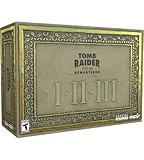
- For the first time ever, play the complete Tomb Raider I-III trilogy experience with all expansions and secret levels on modern platforms in this definitive collection.
- Physical Copy of Tomb Raider I-III Remastered for Playstation 5
- Tomb Raider I-III Remastered Collector's Edition Box
- Classic Lara Croft Pistol Replicas in Lit Shadowbox
- Polygonal Figures - In-Game Accurate Models from Each Title
Control mode can change how that expectation feels. Modern Controls give the right stick a constant camera role, while Tank Controls separate Lara’s facing from the camera and can involve holding the Look button. A setting that feels natural in Modern Controls may feel reversed during a Tank Controls look sequence.
Use a low-risk test rather than changing inversion during combat:
- Stand still and look at a clear vertical landmark, such as a doorway or wall edge.
- Move the stick a short distance in each direction instead of pushing it fully.
- Repeat while holding the Look button if you are using Tank Controls.
- Leave inversion enabled only when the camera consistently moves in the direction your muscle memory predicts.
Challenge Mode Patch 3 fixed inverse-controller settings more broadly, while Update 4 addressed the specific Tank Controls Look-button issue. If the option appears to be ignored, confirm that the game is updated, reselect the control mode, then test the setting again.
HD/Modern Graphics and Classic Graphics
What changes in HD/Modern Graphics
The modern presentation adds baked and real-time lighting, new character and enemy models, updated environments, and related texture and visual-effects work. These changes can make surfaces, rooms and enemies easier to distinguish, but they also produce a different artistic interpretation of the original scenes.
HD/Modern Graphics is the mode to use when you want the updated lighting and models, especially alongside the new brightness and pickup options. It is not simply a higher-resolution filter over the old image; the lighting and asset work alter how spaces read.
What Classic Graphics preserves
Classic Graphics restores the original-style textures and lighting presentation. Choose it when authenticity, simpler silhouettes or the visual character of the original releases matter more than the remastered assets.
Challenge Mode Patch 3 documents 60 FPS in Classic Graphics Mode on the platforms covered by that patch. The published figure is a mode-specific performance addition, not a universal frame-rate guarantee for every platform, display setting or graphics mode.
Rank #3

- THE ORIGINAL TOMB RAIDER TRILOGY REMASTERED – Experience Lara Croft's legendary adventures with Tomb Raider I–III Remastered, including all original expansions and secret levels: Unfinished Business, Golden Mask, and The Lost Artifact in one definitive PC collection.
- MODERN GRAPHICS OR ORIGINAL POLYGON MODE – Explore iconic tombs and ancient ruins with enhanced visuals while enjoying the freedom to switch to the original classic polygon graphics whenever you choose.
- DISCOVER LOST TREASURES AND ANCIENT MYSTERIES – Travel across the globe as Lara Croft, solve intricate environmental puzzles, uncover hidden secrets, and battle dangerous enemies inspired by myths and forgotten civilizations.
- PREMIUM COLLECTOR'S ITEMS INCLUDED – This Collector's Edition features the PC game, a collectible presentation box, classic Lara Croft pistol replicas displayed in a lit shadowbox, three polygonal character figures, three 12 x 16-inch posters, premium trading cards, the official soundtrack, and a collectible SteelBook case.
- CELEBRATE A GAMING ICON – Perfect for longtime Tomb Raider fans, retro gaming enthusiasts, and collectors seeking an exclusive edition packed with premium display pieces and memorabilia honoring Lara Croft's original adventures.
Switching during gameplay
The graphics toggle works during gameplay, so you can compare the two presentations in the same room without returning to a title screen. It also works in Photo Mode. Toggle while standing near a textured wall, a light source or an enemy to see the largest differences in models, shadows and surface detail.
Recommended Free Tools
Make dark areas and pickups easier to read
Brightness slider
Challenge Mode Patch 3 added a brightness slider for any level across all three games. Aspyr says the best results are intended for HD Graphics Mode. Raise the slider until you can identify floors, ledges and doorways in dark areas, then stop before bright surfaces lose their separation from the background.
Brightness is a visibility aid, not a replacement for a correctly calibrated display. If the entire image looks gray, reduce the setting and adjust your television or monitor’s black-level controls instead of pushing the in-game slider further.
Pickup highlighting
Patch 3 added pickup highlighting in HD Graphics Mode. Turn it on when small items disappear into similarly colored floors, vegetation or shadows, or when you are replaying a level and want to avoid scanning every corner. Leave it off when you prefer the original visual challenge and can identify items without an outline or highlight.
The March 12, 2024 official patch also improved visibility in dim areas by updating lighting and making pickup items more visible. It corrected disappearing textures as well. If a room still looks unusually dark or an object flickers out of view, verify that the game has the 2024 update and the later Challenge Mode patch installed before changing display settings.
Free tools Windows power users keep installed
One-click scans. No signup required.
Boss health bars and HUD preference
Update 4 made boss health bars optional. Turn them on for a first playthrough if you want clear feedback about how much damage remains and whether a strategy is working. Turn them off for a cleaner screen or a more classic-style presentation.
The choice affects information, not boss behavior. It is most useful as a preference setting: players learning attack patterns generally benefit from the bar, while experienced players who judge progress from animations and sound may prefer less interface clutter.
Rank #4

- Tomb Raider I, II & III Remastered /Switch
Use Photo Mode to compare visual settings
Photo Mode can freeze gameplay, pose Lara and switch between classic and modern graphics. That makes it a practical inspection tool rather than only a screenshot feature.
- Enter Photo Mode in a room with obvious light sources, textured surfaces or a visible character model.
- Freeze the scene and compare HD/Modern Graphics with Classic Graphics.
- Inspect shadow edges, wall textures, enemy models and the way bright and dark areas separate.
- Use the result to decide which mode is easier for you to read during active play.
A still comparison is especially useful if you are unsure whether a darker-looking room is caused by the graphics mode, display calibration or your brightness setting.
What’s actually slowing this PC down?
Pick the symptom - the matching free tool is one click away.
Recommended setups for different players
| Player goal | Controls | Graphics | Visibility and HUD |
|---|---|---|---|
| Modern third-person feel | Modern Controls; test inversion | HD/Modern | Brightness adjusted conservatively; pickup highlighting optional; boss bars on |
| Original-trilogy authenticity | Tank Controls; use the original directional model | Classic Graphics | Pickup highlighting off; boss bars off if you want a minimal HUD |
| Exploration readability | Either mode, based on movement preference | HD/Modern | Brightness raised enough to reveal geometry; pickup highlighting on |
| Performance-focused Classic mode | Either mode | Classic Graphics with the patch-supported 60 FPS option | Use the HUD and visibility aids only if they improve readability |
The table describes starting profiles, not locked presets. You can combine Tank Controls with HD graphics, or Modern Controls with Classic Graphics, because movement and presentation are separate choices.
Troubleshooting common problems
The camera moves opposite to expectation
- Check the inversion option after selecting your control mode.
- If using Tank Controls, test while holding the Look button.
- Install Update 4 and Challenge Mode Patch 3, which include the relevant inversion fixes.
Dark rooms still hide geometry
- Use the brightness slider in HD/Modern Graphics Mode.
- Confirm the March 12, 2024 lighting and pickup-visibility update is installed.
- Check your display’s black-level or HDR setting if raising in-game brightness makes the whole image look flat.
Important items are easy to miss
- Enable pickup highlighting in HD Graphics Mode.
- Inspect corners from a different camera angle before assuming an item is absent.
- If textures disappear, update the game; the March 2024 patch specifically corrected disappearing textures.
Modern movement feels imprecise
Switch temporarily to Tank Controls and repeat the same jump or traversal sequence. If the deliberate turning model gives you a more repeatable approach, keep Tank Controls for that playthrough. If camera-relative movement is the problem only in one room, changing the camera angle before moving can be enough; there is no requirement to use one scheme for every session.
Patch and platform considerations
The settings described here reflect the published 2024 feature and patch information plus Aspyr’s August 20, 2026 Challenge Mode Patch 3. Patch 3 added the all-three-games brightness slider, HD pickup highlighting, 60 FPS in Classic Graphics Mode on covered platforms and broader inverse-controller fixes. Aspyr also said Patch 4 was in progress in that note, so platform menus and option names may continue to change.
There is no authoritative universal latency figure or image-quality score for these settings. The documented performance figure is the 60 FPS Classic Graphics Mode addition, and it should be read with its platform and mode qualification rather than as a guarantee for every configuration.
Crashes, No Sound, or Screen Glitches?
Random freezes, missing sound and display glitches usually trace back to one bad driver. Find and replace yours safely.Free scan · under a minuteWindows Errors? Fix Them Before They Spread
Repair common Windows errors and clear accumulated junk for a smoother, more stable PC - no reinstall needed.Free scan · no reinstallA practical order for your first session
- Update the game before changing settings so the control, lighting and inversion fixes are present.
- Select Modern or Tank Controls based on whether you prefer camera-relative movement or the original directional model.
- Test vertical look and inversion in a safe area, including the Tank Controls Look-button behavior if applicable.
- Select HD/Modern or Classic Graphics according to whether updated assets or original presentation is your priority.
- In HD/Modern Graphics, set brightness and decide whether pickup highlighting helps you read the environment.
- Choose boss health bars based on how much combat feedback you want.
- Use Photo Mode to compare a room if you remain undecided about graphics or brightness.
This order isolates movement problems from visibility problems. If a jump feels wrong, revisit controls first; if a room is hard to read, revisit graphics and visibility settings rather than changing the movement scheme.
Quick Recap
Product prices and availability are accurate as of the date/time indicated and are subject to change. Any price and availability information displayed on Amazon at the time of purchase will apply.

