The Tool Desk
Outbyte Driver Updater FREEFix the driver behind crashes, sound loss and screen glitchesFind Drivers →Outbyte PC Repair FREERepair Windows errors before they cause bigger problemsFix Now →If Steam Frame says its wireless adapter is missing, work from detection to connection quality: update Steam Frame, Steam, and SteamVR; restart the headset and host; reconnect the adapter to a USB-3 port; pair it manually from Steam Frame settings; then test placement and USB contention. Only after the adapter appears should you troubleshoot Wi-Fi bands or interference. The adapter is a dedicated 6 GHz link between the headset and host PC, not the headset’s ordinary Wi-Fi connection.
What “not detected” means
Steam Frame streaming uses two wireless paths. The included wireless adapter connects to the host computer over USB and creates a dedicated 6 GHz link to the headset. The headset also uses the local network for ordinary connectivity. Because these paths are different, a router or Wi-Fi change cannot make a physically undetected USB adapter appear.
As an Amazon Associate I earn from qualifying purchases.
There are three distinct failure states:
- Not detected: Steam Frame does not show the adapter or offer its normal pairing prompt. Start with software, USB ports, and host compatibility.
- Detected but not paired: The adapter is visible, but the headset and host have not completed pairing. Use the manual pairing controls.
- Paired but streaming is unstable: The adapter appears and connects, but video or input quality is poor. Investigate placement, wireless bands, router conditions, and interference.
This distinction prevents a common mistake: changing from 5 GHz to 6 GHz Wi-Fi while Steam Frame cannot yet see the USB adapter. Network tuning matters only after detection.
Free tools Windows power users keep installed
One-click scans. No signup required.
Before troubleshooting: identify the affected devices
You need the Steam Frame headset, the host PC intended to run streaming, the included wireless adapter, and a way to restart both devices. Keep the headset near the host during initial pairing. Remove unnecessary USB and Bluetooth peripherals temporarily so a port or radio conflict does not obscure the result.
#1 Best Overall

- Controller compatibility: Xbox Series X Controller, Xbox Series S Controller, Xbox One Bluetooth Controller, PS5/PS4/PS3 Controller, Switch Pro, Wii Mote, Wii U Pro.
- 8BitDo Controller compatibility: all 8BitDo Bluetooth Controllers and arcade stick.
- System compatibility: Switch, Windows, macOS, Steam Deck & Raspberry Pis and more. USB Wireless Adapter 2 is compatible with Steam Deck now.
- Support 6-axis motion on Switch and Vibration on X-input mode.
- Supports ultimate software - customize button mapping, adjust stick & trigger sensitivity, vibration control and create macros with any button combination.
Confirm which computer is the host. The adapter must be plugged into that computer, not merely into a charging brick, a different desktop, or a display’s USB socket. If more than one computer is available, note which one produces a different result; that comparison is useful later.
Follow this troubleshooting sequence
1. Install all available updates
- On Steam Frame, open Steam Settings > System > Updates and install every offered update.
- On the host PC, update the Steam Client.
- Update SteamVR on the host.
- Restart the headset and host after the updates complete.
- Disconnect USB and Bluetooth accessories that are not needed for the test.
Use the same host and adapter for the first retest. An update can change the pairing prompt or wireless-adapter handling, so checking before and after a restart gives you a clean baseline.
2. Reconnect the adapter to a suitable USB port
- Unplug the wireless adapter from the host.
- Plug it directly into a USB-3 port on that host PC. Valve’s setup guidance says to prefer USB-3.
- Wait briefly for Steam and SteamVR to recognize the device.
- If no pairing prompt appears, unplug it and try another USB port.
- Restart Steam Frame after changing ports if the prompt still does not appear.
Use a direct motherboard port on a desktop when practical, rather than a monitor or unpowered accessory connection. The important diagnostic is whether detection changes when the physical port changes. A different result points toward port compatibility, contention, or host-specific behavior rather than a pairing-menu problem.
Outdated Drivers Are Slowing You Down
One free scan finds every outdated or missing driver and matches the right update for your exact hardware.Free scan · exact hardware matchPC Slower Than It Used to Be?
A free scan shows the junk files, broken settings and background clutter dragging Windows down - then fixes them in one click.Free scan · Windows 10 & 113. Pair manually from Steam Frame
Automatic prompts are convenient but are not the only pairing route. On the headset, open Steam Settings > Remote Play > Wireless Streaming Adapter. Use the manual pairing controls shown there and follow the on-screen instructions.
Rank #2

- Universal Compatibility: This steamvr dongle is designed to pair the following devices with your PC VR settings: for Valve Index Controllers, HTC Vive Tracking Device, HTC Vive Controllers, and for Tundra N7R Tracking Device. NOT COMPATIBLE WITH REVVL 4 PLUS
- Firmware Integration: These device pre-flash the watchman firmware, and their functions are similar to those for Steam controller or for HTC Vive tracking device dongles. Each of our dongles has been tested before shipment to ensure its perfect function
- Robust and Enduring: Each dongle undergoes rigorous testing prior to shipment to ensure seamless performance
- Easy to Setup: Simply plug the dongle into your computer, and the required drivers will install automatically, enabling you to pair your controllers using the SteamVR application
- Small and Portable: This USB dongle receiver is small and light, so you can easily carry it for outdoor use
If the Wireless Streaming Adapter entry is absent, return to the USB checks: verify that the adapter is on the intended host, try another USB-3 port, remove other peripherals, and restart the headset. Manual pairing cannot correct a host-side connection that Steam Frame does not detect.
4. Move the adapter into a clear position
Valve says the adapter performs best with a clear line of sight to the headset and within approximately 20 feet of the playspace. A rear-panel port can leave the adapter behind a desk, PC chassis, or monitor stand, where the radio path is obstructed even though USB detection succeeds.
- Keep the adapter in the same room and roughly within the recommended 20-foot range during setup.
- Give it an unobstructed view of the playspace where the headset will be used.
- If the host’s ports force a poor location, use a USB 3.0 extension cable to place the adapter higher or farther from the rear of the PC.
- After moving it, repeat pairing or streaming without changing several other variables at once.
An extension cable is a placement and port-isolation accessory, not a guaranteed repair and not stated to be Valve-certified. It should preserve a suitable USB connection while allowing the radio end of the adapter to leave a congested area.
Recommended Free Tools
5. Isolate USB contention
USB problems can be intermittent: the adapter may work in one port, fail when another device is attached, or behave differently on another computer. Test methodically rather than reconnecting everything at once.
Rank #3
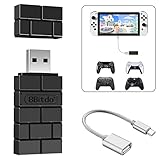
- Bluetooth Controller Adapter: Accessories for Switch 2, Switch/Switch OLED - Compatible with PS5 Controller, PS4 Controller, PS3 Controller, Xbox Series X/S, Xbox One, Wii Mote, Wii U Pro wirelessly on Switch / Switch OLED. Please upgrade the firmware to the latest version. Note: Supports Xbox One Controller / Xbox Elite Wireless Controller Series 2 with Bluetooth only.
- Wide System Support: Compatible with 8Bitdo Controllers, Switch Pro, Switch controller for Joycons, PS5, PS4, PS3, Wii Mote, Wii U Pro, Xbox Series X/S, Xbox One Bluetooth controller on Switch, Switch 2, Windows, Steam Deck, Raspberry Pi, Android TV Box and Retrofreak, for versatile gaming across multiple platforms.
- Less Lag Performance: Wireless Bluetooth connection provides reduced lag for responsive gameplay. It's one controller per 8Bitdo USB adapter. Vibration is supported on Switch and X-input mode. An OTG cable enables you to use the adapter to connect your Switch and enjoy the handheld mode directly.
- Plug and Play Functionality: Simply connect the controller adapter with your Wireless Controller to enable the same wireless experience you are used to on all the best platforms.
- Complete Package: Package includes an OTG cable, so you can use the converter to connect your Switch Console via an OTG cable and then enjoy the Undocked Mode directly.
- Disconnect all nonessential USB devices from the host.
- Leave only the keyboard, mouse, and the wireless adapter needed for the test.
- Try the adapter in each available USB-3 port, recording which ports detect it.
- Move high-throughput devices away from the adapter’s port and retest.
- If another suitable port is unavailable, try a USB hub as a diagnostic alternative.
- When possible, plug the adapter into a second computer and check whether it is detected there.
A powered USB 3.0 hub can be useful when port availability or power distribution is the suspected constraint, but it is not presented as a guaranteed fix. If the adapter works on another computer, concentrate on the original host’s ports, peripherals, or software. If it fails everywhere after the update, restart, and alternate-port checks, proceed to support rather than repeatedly changing network settings.
Do not troubleshoot Wi-Fi until the adapter is visible
Once Steam Frame lists the adapter and pairing succeeds, streaming quality can still vary. At this stage, test the local network rather than treating a quality problem as a detection problem.
Compare available wireless bands
- Test 6 GHz, 5 GHz, and 2.4 GHz Wi-Fi options available on your network.
- Keep the headset and host in the same location while changing one band at a time.
- Record whether the symptom is delayed video, dropouts, or failure to maintain a stream; do not classify those as “adapter not detected” if the adapter remains listed.
The adapter’s dedicated 6 GHz link does not make every local-network condition irrelevant. Router configuration, congestion, and the path used by the host and headset can still affect streaming after USB detection.
Reduce local interference
- Move the setup away from competing wireless equipment where practical.
- Inspect nearby routers, access points, and other transmitters for congestion.
- Reduce or remove powerline-network equipment temporarily if it coincides with instability.
- Retest with the adapter’s line of sight and distance still within Valve’s recommended conditions.
These changes address connection quality. They do not explain why the Wireless Streaming Adapter menu is missing before pairing.
Rank #4

- Manufactured by CIPON: This Wireless Adapter manufactured by a third-party company , not by Microsoft; Our Adapter chip and program is the same as official, and quality as good as official
- Widely Compatibility: For use with X One Wireless Controller on PCs and Tablets running Windows 7/8/8.1/10 with USB 2.0/3.0; Not compatible with Xbox 360 controllers; (Note: You may need to download a driver for the first use)
- Play with Others: Supports up to 8 wireless controllers; Also supports the use of wired chat headsets on the controllerr (Note: The headsets only supported under WIN10 system, and not supports wireless connection headsets)
- Designed for PC: Play your Wireless Controller on Windows/ laptops/ tablets; Simply bind the Adapter to your Wireless Controller to enable the same gaming experience you are used to on Xb One, including in-game chat and high quality stereo audio
- What You Will Get: 1 x Wireless adapter, 1 x User manual, 1 x Elegant packaging
Check host-platform support
Valve currently states that full SteamVR and Steam Frame wireless-adapter streaming support is available on Windows. Linux support has explicit prerequisites: Valve says a Linux PC requires SteamOS 3.9 or later, or Linux kernel 7.2 or later, once Steam Frame ships.
Apply that requirement to the host computer running Steam and SteamVR, not just to the headset’s operating system. A Steam Frame headset running SteamOS does not by itself make an unsupported Linux host compatible. If the host is Linux, verify its SteamOS or kernel version before spending time on router changes.
| Host situation | What the published requirement establishes | Best next action |
|---|---|---|
| Windows host | Full SteamVR and Steam Frame wireless-adapter streaming support is currently stated for Windows. | Perform the update, USB, pairing, and placement sequence. |
| Linux host with SteamOS 3.9+ | Meets the SteamOS version threshold Valve specifies for Linux support once Steam Frame ships. | Confirm the actual host version, then repeat USB detection and pairing checks. |
| Linux host with kernel 7.2+ | Meets the kernel threshold Valve specifies for Linux support once Steam Frame ships. | Confirm the running kernel, then test the adapter on a direct USB-3 port. |
| Linux host below both thresholds | Does not meet the stated Linux prerequisites. | Update the host to a supported SteamOS or kernel level before diagnosing hardware. |
Valve’s Linux wording is conditional on Steam Frame shipping, so availability and behavior can depend on the release state of the software you are using. If your host meets neither threshold, a missing adapter entry may be a compatibility issue rather than a defective dongle.
Use symptoms to choose the next test
| Observed symptom | Highest-value test | What the result tells you |
|---|---|---|
| No adapter entry and no pairing prompt | Update, restart, reconnect directly to another USB-3 port, and remove other peripherals. | Separates software initialization and USB detection from later pairing issues. |
| Prompt appears only after changing ports | Repeat the test with nonessential devices disconnected. | Suggests a port, contention, or host-layout issue. |
| Adapter is listed but automatic pairing does not complete | Use Steam Settings > Remote Play > Wireless Streaming Adapter on the headset. | Tests the pairing path without waiting for an automatic prompt. |
| Pairing works near the PC but streaming degrades in the playspace | Move the adapter to clear line of sight and within approximately 20 feet. | Tests radio placement and distance, not USB detection. |
| Adapter is detected and paired, but video drops or lags | Compare 6 GHz, 5 GHz, and 2.4 GHz conditions and inspect interference. | Targets network quality after the adapter is already visible. |
| Works on one computer but not another | Compare host updates, platform requirements, ports, and attached peripherals. | Focuses the diagnosis on the failing host rather than the adapter alone. |
A controlled retest that avoids false conclusions
When several changes have accumulated, return to a minimal configuration so each result is meaningful.
Best Value

- Type C Wireless Charging Receiver - Designed for phones without a built-in wireless charging function. Simply install it to enable wireless charging on your device, effectively upgrading your phone with this convenient feature. Note: Trickle current charging for daily use (unable to perform fast charging)
- Easy to Use - Plug the receiver into your phone’s USB-C port, stick it onto the back of your phone, and put your phone case back on. Note: For best results, use a case with a thickness of less than 3mm or stick it directly to the back of the phone case
- Wide Compatibility - Works seamlessly with most USB-C phones, including Google Pixel 3a XL, Samsung Galaxy A13/A14/A15/A42, Moto G Series, and other Android Type C devices. For optimal performance, it’s recommended to use with a QC 3.0 or PD adapter
- Stable and Durable - Made with high-absorption materials that offer excellent heat, moisture, and corrosion resistance. The bright, gold-plated plug is scratch-resistant and durable for long-term use
- Low Heat Emission - The TI smart chip reduces heat during charging, ensuring safe and stable power delivery. With a slim 0.16cm thickness, it maximizes space on your device in a compact and portable design
- Shut down or restart the host and Steam Frame.
- Install pending Steam Frame, Steam Client, and SteamVR updates.
- Disconnect unnecessary USB and Bluetooth devices.
- Connect the adapter directly to a known USB-3 port on the intended host.
- Keep the adapter within roughly 20 feet with a clear line of sight.
- Check for the automatic prompt; if it is absent, open the manual pairing controls.
- After successful pairing, test streaming before restoring other peripherals.
- Reconnect devices one at a time if you need to identify a conflict.
This order matters because it establishes detection before radio conditions and reintroduces possible sources of contention individually.
When to stop troubleshooting and contact Steam Support
Escalate to Steam Support after you have updated both sides, restarted, tried alternate USB-3 ports, removed competing peripherals, attempted manual pairing, checked placement, and verified host-platform requirements. Include the host operating system and version, Steam and SteamVR update status, the ports tested, whether another computer detects the adapter, and whether the adapter is visible but merely unstable. That information lets support distinguish a detection failure from a pairing or streaming-quality failure.
Valve’s published guidance does not provide a definitive electrical-failure test or a user replacement procedure for an adapter that remains undetected. Avoid opening the adapter or assuming that a network reset can repair a USB-level failure. If the device is absent on multiple suitable ports and computers after the documented checks, support is the appropriate next step.
Quick wins for a faster PC:
Repair Windows errors before they cause bigger problemsFix Now →Scan for outdated or missing drivers - takes under a minuteDriver Scan →Clear out junk files and repair common Windows errorsFree Scan →Practical prevention for future setups
- Keep the host’s Steam Client and SteamVR current before starting a streaming session.
- Reserve a USB-3 port for the adapter during troubleshooting and initial pairing.
- Keep the adapter where it can see the playspace, rather than buried behind the PC.
- Remember the approximately 20-foot placement recommendation when rearranging furniture or the host.
- Label the adapter’s host computer if several PCs are nearby.
- When adding a new USB device, retest detection if the adapter begins disappearing.
- Treat Wi-Fi-band and interference changes as streaming-quality checks after detection, not as substitutes for USB diagnosis.
Bottom line
A Steam Frame adapter that is not detected on a SteamOS-based setup is usually approached as a software, host-compatibility, USB-port, or pairing-path problem before it is a network problem. Complete the updates and restarts, connect directly to an alternate USB-3 port, pair manually through Steam Settings > Remote Play > Wireless Streaming Adapter, and isolate other USB devices. Then correct line of sight and distance, and only afterward test Wi-Fi bands or interference. If the adapter remains invisible across suitable ports or computers, Valve’s documented path is Steam Support; no official electrical test or replacement procedure is published.
Quick Recap
Product prices and availability are accurate as of the date/time indicated and are subject to change. Any price and availability information displayed on Amazon at the time of purchase will apply.

