Do these 3 things before closing this tab:
1Clear out junk files and repair common Windows errors2Scan for outdated or missing drivers - takes under a minute3Repair Windows errors before they cause bigger problemsTo pair a Fitbit Sense with your phone, charge the watch on its charging cable, install the Google Health app on your iPhone or Android phone, sign in with a Google Account, and finish setup through the app’s on-screen flow. Pairing happens inside the app, not in your phone’s Bluetooth settings. Once the two devices are paired, they can communicate and sync data. If setup or reconnection fails, Google’s published troubleshooting steps start with resetting Bluetooth and restarting both devices, and the sections below walk through them in order.
Before you start
- A Fitbit Sense with its charging cable. Google says to connect the watch to its charging cable before starting setup.
- A phone that meets Google’s current minimums: iOS 16.4 or higher, or Android 11 or higher, according to Google’s Fitbit setup requirements page. These minimums can change, so check the requirements page before you begin.
- A Google Account. Google’s setup requirements state that new users need one.
- Bluetooth enabled on the phone.
If the cable that came with your Sense is missing, look for a charging cable that is compatible with the Fitbit Sense specifically. Confirm the compatibility listing before buying, because cables for other Fitbit models are not interchangeable.
As an Amazon Associate I earn from qualifying purchases.
Pairing your Sense with your phone
- Charge the Sense. Connect the watch to its charging cable and leave it connected until setup begins.
- Install Google Health. Download the Google Health app from the Apple App Store or Google Play Store.
- Sign in. Open the app and choose Sign in with Google. Select an existing Google Account, or create one if you do not have one.
- Follow the prompts to pair. Complete the on-screen instructions in the app to pair the Sense with your phone. Google’s Fitbit Sense getting-started page describes this step as follows: “Follow the on-screen instructions to create an account and pair your Fitbit device with your phone. This allows your devices to communicate and sync data.”
- Keep Bluetooth on. Leave Bluetooth enabled during setup. Do not treat the phone’s Bluetooth settings screen as the setup route; Google says Fitbit devices should be set up through the app.
When setup finishes, the Sense should appear in the app as a connected device. If it does not, use the troubleshooting sections below rather than repeating the steps in a different order.
If setup fails
Google’s troubleshooting guidance for the Google Health Help Center lists these steps in order. Work through them one at a time and retry setup in the Google Health app after each one, so you can tell which step resolved the problem.
#1 Best Overall

- 1.59in l x 1.59in w x 0.49in h. ECG, stress sensing and a skin temperature sensor. Get notifications for calls, texts, calendar events and apps like Gmail and Facebook plus send quick replies and voice replies right from your wrist.
- Compatibility: Apple iOS 12.2 or higher, Android OS 7.0 or higher, Syncing range: Up to 30ft, Music control via Bluetooth Classic on Android and Bluetooth LE on iOS devices.
- Built-in GPS + GLONASS, Speaker, Microphone, Multi-path optical heart rate sensor, IR sensors for oxygen saturation (SpO2) monitoring
- Water-resistant to 50 meters. Battery life up to 6+ days. Heart rate tracking technology. Saves 7 days of detailed motion data minute by minute.
- International Model - No warranty in the US. In Box: Fitbit Versa 3, Classic wristband (both small & large), Charging cable
- Reset phone Bluetooth. Turn Bluetooth off on the phone, wait 10 seconds, then turn it back on.
- Retry setup, then restart the Sense. Retry setup in the app. If it still fails, restart the Sense and try again.
- Restart the phone. Restart the phone and retry setup.
- Remove other Fitbit devices from the Google Account. Do this only if the account and device setup rules call for it. Google’s guidance does not require it in every case.
- Forget the Sense in phone Bluetooth settings. Open the phone’s Bluetooth list, forget the Sense connection, then retry pairing from inside the Google Health app.
- Reinstall Google Health. If the problem continues, uninstall and reinstall the app. Before you uninstall, confirm that your phone still meets the app’s supported operating-system requirements, or the reinstalled app may not run.
Extra checks on Android
Google’s guidance adds several Android-specific checks. Confirm that:
- The phone is on Google’s supported list and its software is up to date.
- Power Saving Mode is off, because it can restrict background Bluetooth activity.
- Location services are turned on.
- Google Health has permission to access location.
If it paired but will not reconnect or sync
A Sense that was paired successfully but has stopped connecting or syncing usually needs a reset rather than a new setup. Google’s guidance for this situation is as follows:
Rank #2
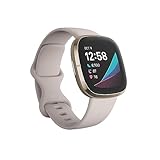
- Assess your heart for atrial fibrillation -a heart rhythm irregularity- and easily share results with your doctor (The Fitbit ECG app is only available in select countries. Not intended for use by people under 22 years old.Operating temperature: 14° to 113°F
- An on-wrist skin temperature sensor tracks yours each night so you can see how it varies. You can also see your nightly blood oxygen levels at a glance with our collection of clock faces.Radio transceiver: Bluetooth 5.0.Operating temperature: -10° to 45° C
- High & low heart rate notifications alert you if yours seems above or below your average.Battery lasts 6 plus days plus, fast charging gives you a full day's charge in just 12 minutes (Varies with use and other factors; up to 12 hours with continuous GPS).Use built-in GPS during runs, hikes, rides and more to see pace & distance without your phone and use the built-in mic and speaker to take Bluetooth calls hands-free when your phone is nearby (Requires more frequent charging).
- Force-quit the Google Health app, then reopen it.
- Turn phone Bluetooth off for at least 10 seconds, then turn it back on.
- Restart the Sense and the phone.
- Keep the Sense close to the phone during the reconnection attempt.
- If other nearby devices may be interfering or competing for connections, temporarily turn off Bluetooth on those devices.
- If the problem continues, remove the Sense from your account in the Google Health app, forget it in the phone’s Bluetooth list, and then run setup again from the app.
Removing and re-pairing the device erases nothing on the phone itself, but it does break the existing link, so expect the Sense to sync again only after setup completes.
Recommended Free Tools
Requirements to recheck before troubleshooting
Google published the iOS 16.4 and Android 11 minimums and the Google Account requirement on its Fitbit setup requirements page. An older Fitbit account could be used for sign-in only until February 2, 2026. That date has passed, so new sign-ins should go through the current Google sign-in prompts in the app. If the app asks you to sign in with a Google Account and you do not have one, create one at that point rather than looking for the legacy Fitbit login option.
Rank #3

- Optimize your workouts with a Daily Readiness Score that reveals if you’re ready to exercise or should focus on recover (requires Fitbit Premium membership. Premium content recommendations are not available in all locales and may be in English only)
- EDA Scan app detects electrodermal activity which may indicate your body's response to stress and a built-in skin temperature sensor logs yours each night so you can see when it varies
- With a compatible ECG app right on your wrist, assess your heart for atrial fibrillation--a heart rhythm irregularity--and share the results with your doctor (Only available in select countries. Not intended for use by people under 22 years old)
- An on-wrist skin temperature sensor tracks yours each night so you can see how it varies
- Includes a 6-month Premium membership complete with personalized insights, advanced analytics, guided programs and more (New & returning Premium users only. Must activate trial within 60-days of device activation. Content and features may change)
If setup keeps failing after every step above, check whether your phone’s operating system is still within the supported range before reinstalling the app, since a phone below the published minimum is a common reason the app cannot complete setup.
Quick Recap
Product prices and availability are accurate as of the date/time indicated and are subject to change. Any price and availability information displayed on Amazon at the time of purchase will apply.

